
The Synergy StockTake app can take item photos and add new items to the Order App menu. This guide shows how to let a StockTake phone connect, and how to approve or refuse it.
Before you start
- The Synergy StockTake app is installed on the phone that will connect.
- If the StockTake phone is a different phone, both phones need the same shop Wi-Fi.
Steps
1. What it is for
The StockTake app lets a phone take item photos and add new items to this menu. Each StockTake phone is approved once on the Order App.
2. Open the StockTake app section
On the Order App open Settings and the group Menu, and find StockTake app. Choose how a StockTake phone may connect.
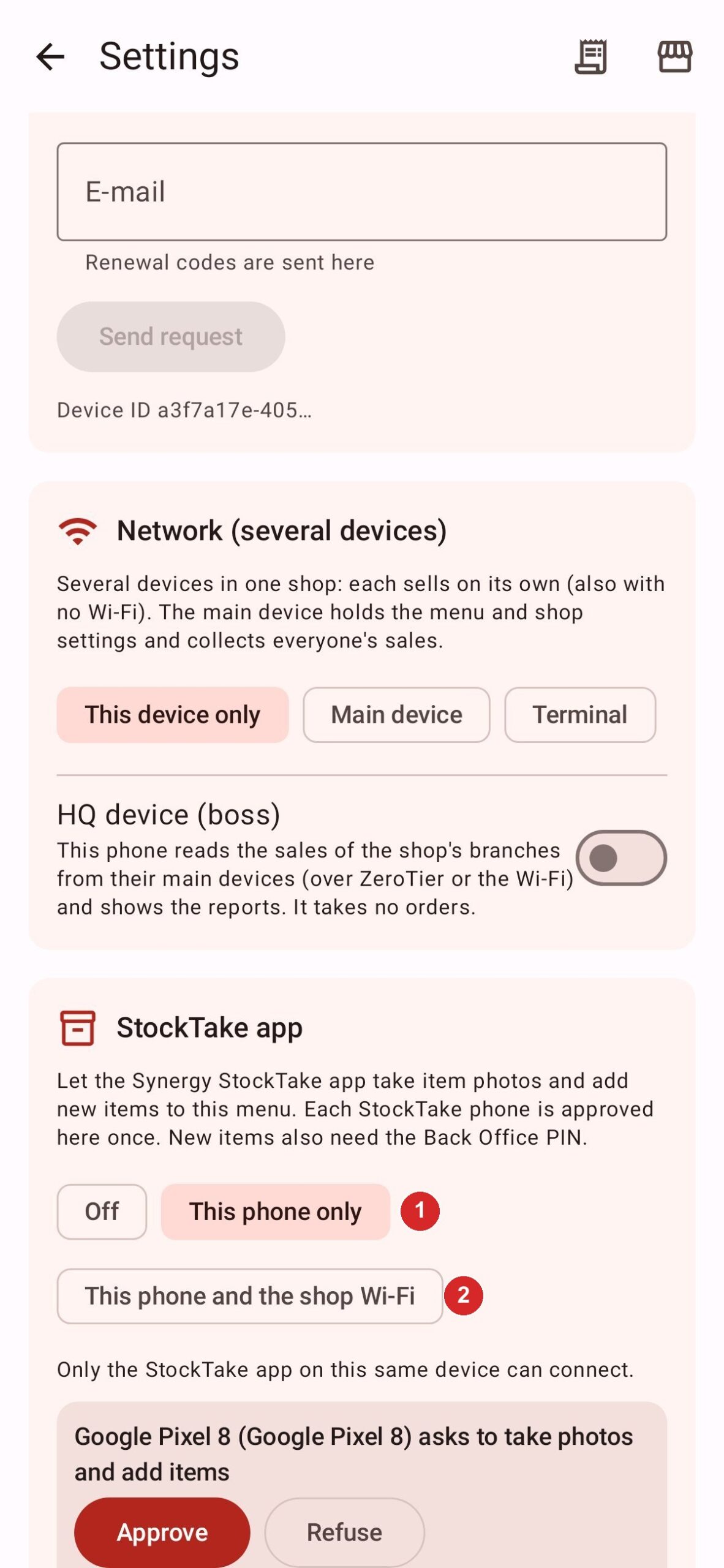
| Step | What to do |
|---|---|
| 1 | This phone only: only the StockTake app on this same device can connect. |
| 2 | This phone and the shop Wi-Fi: StockTake phones on the same Wi-Fi find this device. |
3. Connect from the StockTake phone
In the StockTake app go to Settings > Synergy Order App > Find to connect.
4. Approve or refuse
When a StockTake phone asks to connect, a message says that it asks to take photos and add items. Tap Approve to allow it, or Refuse to turn it down.
5. New items need the Back Office PIN
Adding new items from the StockTake app also needs the Back Office PIN.
6. Remove a phone or stop the link
Tap Remove to take a StockTake phone off the list. Choose Off to stop the connection.
Tips
- Each StockTake phone is approved only once.
- Use This phone only when the StockTake app is on the same device. Use This phone and the shop Wi-Fi when other phones should connect.
Common problems
The StockTake phone does not find the Order App.
Choose This phone and the shop Wi-Fi on the Order App, and put both phones on the same Wi-Fi. Then tap Find in the StockTake app.
Nothing asks me to approve.
The StockTake phone must first tap Find. Then a message with Approve and Refuse appears on the Order App.
A new item is not added.
Adding new items needs the Back Office PIN.