
Set the service charge for dine-in bills, cash rounding, and which items or tables do not get the service charge. Tax is set on each item.
Before you start
- Use this on a device that keeps its own menu: a single device or the main device of a shop.
- Keep the Back Office PIN ready.
Steps
1. Open Back Office
Tap the Back Office icon (the storefront) and enter the Back Office PIN. Tax and service charge is in the Sales and payments group.
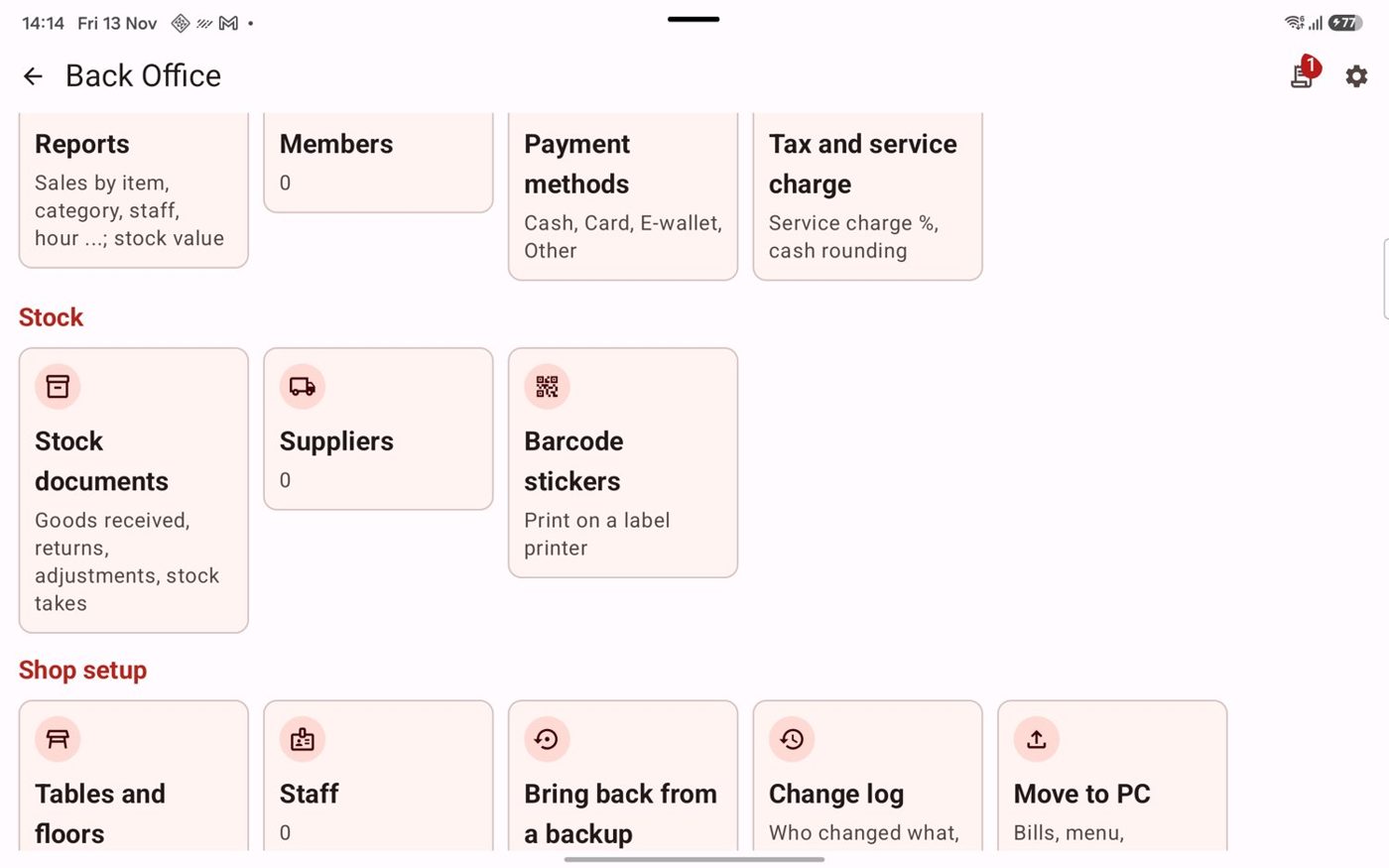
2. Open Tax and service charge
Tap Tax and service charge. The note at the top says that Tax % is set on each item, and that here you set the service charge for new dine-in bills and cash rounding.
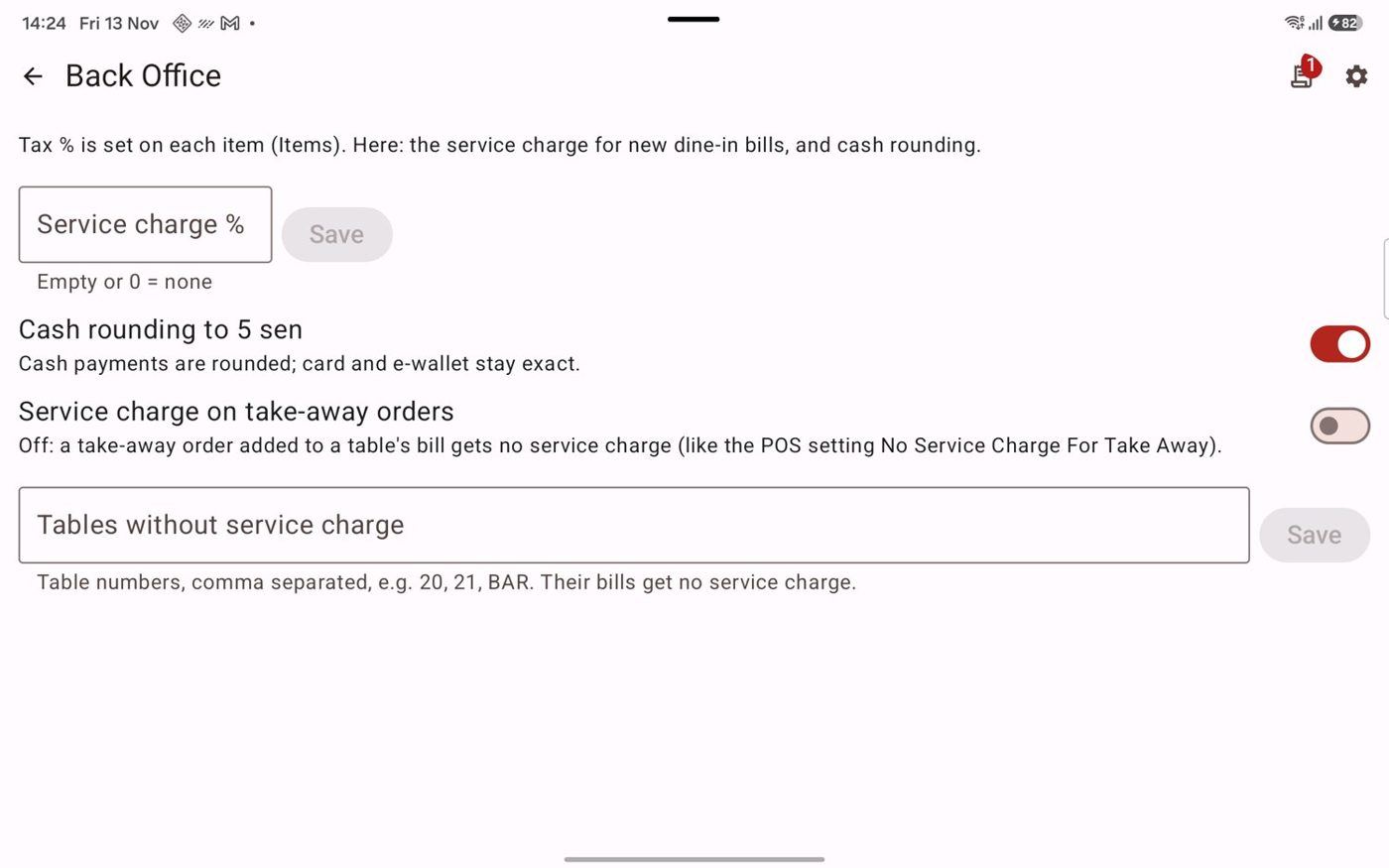
3. Type the service charge
Empty or 0 means no service charge.
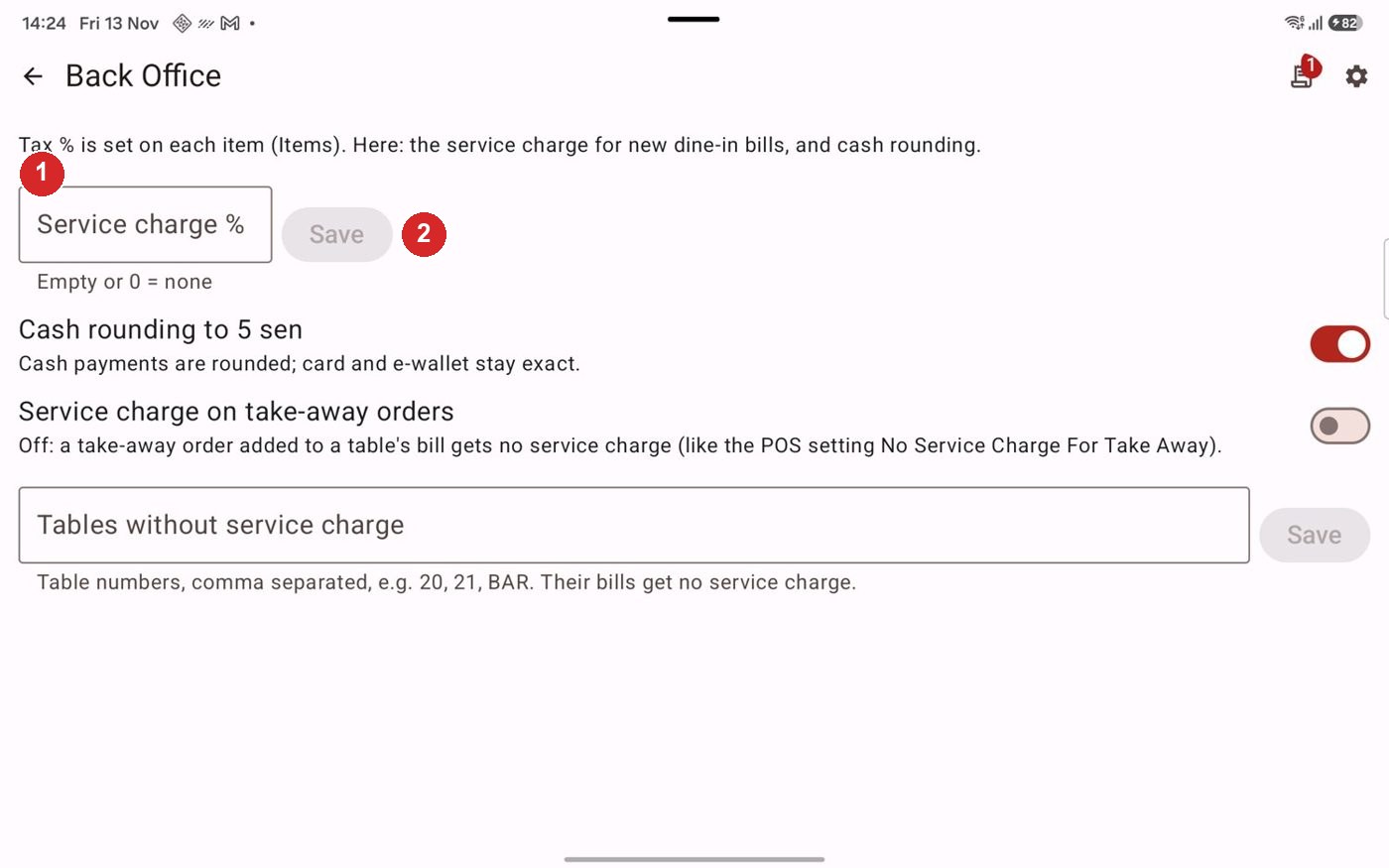
| Step | What to do |
|---|---|
| 1 | Type the service charge percent in Service charge %, here 10 |
| 2 | Tap Save |
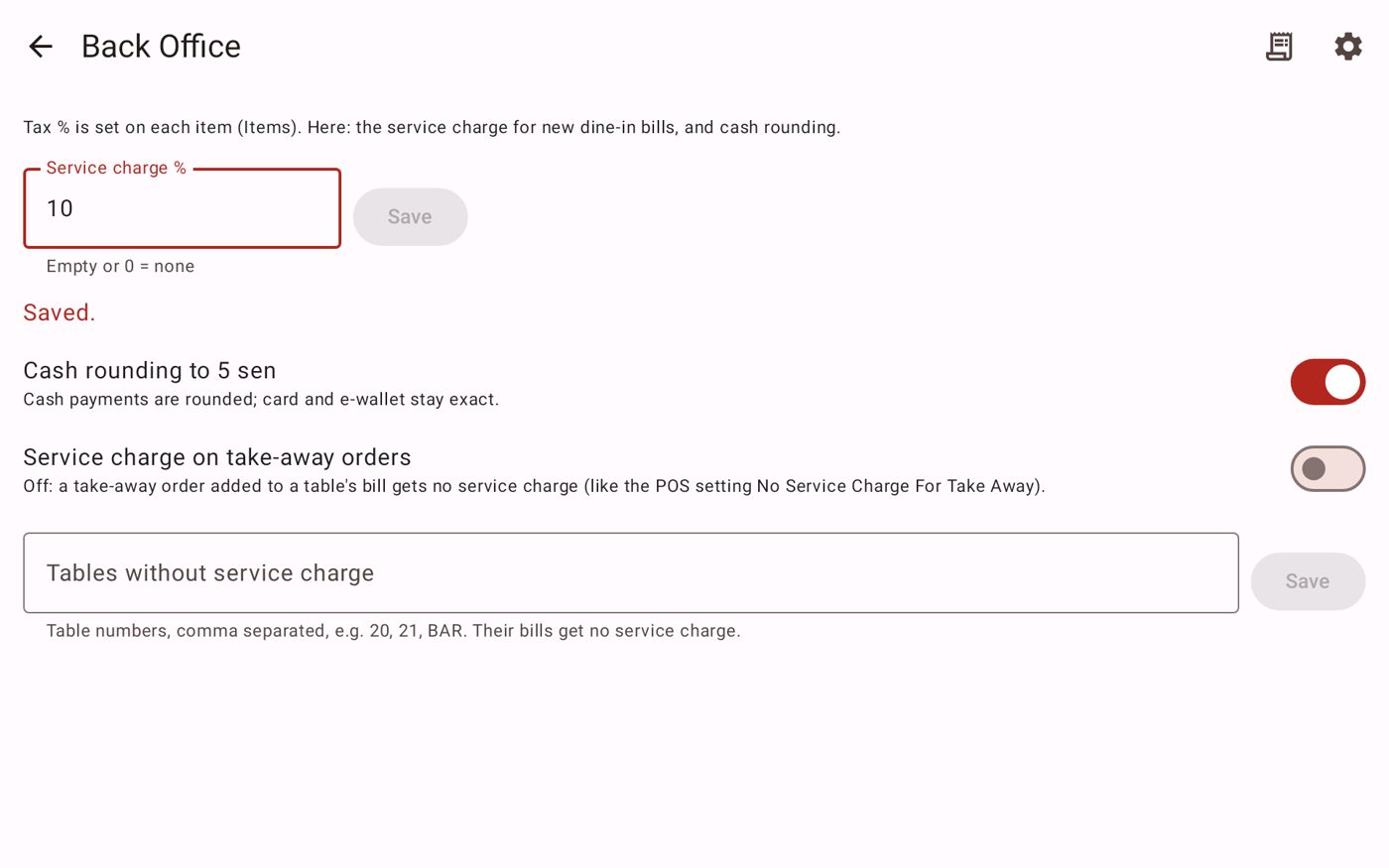
4. Check that it is saved
A message says Saved.
5. Choose the other settings
Below are three more settings. Cash rounding to 5 sen rounds cash payments; payments by e-wallet and other non-cash types stay exact. Service charge on take-away orders: when it is off, a take-away order added to a table’s bill gets no service charge. Tables without service charge takes table numbers separated by commas, for example 20, 21, BAR. Tap Save next to it after typing.
6. Set the tax on an item
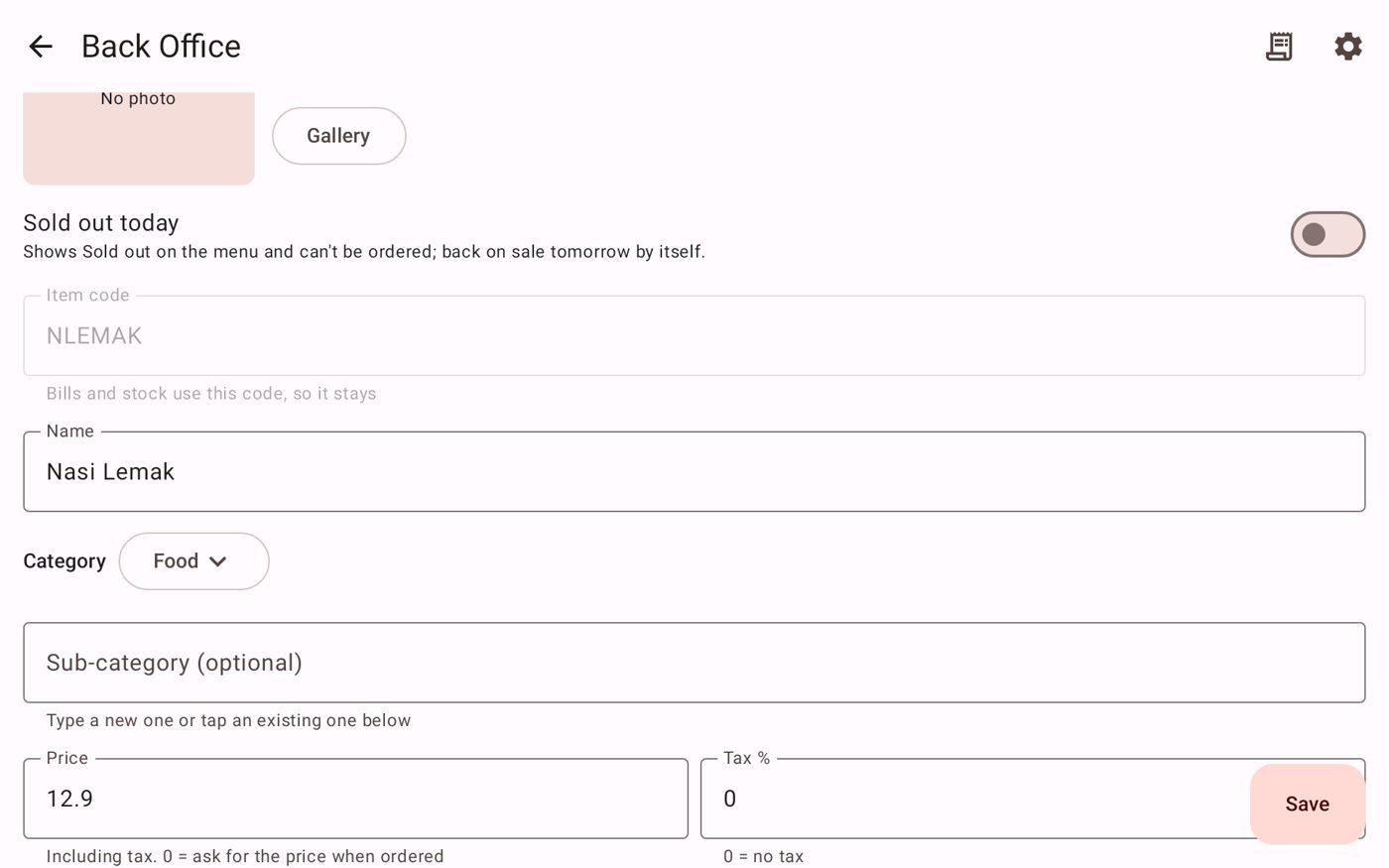
In Items, open an item. Price includes tax. Tax % is next to it: 0 means no tax.
7. Switch off the service charge for one item
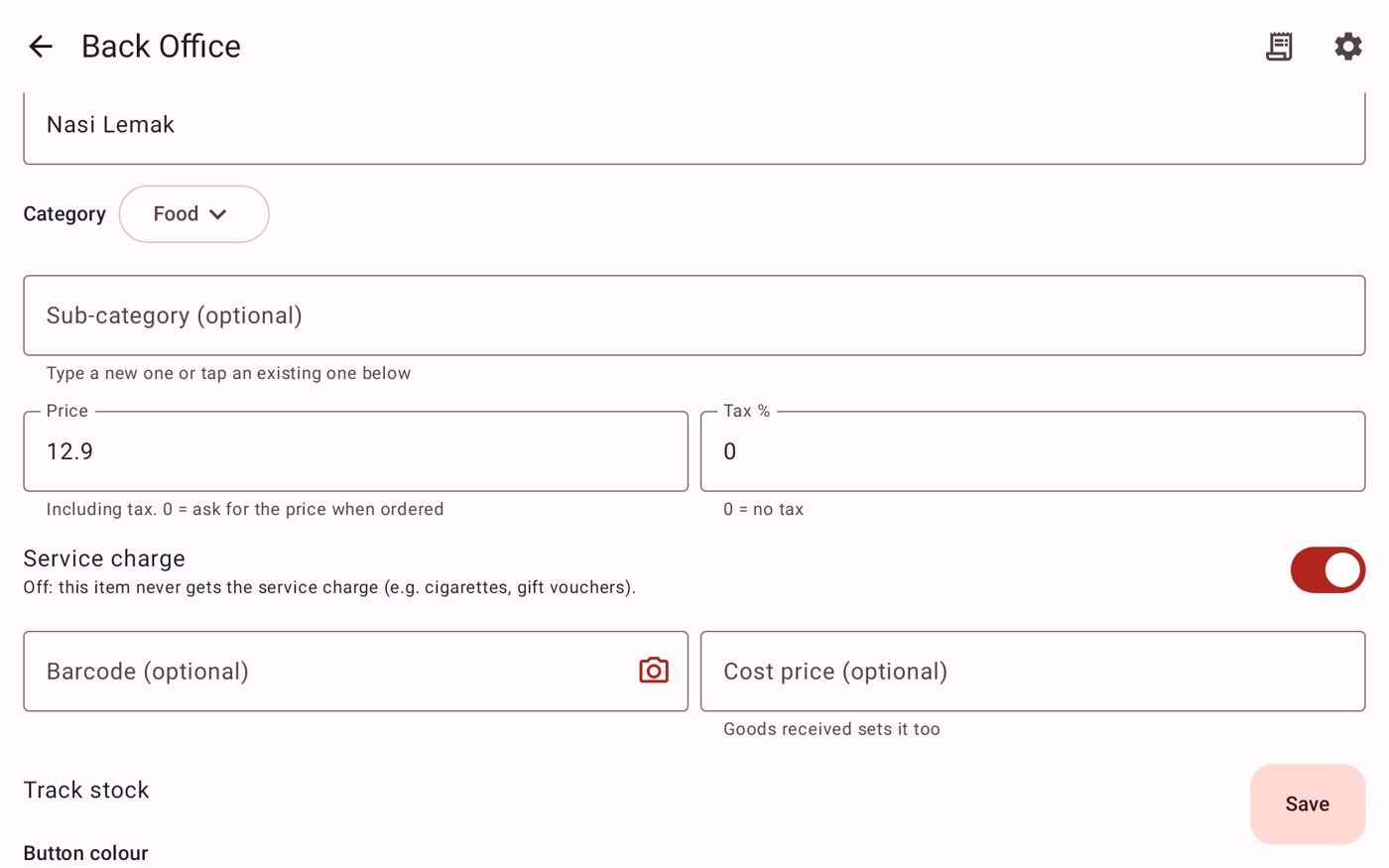
Scroll down on the item page to the Service charge switch. When it is off, this item never gets the service charge, for example cigarettes or gift vouchers.
Tips
- The service charge is added to new dine-in bills.
- Prices on the menu include tax.
Common problems
The Save button is grey.
It turns on after you change the value.