
See which version of the Order App is installed, check for a new version and see the update channel of this device.
Before you start
- The device needs an internet connection to check for updates.
Steps
1. Open Settings
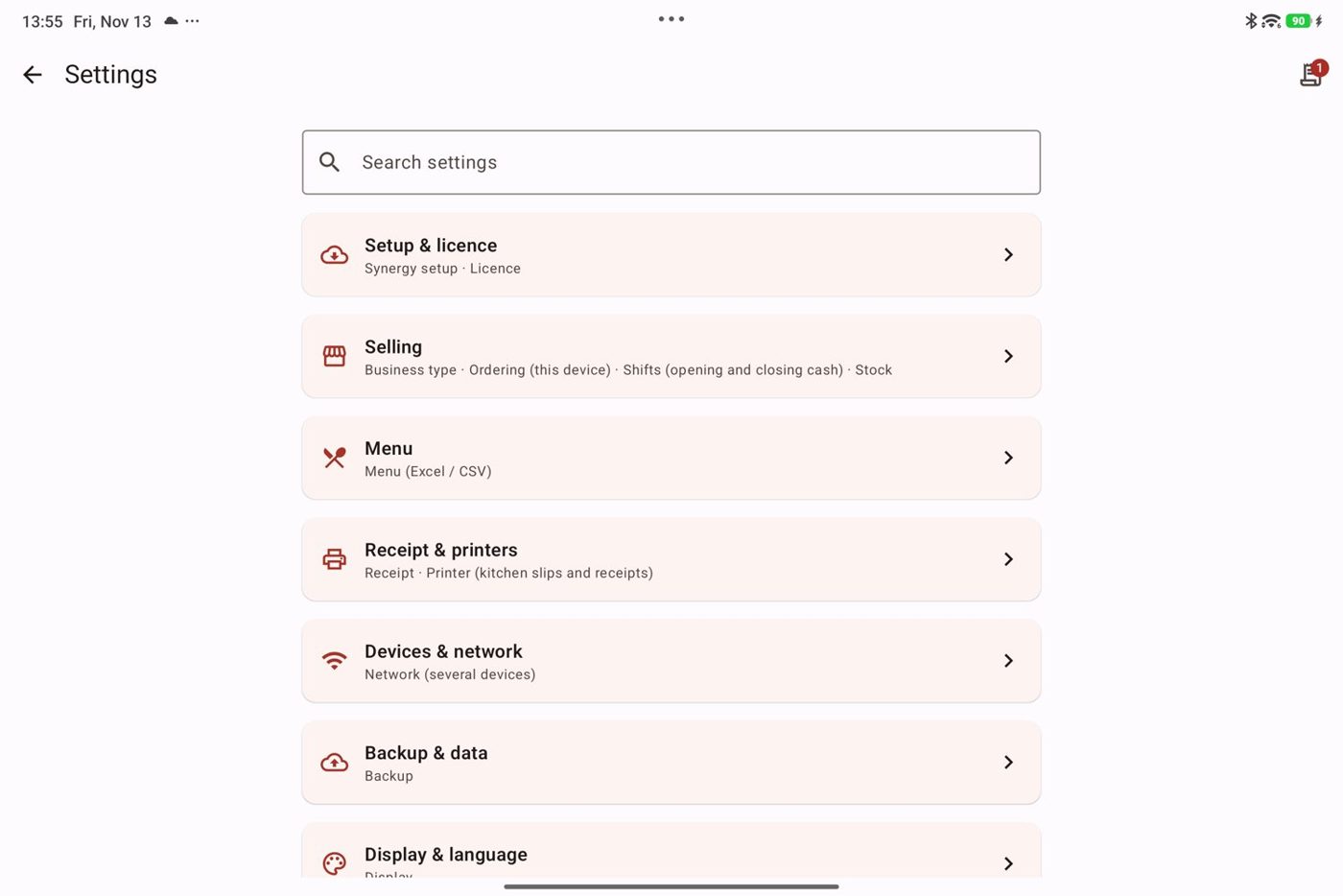
On the order screen, tap the gear icon. Settings opens on a list of groups.
2. Find App updates
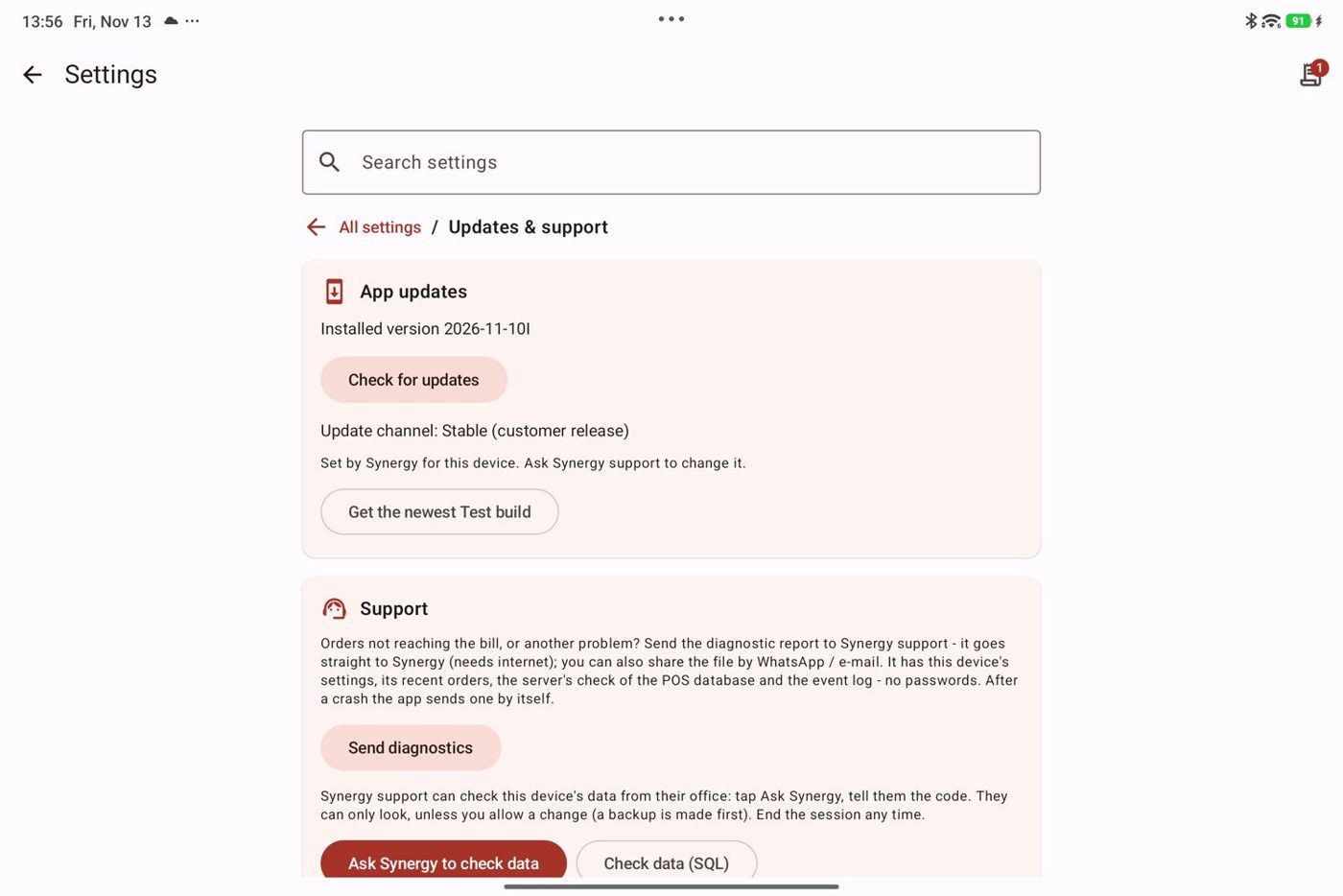
Open the group Updates & support and find App updates. It shows the installed version and the button Check for updates. Under it, Update channel says Stable (customer release) or Test (newest builds). A note says it is set by Synergy for this device.
3. Check for updates
Tap Check for updates. If there is a new version, its number is shown with an Update button. Tap Update to download and install it.
4. Ask Synergy to change the channel
The channel cannot be changed on the device. To change it, call Synergy support and have the device’s Device ID ready (shown in Settings).
Tips
- Stable is the customer release. Test gets the newest builds first.
- A backup is saved before an update.
Common problems
It says it could not reach the update site.
Check the internet connection and try Check for updates again.
Android asks to allow installing unknown apps.
Allow it for this app, then tap Update again.
The download failed or was damaged.
Tap Update to try again.