
Print receipts and kitchen slips on a receipt printer connected with a USB cable. This guide shows how to choose the USB printer in Settings.
Before you start
- The receipt printer, its USB cable and power. A phone needs a USB OTG adapter for the cable.
- Switch the printer on.
Steps
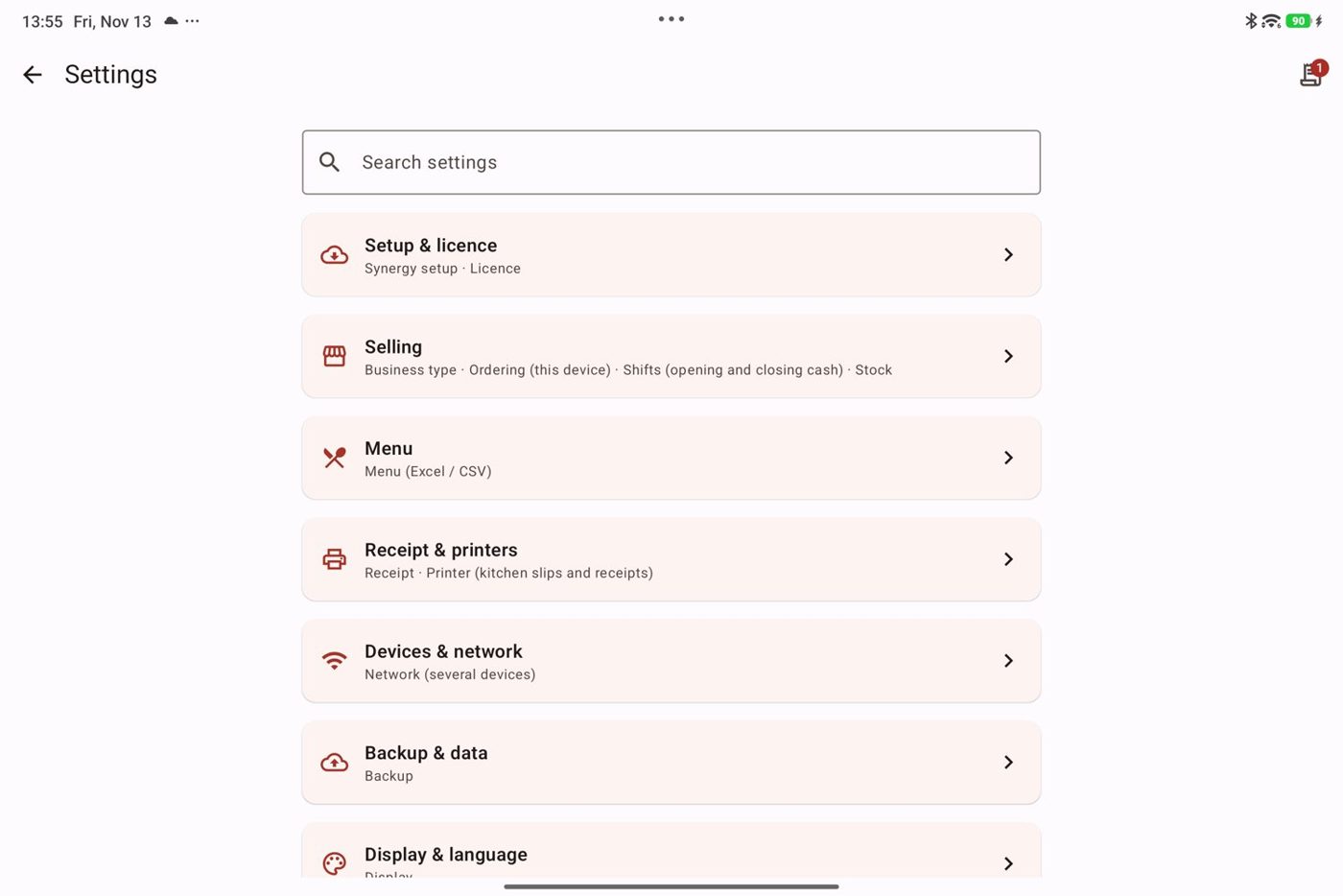
1. Open Settings
On the order screen, tap the gear icon.
2. Find Printer
Open the group Receipt & printers and find Printer (kitchen slips and receipts). The choices are None, Bluetooth, Network (Wi-Fi/LAN) and USB.
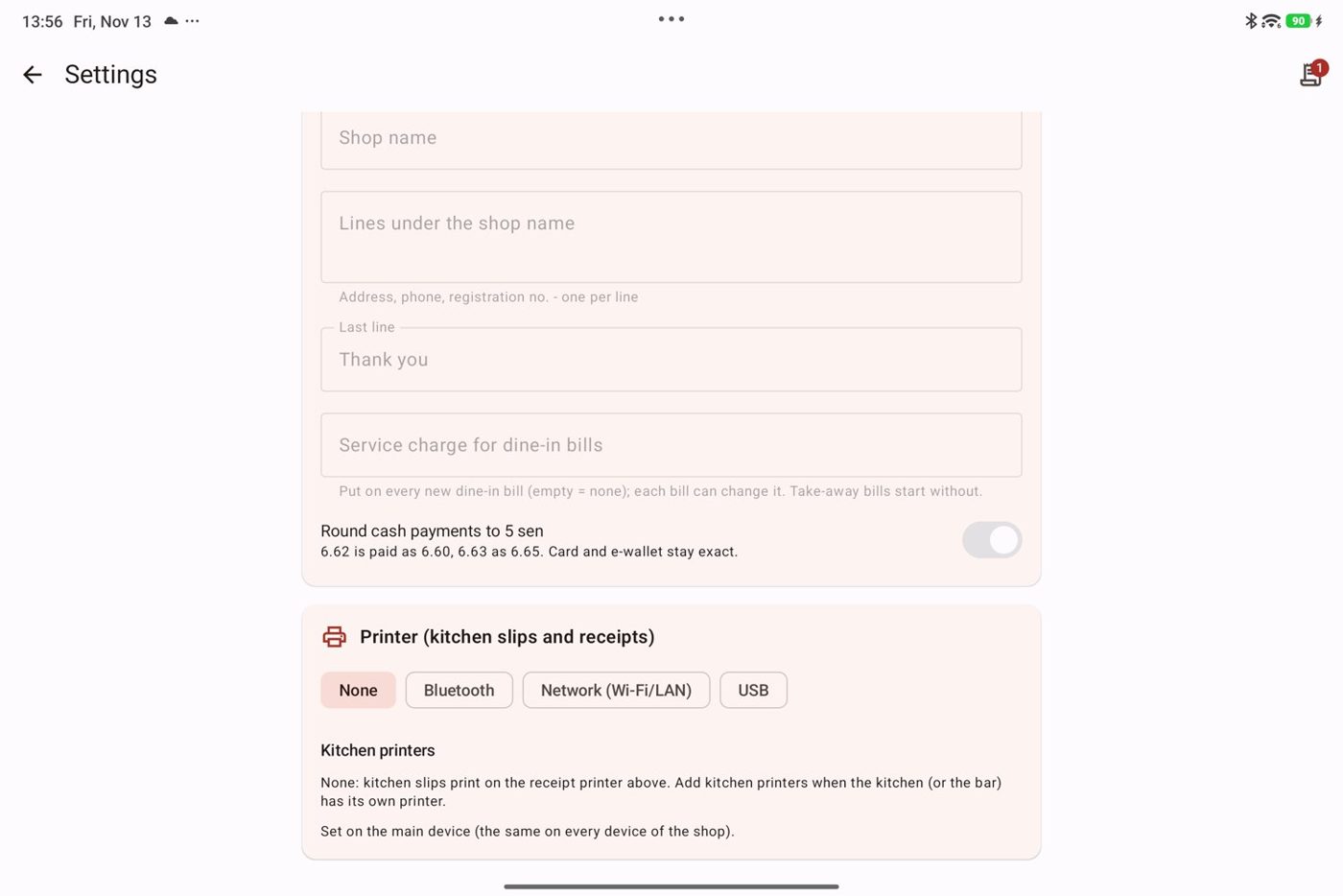
3. Choose USB
Tap USB. A note explains how to connect the printer. While no printer is connected it says No USB printer found.
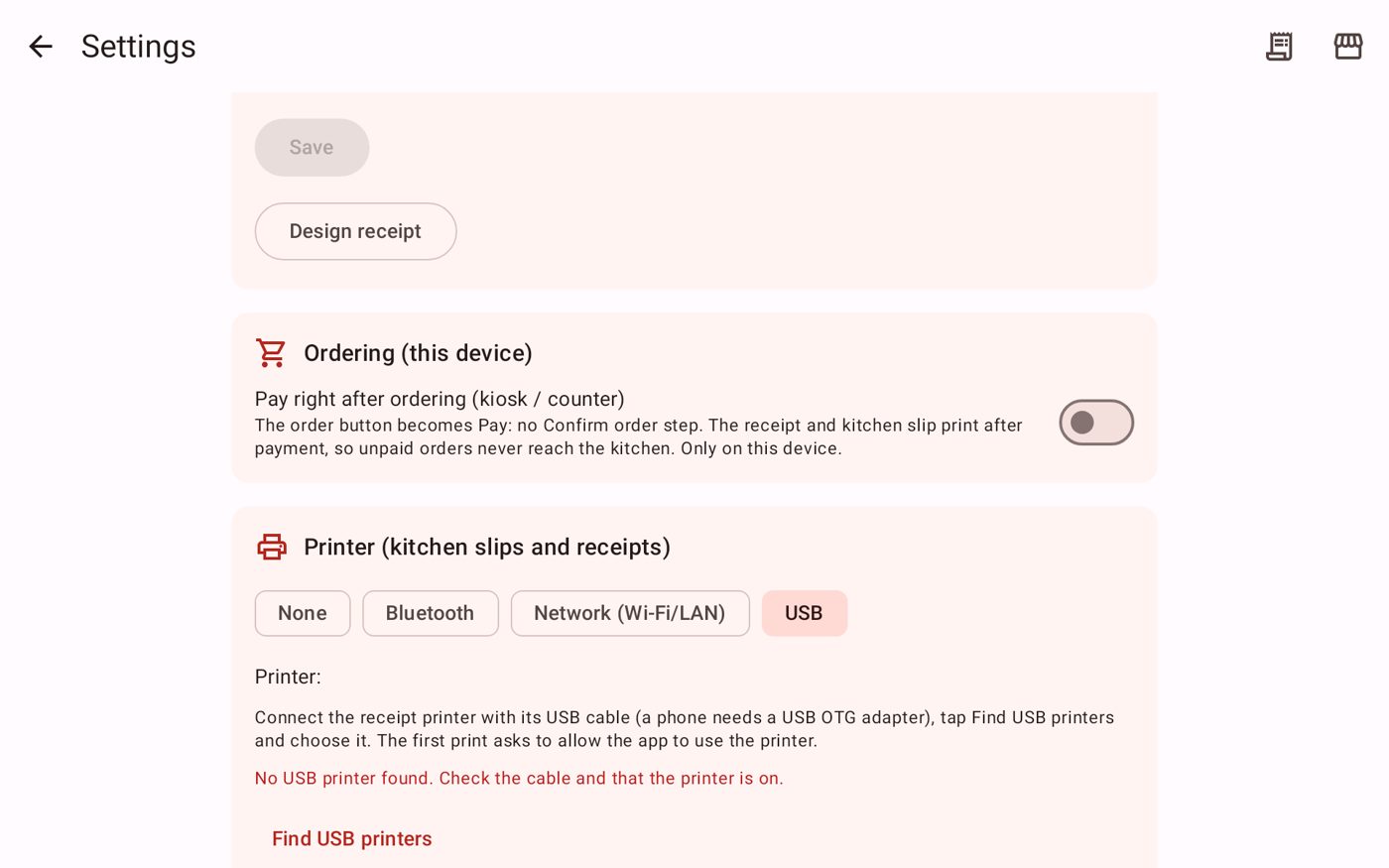
4. Find the printer
Connect the printer with its USB cable, make sure it is on, tap Find USB printers and choose your printer from the list.
5. Allow the printer
The first print asks to allow the app to use the printer. Allow it. Then receipts print on the USB printer.
Tips
- Android asks again to allow the printer after you unplug it or restart the device.
- A kitchen printer can also be a USB printer. See the guide on kitchen printers.
Common problems
It says No USB printer found.
Check the cable (and the OTG adapter on a phone) and that the printer is on. Then tap Find USB printers again.