
A reading order for a cafe or restaurant using the Synergy Order App: install, set up tables and menu, connect printers, take orders, take payment and close the day.
Before you start
- The Synergy Order App installed from apps.synsoftmy.com.
- The slot code and the 6-digit PIN that Synergy gave you, and an internet connection for set-up.
- Your menu list and your table numbers.
- The IP address of each receipt or kitchen printer, with the printer on and connected to the shop Wi-Fi or LAN.
Steps
1. Synergy Order App – First Install and Staff Set-up
Start here: enter the slot code and PIN, open Back Office, add your first items and set up staff sign-in.
2. Synergy Order App – Restaurant (F&B) Set-up
Choose the F&B business type, create your floors and tables, then take a first order, get paid and check the sales report.
3. Synergy Order App – Importing and Exporting the Menu with Excel
Load your whole menu from Excel or CSV in one step instead of typing each item.
4. Synergy Order App – Connecting a Network Receipt Printer
Connect a Wi-Fi/LAN printer for kitchen slips and receipts by typing its IP address, and print a test slip.
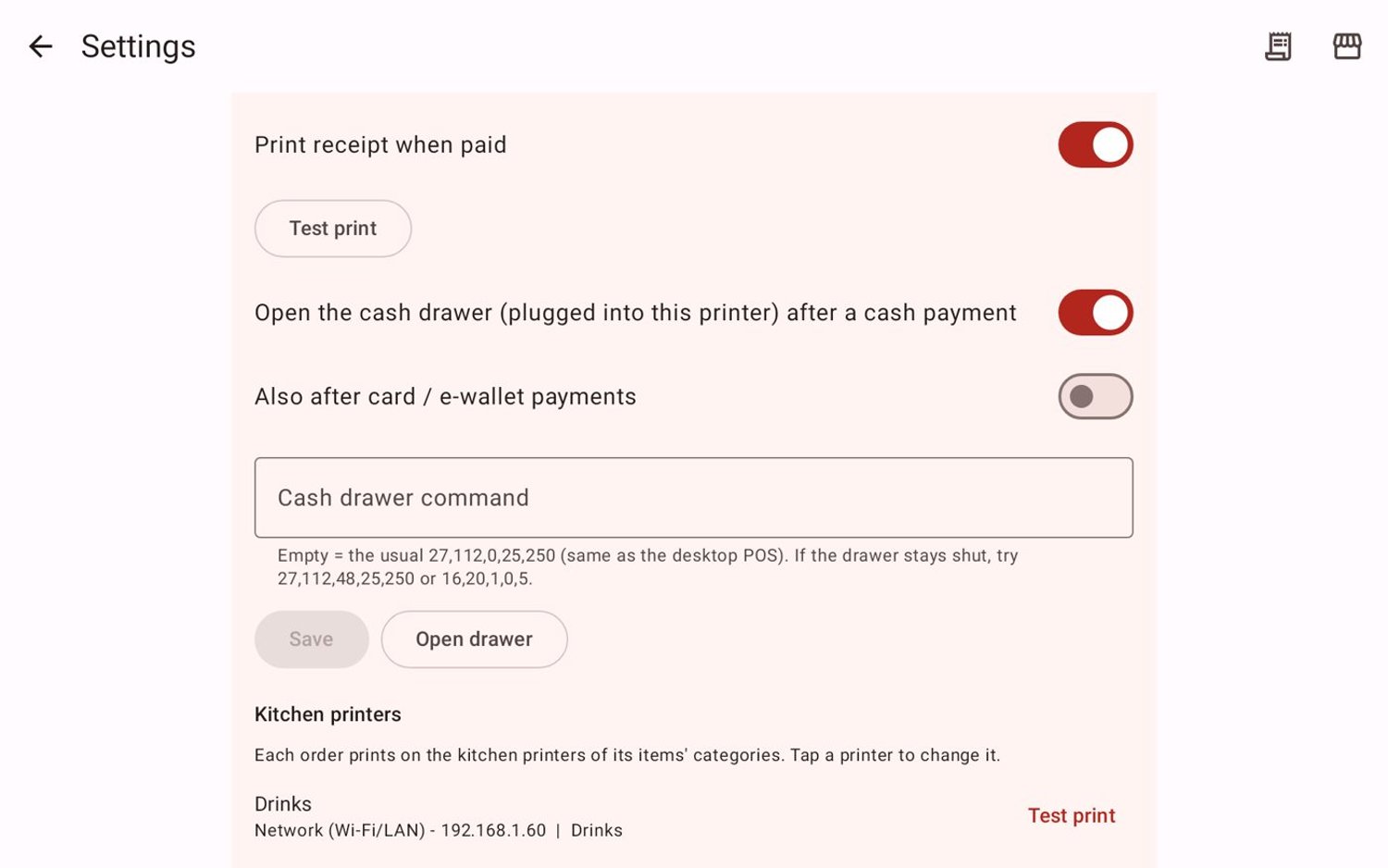
5. Synergy Order App – Kitchen Printers for Food and Drinks
Send each order to the right kitchen printer, for example drinks to a Drinks printer, by choosing the categories each printer prints.
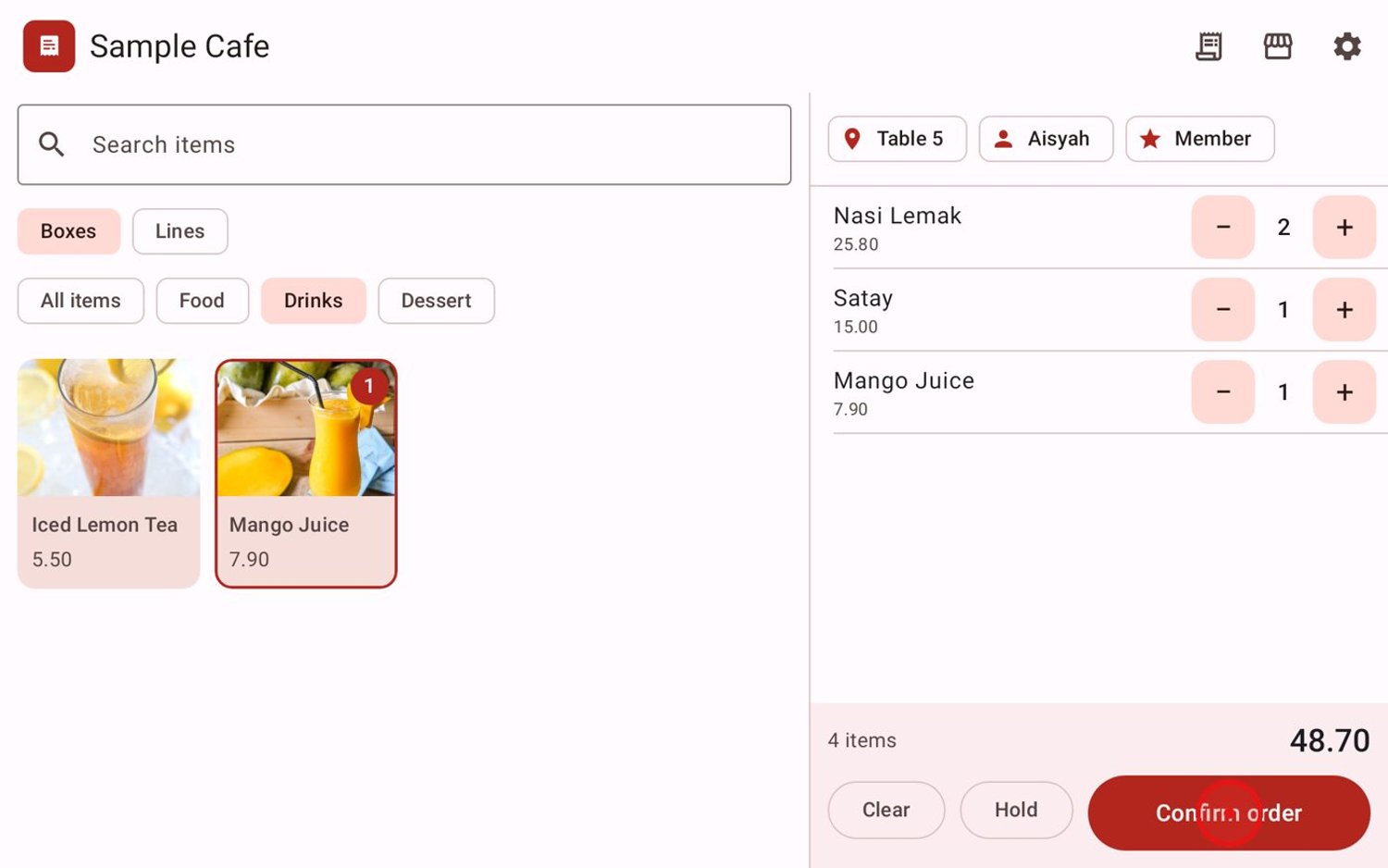
6. Synergy Order App – Taking an Order in a Restaurant
This is the daily job: choose the table, the salesperson and the dishes, then tap Confirm order to send it to the kitchen.
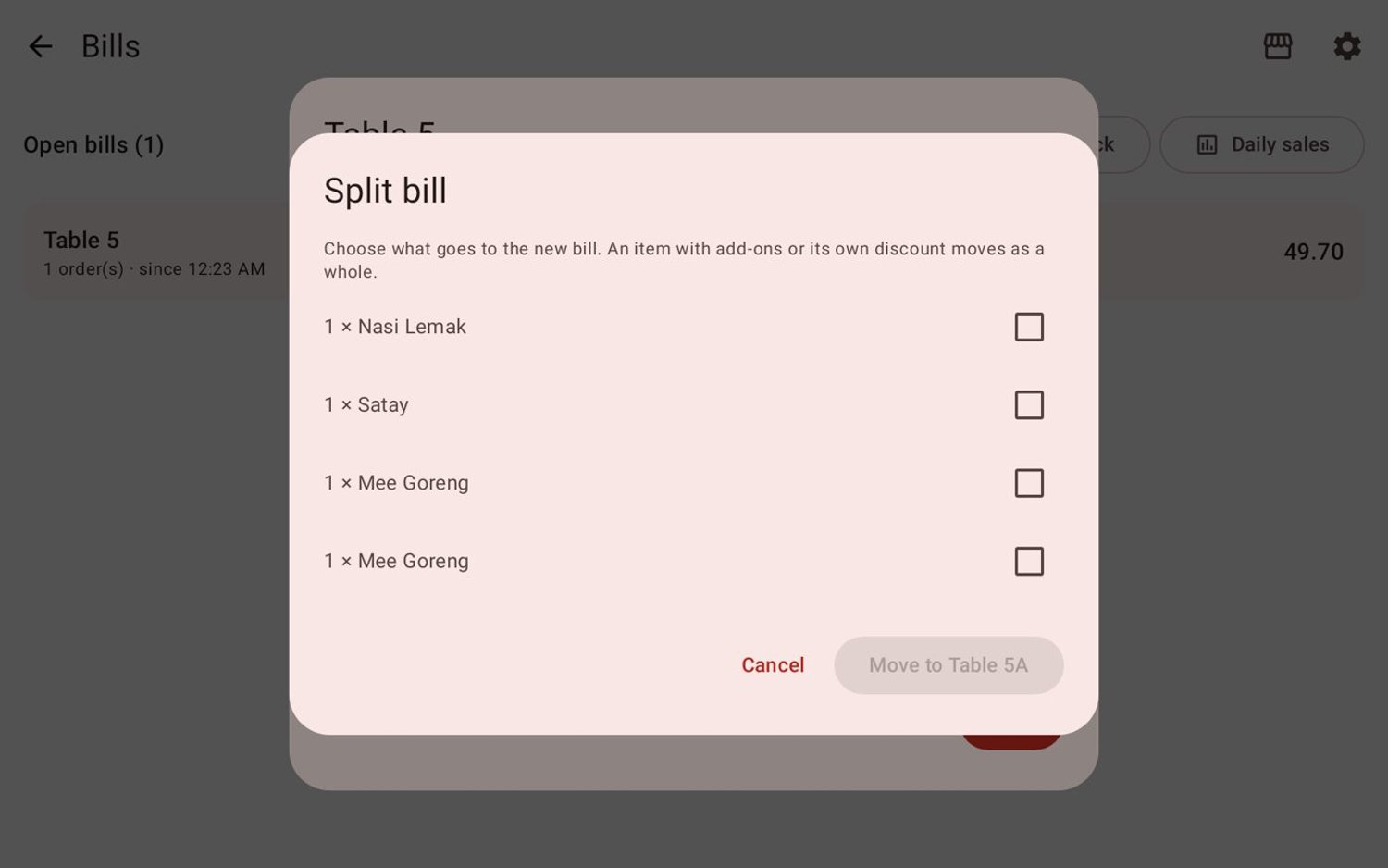
7. Synergy Order App – Splitting and Merging Bills
When guests want separate bills, split part of an order onto a new bill, and merge bills back together when needed.
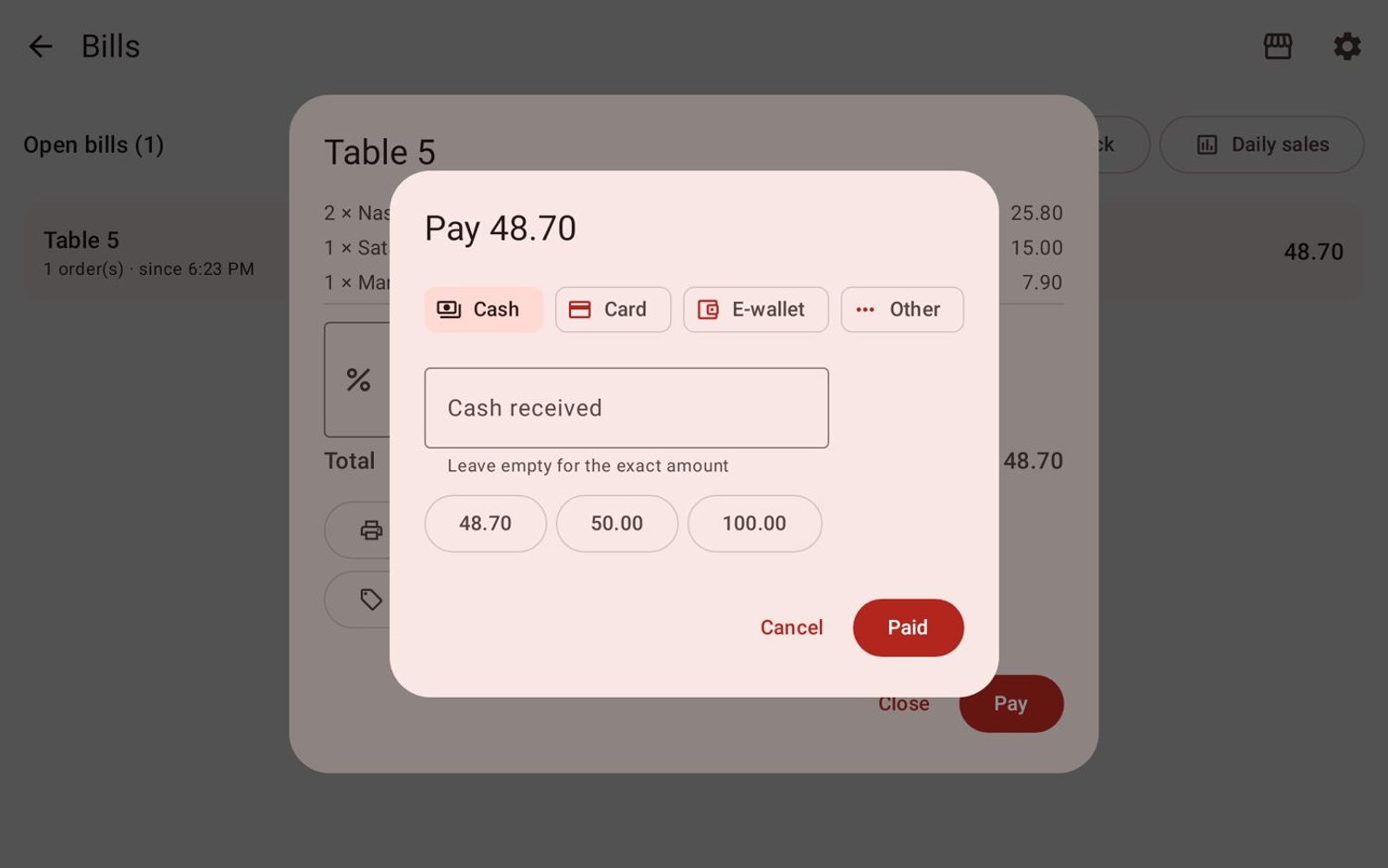
8. Synergy Order App – Taking Payment
Open Bills, pick the bill, tap Pay, choose the payment type and tap Paid.
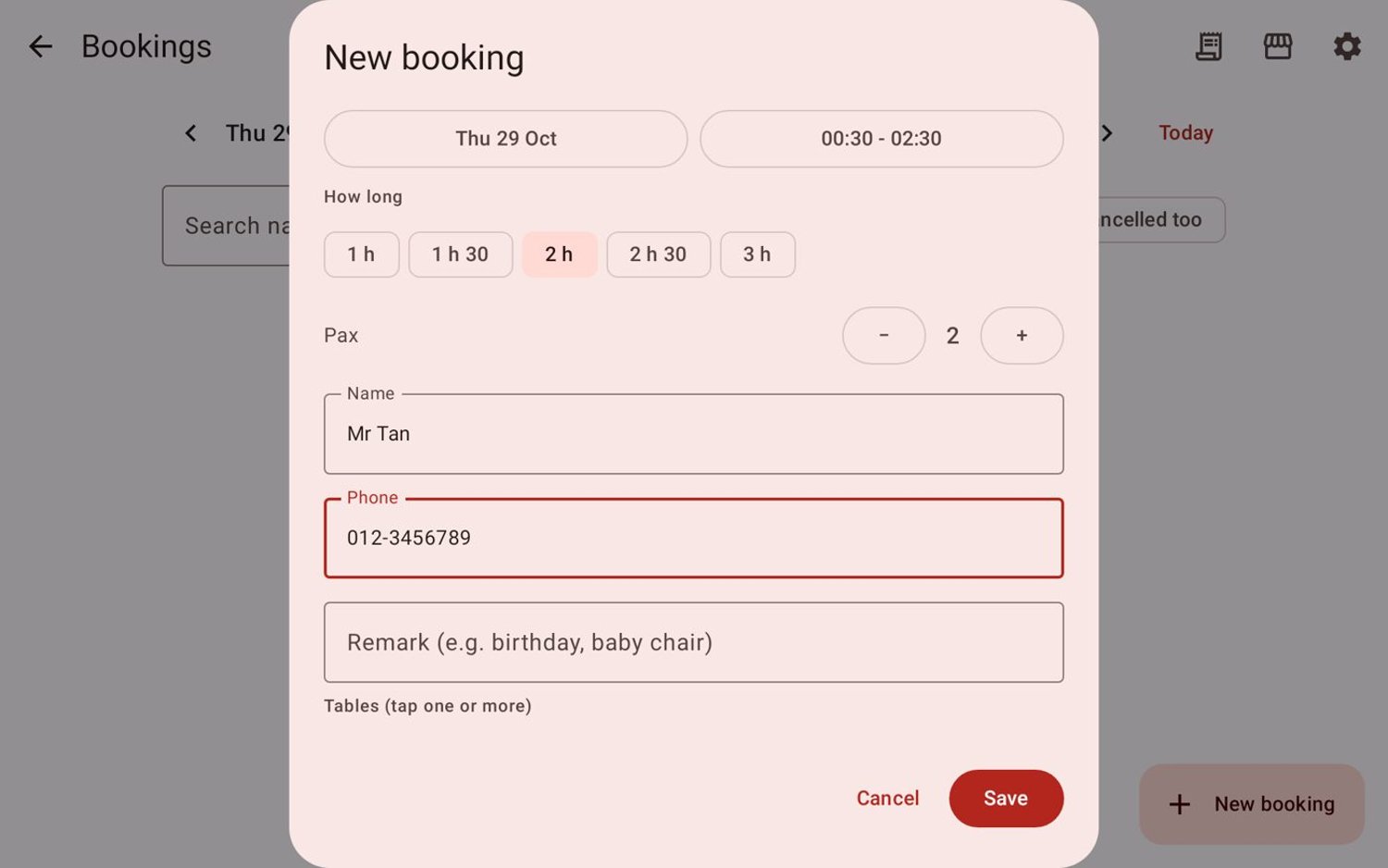
9. Synergy Order App – Table Bookings
Switch on Table bookings in Settings, add a booking with the customer’s name, phone and table, and mark it Customer arrived, No-show or Cancel booking.
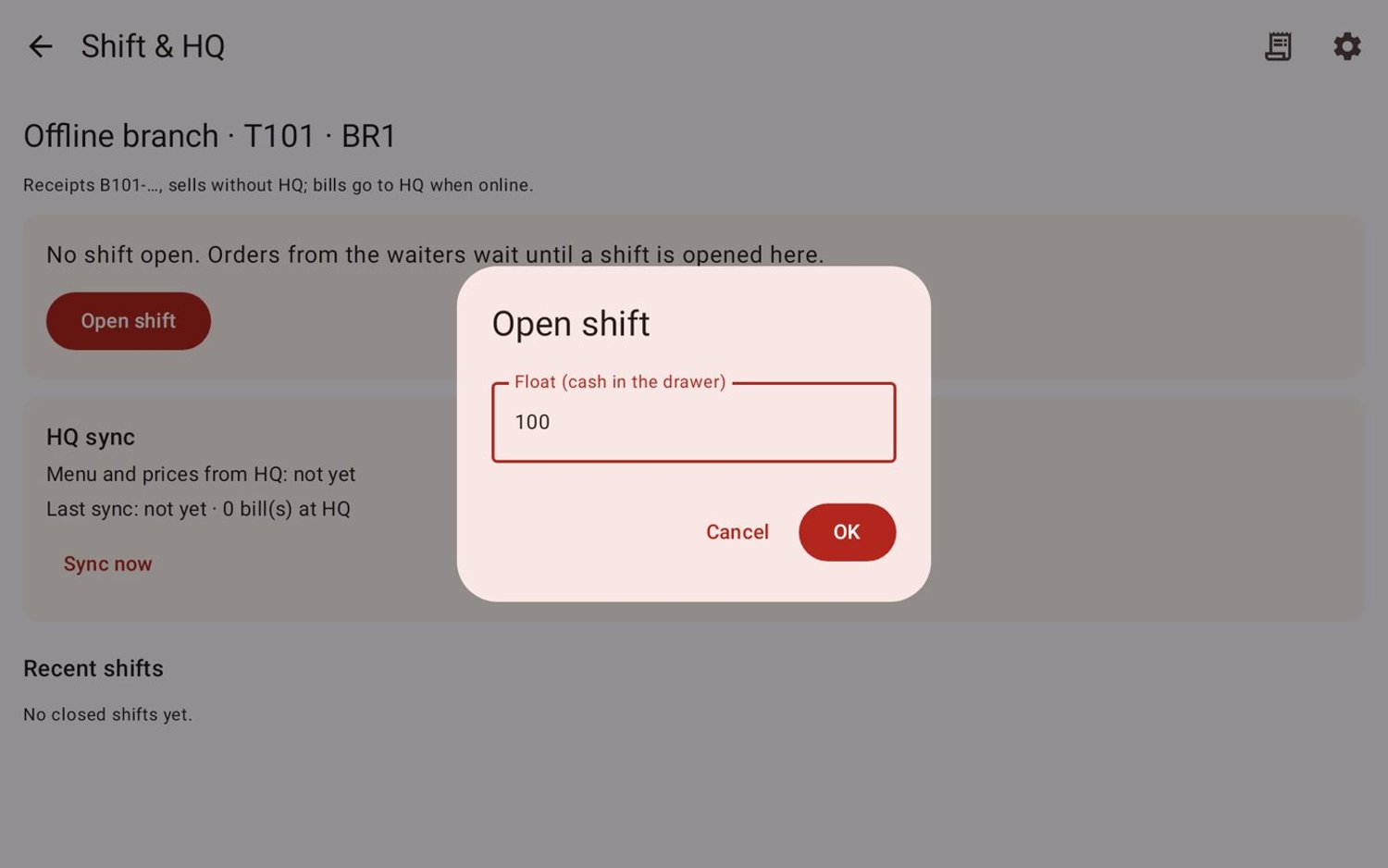
10. Synergy Order App – Shifts and Counting the Cash
Open a shift with your float, record cash in and cash out, and close the shift by counting the cash.
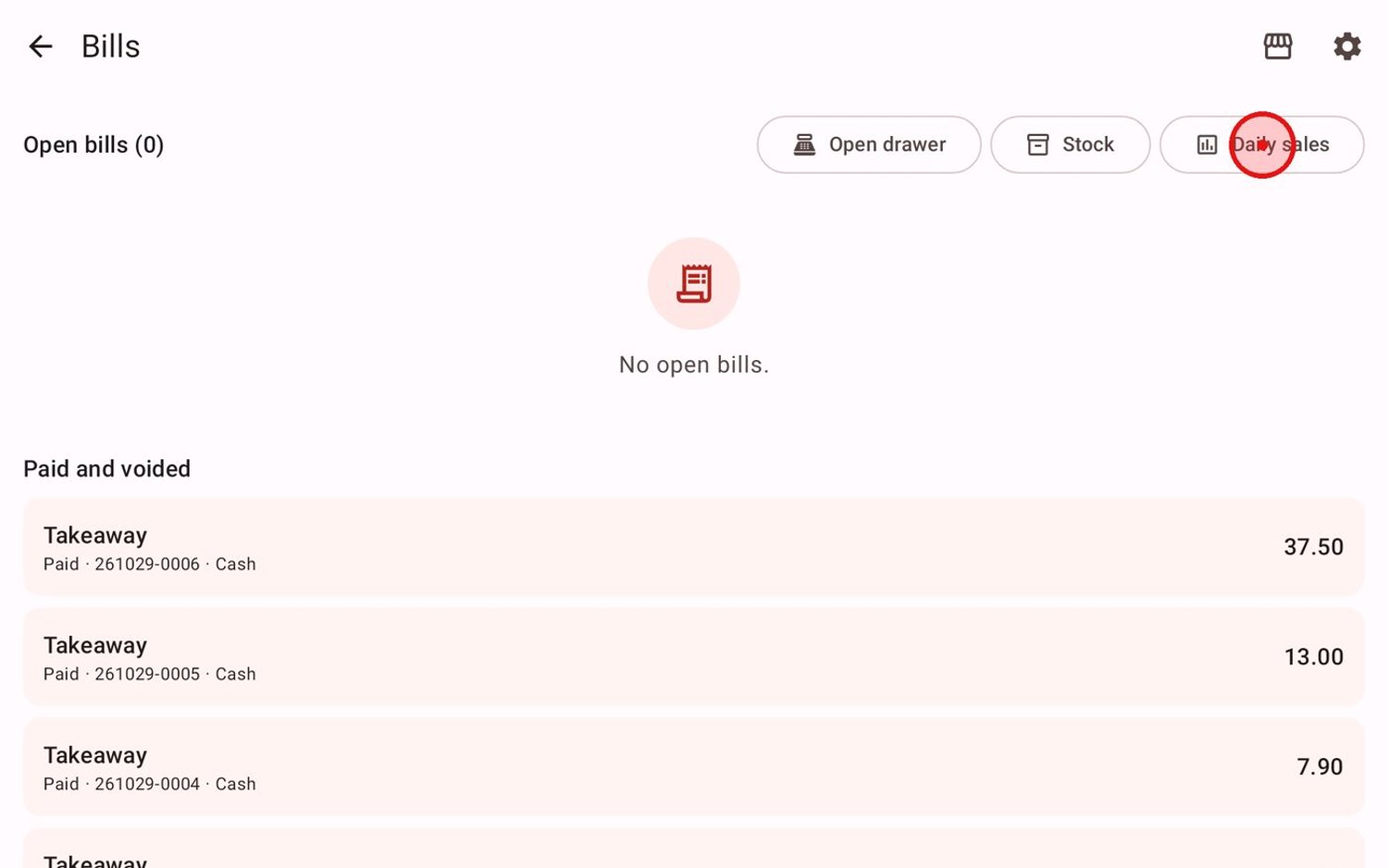
11. Synergy Order App – Reports in Back Office
After closing, check Daily sales and the Reports in Back Office.
Tips
- The Restaurant Table Setting web page holds the floors and tables used by the POS table picker, the Order App and QR Order: Synergy Web – Setting Up Restaurant Floors and Tables.
- With QR Order a diner scans the QR code at the table and sends the order to the kitchen. Staff can use Synergy Web – QR Order: Ordering From Your Table to help a guest.
- A table cannot be booked twice at the same time.
Common problems
I cannot find Merge bills.
Merge bills is on the main device of a network and shows when two or more bills are open.
The phone will not take payment.
A branch phone can take payment only while its own shift is open. Tap the red message, then tap Open shift.
Nobody remembers the Back Office PIN.
Synergy support can help you set a new one: read Synergy Order App – Forgot the Back Office PIN.