
A reading order for a retail shop that sells with the Synergy Order App: set up the app, bring in your items and stock, sell with a scanner, count the cash and check the reports.
Before you start
- The Synergy Order App installed from apps.synsoftmy.com.
- The slot code and the 6-digit PIN that Synergy gave you.
- An internet connection: set-up needs internet once.
- Your item list, and your supplier’s name, phone number and delivery order number.
Steps
1. Synergy Order App – First Install and Staff Set-up
Start here: enter the slot code and PIN, open Back Office and add your first items and staff.
2. Synergy Order App – Retail Set-up
Set the business type to Retail, switch off the kitchen slip so a sale prints only the receipt, add a supplier and post your first Goods received.
3. Synergy Order App – Importing and Exporting the Menu with Excel
If you have many items, fill them in Excel or a CSV file and load them in one step, starting from the template in Settings.
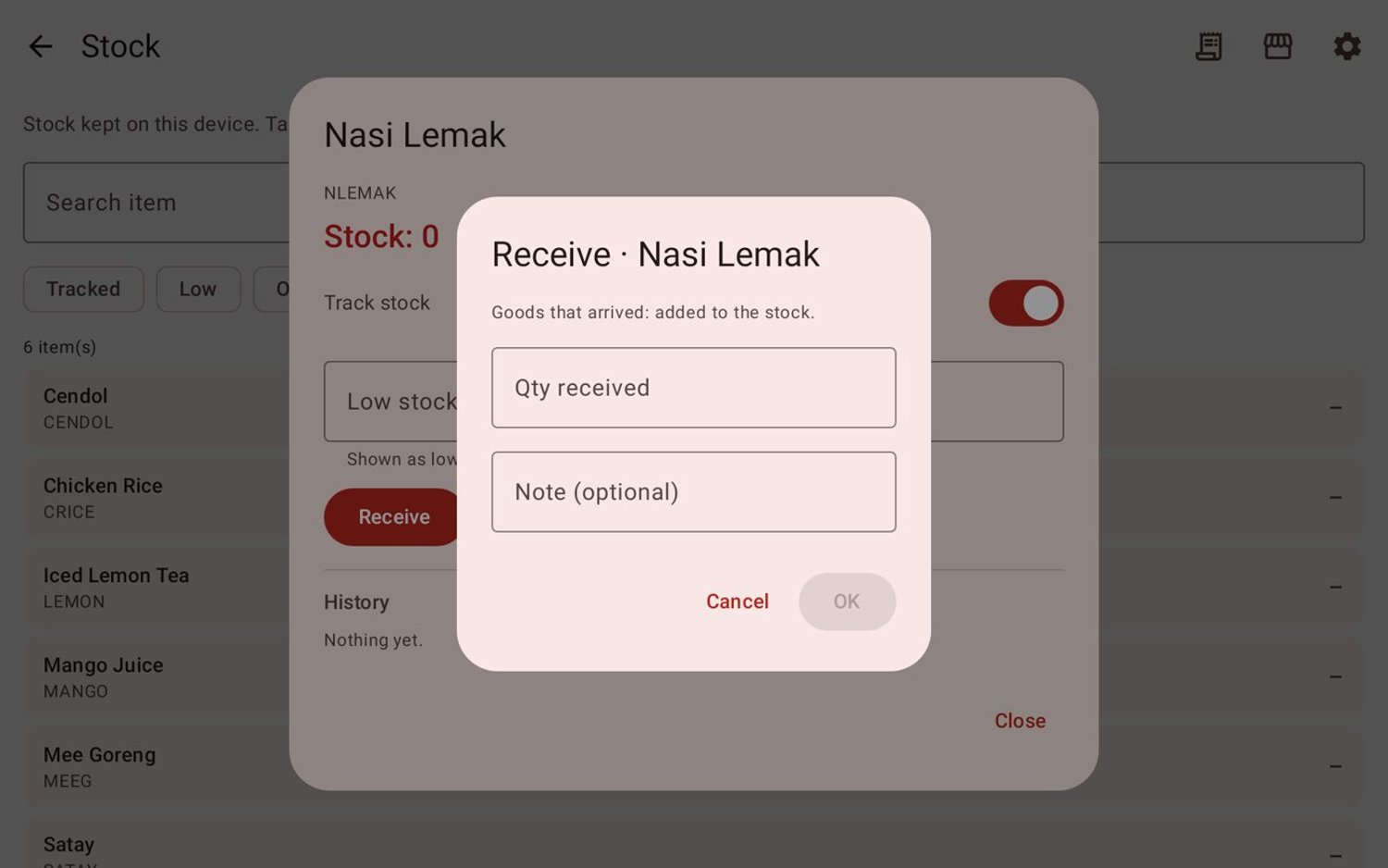
4. Synergy Order App – Keeping Track of Stock
Switch on Track stock for your items and receive stock, so tracked items lose stock when a bill is paid and you can see what is low or out.
5. Synergy Order App – Connecting a Network Receipt Printer
Connect a Wi-Fi/LAN receipt printer by typing its IP address and print a test slip. For a printer on a USB cable, read Synergy Order App – Connecting a USB Receipt Printer.
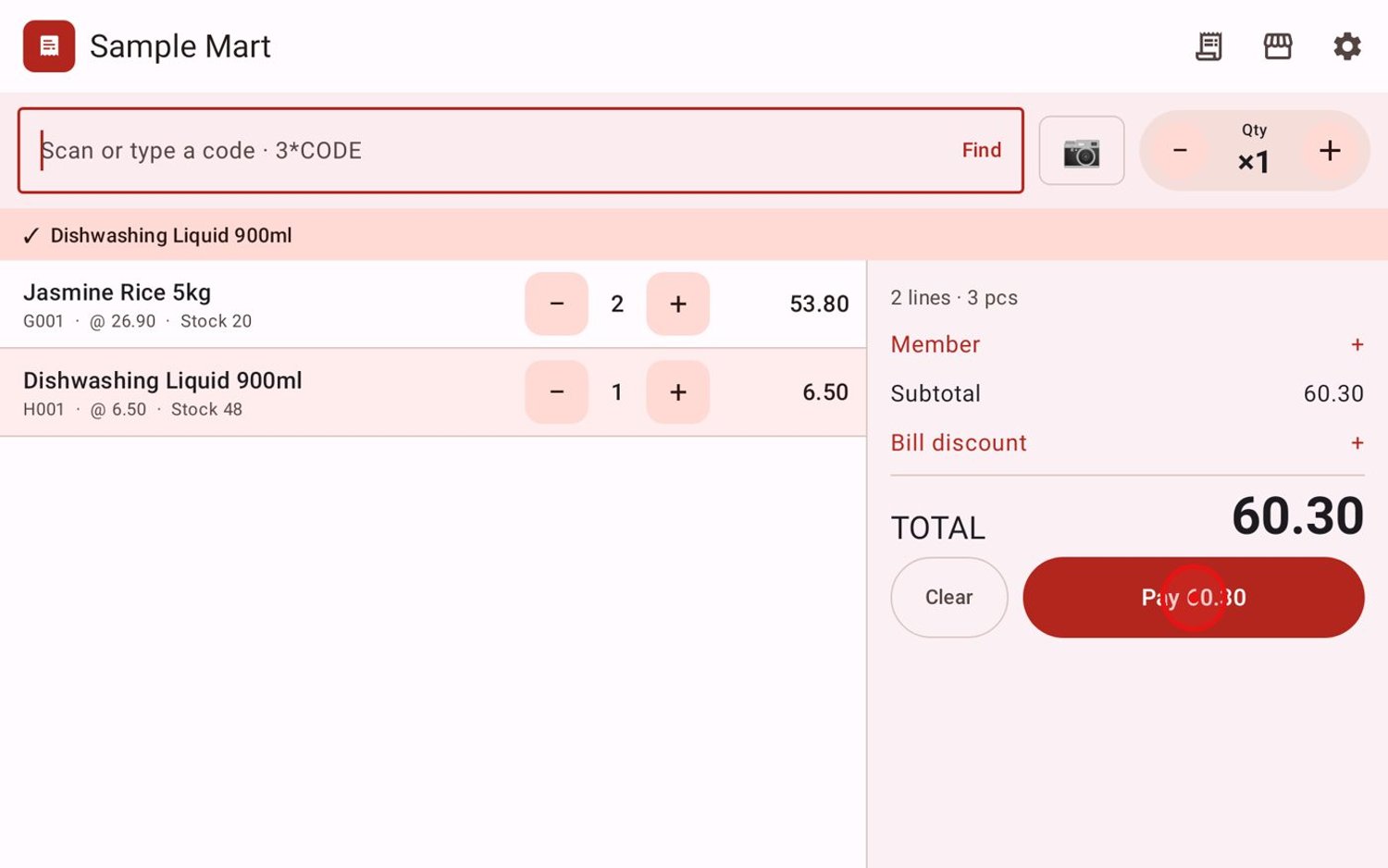
6. Synergy Order App – Retail Till: Scan, Pay, Receipt
This is the daily sale: scan the items, change a quantity, tap Pay, choose the payment type and tap Paid to print the receipt.
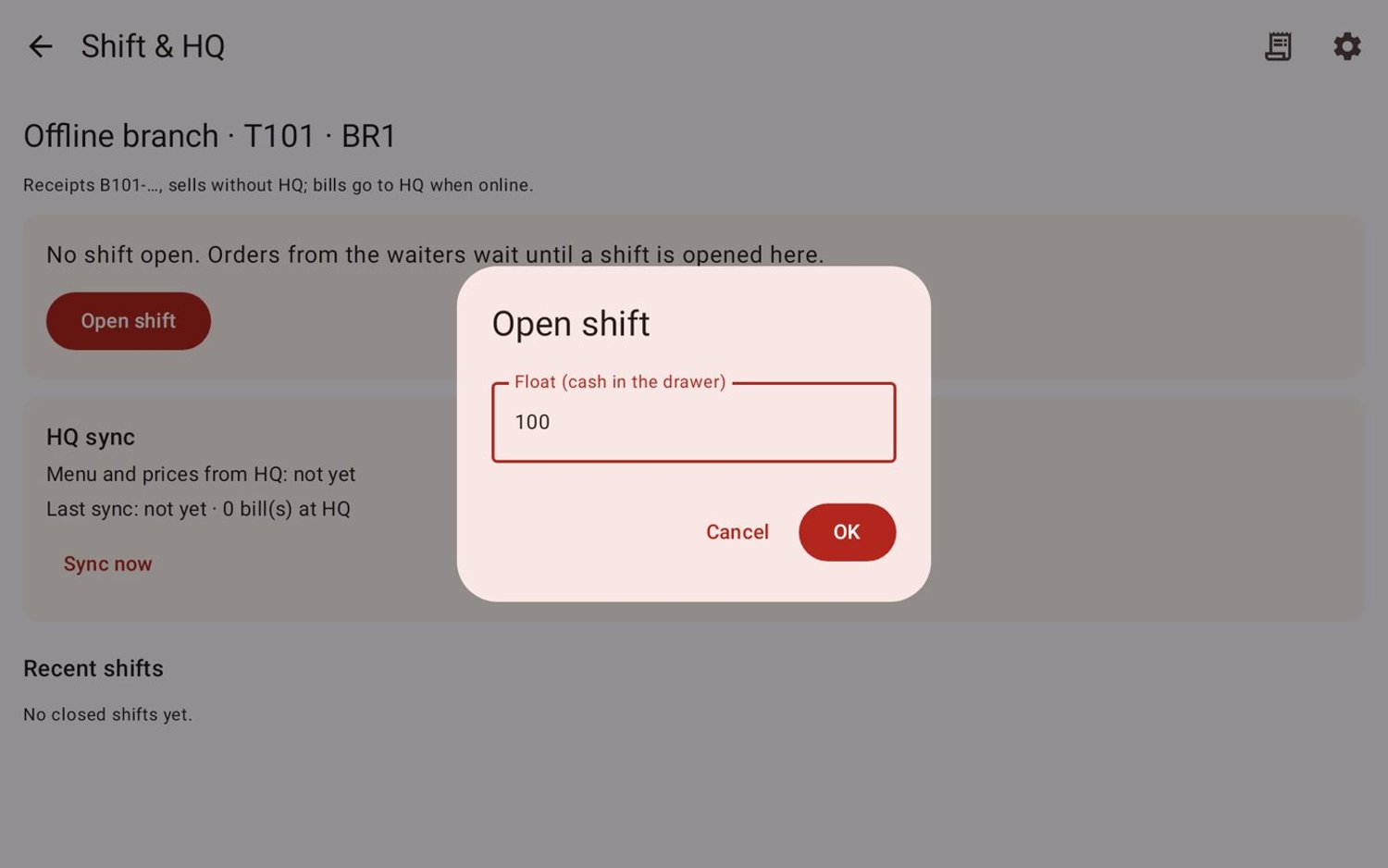
7. Synergy Order App – Shifts and Counting the Cash
On a branch phone you must open a shift before taking payment; here you open it, record cash in and cash out, and count the cash when you close.
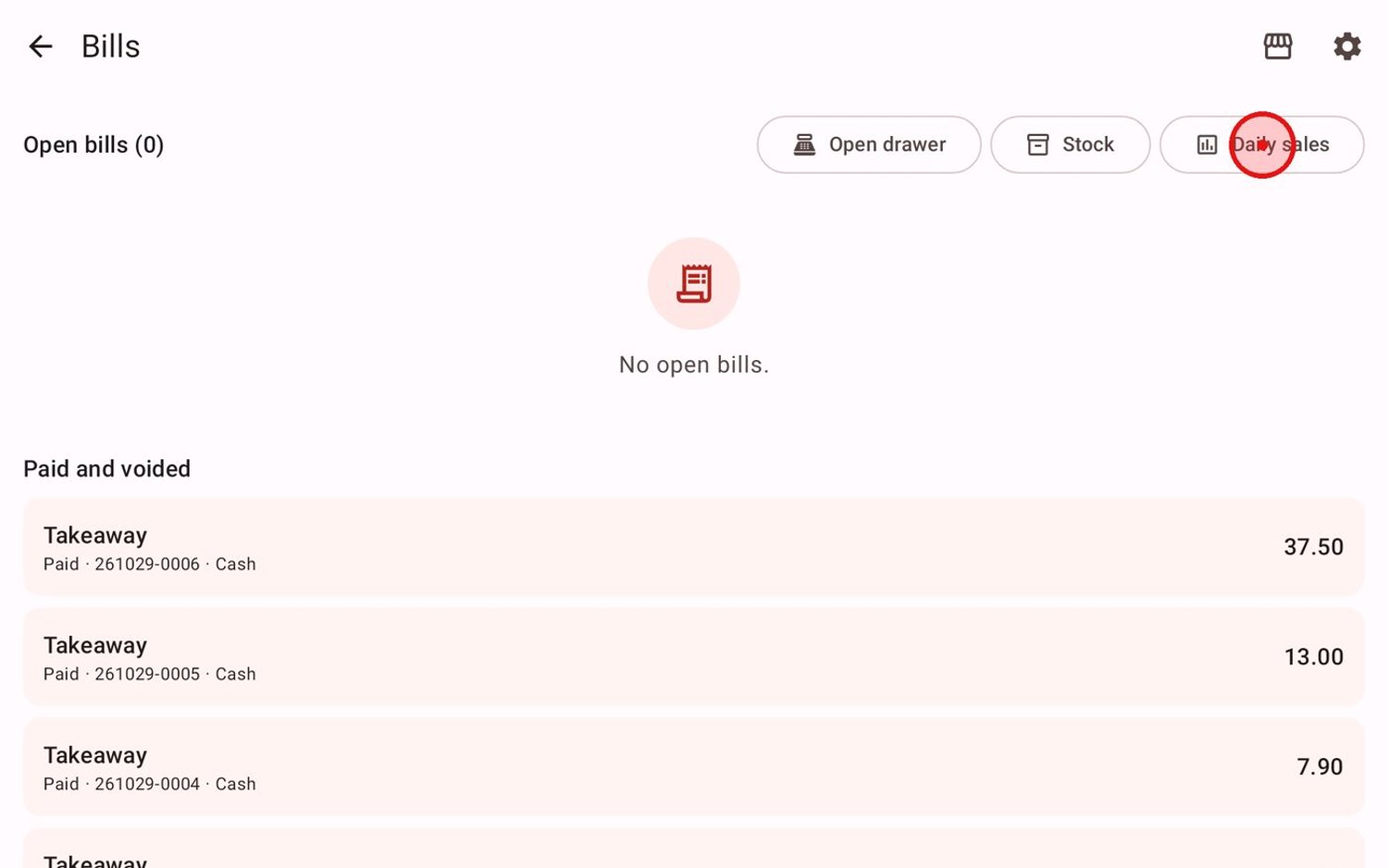
8. Synergy Order App – Reports in Back Office
At the end of the day check Daily sales, and open Reports in Back Office to see sales by item, category or hour.
9. Synergy Order App – Backing Up Your Sales and Settings
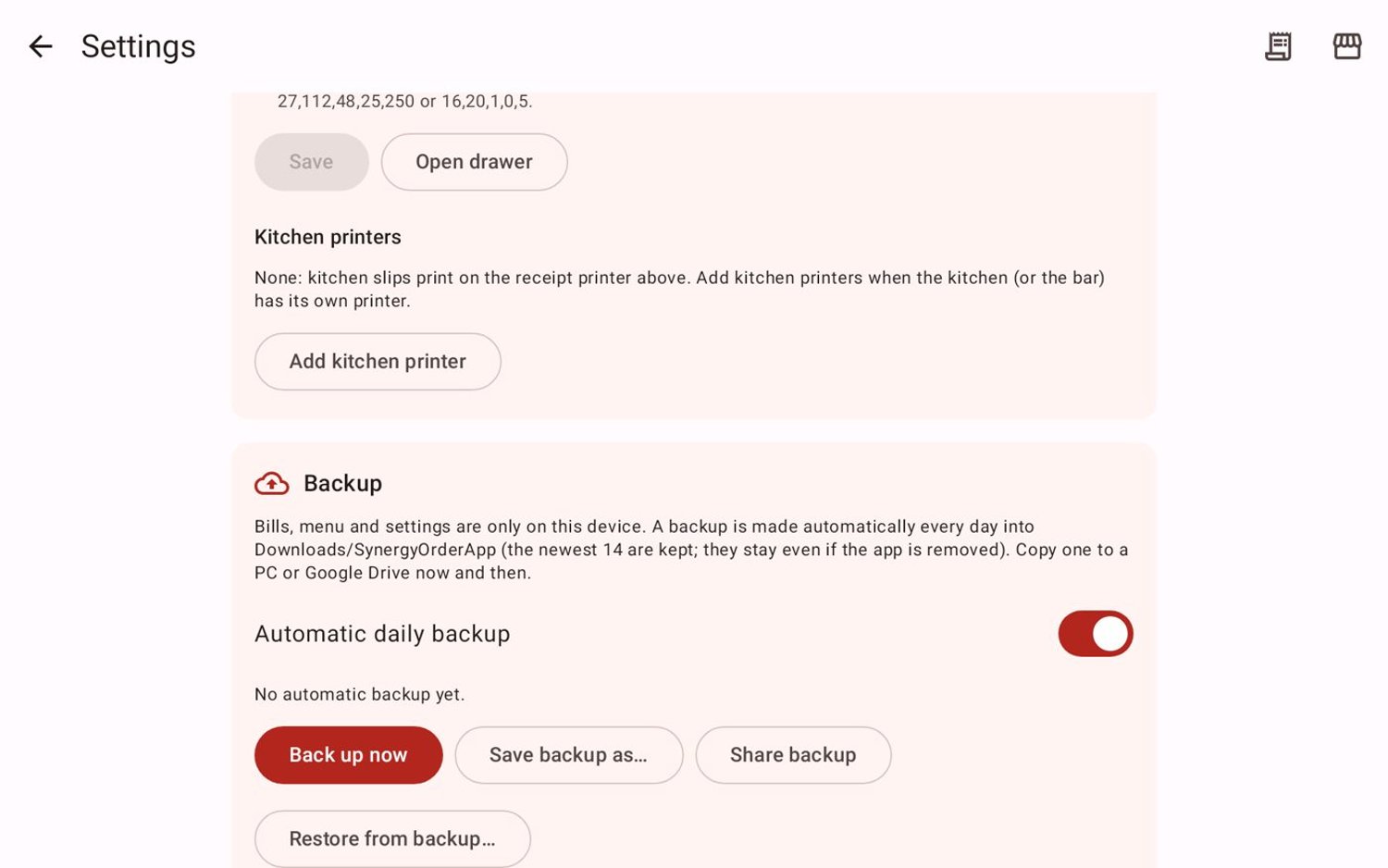
Your bills, menu and settings are kept only on the device, so find Back up now in Settings and know how Restore from backup works.
Tips
- Back Office closes itself after 5 minutes without a touch.
- Staff PIN sign-in gives each staff member their own PIN and role: read Synergy Order App – Staff PIN Sign-in.
- A backup is made automatically every day into Downloads/SynergyOrderApp, and the newest 14 are kept.
Common problems
Nobody remembers the Back Office PIN.
Synergy support can help you set a new one: read Synergy Order App – Forgot the Back Office PIN.
The phone will not take payment.
A branch phone can take payment only while its own shift is open. Tap the red message, then tap Open shift.
The device is not activated.
A new device works in Basic mode. Read Synergy Order App – Activating a Device (Basic Mode) to send an activation request to Synergy.