
A reading order for a salon or any business that works by appointment, using the Acc2026 point of sale: members, appointments with services, deposits, selling, payment and daily checks.
Before you start
- Your Acc2026 POS login, with the right to manage bookings (without it the Bookings screen is view-only).
- Table Booking switched on for your company.
- Your member list, if you want to import it (the Membership Import Excel template).
- The services you offer and the minutes each one takes.
Steps
1. Synergy Acc2026 – POS Members: Points, Import and Vouchers
Add your members one by one, or import the list from Excel, so appointments and sales can be linked to a customer.
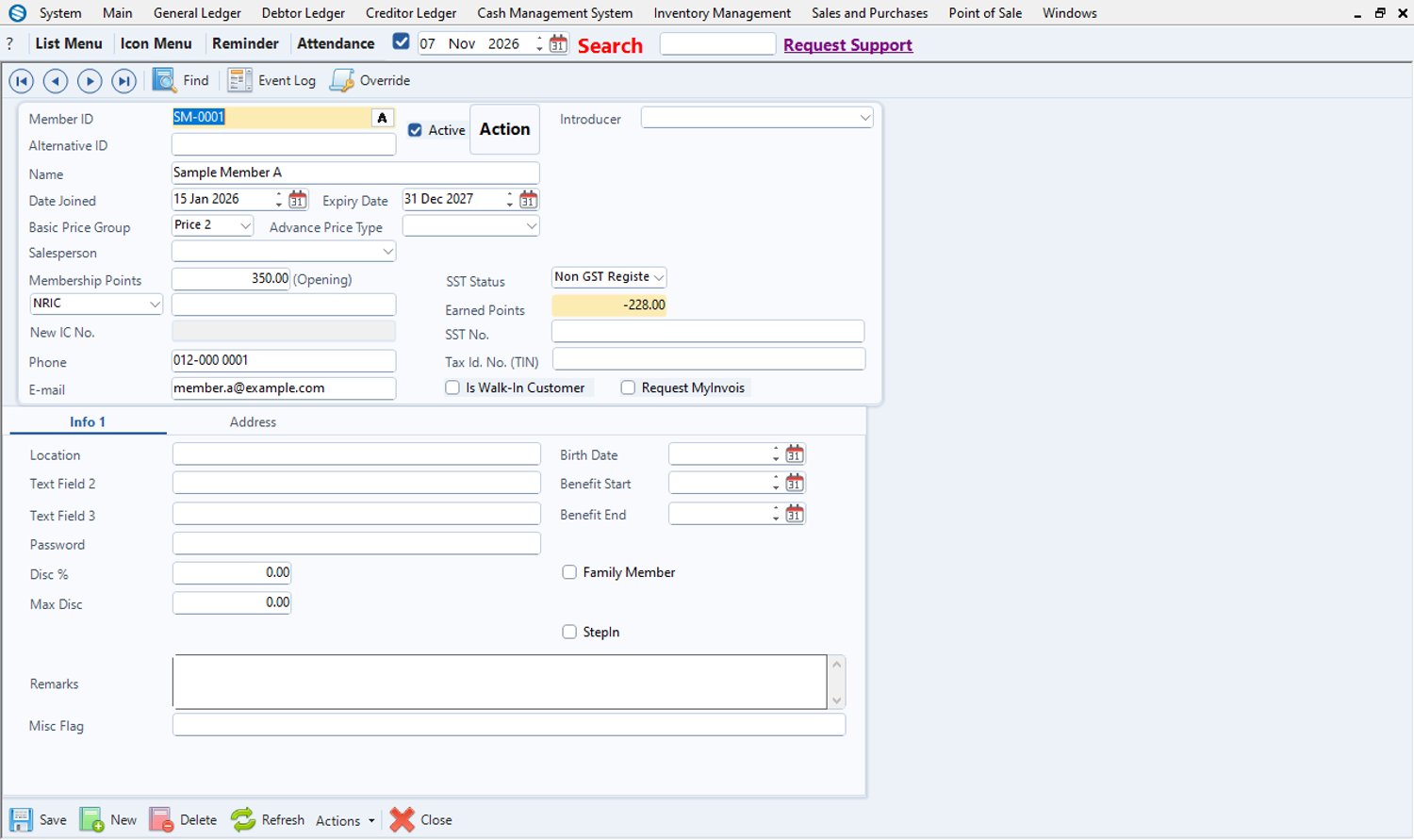
2. Synergy Acc2026 – Bookings, Deposits and Visit Packages
Open the Bookings screen, add a New Appointment with the customer or member and one or more services with their minutes, and manage it with Arrived, Cancel Booking, No-show or Close.
3. Synergy Acc2026 – POS Deposits and Bookings
Take a deposit on a booking at the point of sale, then claim it later against the customer’s sale or cancel the booking.
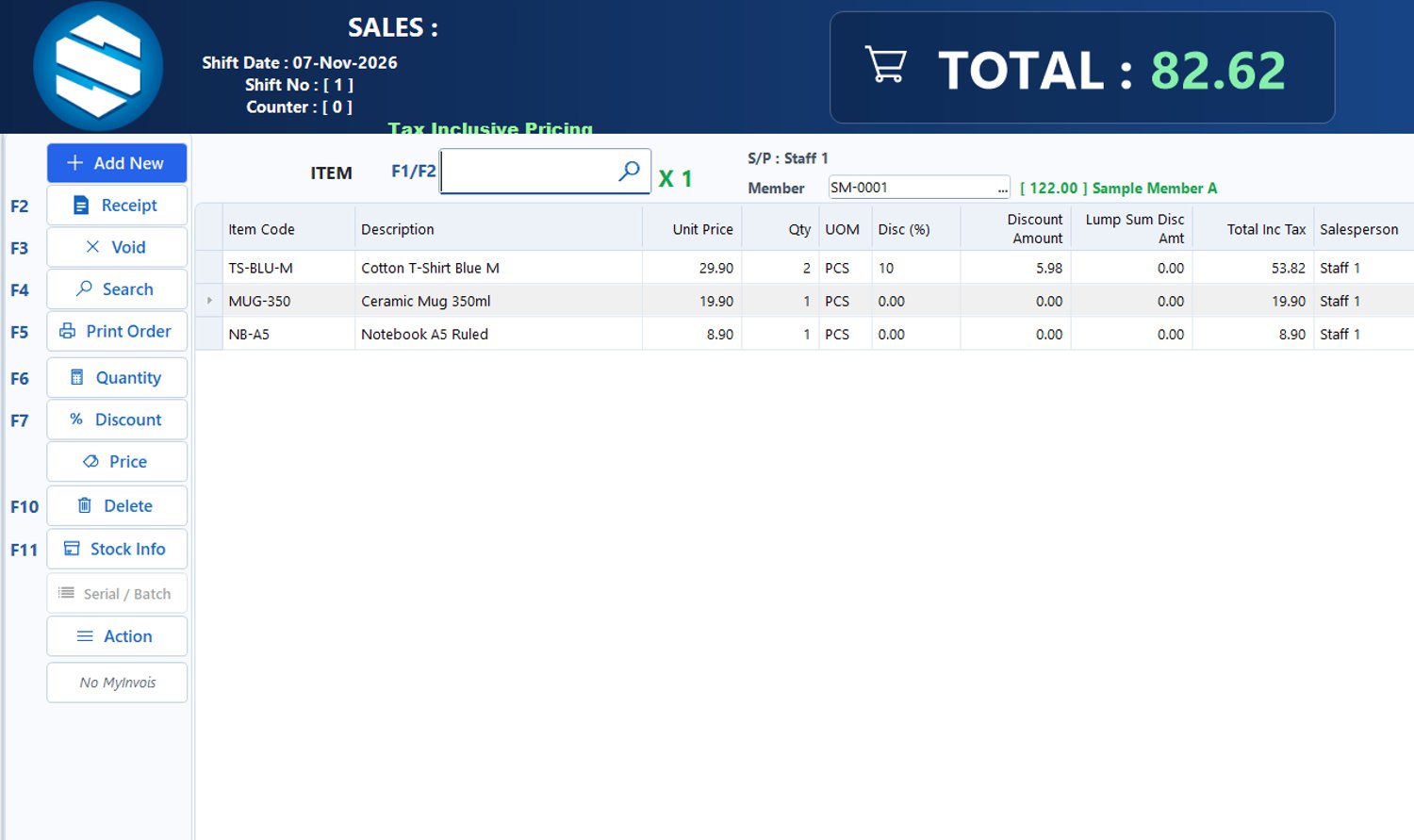
4. Synergy Acc2026 – Point of Sale: Making a Cash Sale
Ring up the sale: add the items, choose the member and salesperson, take payment and print the receipt.
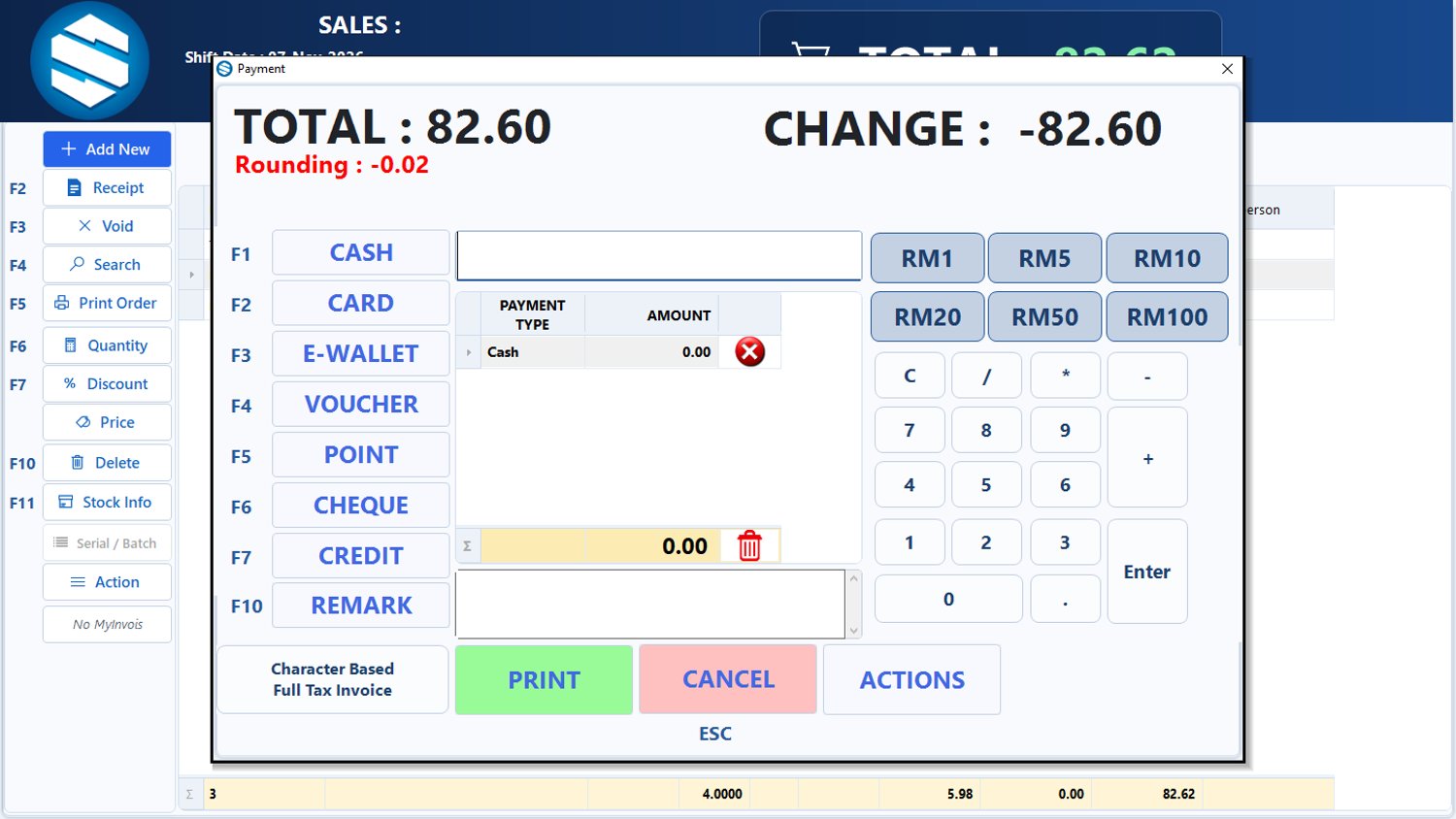
5. Synergy Acc2026 POS – Payment Types, QR and E-Wallet
Record a QR payment at the POS, and learn how to clear the POSCC balance when the money reaches your bank.
6. Synergy Acc2026 – POS Members, Points, Vouchers and SMS Blasting
Check a member in, let members redeem items with points, set up vouchers and send one message to many members.
7. Synergy Acc2026 – POS Shifts, Cash In and Out, and Correcting a Sale’s Shift
Open your shift with the opening cash, record cash in and cash out, and close the shift at the end of the day.
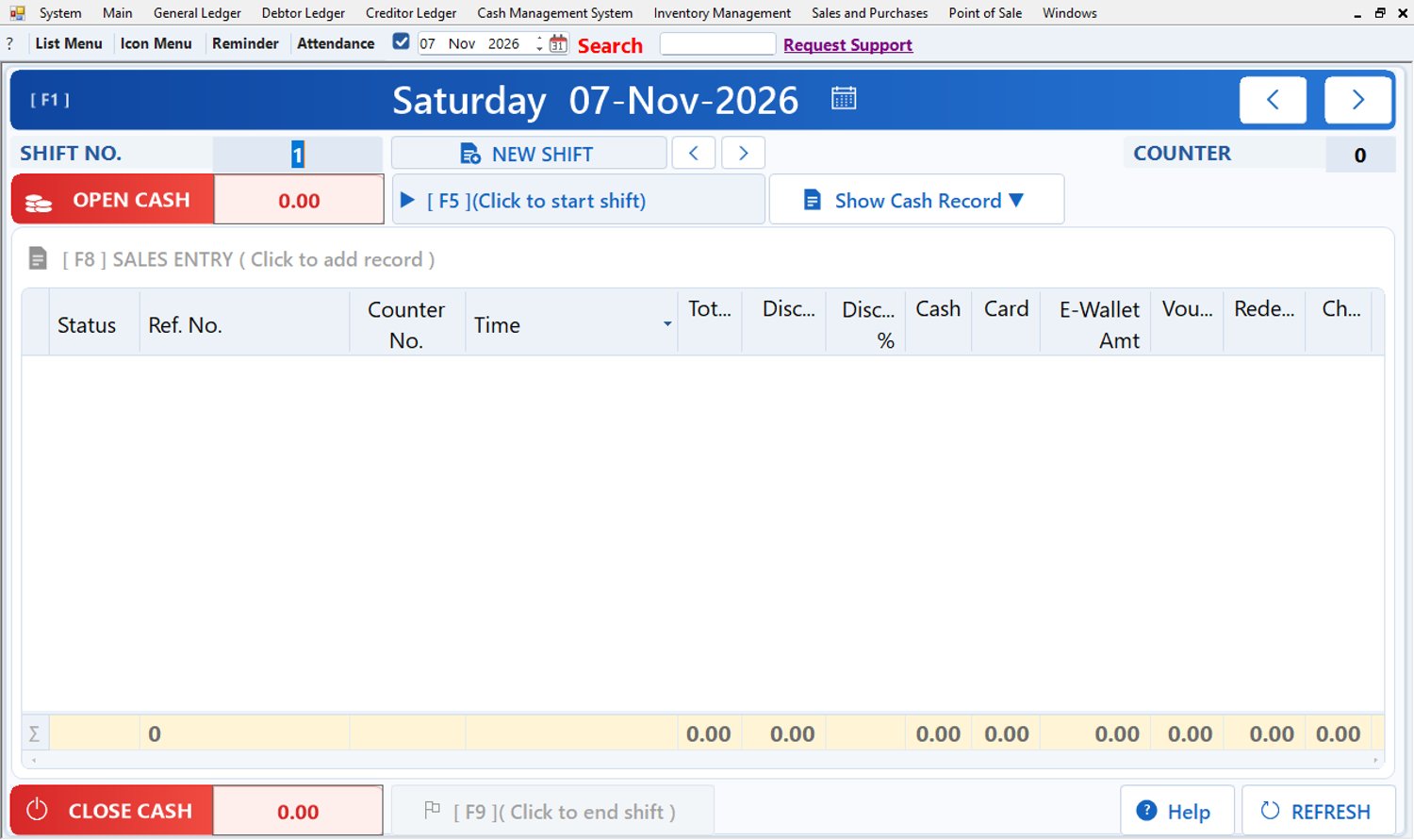
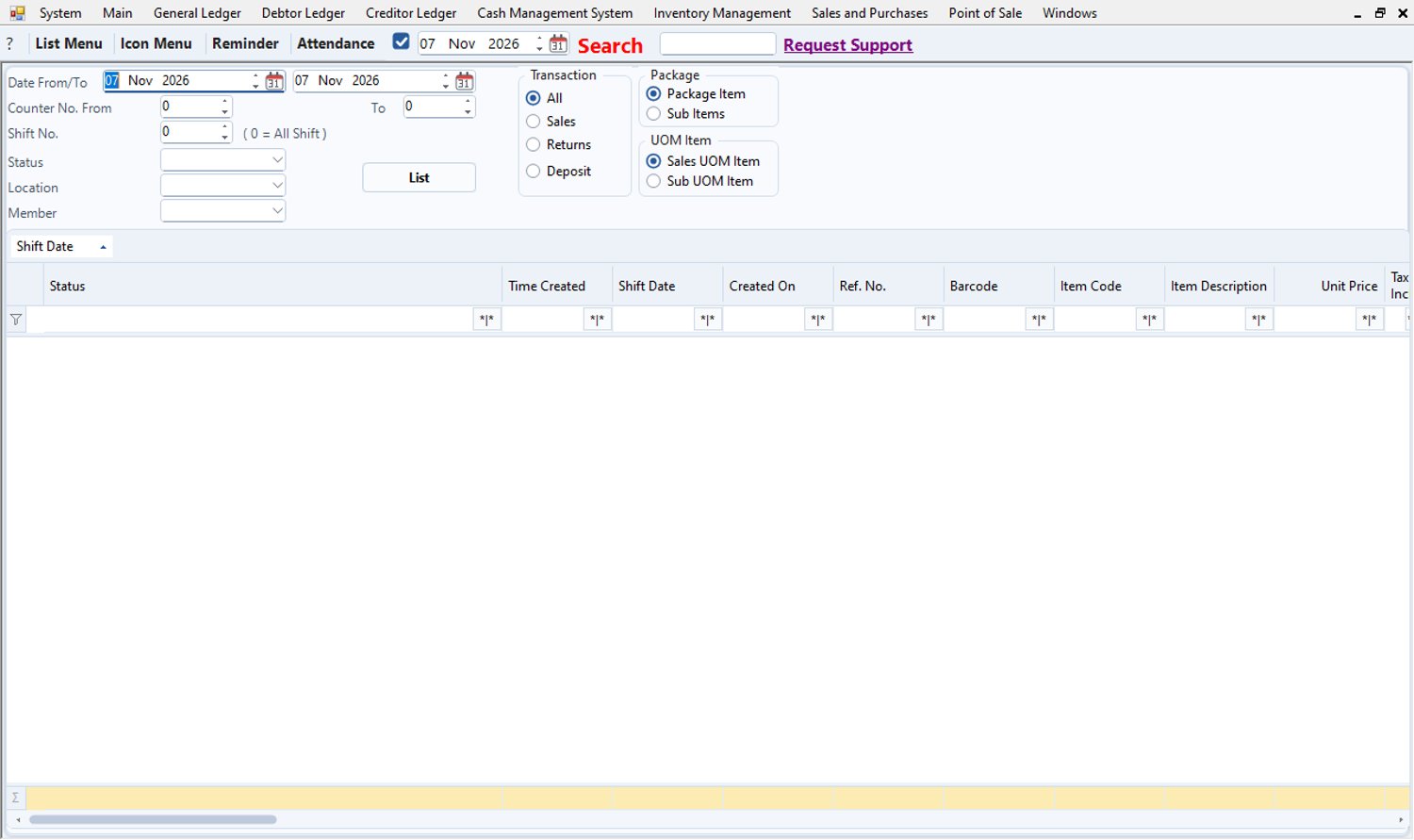
8. Synergy Acc2026 – POS Daily Sales, Cash In/Out and Collection Reports
See daily sales, cash in and out, and totals by payment type.
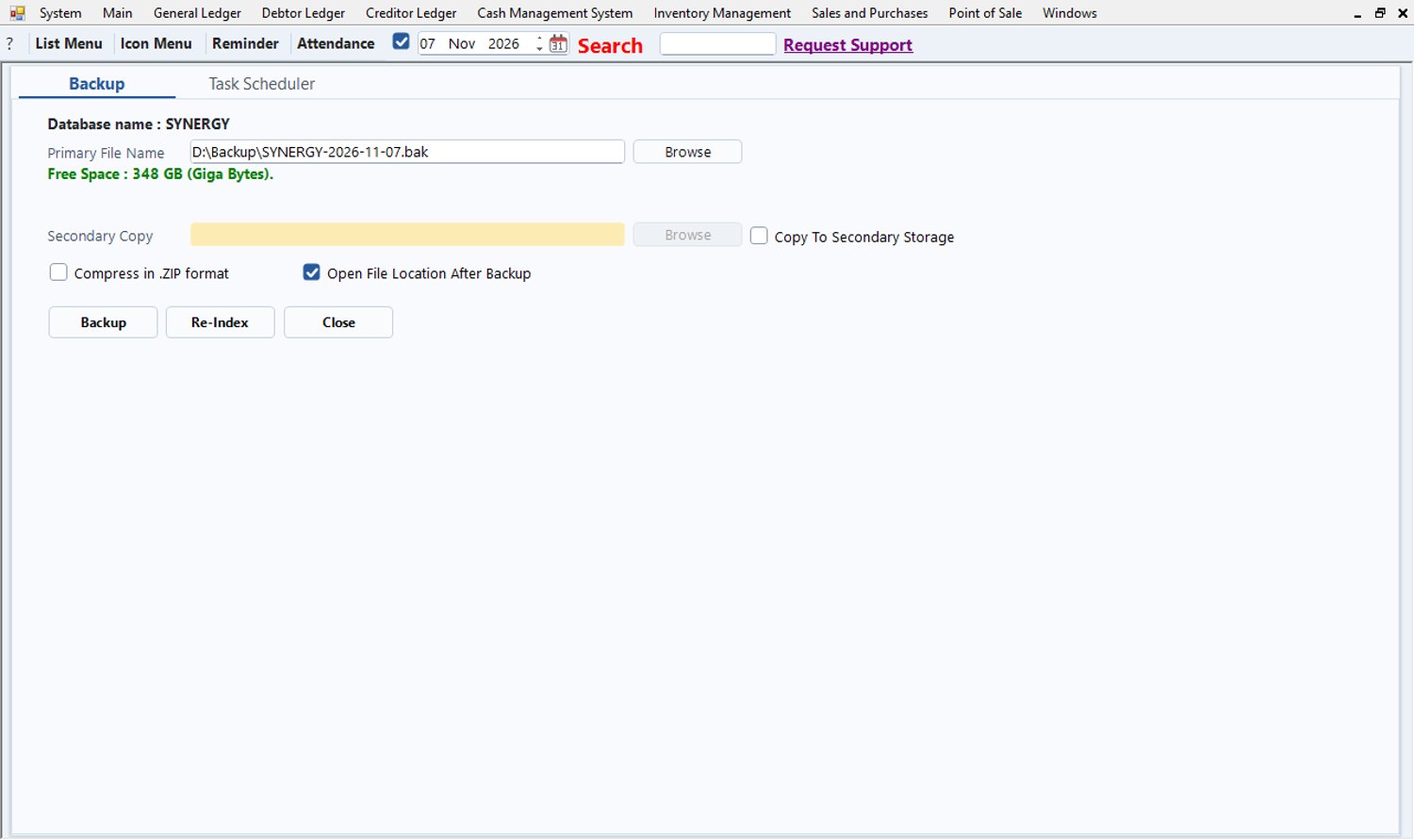
9. Synergy Acc2026 – Backing Up Your Data
Know where your automatic backups are and keep a copy on a pendrive or external disk.
Tips
- A booking more than about an hour in the past asks This booking time has already passed. Save anyway? Answer Yes to save it.
- The Bookings screen refreshes itself every minute.
- To sell a visit package use the POS Treatment Package function; this is covered by a separate guide that you can ask Synergy support for.
Common problems
The New Booking button is greyed out.
Your user does not have the right to manage bookings.
A booking cannot be found.
Use the Search box and tick Show cancelled / no-show. The day list shows only the chosen day.
The message says Table Booking is not switched on.
The feature is off for your company. Contact Synergy support.
The message says there is no room available for the chosen time.
Choose another time.