
A reading order for moving your lists and balances from Excel into Synergy Acc2026, with the right import guide for each kind of data and what to check afterwards.
Before you start
- Your data in an Excel (.xlsx, .xls) or CSV file with a heading row.
- A database backup before any large import.
- A licensed copy: importing is disabled on Demo/Trial versions.
- Column headings exactly as each import screen asks.
Steps
1. Synergy Acc2026 – Importing Your Data: Overview
Start here to see which import screen to use for each kind of data, and the steps they all share: Select File, check the rows in the grid, then Import Data.
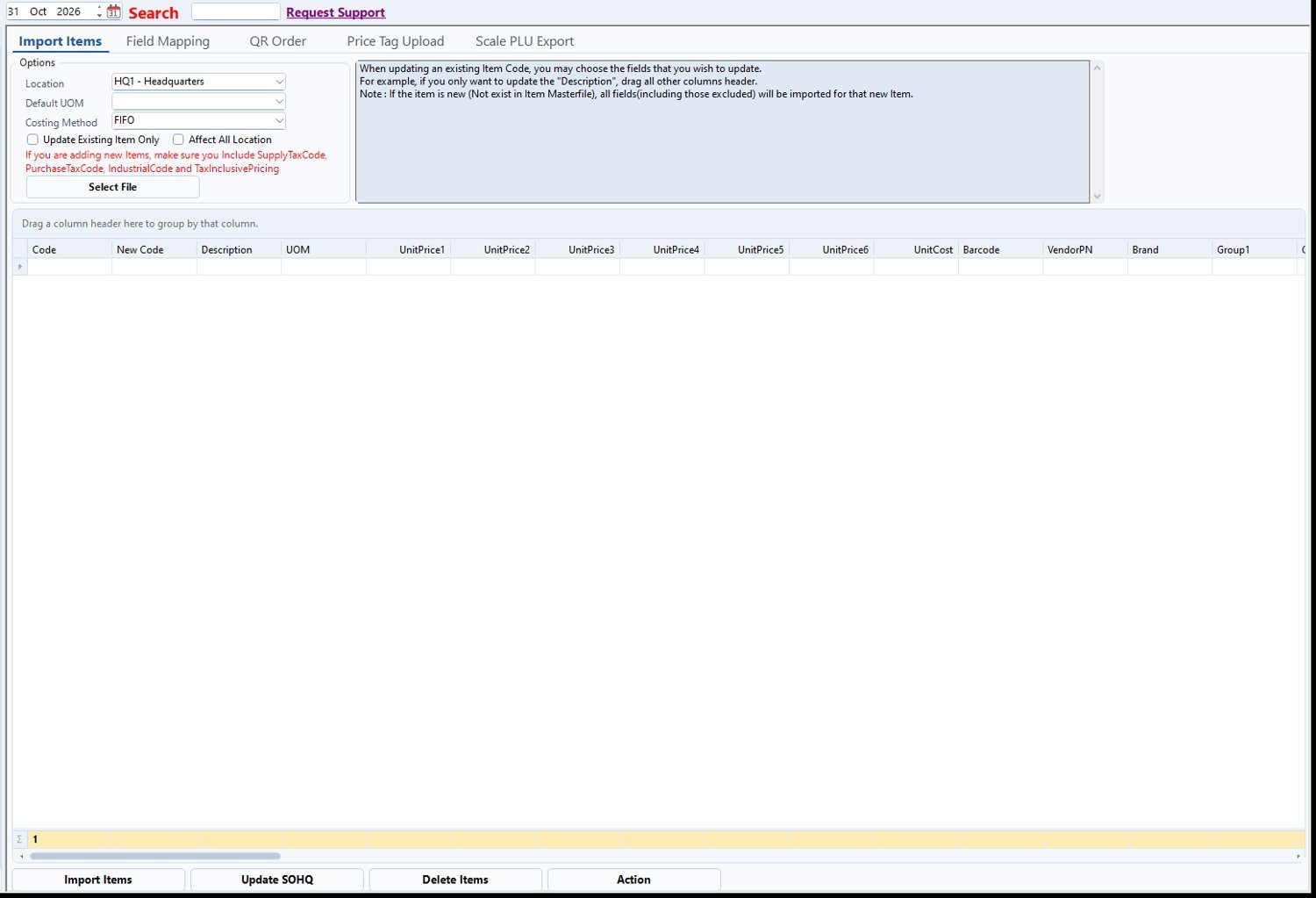
2. Synergy Acc2026 – Importing Items and Menu Lists from Excel
Items and restaurant menus: prepare the Code and Description columns (format Code as Text so leading zeros are kept) and load them with the Item Masterfile Import Utility.
3. Synergy Order App – Importing and Exporting the Menu with Excel
If you use the Synergy Order App, load the menu from Excel or CSV in Settings, under Menu (Excel / CSV).
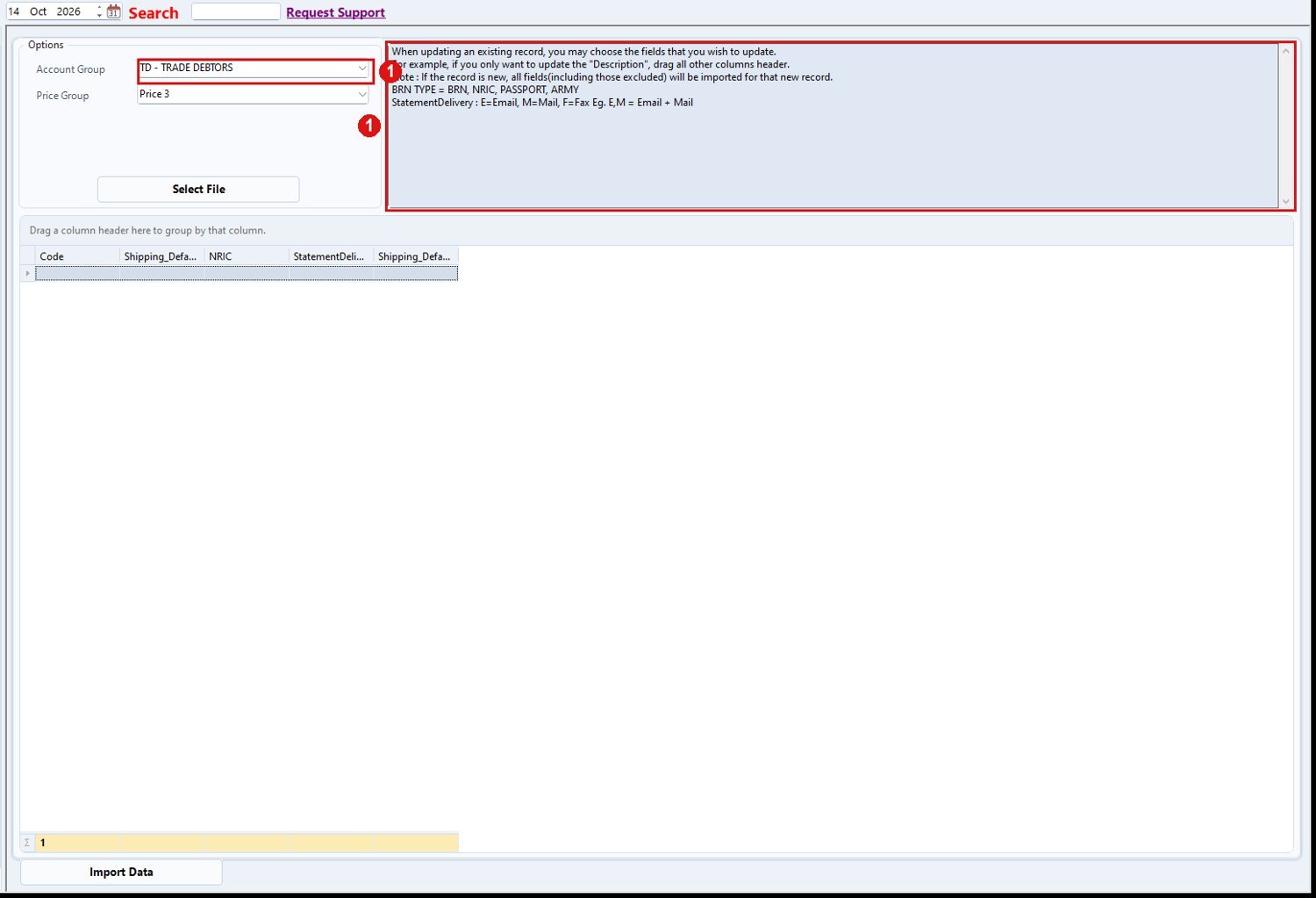
4. Synergy Acc2026 – Importing Debtors and Creditors from Excel
Customers and suppliers: the rows show in a grid first so you can check them before you import.
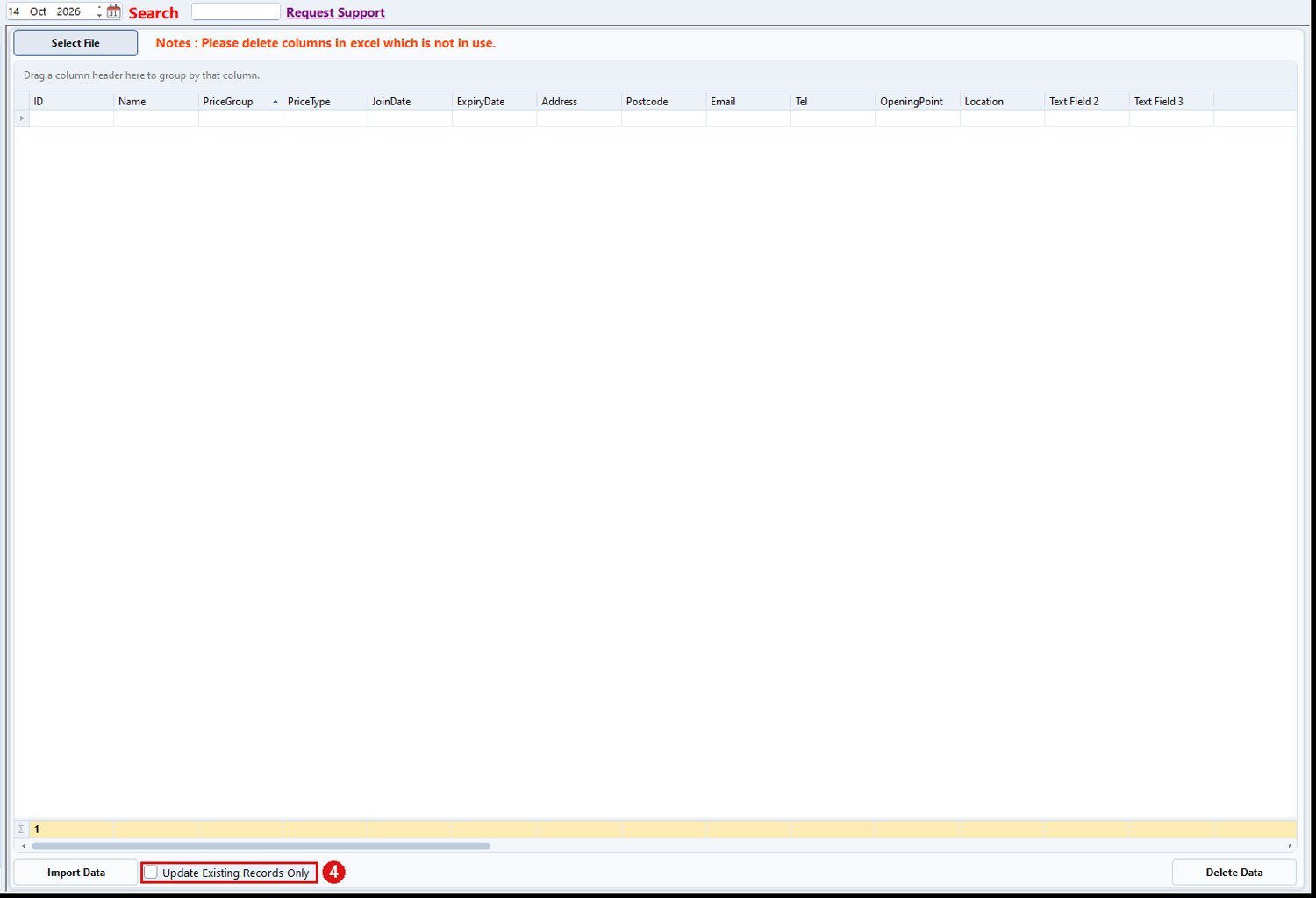
5. Synergy Acc2026 – Importing Members from Excel
Members: use the Membership Import Excel template with a Member ID column, and take a backup first.
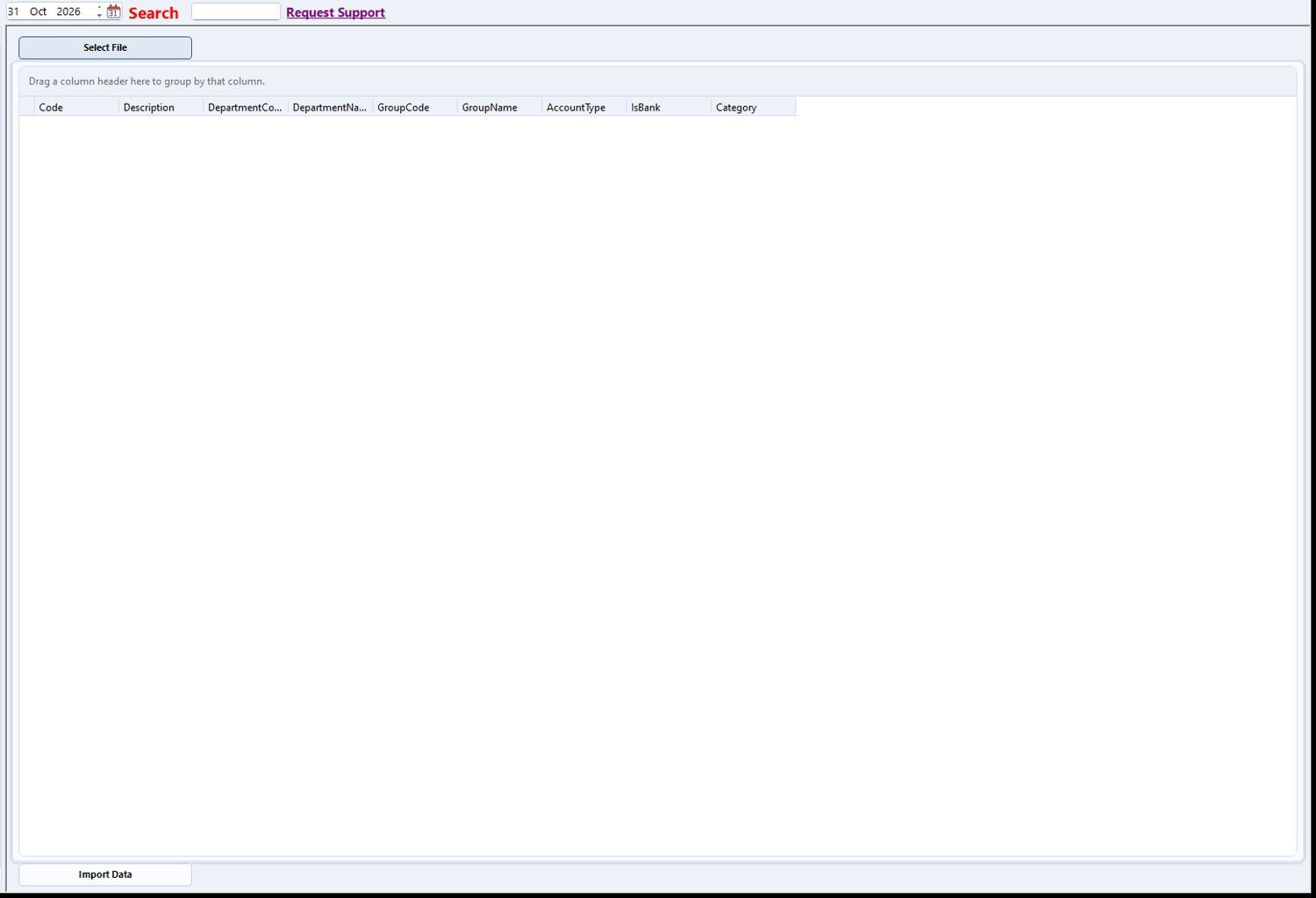
6. Synergy Acc2026 – Importing General Ledger Accounts from Excel
Set up many General Ledger accounts at once from a file instead of typing them one by one.
7. Synergy Acc2026 – Opening Balances and Retained Earnings
If you start part-way through a year, key in the opening balances and retained earnings by journal.
8. Synergy Acc2026 – Debtor and Creditor Opening Balances
Debtor and creditor opening balances are keyed in one by one, for each account that owes you or that you owe.
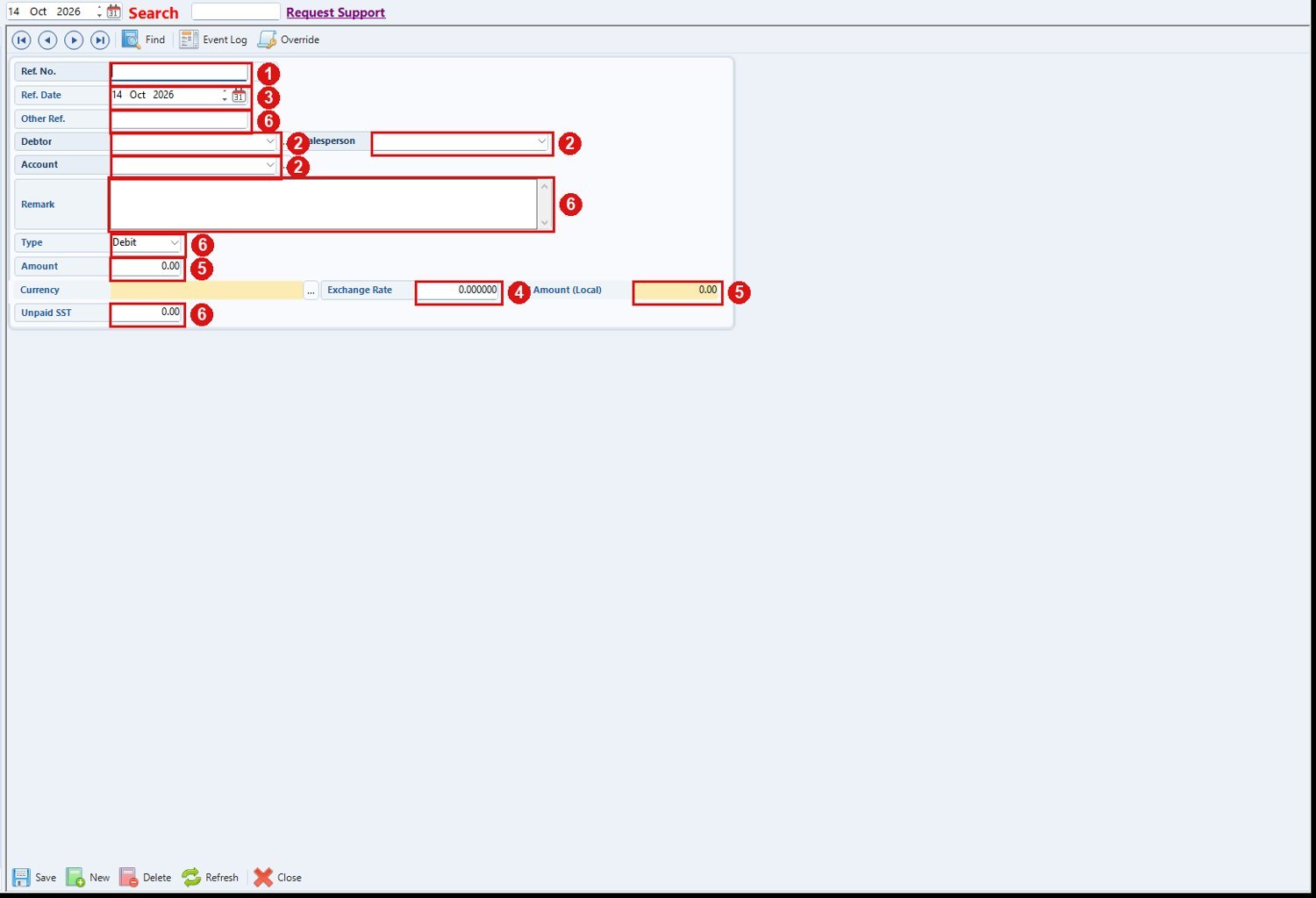
9. Synergy Acc2026 – Importing Sales or Purchase Invoices from Excel
Bring in sales or purchase transactions from Excel, read the result, and reverse the imported transactions if something is wrong.
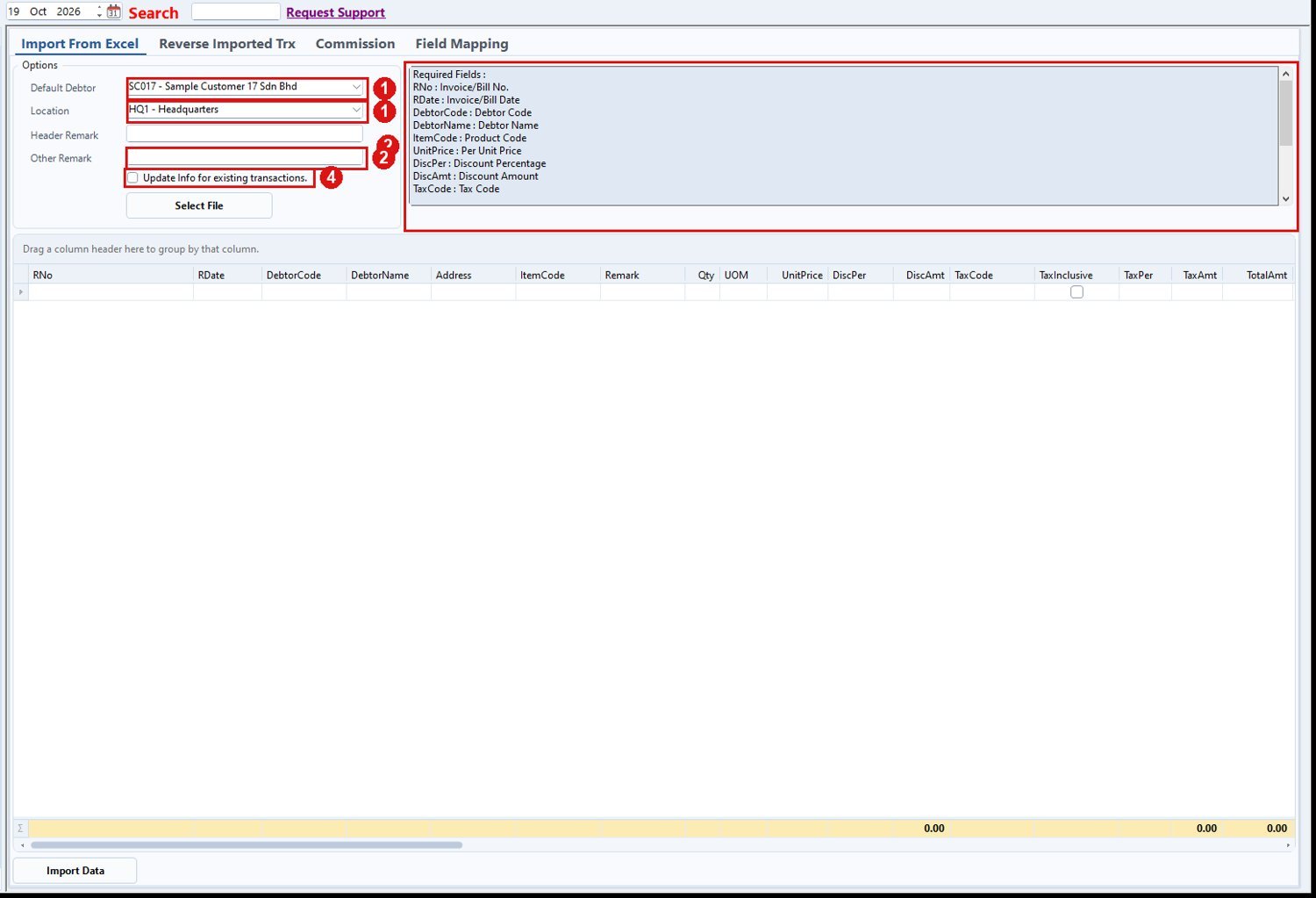
10. Synergy Acc2026 – Importing Cash Book Transactions from Excel
Import bank and petty cash receipts and payments from a file, and delete a batch that was imported earlier if needed.
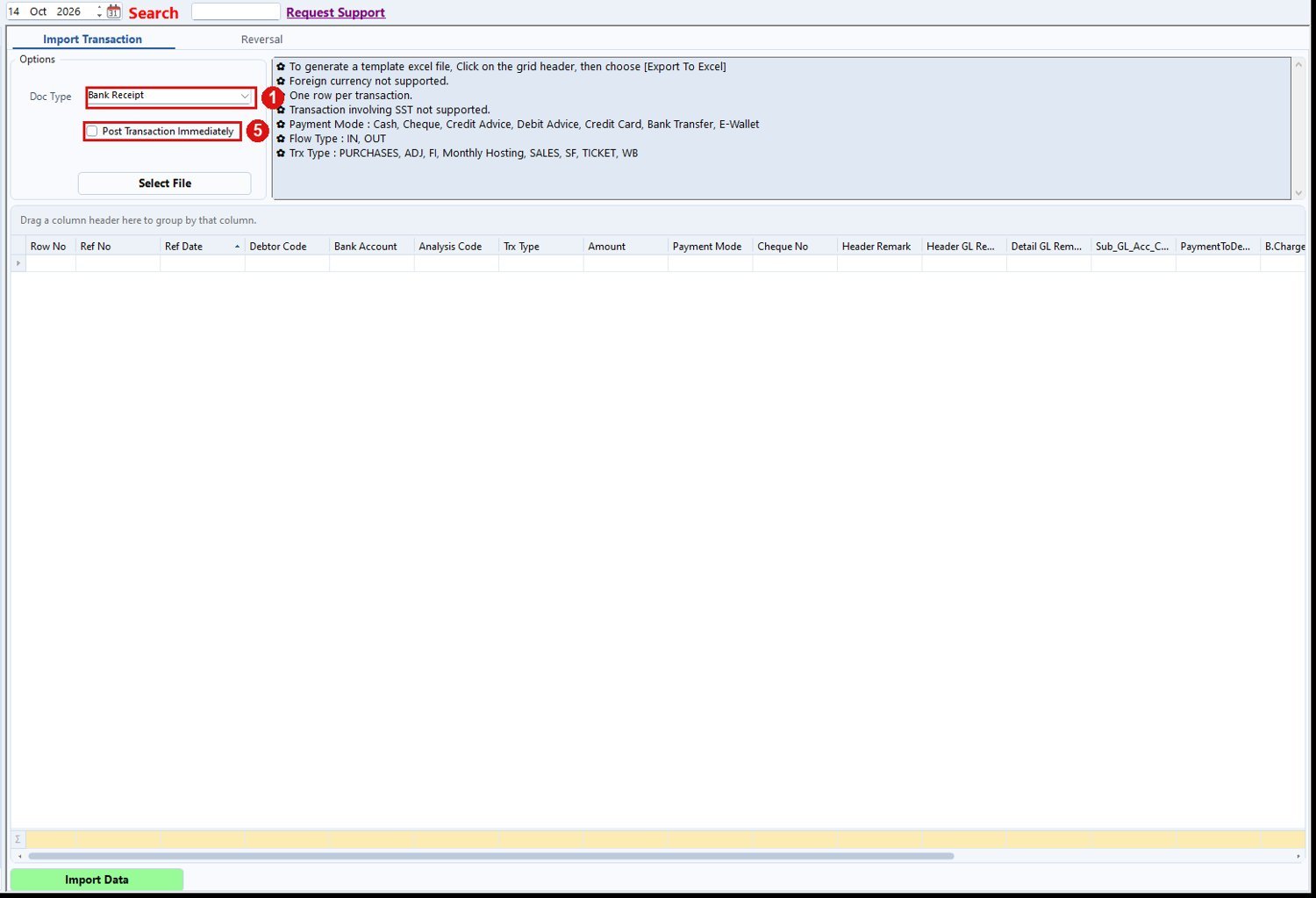
11. Synergy Acc2026 – P&L, Balance Sheet and Trial Balance: Finding Them and Checking Them
Afterwards, check the Trial Balance, the Balance Sheet and the P&L. Closing stock shows only if you key it in.
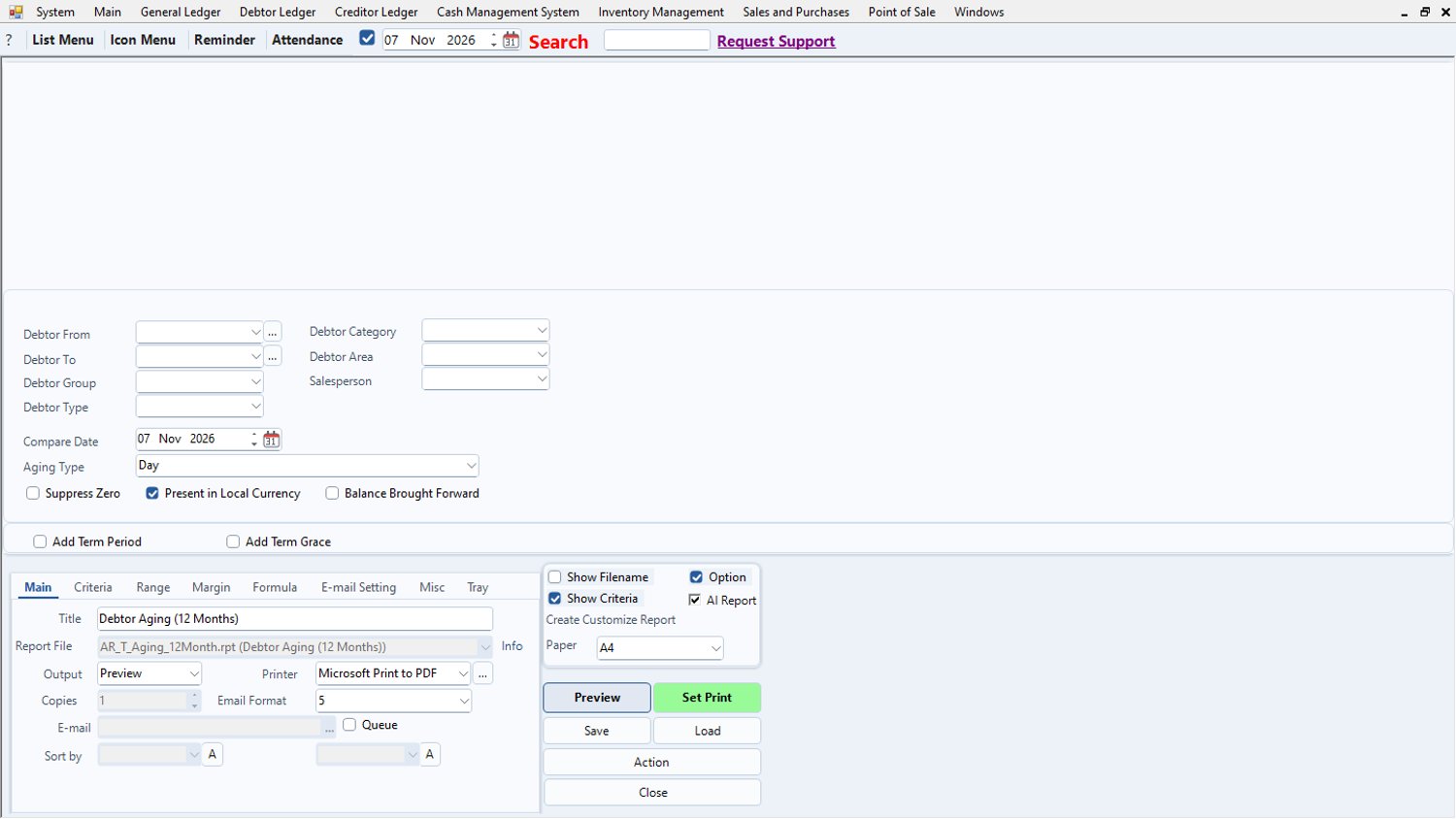
12. Synergy Acc2026 – Debtor Aging and Credit Control
Run the debtor aging for a date you choose and check each debtor’s balance.
Tips
- Use the column headings exactly as the screen asks. Most screens list them in a Required data box or a note on the screen.
- Choosing a new file clears the rows already in the grid. Rows with a problem are marked, often in red with a message: correct the file and select it again.
- More imports: Synergy Acc2026 – Importing General Ledger Journal Transactions; Synergy Acc2026 – Importing Customer Credit Opening Balances; Synergy Acc2026 – Importing Advance Prices from Excel. On the web: Synergy Web – Importing Items from Excel or CSV.
Common problems
Nothing appears after choosing the file.
The file may have no data rows or could not be read. Check that it has a heading row and at least one data row.
Columns come in empty or in the wrong place.
The headings in your file do not match the names the screen expects. Use the exact headings.
The screen says this function is disabled.
Importing does not work on a Demo/Trial copy.