
Use this guide when you want a payment method such as ShopeePay, SPayLater or Alipay on the POS, or you ask for FPX. A wallet is added as a record-only payment type, and it is done on the head office PC.
Before you start
- Know the wallet or payment name you want to add.
- Use the head office (HQ) PC. Check that maintenance is active on that PC.
- Have the branch PC details ready if a branch needs the button too.
Steps
1. Know what can be added
FPX is not a payment mode. For online banking, use Bank Transfer. Other wallets are added as a payment type in the Card Type screen. It is for recording only: there is no link to the wallet company.
2. Work on the HQ PC only
Add the payment type on the HQ PC only. It syncs to the branches. Creating it at a branch can stop transactions from syncing to HQ.
3. Open Card Type
Go to Point of Sale > Point of Sale Setup > Card Type (or Point of Sale > Point of Sale Setup > E-Wallet).
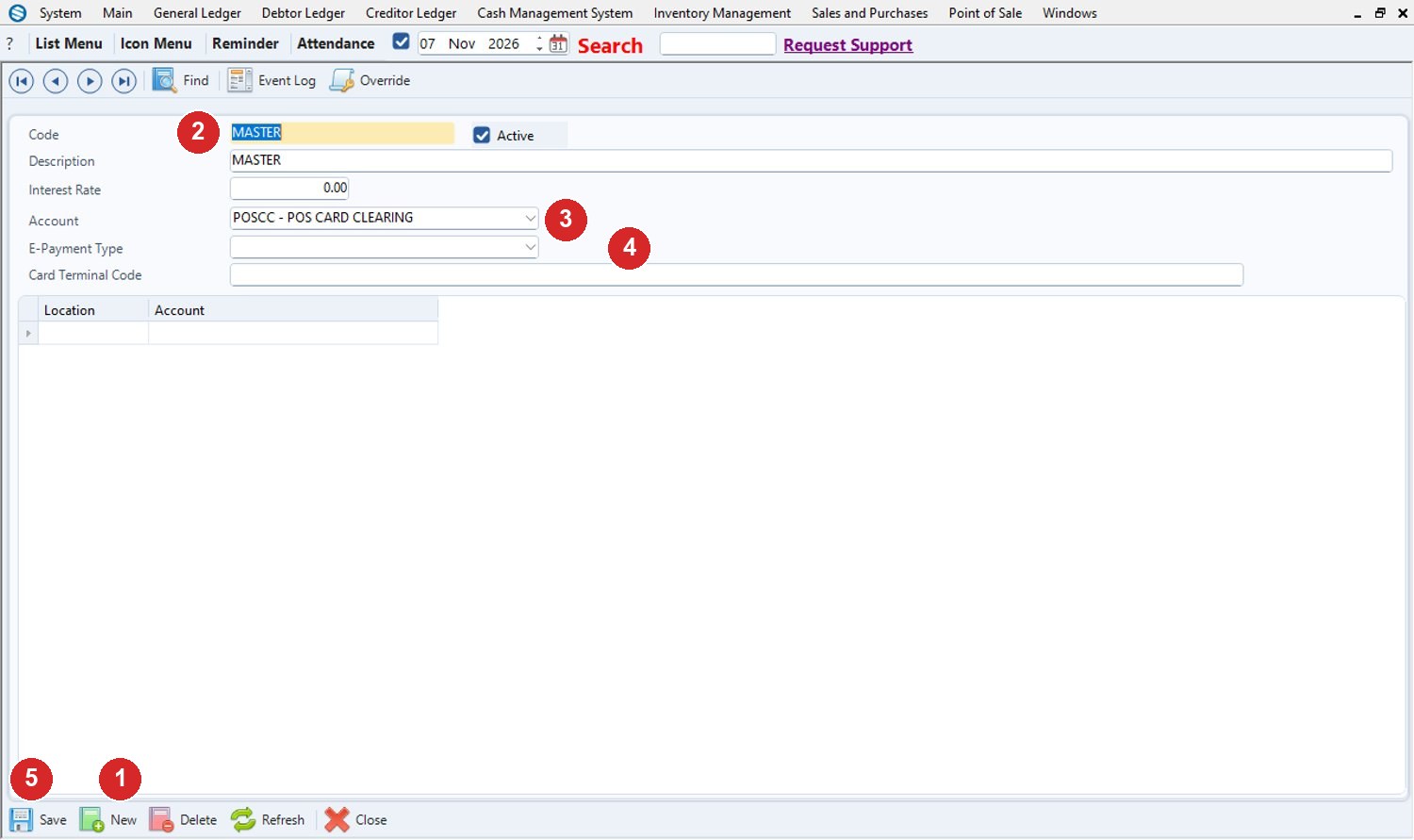
| Step | What to do |
|---|---|
| 1 | Click New and type the Code of the wallet. |
| 2 | Type the Description, for example the wallet name. Leave Active ticked. |
| 3 | Pick the Account the sales go to. |
| 4 | To make it show as an e-wallet button, set the E-Payment Type to 9999. Do this on each PC, because this part is not synced from HQ. |
| 5 | Click Save. |
4. Check the button and logo on each PC
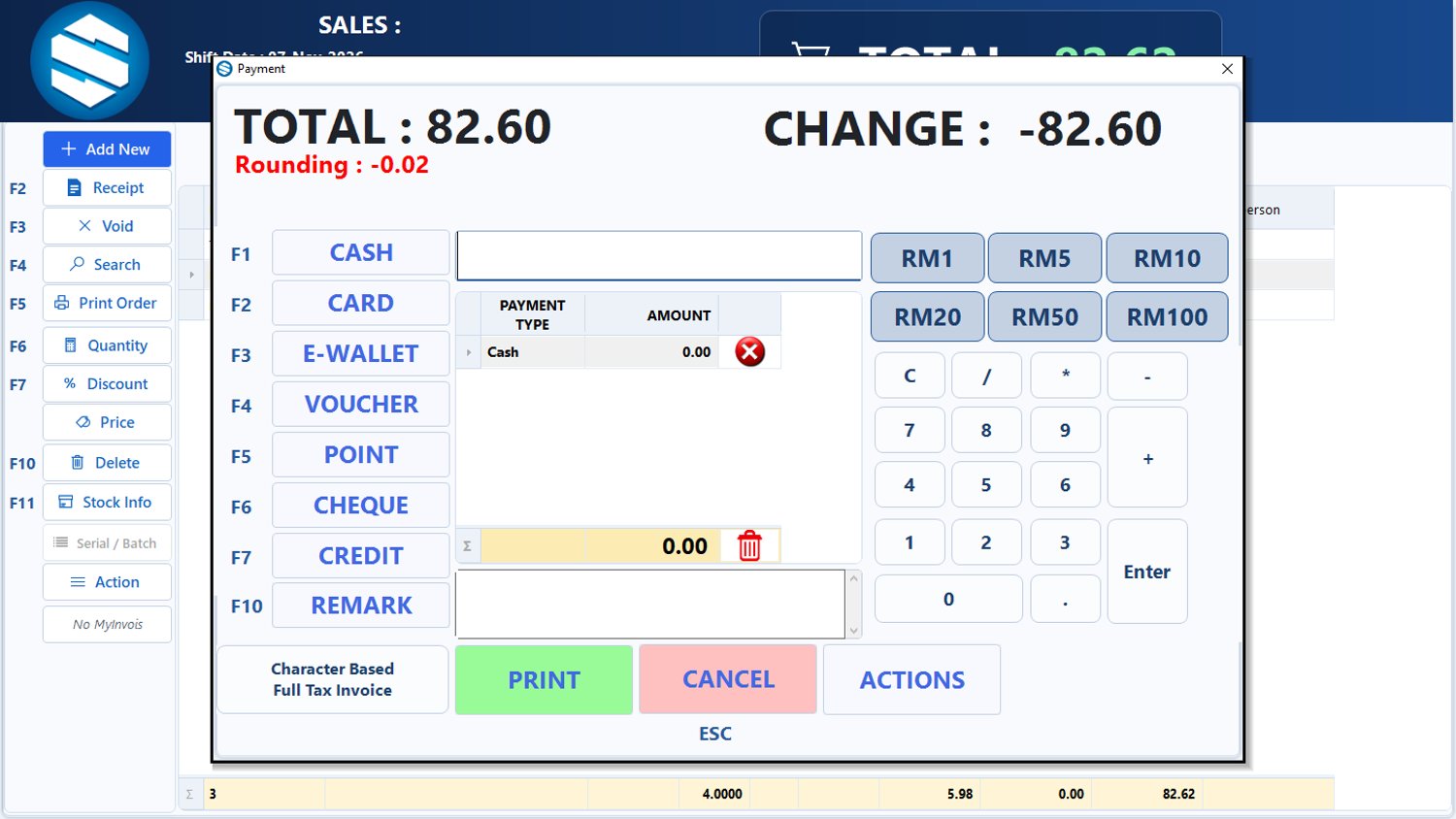
Open the POS on the PC and check the new payment button shows. If a logo does not show on a branch PC, it may need fixing on that branch PC. To give the payment a shortcut key, read “Synergy Acc2026 POS – Payment Types and Payment Shortcut Keys”.
Tips
- Transfer is a Card Type, so it cannot be given its own shortcut key.
- A PC with expired maintenance cannot have a payment type added.
Common problems
The branch asks for a confirmation code when you save.
You are at a branch. Create the payment type at HQ instead. Creating it at a branch means its transactions cannot sync to HQ.
The button or logo does not show on a branch PC.
Write 9999 in the E-Payment Type on that PC. If it still does not show, contact Synergy support. Have the HQ PC remote access and the branch PC details ready.