
Use this guide when the POS does something unexpected: it asks for the original receipt number, a promotion price is not applied, scanning says duplicate, it forces a member, descriptions are cut off, a credit settlement still shows unpaid, or the date turns red. Most of these come from one setting or one item choice. Work down the checks in order.
Before you start
- Note which setting or item is involved: receipt number, promotion, item type or member.
- Check the PC date is correct and that the POS is closed and reopened daily.
- Test another item to see whether only one item behaves this way.
- Think whether a recent update changed the setting.
Steps
1. The POS asks for the original receipt number, or you want it to
To change this, go to Point of Sale > Point of Sale Setup > Point of Sale Settings. For how to do a return or exchange, read the guide “Synergy Acc2026 POS – Returns, Voids and Corrections”.
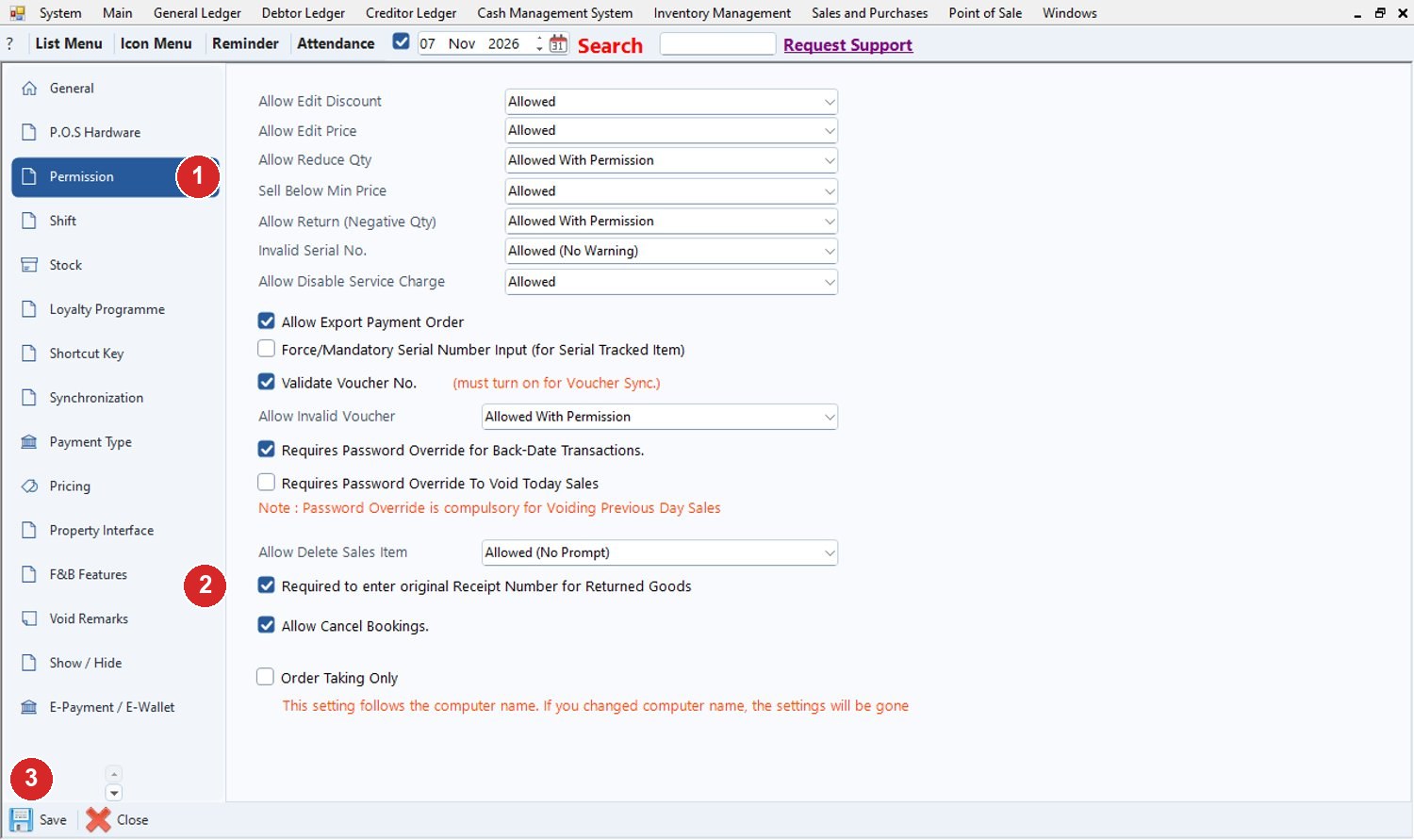
| Step | What to do |
|---|---|
| 1 | Click Permission in the menu on the left. |
| 2 | Tick Required to enter original Receipt Number for Returned Goods if you want the POS to ask for the receipt number. Untick it if you do not. |
| 3 | Click Save. |
2. The promotion price was not applied
Check that the scanned item is in the promotion, check the Advance Price Type (in one case the member’s price type differed from the promotion’s), and check that the promotion is Active. Read the guide “Synergy Acc2026 POS – Promotion Not Applied or Total Shows Odd Sen” for the full checks.
3. Scanning an item says duplicate
Go to Point of Sale Settings and look at the Cash Sale Reference No. A format with only 3 digits starts again after 999, so the number repeats. After you correct it, refresh the POS and test.
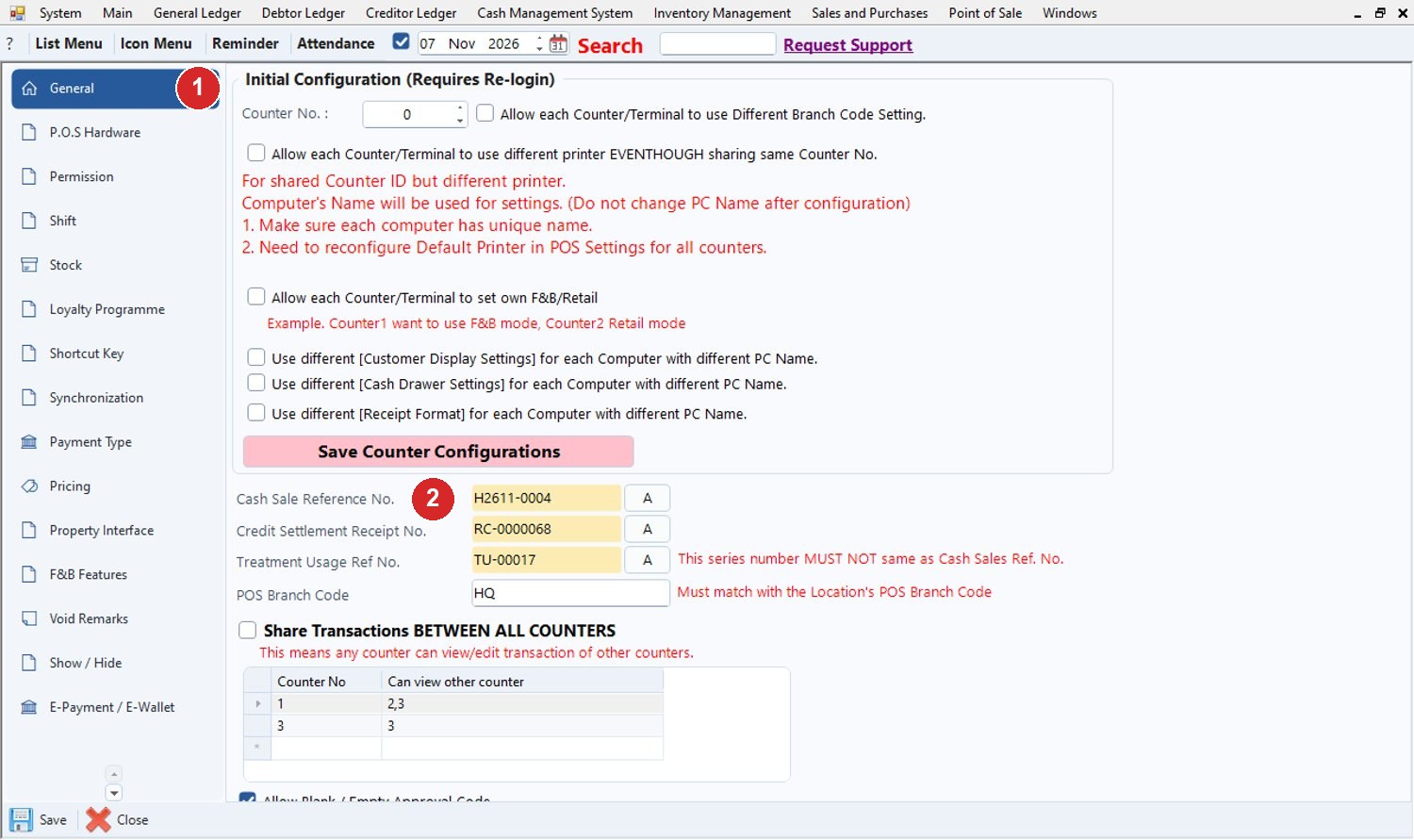
| Step | What to do |
|---|---|
| 1 | Click General in the menu on the left. |
| 2 | Check that Cash Sale Reference No. has enough digits, and correct the running number. |
4. The POS says “[Member] is required.”
Test another item. If only one item does this, open that item and check its Item Type. Treatment Package items require a member. Change the Item Type to the correct one and save.
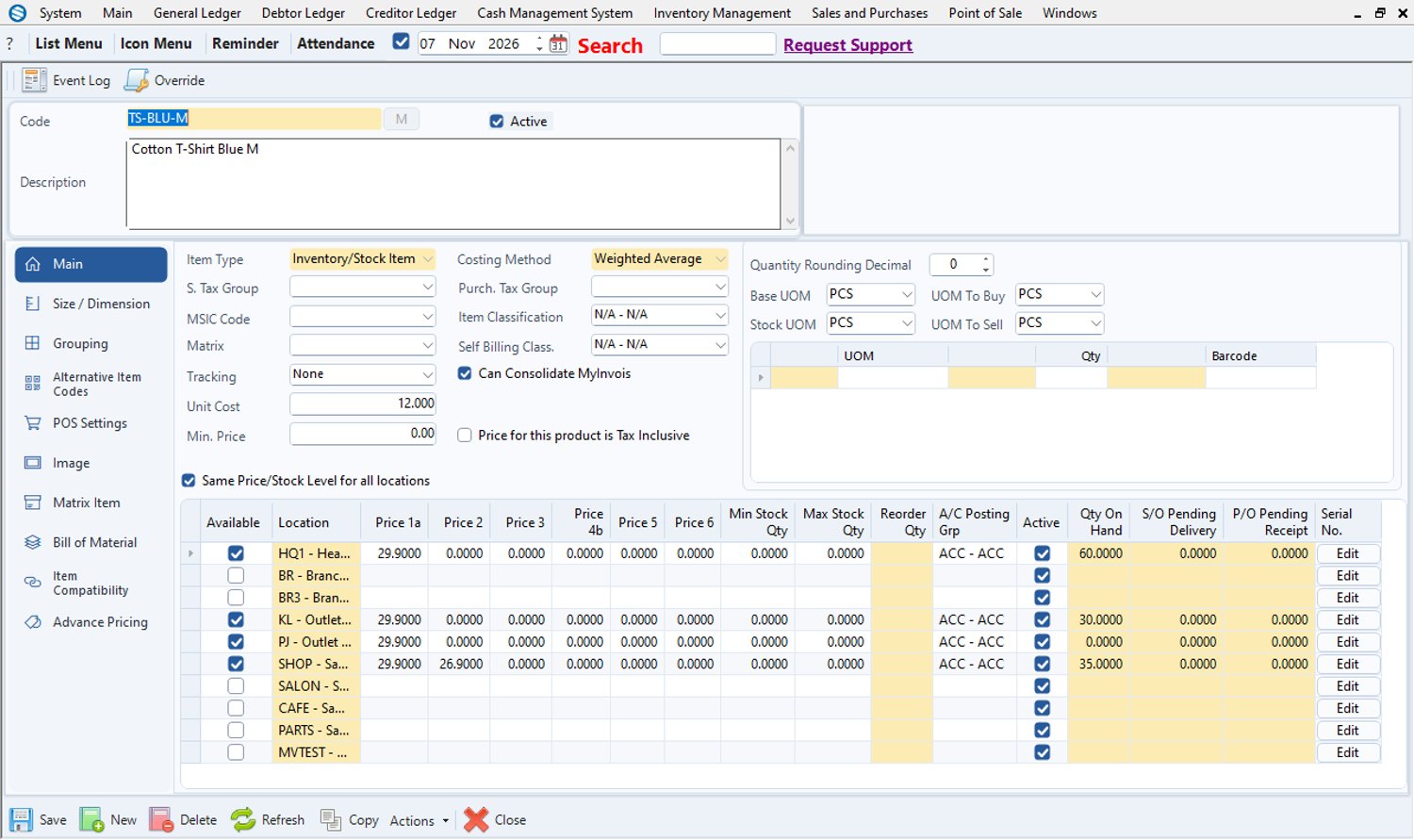
5. Item descriptions are missing or cut off on the cashier screen
Then open the Main Settings tab, raise Row Height to enlarge the rows and click Save. Click Action > Enable Edit Splitter to adjust the column width. Inactivate items you no longer use.
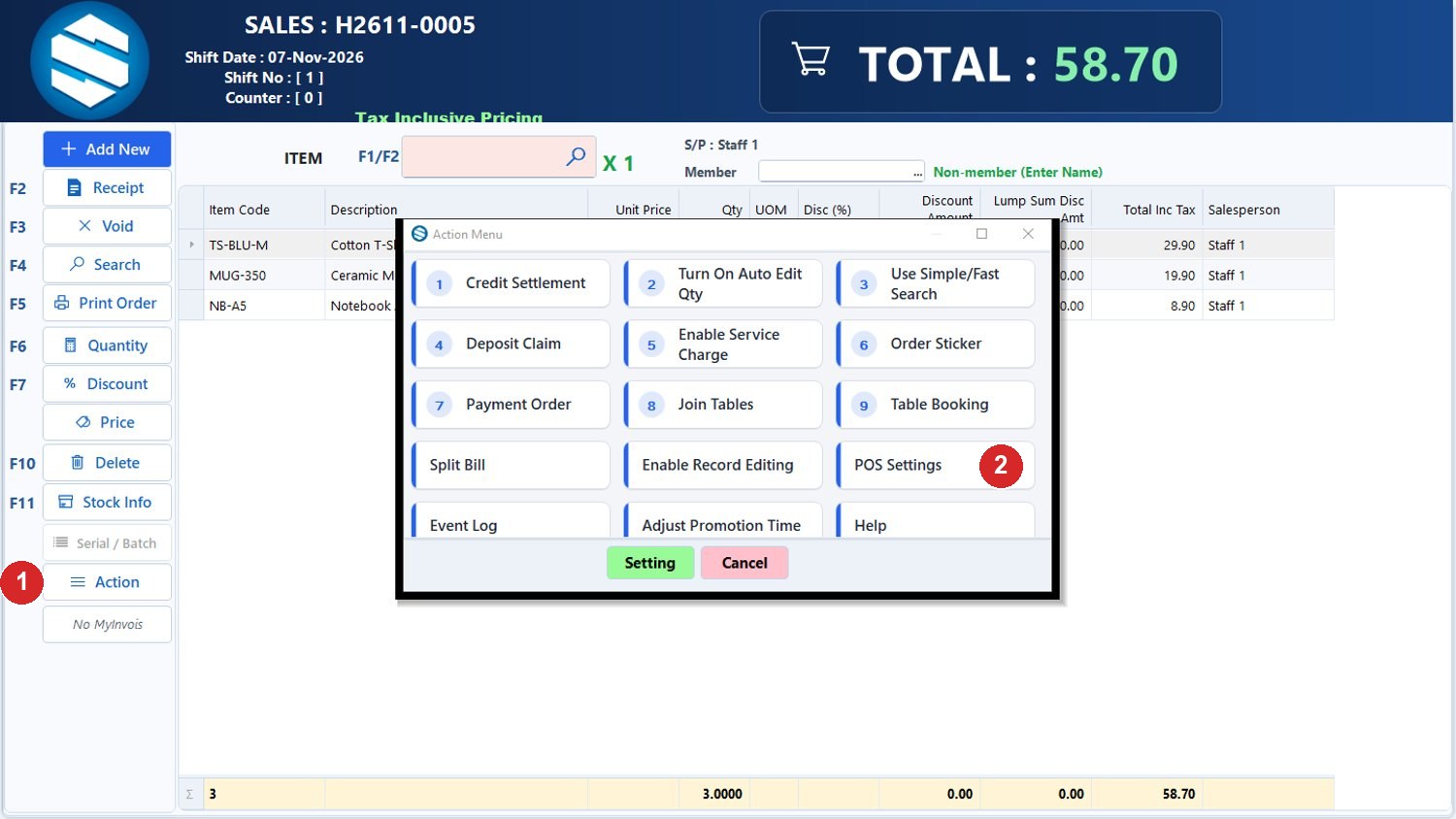
| Step | What to do |
|---|---|
| 1 | On the POS screen click Action. |
| 2 | In the Action Menu click POS Settings. |
6. A credit settlement still shows the bill as unpaid
One credit settlement should be for one customer or member only. The POS warns “You have selected more than one Customer for Settlement.” Write down which bills were paid, void the combined settlement receipt, and make one settlement for each member.
7. The date on the POS main screen is red
The date turns red when the shift date is not today’s date. Check the PC date and whether the POS is closed every day. If it stays red, contact Synergy support.
8. Weighing scale items do not read correctly
Weighing scale items need the Weighing Machine Barcode Format set on the Weighing Scale tab of Point of Sale Settings. The first two digits cannot be zero. Ask Synergy support for the exact steps. Scale hardware errors go to the scale technician.
Tips
- If a setting does not show on a branch, it may not have been applied from the head office outlet.
- A permission or setting can be changed or reset after an update, so check it first.
- The multi-printer setup supports group 5 only. Groups 6 and 7 are not supported.
Common problems
None of the checks fixed it.
Contact Synergy support. Have the outlet name, an example receipt or item code, and a short video of the problem ready.