
This guide shows how to save a deposit booking, close an open booking, add and manage bookings on the Bookings screen, and where to find help for visit packages. The example is the Sample Cafe on 20 Nov 2026 with five table bookings.
Before you start
- Table Booking must be switched on for your company to use the Bookings screen.
- Your user needs the right to manage bookings to add or change bookings. Without it the screen is view only.
- For a deposit booking, know which item you will select (do not type it by hand).
Steps
1. Save a deposit booking
On the POS sale screen, select the item first. Do not type the item name manually.
2. Press Deposit Booking
After selecting the item, press Deposit Booking to save the deposit booking.
3. Close an open booking
To close an open booking, choose ‘Not a booking’ and click OK. It becomes a normal sale.
4. Open the Bookings screen
On the Table Picker screen, click the Bookings button. You can also open it from the Table Booking action on the POS sale screen.
5. Choose the day
Pick the day with the date box, the < and > buttons, or Today. Click a block or a row to select a booking.
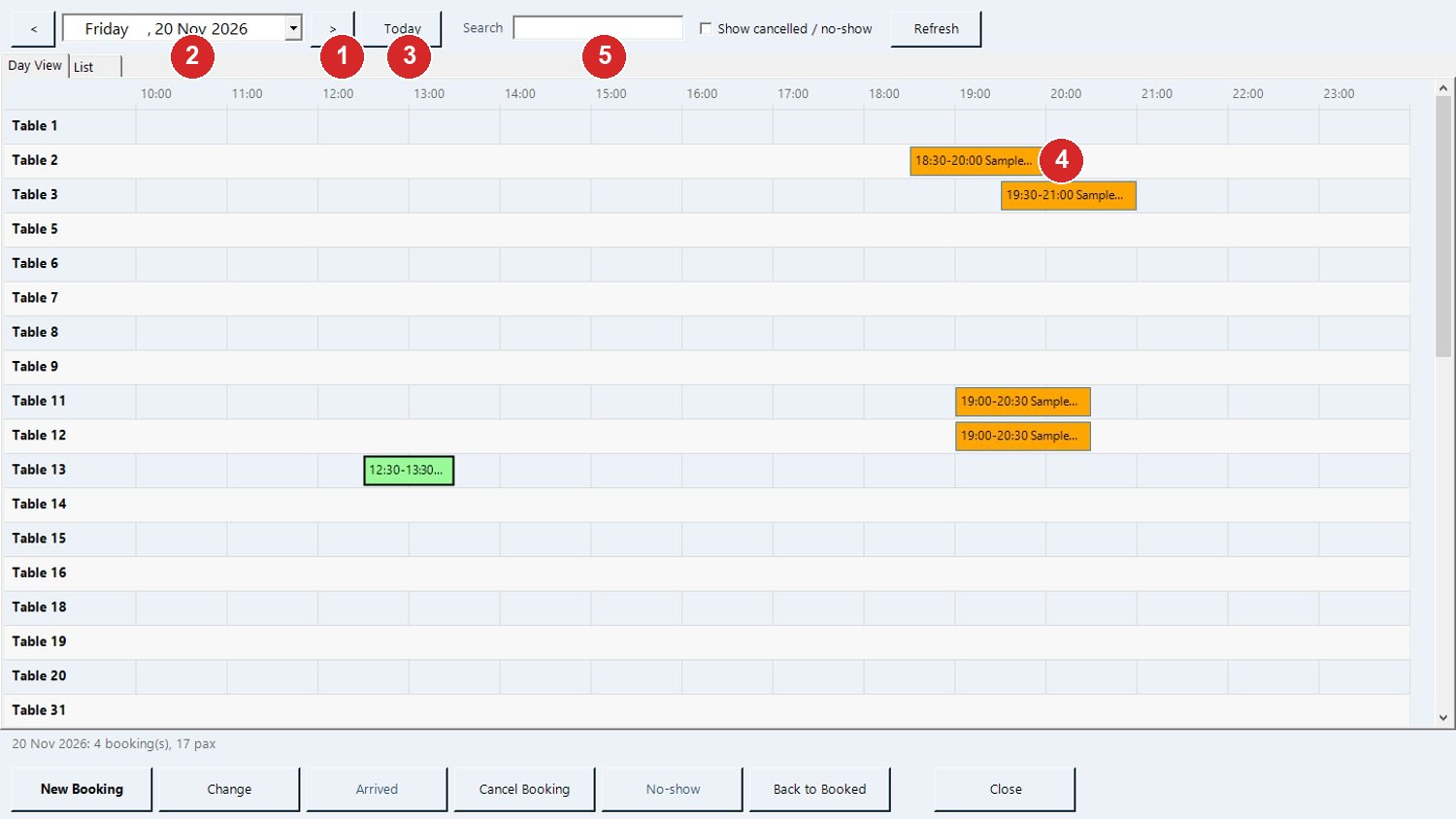
| Step | What to do |
|---|---|
| 1 | < and > move one day back or forward. |
| 2 | The date box picks any day (here Friday, 20 Nov 2026). |
| 3 | Today jumps back to today. The line under the chart shows the number of bookings and pax. |
| 4 | Each block is a booking with its time and name (here Sample Member C at Table 2, 18:30-20:00). Green blocks have arrived. |
| 5 | Search: type and press Enter to find a booking. |
6. Add a booking
Click New Booking (New Appointment for appointments). Double-clicking an empty slot in the chart also starts a new booking.
7. Fill in a table booking
Enter the date, time and number of people, plus the stay length in minutes. Enter the customer’s name, telephone and e-mail, or find a member. Choose at least one table, add a remark if needed, then Save.
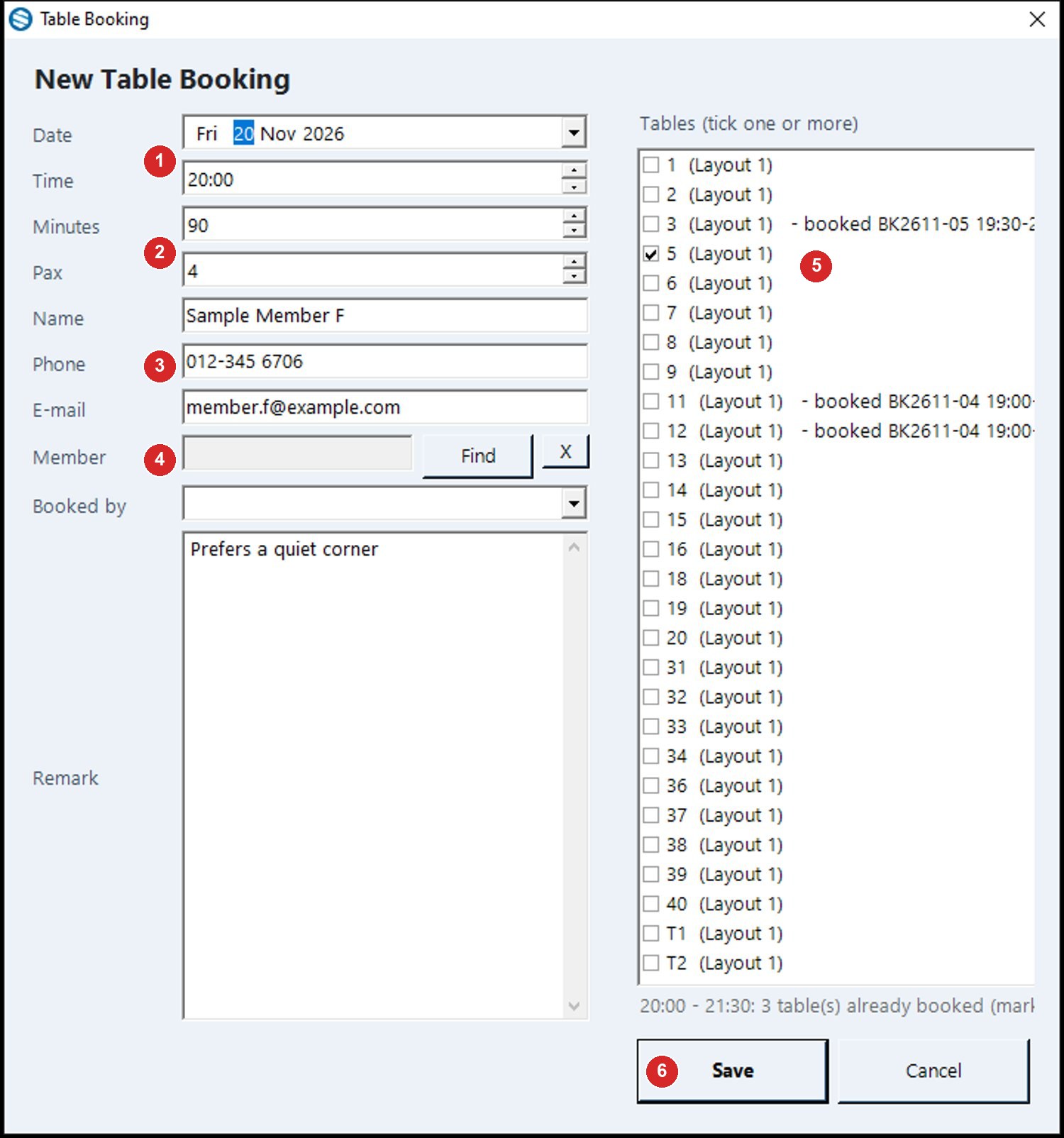
| Step | What to do |
|---|---|
| 1 | Date and Time (here 20:00). |
| 2 | Minutes the table is held (here 90) and Pax (here 4). |
| 3 | Name, Phone and E-mail of the customer. |
| 4 | Or click Find to pick a member (X clears it). Add a Remark if needed. |
| 5 | Tick one or more tables. Tables already booked at that time show the booking number; the line below the list warns how many are taken. |
| 6 | Click Save. |
8. Fill in an appointment
Enter the date, time, number of people and the customer or member. Add one or more services, each with its minutes. Then Save.
9. Manage a booking
Select a booking and use the buttons at the bottom: Arrived, Cancel Booking, No-show, Back to Booked or Close.
10. Find a booking
Type in the Search box and press Enter. Tick Show cancelled / no-show to include cancelled and no-show bookings.
11. Sell a visit package
Use the POS Treatment Package function. Contact Synergy support and ask for the POS Treatment Package guide.
Tips
- The Search box also looks back 30 days, not only at the chosen day.
- The Bookings screen refreshes itself every minute.
- A booking more than about an hour in the past asks ‘This booking time has already passed. Save anyway?’. Answer Yes to save it.
- Setting a booking Back to Booked removes its link to a bill.
- The location you are logged in at decides which bookings are shown.
- Booked by (on the booking form) records which staff member took the booking; it shows in the Bookings list and on the table, and prints on the receipt with
.
Common problems
Deposit booking cannot be saved.
The item may have been typed by hand. Select the item first, then press Deposit Booking.
The New Booking button is greyed out.
Your user does not have the right to manage bookings.
A booking cannot be found.
Use the Search box and tick Show cancelled / no-show. The day list shows only the chosen day.
A booking will not save.
Check the tables, services, minutes, and that there is a name or member.
A member does not appear.
The member may be inactive or belong to another branch.
The message says there is no room available for the chosen time.
No room is available at that time for the services. Choose another time.
Message: Table Booking is not switched on.
The feature is off for your company. Contact Synergy support.