
This guide shows how to change the counter number of a POS PC, what to do with sales recorded under the wrong counter, and how to set shortcut keys, choose whether the receipt prints straight away or shows a preview first, and bring back a missing POS button.
Before you start
- Know which PC and which counter you are changing, and whether it is the main PC or a client PC.
- If you need to ask Synergy for help, have ready: the counter name, the printer model, and the date and number of wrongly recorded transactions.
Steps
1. Open the POS settings
From the menu, go to Point of Sale > Point of Sale Setup > Point of Sale Settings. You can also open it from Action > POS Settings on the sales screen.
2. Change the counter number
The settings at the top of the General page are Initial Configuration (Requires Re-login): they apply after you log in again. The Cash Sale Reference No. and POS Branch Code below belong to this PC too.
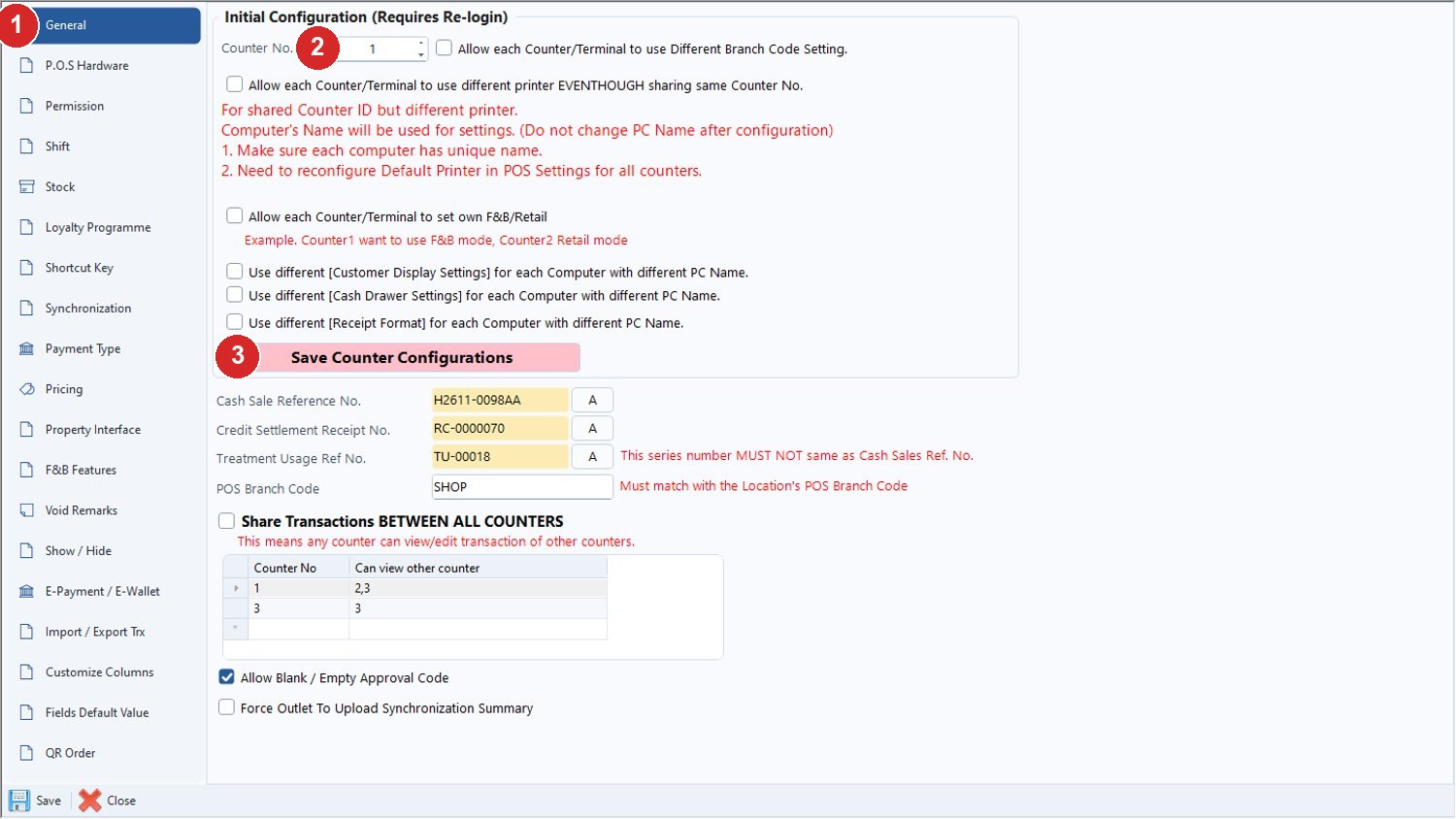
| Step | What to do |
|---|---|
| 1 | Click General in the menu on the left. |
| 2 | Counter No.: the number of this counter, for example 1 or 2. Each PC at an outlet needs its own number. |
| 3 | Click Save Counter Configurations, then log in again. |
3. Fix sales made under the wrong counter
Transactions already made under the wrong counter can be voided and redone on the same day under the right counter.
4. Set a shortcut key
Shortcut keys are grouped in Main Screen, Sales, Payment and Others. Replace a key that is not used, so two actions do not share one key.
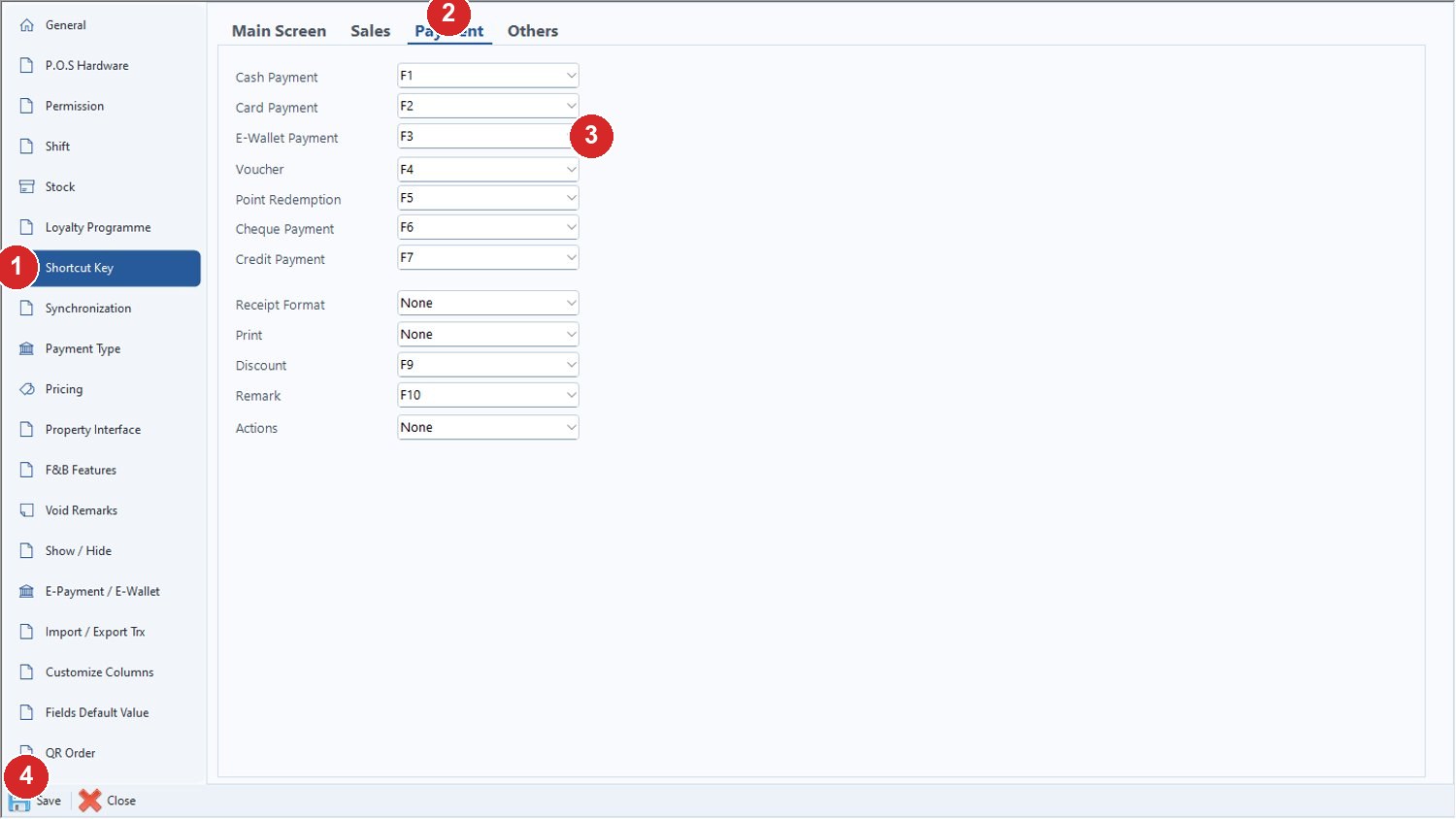
| Step | What to do |
|---|---|
| 1 | Click Shortcut Key in the menu on the left. |
| 2 | Choose the group, for example Payment (or Sales for Edit UOM). |
| 3 | Pick the key for the action, for example E-Wallet Payment on F3. |
| 4 | Click Save. |
5. Print the receipt only on click
Choose what happens when a sale is paid: print at once, or show the receipt preview first so the cashier presses Print.
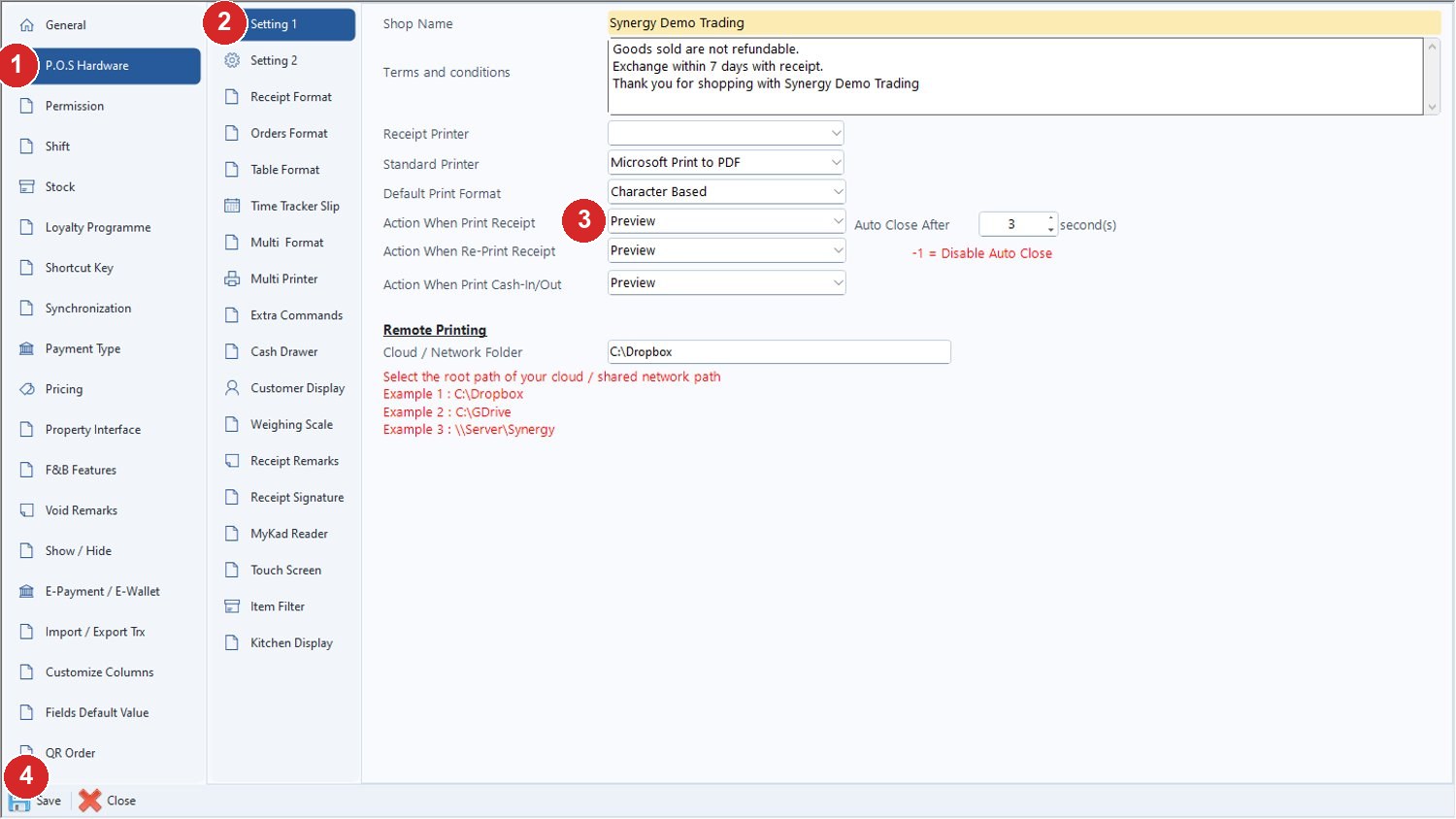
| Step | What to do |
|---|---|
| 1 | Click P.O.S Hardware in the menu on the left. |
| 2 | Open Setting 1. |
| 3 | Action When Print Receipt: Preview (Action When Re-Print Receipt and Action When Print Cash-In/Out work the same way). |
| 4 | Click Save. |
6. Bring back a missing UOM button
Close the software, open it again and log in. The UOM button should appear.
7. Count the cash at the start of a shift
In the Start Shift window, click the keyboard icon to switch between the number pad and the Cash Denomination list, where you count each note and coin.
Tips
- Transfer is a Card type, so it cannot be given its own shortcut key.
- Client PCs can also do POS.
- The search on a counter shows only that counter’s own transactions, unless Share Transactions BETWEEN ALL COUNTERS is ticked on the General page or the counter is listed in Can view other counter.
- If the main PC and the cashier are the same PC, you do not need to download the master list again after uploading. Client PCs do not need it extra either.
- A Windows 7 client PC cannot download from HQ. Do the download on the main PC.
- If ending reports do not tally, check that each PC has the right counter number and that the outlet’s number of counters is set correctly.
- The low-stock warning when scanning is also changed in the outlet setting.
Common problems
A payment button (for example Credit) is missing on the POS screen.
The payment method may not have been added yet. Contact Synergy and have the counter name ready.
The UOM button is not shown.
Close the software, open it again and log in.
A new counter number does not take effect.
Click Save Counter Configurations (not only Save), then log in again.
A button still does not appear, or the receipt printer for a second counter is not set up.
Contact Synergy. Have the counter name and printer model ready.
Sales from a client PC do not show in the search.
The search shows only this counter’s own transactions. Tick Share Transactions BETWEEN ALL COUNTERS, or add the counter under Can view other counter, on the General page.
Ending reports do not tally at an outlet.
Check the counter number on each PC and how many counters the outlet is set to. A mismatch (for example 2 counters on the outlet while the others have 1) can cause this.
The counter number cannot be fixed or sales were recorded wrongly.
Contact Synergy. Have the date and number of wrongly recorded transactions ready.