
This guide shows you how to find an item quickly at the counter, and how to enter serial numbers, batches, or size and colour quantities when you sell items that need them. It also explains the customer display window.
Before you start
- These screens open from the POS sales screen when you sell the matching kind of item.
- If a cashier cannot open Item Search, check the user’s permission for simple item search.
- Serial number items, batch items and size/colour (matrix) items must be set up that way in the item record.
Steps
1. Find an item
Open the search list from the sales screen. Press F1 to jump to the Code box and type part of the item code. Press F2 to jump to the Description box and type part of the item name. The list narrows down as you type.
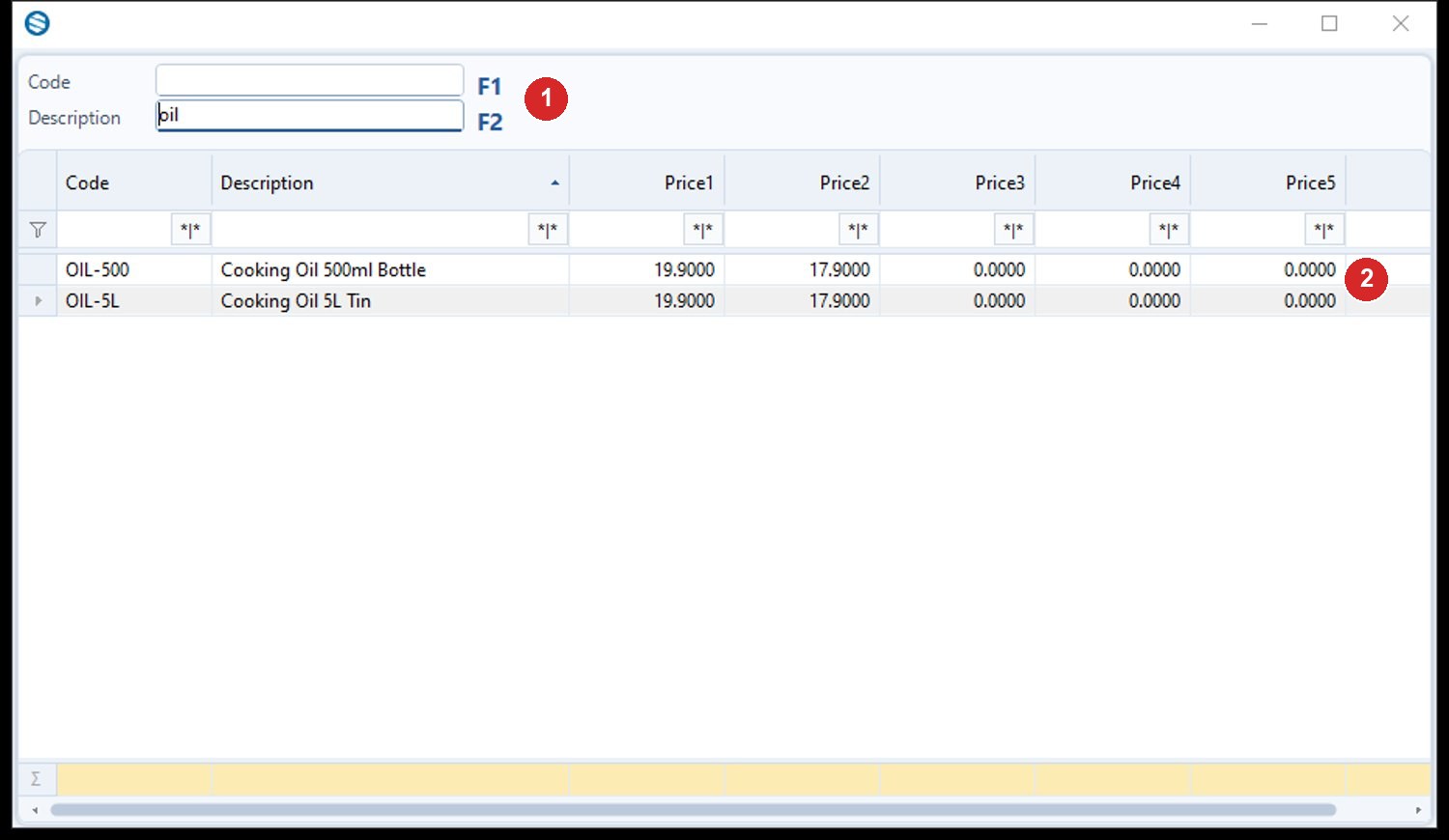
| Step | What to do |
|---|---|
| 1 | Code (F1) and Description (F2): type part of either (here oil). |
| 2 | The matching items with their prices. |
2. Choose the item
Select a row and press Enter, or double-click the row. The window closes and the item code goes back to the sales screen. Press Escape to close the list without choosing anything.
3. Enter serial numbers
When you sell an item that has serial numbers, type each serial number in the Selected Serial Number list, one per row, until the count matches the quantity sold. For a run of consecutive numbers, type the first one in Serial Number Range From, enter in the box beside Add Range how many numbers you want, and click Add Range.
4. Confirm the serial numbers
Click OK to confirm. The function key shown beside it (F9) can be used too. Cancel (or ESC) runs the same checks and keeps the serial numbers listed, so it does not discard what you entered.
5. Choose the batch
When you sell a batch-tracked item, select its line on the POS sale screen and use the same button that is used for serial numbers. Check Quantity Required at the top. In the list choose the batch for each row and enter its quantity; the make date and expiry date fill in automatically.
6. Show more batches if needed
Tick Include Expired or Include Zero Stock to also see those batches, then click Refresh. Click Change UOM to switch the unit of measure. Click OK to confirm, or Cancel to close without confirming.
7. Enter size and colour quantities
When you sell an item with variants, the Matrix for : window shows all variants in one grid, with the stock on hand (SOHQ) of each. Enter the Qty wanted for each variant, or use the plus and minus buttons beside it. Click OK to add the quantities to the sale, or Cancel to leave without adding.
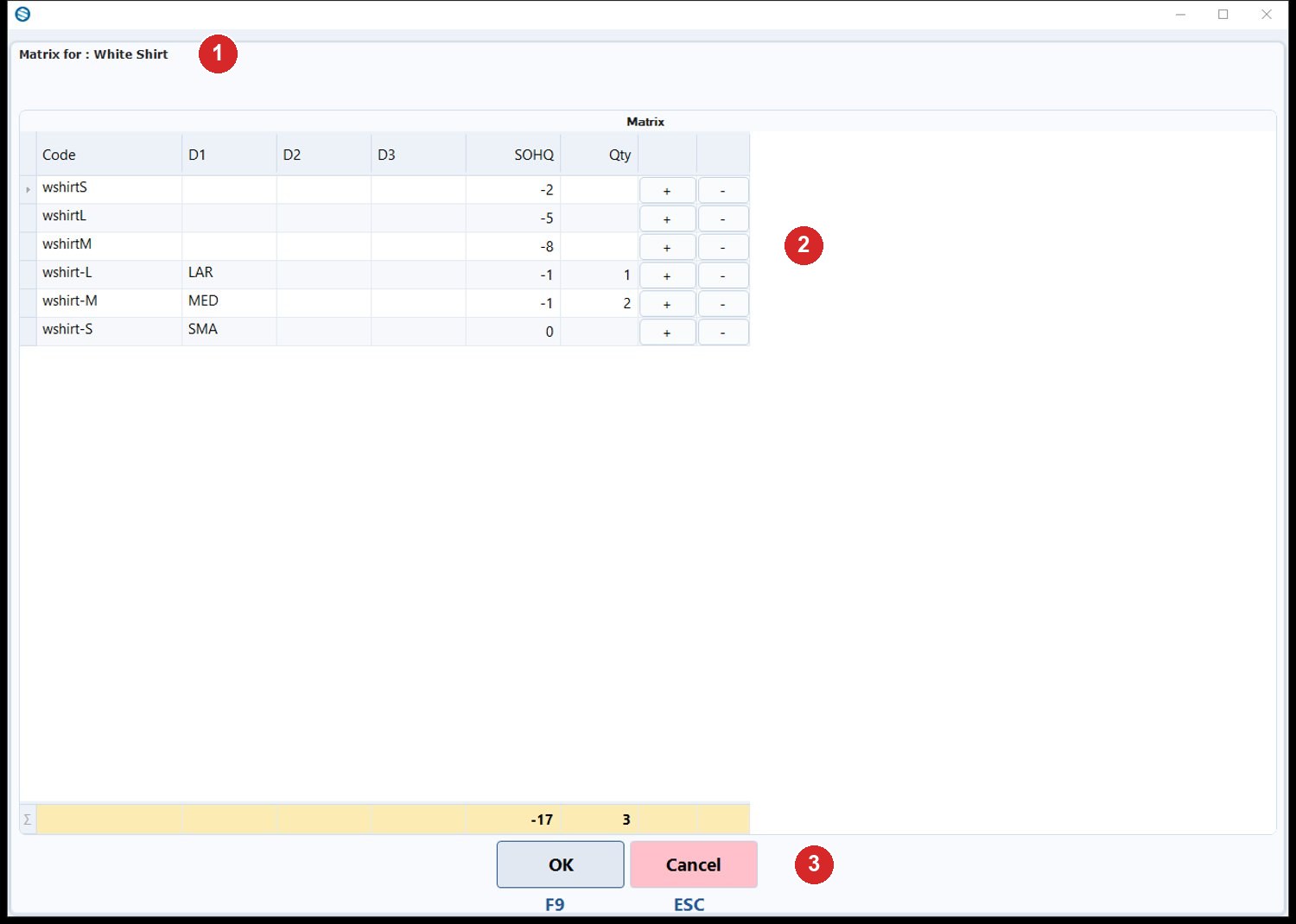
| Step | What to do |
|---|---|
| 1 | Matrix for : the parent item (here White Shirt). |
| 2 | Each variant with SOHQ and Qty; + and – change the Qty (here 2 x wshirt-M, 1 x wshirt-L). |
| 3 | OK (F9) or Cancel (ESC). |
8. Show prices to the customer
If your point of sale uses the customer display type LCD1, a separate window appears by itself on the monitor chosen for the customer display. There is nothing to type. It shows the item and amount in large letters and updates by itself as the cashier works.
Tips
- Item Search shows only active items. In Description, two words separated by a space must both be found in the item name, in any order; only the first two words are used.
- The Item Search grid also has a filter row, so you can filter on other columns such as the price columns.
- Serial Number Range From and Add Range are not shown in shops that use serial-number locking. In those shops, selected serial numbers are held for a set time so another terminal cannot sell them at the same time.
- In Batch Entry, the add and minus buttons on a row change its quantity by 1. The first click on add, while nothing has been allocated yet, fills in the whole Quantity Required.
- Your Include Expired and Include Zero Stock ticks are remembered.
- In the size/colour matrix, pressing minus at 1 clears the quantity.
- Click the text in the customer display window once to turn its border and close button on or off. With them on you can close the window.
Common problems
An item is missing from the Item Search list.
It is probably marked inactive. Check the item record.
Pressing Enter does nothing in Item Search.
Make sure a real item row is selected. Group or header rows cannot be chosen.
“Duplicate Serial No. entered.” appears.
The number is already on another row. Your entry is undone. Enter a different number.
“Quantity does not match the serial number count.” appears.
Check Quantity Required and S/N Entered, then answer Do you want to continue? Yes or No.
“Invalid Serial Number. Do you want to allow Invalid Serial Number?” appears.
The number is not in the stock list. Depending on your shop’s setting, it is refused, or accepted after a Yes/No question or a supervisor’s permission.
“Failed to lock Serial Number. Please close screen and re-select Serial No.” appears.
Close the screen and select the serial number again. It may be locked by another terminal.
I cannot close the Batch Entry screen.
Batch entry is compulsory. Pick a batch.
A batch is not shown.
It may be expired or zero stock. Tick the matching option and click Refresh.
“Quantity does not match the Batch count.” appears.
Check Quantity Required against Batch Entered, then answer Yes or No.
“Please enter quantity.” appears in the matrix, or nothing was added after OK.
No quantity was entered for any variant. Enter at least one quantity.
I am asked for supervisor approval in the matrix (Insufficient Stock).
The quantity is more than the stock on hand and your shop does not allow selling zero stock.
I cannot close the customer display window.
Click the text once to bring back the border and close button.