
POS sales do not show in the Sales Invoice list. Instead, use the Point of Sale menu to see your POS sales, cash in/out and totals by payment type. This guide shows where to find each one, using the SHOP branch on 20 Nov 2026 as the example.
Before you start
- Decide whether you want POS sales (use the Point of Sale menu) or normal Sales & Purchase invoices (use the invoice list).
Steps
1. Know where POS sales are kept
POS sales do not appear in the Sales Invoice list. Use the POS reports and queries in the next steps.
2. See cash in and cash out
Go to Point of Sale > Reports > Cash In/Out Report.
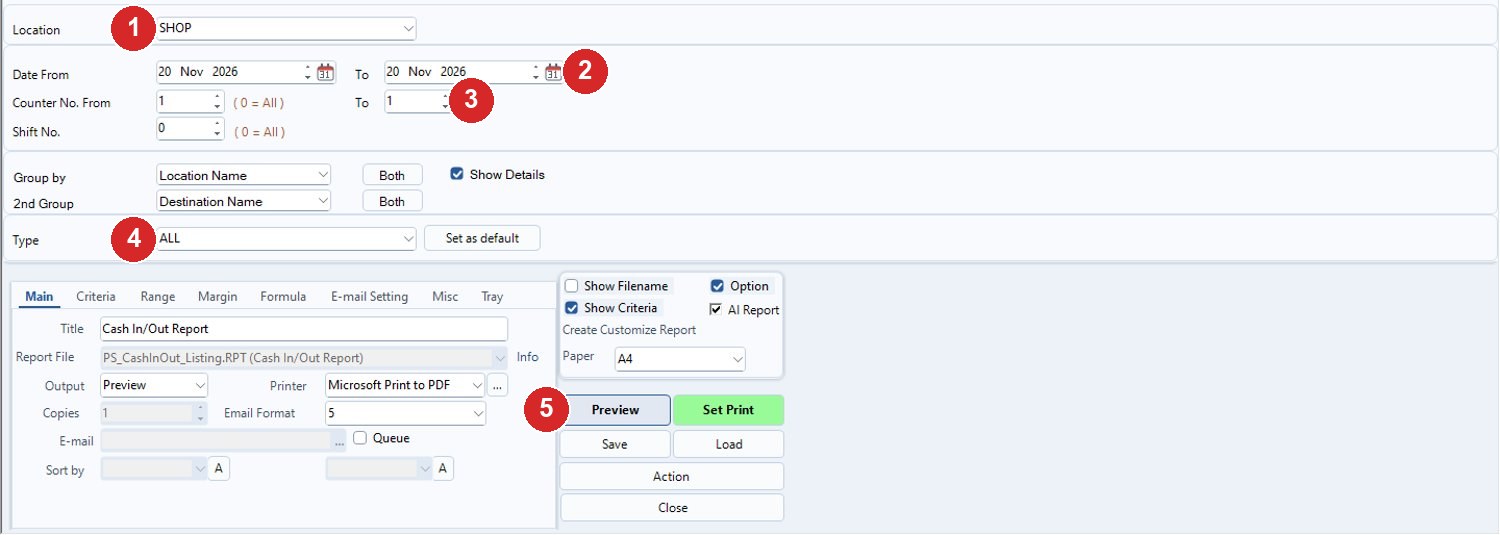
| Step | What to do |
|---|---|
| 1 | Location (here SHOP). |
| 2 | Date From and To. |
| 3 | Counter No. From/To and Shift No. (0 = all). |
| 4 | Type: ALL, or only cash in or cash out. |
| 5 | Click Preview. |
3. Open Daily Sales (Detail)
Go to Point of Sale > Query > Daily Sales (Detail) for one row per item sold, or Point of Sale > Query > Daily Sales (Summary) for one row per bill. The list shows each line’s Status (Received, VOID, Pending), time, Ref. No., item and price. The Location and Location Name columns, right after Ref. No., show which shop each line was sold at.
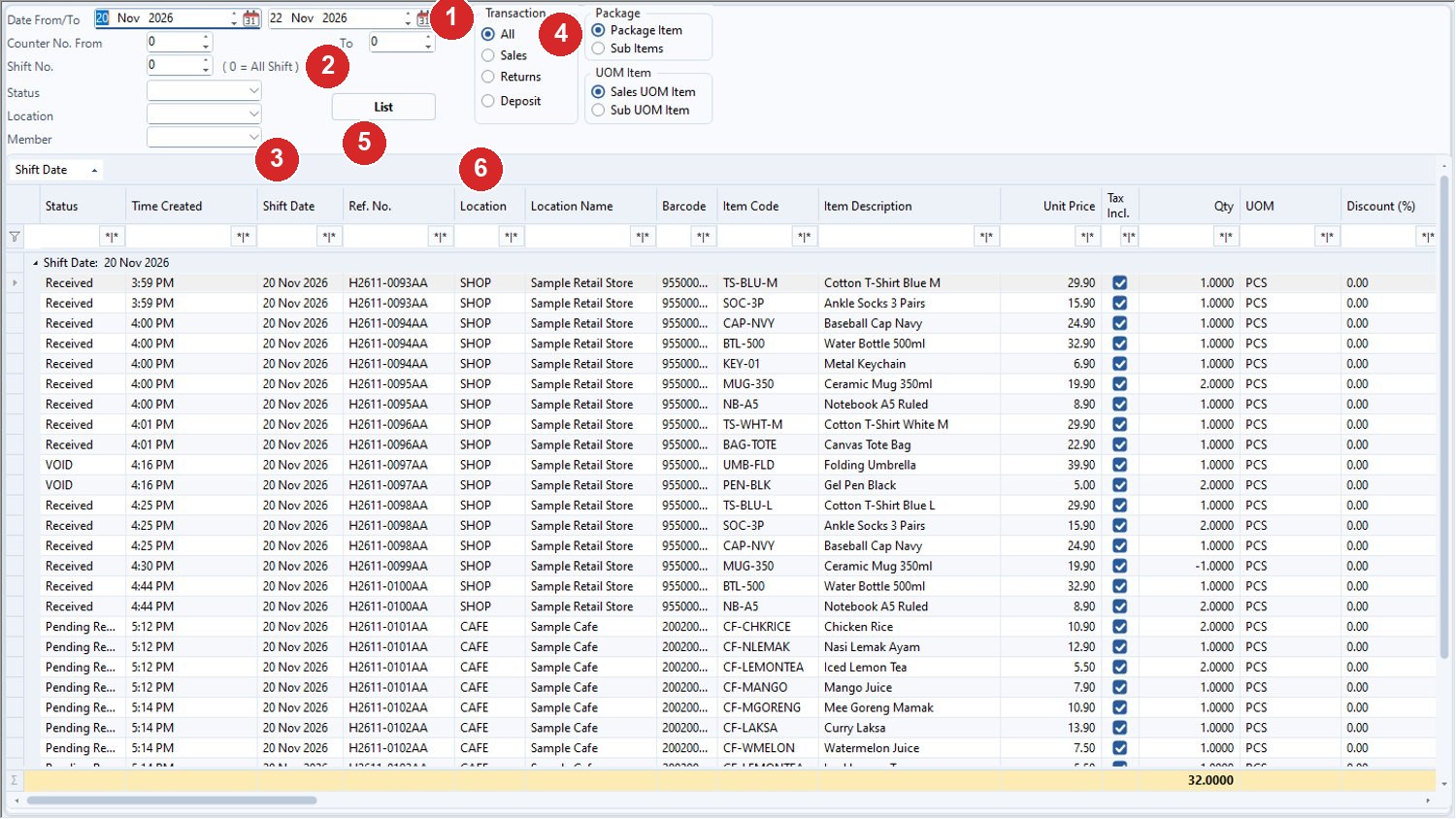
| Step | What to do |
|---|---|
| 1 | Date From/To: both start as today, so widen them for other days. |
| 2 | Counter No. From/To and Shift No. (0 = all shifts). |
| 3 | Status, Location and Member if needed. |
| 4 | Transaction: All, Sales or Returns to see sales and returns together or apart. |
| 5 | Click List. |
| 6 | Location and Location Name: the shop of each sale (here SHOP and CAFE). |
4. See sales by outlet
Go to Point of Sale > Reports > Sales By Outlet.
5. See totals by payment type
For totals by payment type such as cash and e-wallet, go to Point of Sale > Reports > Collection By Payment.
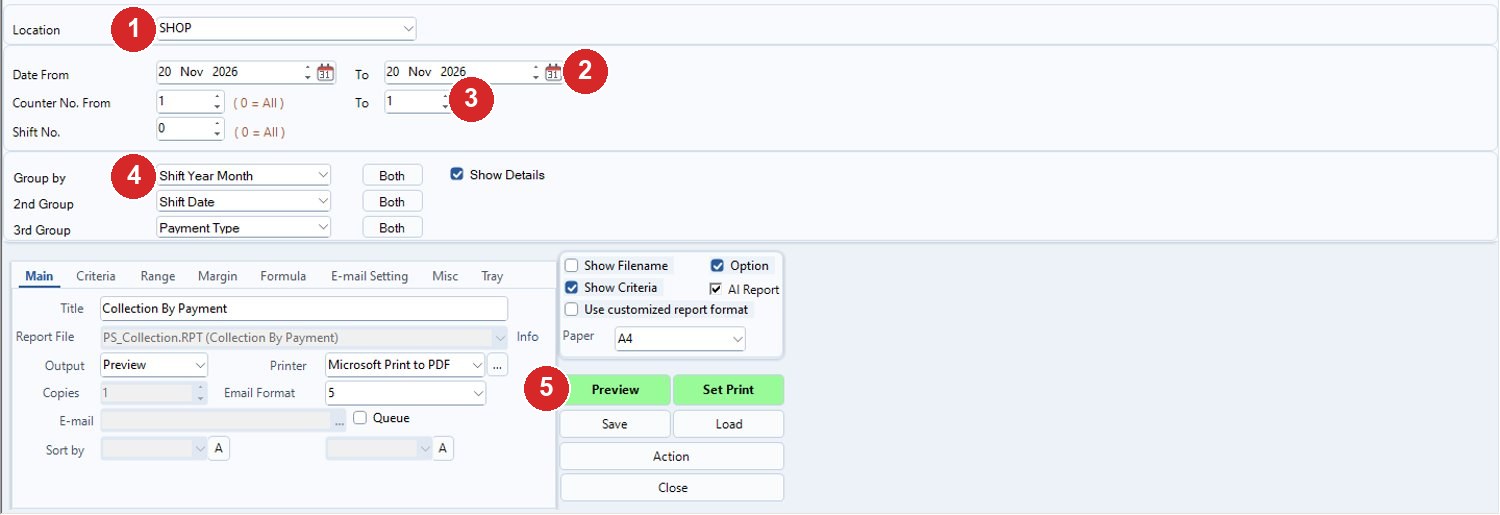
| Step | What to do |
|---|---|
| 1 | Location. |
| 2 | Date From and To. |
| 3 | Counter No. From/To and Shift No. (0 = all). |
| 4 | Group by, 2nd Group and 3rd Group (here month, date, then payment type). Untick Show Details for totals only. |
| 5 | Click Preview. |
Tips
- Daily Sales (Detail) shows the Package and UOM Item options. Daily Sales (Summary) does not.
- The Print button only shows when the print option is switched on in the company settings.
- The summary report ignores the Transaction choice (All, Returns, Sales).
- If some columns are missing, your user rights may not include viewing all information.
- To see sales and returns together in a normal sales report, use Transaction Summary.
- Records from the Cash Management System cannot be imported.
- Daily Sales (Detail) and Daily Sales (Summary) both have the Location and Location Name columns. On an HQ PC that receives branch sales, group or filter by Location to see each shop.
Common problems
No rows appear after clicking List.
Only today is included by default. Widen Date From/To, or check the Shift No., Counter No. and Status filters.
I cannot find the Print button.
The print option is not switched on in the company settings.
Package or UOM Item options are missing.
They only show in Daily Sales (Detail).
The report still does not show what I expect.
Contact Synergy support. Have ready a screenshot of the report and the date range you used.