
This guide shows how to use the POS Auto Sync Uploader, a window that stays open on the sales computer and keeps sending sales data to head office and the cloud over the internet. It also exchanges member information.
Before you start
- Use a branch computer. Head office gets the message Only Branch can Auto Upload.
- The program usually opens this window by itself when the computer is set up for point-of-sale upload or member sync. Leave it open all day.
Steps
1. Open the window
If it is not already open, open the Action list entry POS Auto Sync Uploader on the branch computer.
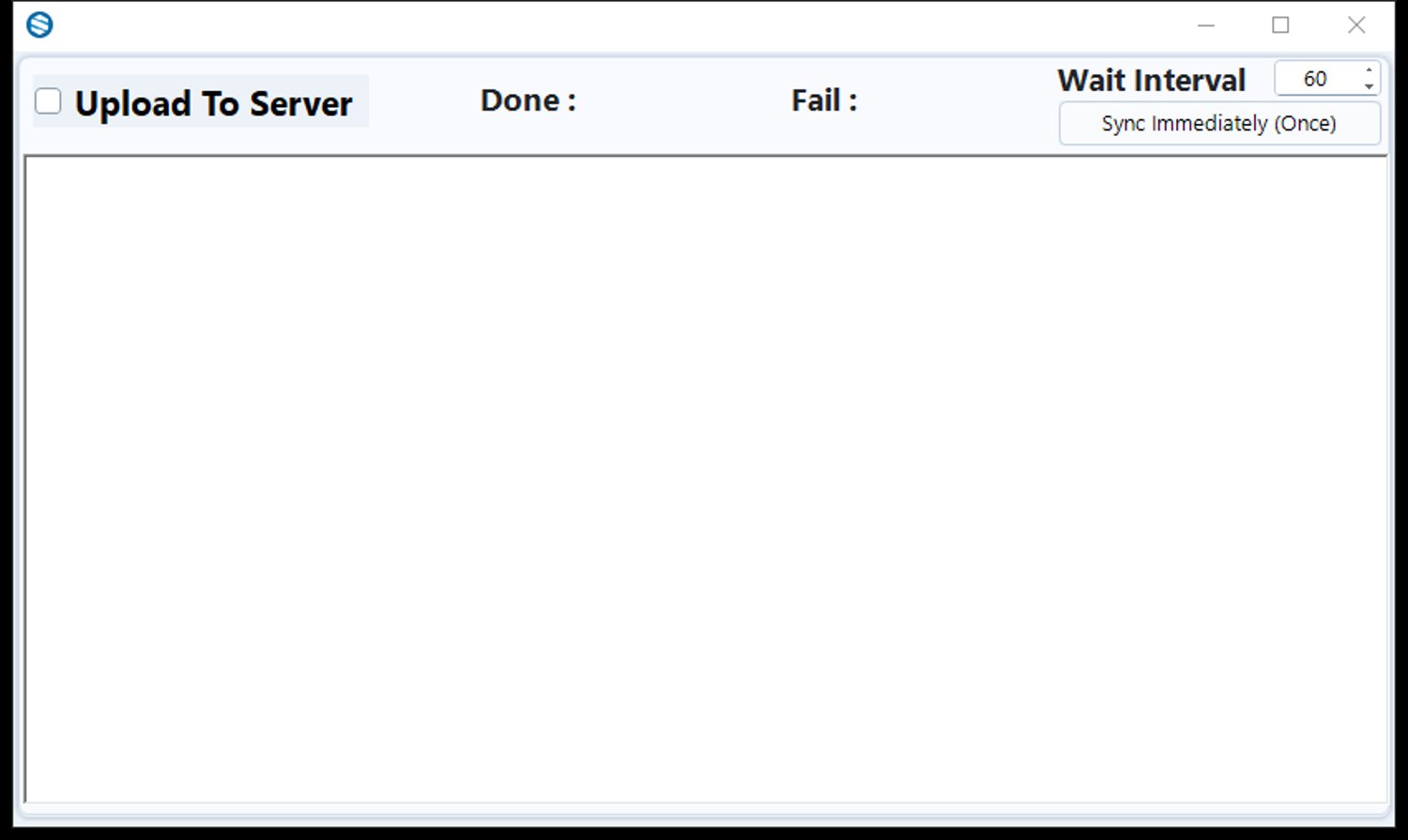
2. Make sure Upload To Server is ticked
When Upload To Server is ticked, the sync runs about once every second and decides in each pass what is due. It starts ticked.
3. Set the waiting time if needed
Wait Interval is the waiting time between sync rounds, in seconds. Change it only if you want a different gap.
4. Watch the counts and the log
Done : shows how many items succeeded and Fail : shows how many failed. The list below keeps a log of recent activity.
5. Run a round straight away
Click Sync Immediately (Once) to skip the waiting and run everything that is due now.
6. Re-upload failed items
If earlier uploads failed, a window asks whether to re-upload them. Tick its check box and click OK to retry, or click CANCEL to skip them.
7. Leave the window open
If you try to close the window, a confirmation window warns that sales data will not be uploaded. To close anyway, type the 4-digit confirmation code shown and click OK. Click CANCEL to keep it open.
Tips
- The sync covers sales sent to head office, sales sent to the cloud, members sent up to the cloud and new members brought down from the cloud.
- Failed items are remembered, so you can re-upload them later with Sync Immediately (Once).
Common problems
Nothing is uploaded.
Upload To Server may be unticked. Tick it.
The Fail count keeps growing.
Read the log lines to see which step failed, for example Error From HQ or Error From Cloud. Then click Sync Immediately (Once) and choose to re-upload. If it keeps failing, contact Synergy and tell them the log line.
Sales data is missing at head office.
The window may have been closed. Open it again and click Sync Immediately (Once).