
This guide shows how to create sales data files in the format some landlords or trading partners require. There are two formats, on the JPO and Clarks tabs. You create the file and then send it to the partner yourself.
Before you start
- Have your Tenant Id and Next File No (JPO format), or your Trading Partner ILN and Clarks ILN (Clarks format), ready.
- You need permission to write to the folder where the file will be saved.
Steps
1. Open the screen
Go to Point of Sale > Transaction > POS To TPProperty.
2. JPO: save your settings
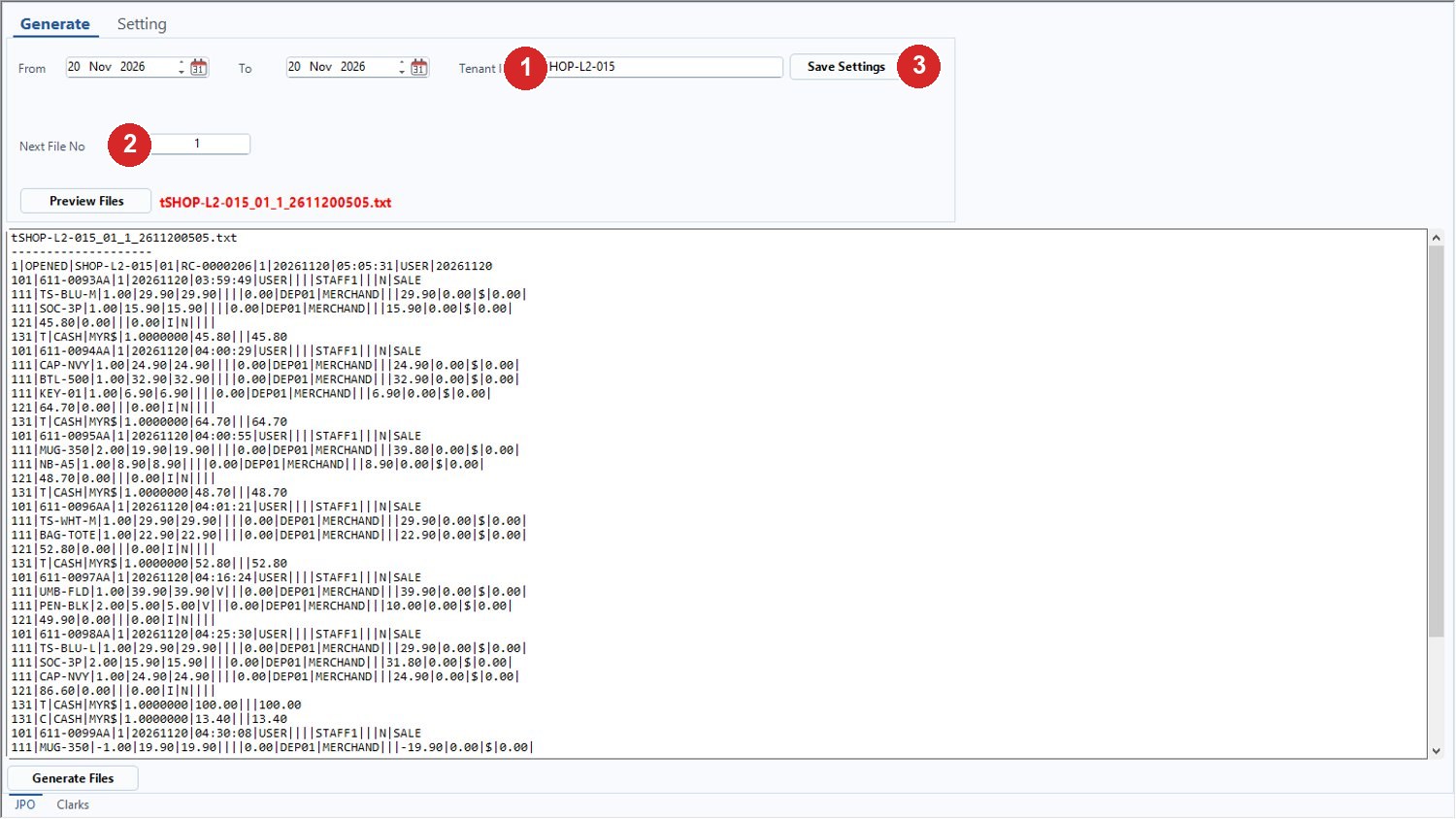
On the JPO tab, Generate page, enter your landlord details.
| Step | What to do |
|---|---|
| 1 | Tenant Id: your tenant code from the landlord (here SHOP-L2-015). |
| 2 | Next File No: the number of the next file. |
| 3 | Click Save Settings. |
3. JPO: choose the dates and preview
Choose the From and To dates. Click Preview Files and check the preview text: the file name appears in red beside the button, and the text lists each sale of the day with its items and payment.
4. JPO: generate the files
Click Generate Files and answer Yes to Please check the preview data before generating file. Proceed To Generate File? A file is created for each day in the range, in a data folder next to the program. When all files are written the folder opens by itself and the next file number is saved.
5. Clarks: enter the settings
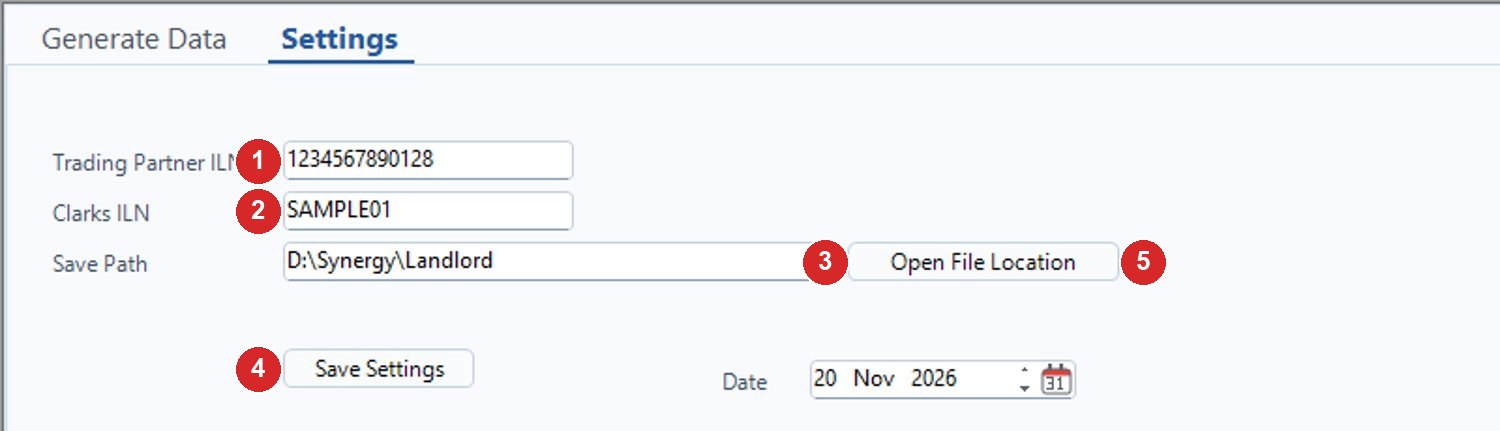
On the Clarks tab, open Settings. A new screen shows preset values. Generate Data needs the Save Path first: without it, List shows “Please set up [Save Path] in settings tab/page first.”
| Step | What to do |
|---|---|
| 1 | Trading Partner ILN: replace the preset value with your real one. |
| 2 | Clarks ILN: replace the preset value with the real one. |
| 3 | Save Path: click the … button in the box and pick the folder. It is saved as soon as you pick it. |
| 4 | Click Save Settings. |
| 5 | Open File Location opens the folder. |
6. Clarks: choose the week and list
Open Generate Data and choose a date in the WEEK box. Click List. The WEEK date moves forward to the Saturday that ends that week, and the data for the seven days up to that Saturday is listed.
7. Clarks: save the file
Click Save and confirm Do you want to save? to write the file.
Tips
- For JPO, if any file fails to write, the next file number is not saved.
- If you see CSV Message already recorded in system followed by Do you want to OVERWRITE previous data?, click Yes to overwrite the existing data, or No to generate new message data for re-submission.
Common problems
Please set up [Save Path] in settings first. or The path […] is invalid.
Go to the settings and choose a valid folder as the Save Path.
Unable to save file. Make sure you have write permission to the folder.
Choose another folder, or ask your administrator to give you write permission to the folder.
Failed Writing File […] or Following errors occured.
The message lists the problem for each file. Fix the folder or permission problem it names and generate again.