
With QR Takeaway, a customer scans one QR slip at your shop, orders and pays online, and gets an order number and a time to come. The phone shows when the order is being prepared and when it is ready. This guide shows how to set it up and how to use it each day.
Before you start
- The POS must be from the 2 Nov 2026 release or newer, with its database update.
- The QR website must be version 2026-11-02D or newer.
- QR Order must already be connected. See the guide POS Settings: F&B Features and QR Order Connection.
- Have your eGHL Merchant Id and Merchant Password ready.
Steps
1. Choose the static QR
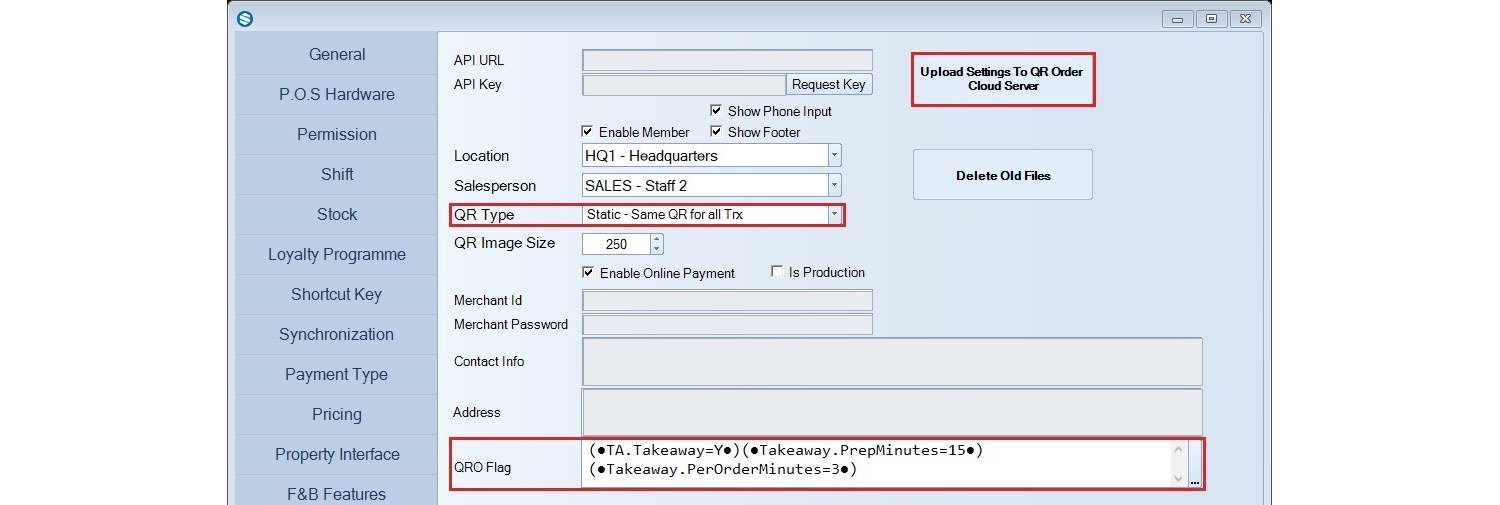
Go to Point of Sale > Point of Sale Setup > Point of Sale Settings and click the QR Order tab. Set QR Type to Static – Same QR for all Trx.
2. Turn on online payment
Tick Enable Online Payment and enter the Merchant Id and Merchant Password. Tick Is Production only when you use your real eGHL account. Leave it unticked for an eGHL test account.
3. Turn on takeaway for one table
In the QRO Flag box, keep what is already there and add this line. Copy it exactly, because the dot character must be the same:
(●TA.Takeaway=Y●)(●Takeaway.PrepMinutes=15●)(●Takeaway.PerOrderMinutes=3●)
PrepMinutes is the preparation time. PerOrderMinutes is added for each takeaway order ahead. If you leave these two out, the program uses 15 and 3. To use takeaway on every QR instead of one table, use (●Takeaway=Y●).
4. Upload the settings
Click Upload Settings To QR Order Cloud Server and answer Yes. Uploaded. means it worked. Then click Save.
5. Print the takeaway QR slip
Create a table named TA. Open QR Order – Initialize Table, tick TA and print its QR slip. Put the slip where customers can scan it.
6. Open the Print Order screen
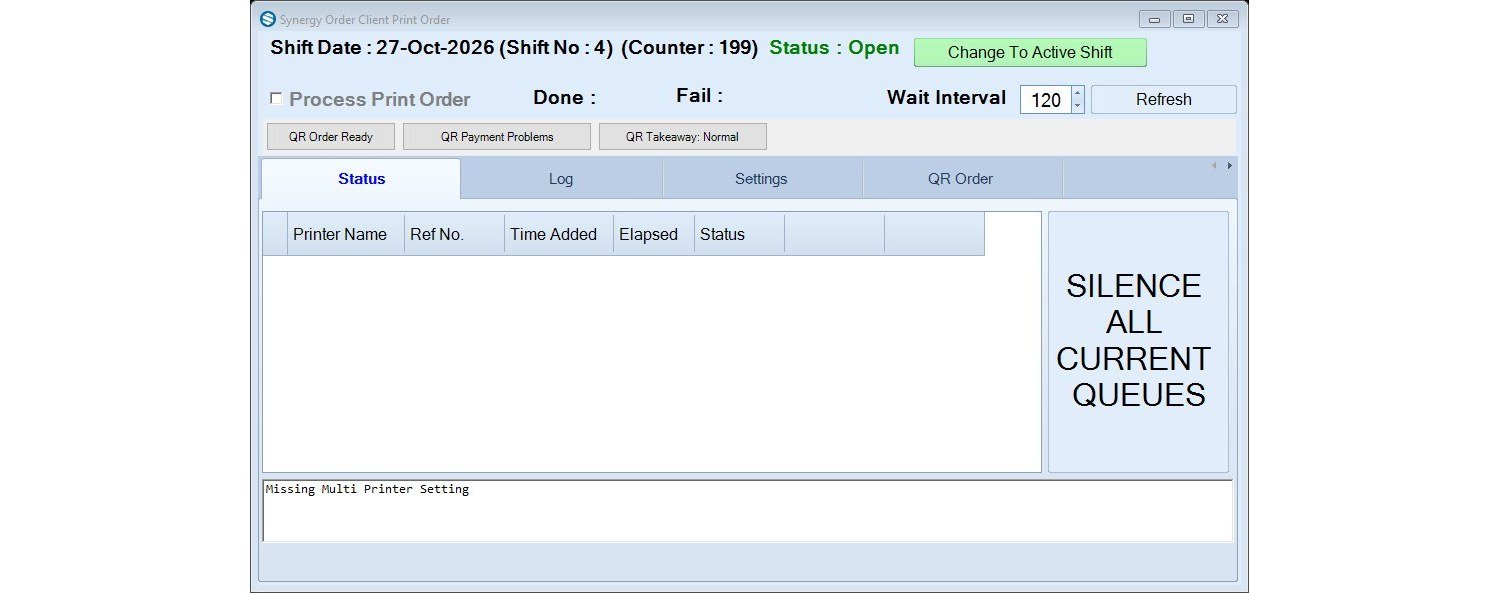
This screen is not on a menu: it opens by itself after login, on the PC that collects QR orders. On that PC, go to Main > My Settings > Personal Settings (General). In PC Name Specific Flags, keep what is already there and add (Download.QRO). Click Save, then log out and log in again. The window Synergy Order Client Print Order opens with Process Print Order ticked, so QR orders come in. It may open behind the main window, so check the taskbar. Keep it running while the shop is open. The QR Order Ready and QR Takeaway buttons are on this screen.
7. What the customer does
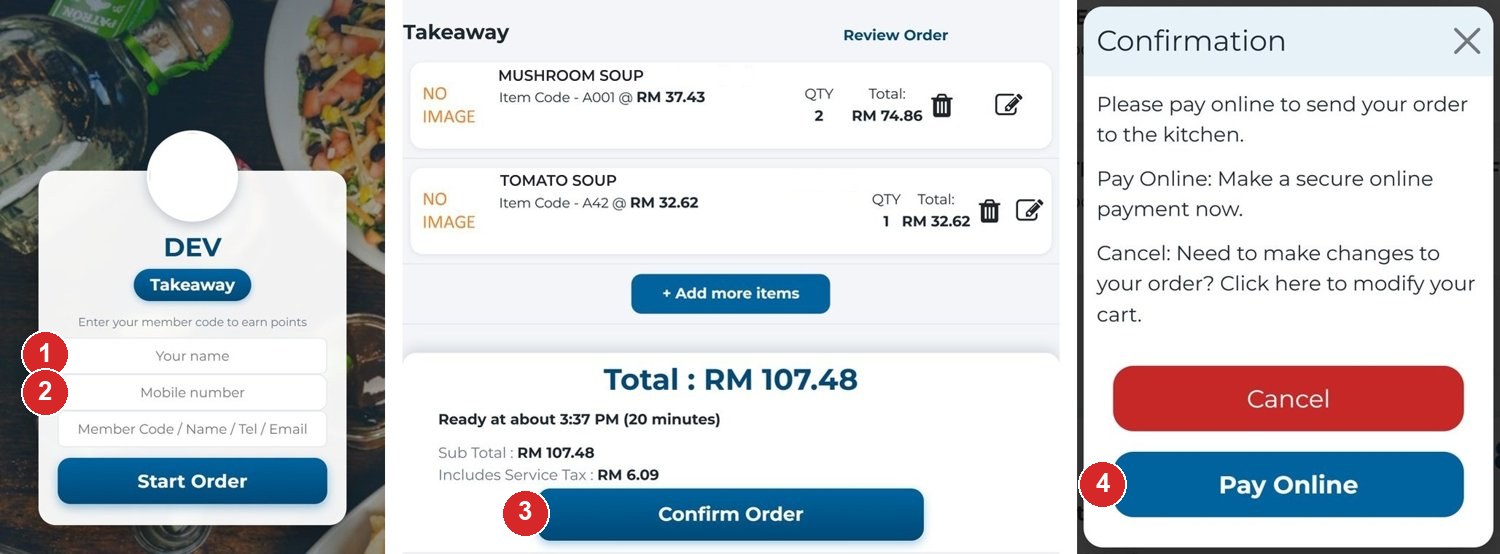
The customer scans the slip and sees Takeaway instead of a table number. The review page shows the total and a Ready at about time. There is no service charge, and the only choices are Pay Online and Cancel.
| Step | What to do |
|---|---|
| 1 | The customer enters a name. |
| 2 | The customer enters a mobile number. |
| 3 | The customer chooses items and taps Confirm Order. |
| 4 | The customer taps Pay Online (or Cancel). |
8. After the customer pays
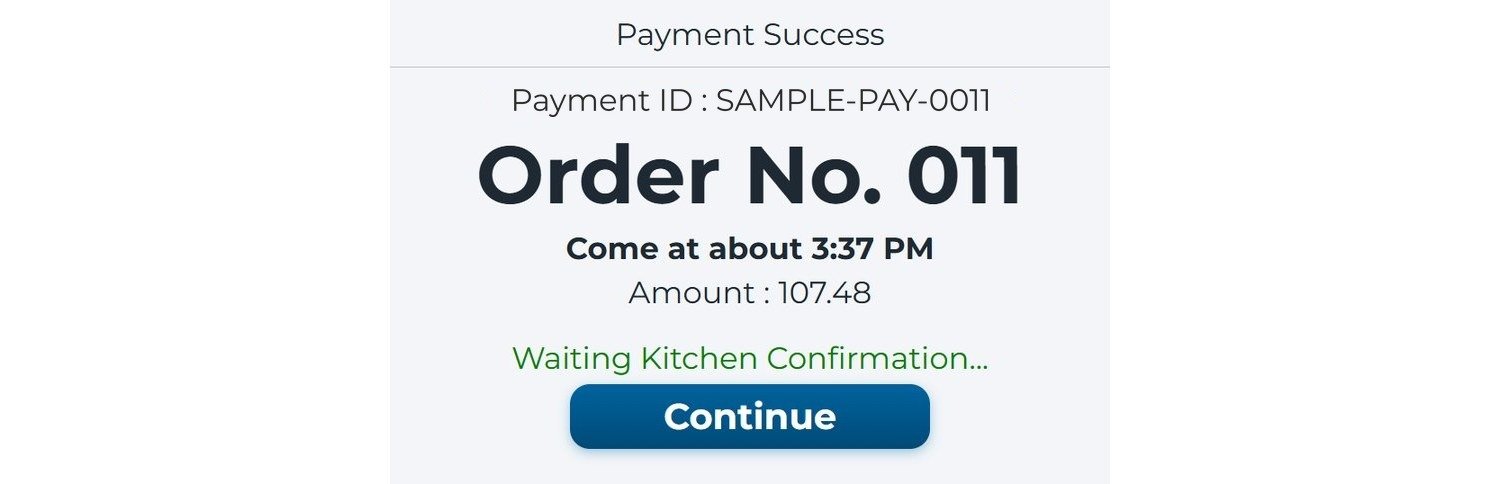
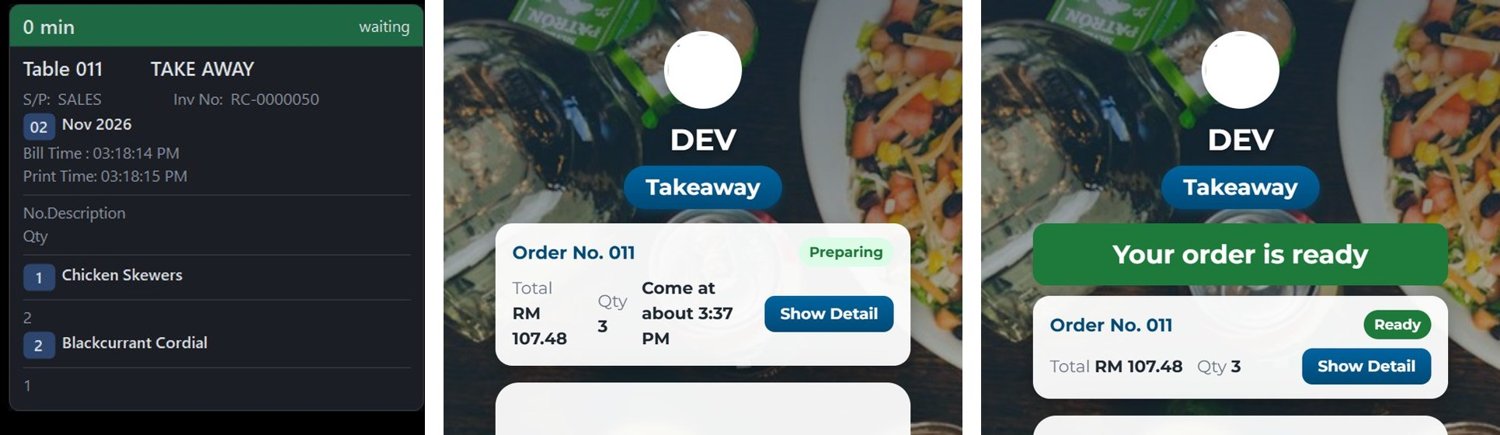
The phone shows Payment Success, the Order No. and Come at about, with the time. The order goes to the POS. Its bill and kitchen slip show TAKE AWAY with the same 3-digit number, and the bill shows the customer’s name and mobile number.
9. Tell the customer it is ready: with a Kitchen Display
Open Point of Sale > Transaction > Kitchen Display and mark all the lines of the order as served. If the customer’s page is open, it changes from Preparing to Your order is ready within about 20 seconds.
10. Tell the customer it is ready: without a Kitchen Display
On the Print Order screen, click QR Order Ready. The customer’s page changes to Your order is ready.

| Step | What to do |
|---|---|
| 1 | Click the order in the list. |
| 2 | Click Close. |
11. When the shop is busy
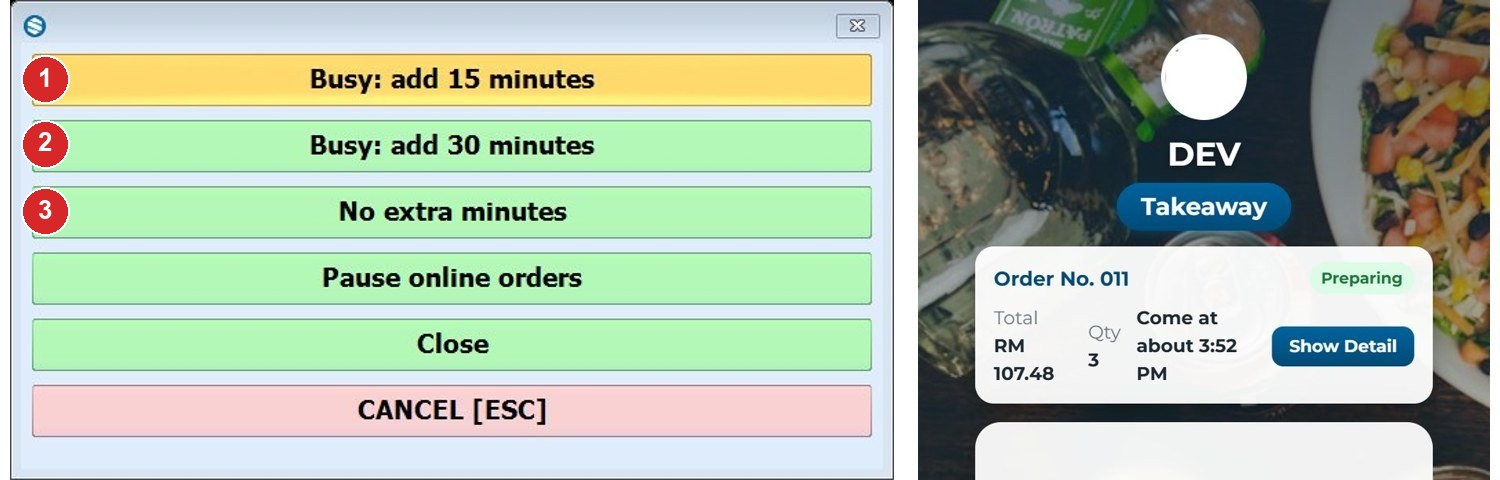
On the Print Order screen, click QR Takeaway. New orders get the later time, and the times on open phone pages move too. The button shows the current state.
| Step | What to do |
|---|---|
| 1 | Choose Busy: add 15 minutes. |
| 2 | Or choose Busy: add 30 minutes. |
| 3 | Choose No extra minutes when things are back to normal. |
12. Stop online orders for a while
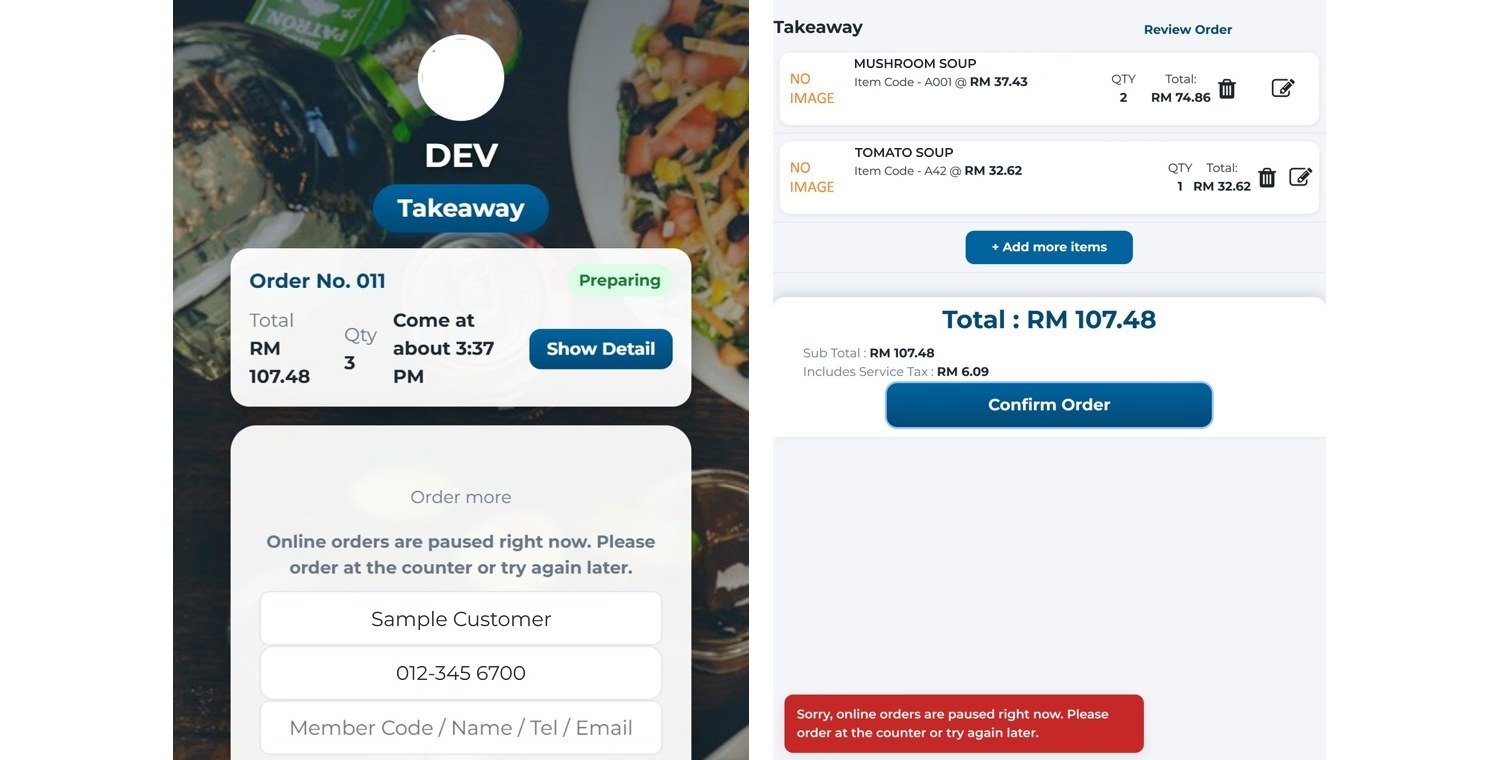
Click QR Takeaway and choose Pause online orders. Customers see Online orders are paused right now and cannot go on. To open again, click QR Takeaway and choose Resume online orders.
Tips
- Before you rely on it, do one small real payment with your own eGHL account, then another where you close the browser straight after paying. Check that each order reaches the POS once, with the right amount and the same amount as eGHL’s report.
- The time shown is an estimate: preparation minutes, plus the minutes for each takeaway order ahead, plus any busy minutes.
- Busy minutes and a pause last for today only. The next morning they are gone, even if nobody cleared them.
- An order that was already paid during a pause carries on as normal.
- Prices already include tax. The amount on the phone is the same as the POS bill.
- Other tables’ QRs stay as dine-in, with their table number, service charge and Pay at Counter.
- The ready message only reaches a customer whose page is open. There is no SMS or message. A phone may also beep or vibrate, but it can block these.
Common problems
The phone shows a table number, not Takeaway.
Check that the flag was copied exactly and that its table name matches the slip’s table. Then click Upload Settings To QR Order Cloud Server again.
The Print Order screen does not open.
Check that PC Name Specific Flags has (Download.QRO) on this PC, then log out and log in again. Look in the taskbar too, as it may be behind the main window.
The QR Takeaway button is not on the Print Order screen.
The QRO Flag box must have the takeaway flag. Close the Print Order screen and open it again.
The phone stays on Waiting Kitchen Confirmation.
The POS has not collected the order yet. Check that the Print Order screen is running with Process Print Order ticked.
A red QR Payment Problems button appears.
A customer paid but the order did not reach the kitchen. Click the button, then check with eGHL and the customer. The customer is told to show the Payment ID at the counter and not to pay again.
An order only reaches the POS after the customer comes back to the page.
eGHL may be blocked from reaching your QR website. Contact Synergy support. In Cloudflare, a skip rule may be needed for /api/payment/callback.
The phone does not turn Ready.
Check that all the printed lines of the order are served, or use QR Order Ready. Then check that the customer’s page is still open.
QR Takeaway says The QR website did not take it.
The POS could not reach the QR website. Check the internet connection and try again.