
The Kitchen Slip Designer sets up the kitchen / order slip that the POS prints when an order is sent, without editing the format text. Pick a ready slip, tick what to print and see the slip on one of your own bills while you change it. Save keeps every earlier version, so a change can always be undone.
Before you start
- Log in as an administrator.
- There should be at least one POS bill, so the picture can show a real slip. The newest bill is shown first.
- Know the kitchen printer’s paper: 80 mm or 58 mm.
- The kitchen and bar printers themselves are set up on the Multi Printer tab. See Synergy Acc2026 POS – Kitchen and Bar Printers (Multi Printer).
Steps
1. Open the Kitchen Slip Designer
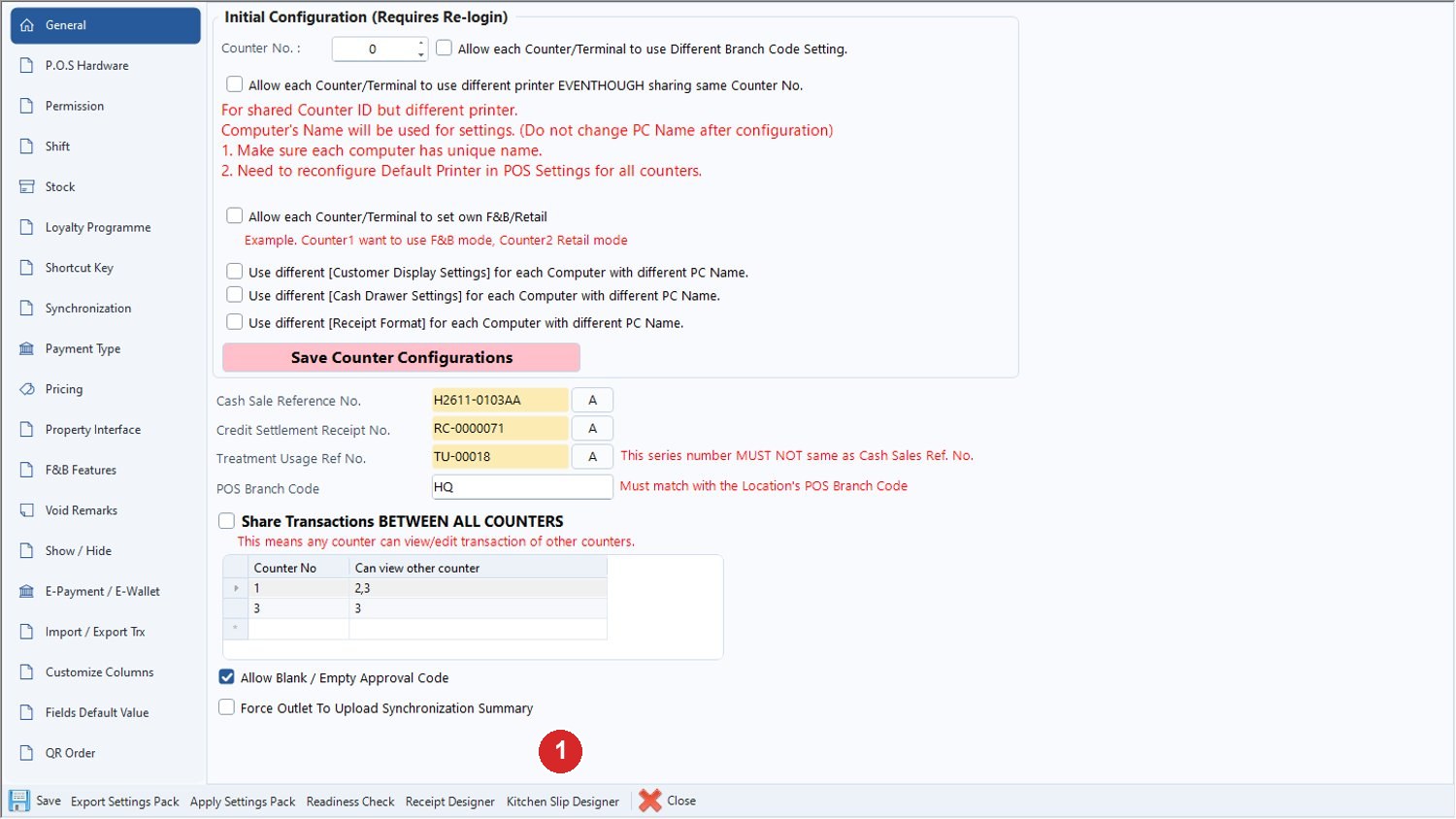
Go to Point of Sale > Point of Sale Setup > Point of Sale Settings and click Kitchen Slip Designer at the bottom.
| Step | What to do |
|---|---|
| 1 | Kitchen Slip Designer opens. The slip it saves is the default slip for all PCs: the Orders Format on the P.O.S Hardware tab. |
2. Pick a ready slip and tick what to print
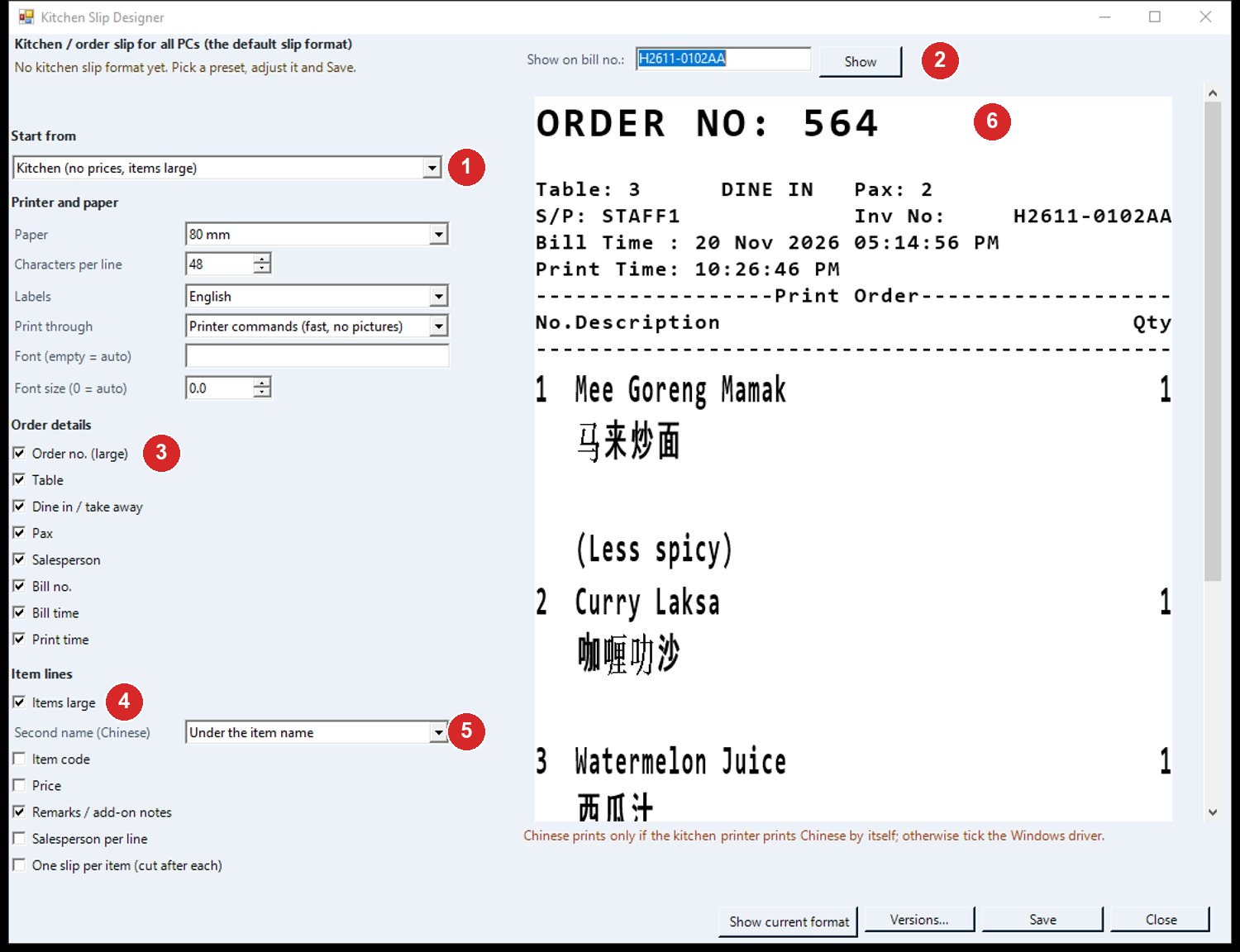
The right side shows the slip on your newest bill, as the kitchen printer prints it. The picture follows every change about half a second later.
| Step | What to do |
|---|---|
| 1 | Start from: Kitchen (no prices, items large), Kitchen with the second name (e.g. Chinese) instead of the item name, Counter order (order no. large, prices) or One slip per item (cut after each). |
| 2 | Show on bill no.: type another bill number and click Show to see the slip on that bill. |
| 3 | Order details: tick what prints at the top: Order no. (large), Table, Dine in / take away, Pax, Salesperson, Bill no., Bill time and Print time. |
| 4 | Items large: prints the item lines bigger, easier to read in the kitchen. |
| 5 | Second name (Chinese): Not printed, Under the item name or Instead of the item name. |
| 6 | The slip as it will print. Here the remark Less spicy prints under its item. |
3. A slip with prices for the counter
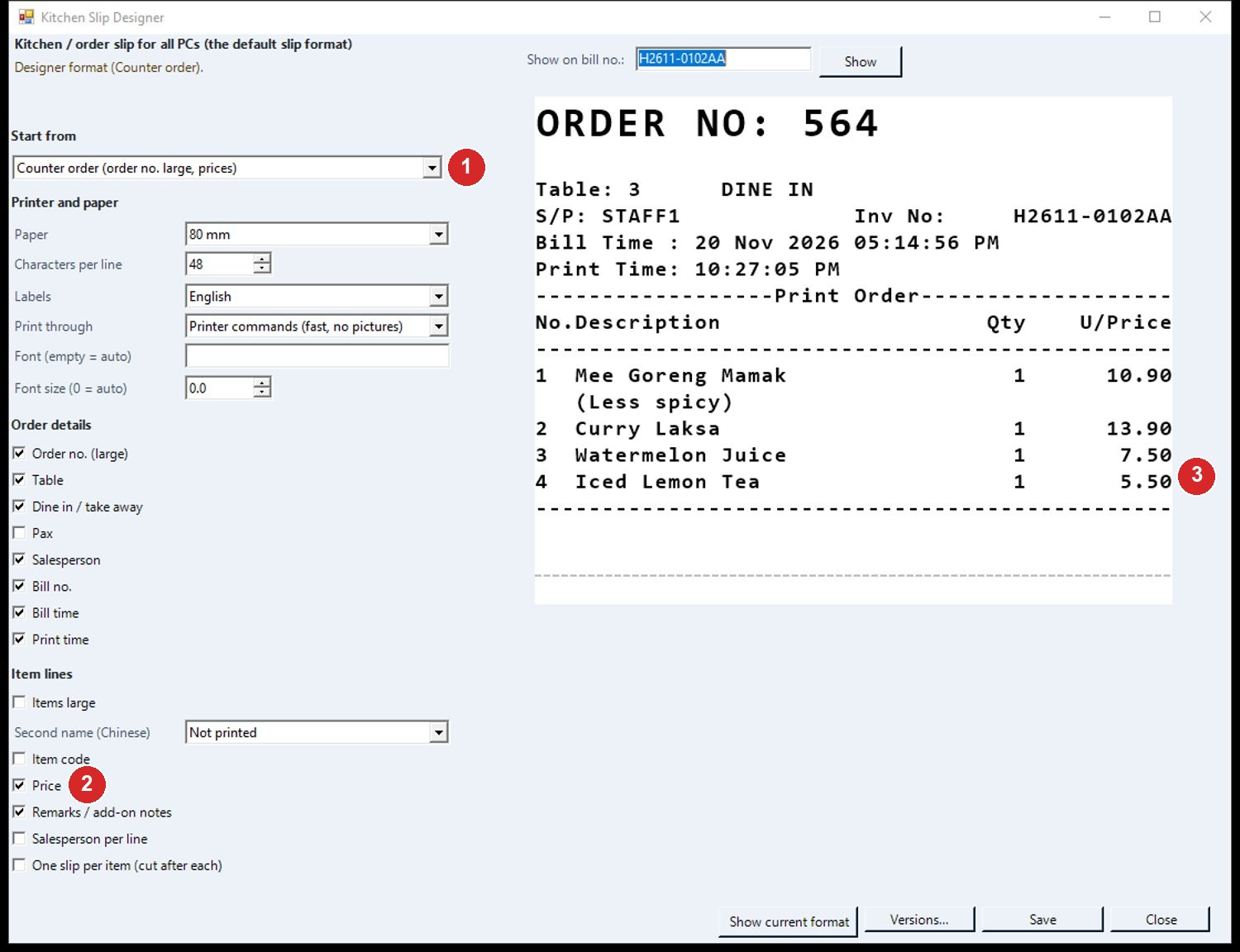
For a counter or drinks station that needs prices, start from Counter order. The order number stays large; the item lines are normal size and show the price.
| Step | What to do |
|---|---|
| 1 | Start from: Counter order (order no. large, prices). |
| 2 | Price: tick or untick the price column. Item code, Remarks / add-on notes and Salesperson per line work the same way. |
| 3 | Each item with its Qty and U/Price. |
4. One slip per item, then Save
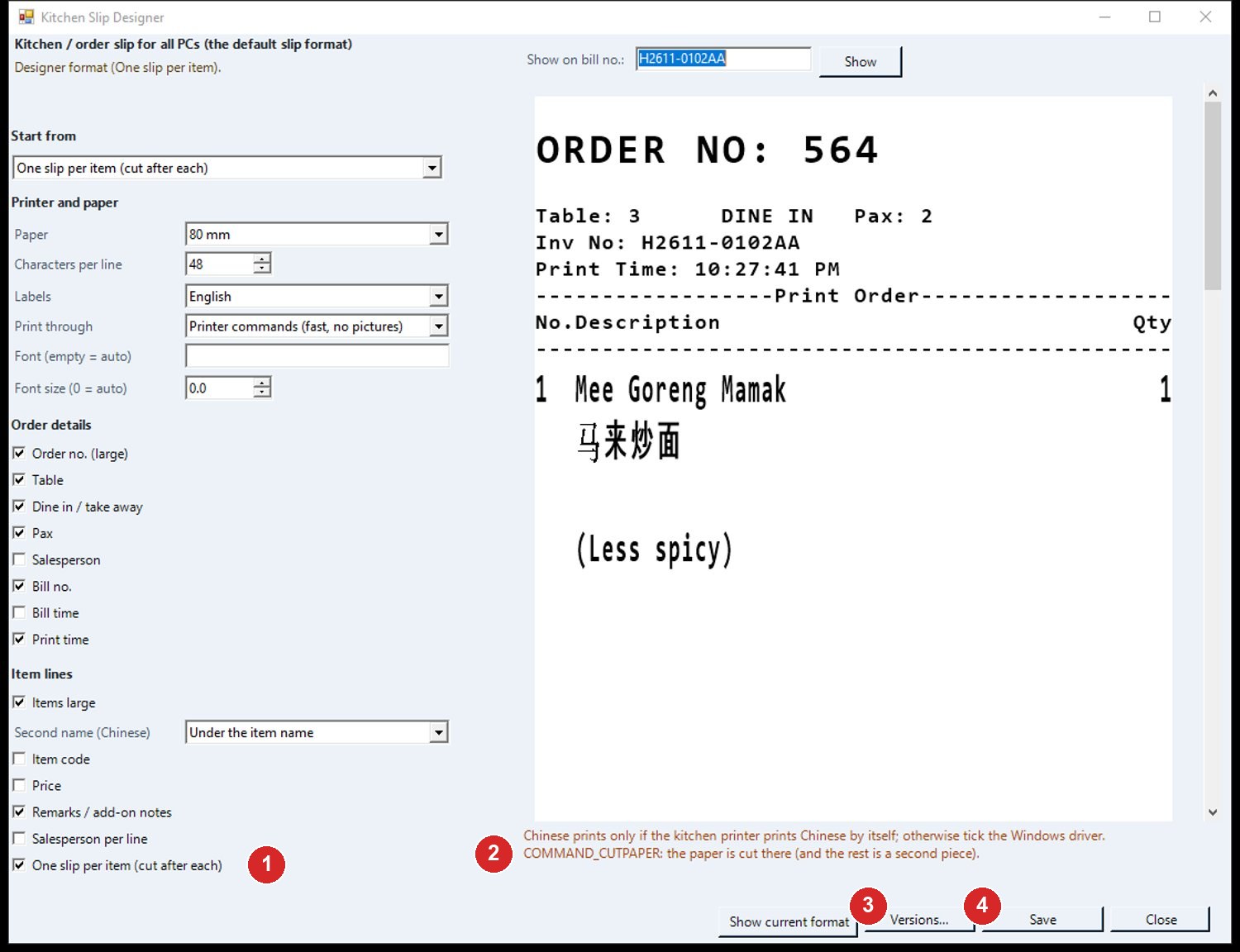
One slip per item (cut after each) cuts the paper after every item, so each dish gets its own slip with the table and order details. Add-on notes stay with their item.
| Step | What to do |
|---|---|
| 1 | Tick One slip per item (cut after each). |
| 2 | Read the notes under the picture, for example where the paper is cut, or that Chinese needs the Windows driver. |
| 3 | Versions…: lists every saved slip. Double-click one, then Save, to print with it again. |
| 4 | Save: keeps the slip printed now as a version first, then saves the new one for all PCs. |
Tips
- Print through: Printer commands is fast and prints text. Choose Windows driver when the kitchen printer cannot print Chinese by itself.
- Labels: English, Bahasa Melayu, Chinese or English + Chinese for words such as ORDER NO, Bill Time, Print Time and CANCELLED.
- No new log-in is needed: the next order already prints with the saved slip.
- A printer in the Multi Printer list that has its own Format Name keeps that format. The slip from the designer is used by printers with no Format Name.
- Show current format shows the slip the POS prints now. A slip written by hand shows that way; changing any option goes back to the designer’s slip.
- The receipt itself is set up the same way with Receipt Designer. See Synergy Acc2026 – POS Receipt Designer: Ready Receipts You Can Adjust.
Common problems
The designer says the current slip format was written by hand.
Your Orders Format was typed by hand. The picture shows a ready slip instead. Save replaces it, and the old one stays under Versions…
Chinese prints as ?? or boxes
Choose Print through: Windows driver, or set Second name (Chinese) to Not printed.
No picture appears
There is no POS bill yet, or the bill number typed was not found. Make a sale first, or type an existing bill number and click Show.
The kitchen still prints the old slip
Check that you clicked Save and answered Yes. If that printer has a Format Name on the Multi Printer tab, it uses that format instead.