
For KTV and other outlets that sell rooms by time. The guest pays a room package first; beer, food and extra time are separate bills on the same room. Synergy keeps them together as one room session, from the first package until Check Out, shows the time left on the table map, and keeps a list of the bottles guests leave behind.
Before you start
- Room Session must be switched on for your company: System Settings > Misc Flag must have (Enable.Booking)(Enable.RoomSession). Ask Synergy if you are not sure.
- Each room package item has its minutes in the item’s Num1 field, e.g. Room 4 Hours = 240 and Room Extend 2 Hours = 120. Beer and food items keep Num1 at 0.
- Each room is a table on the floor plan (Restaurant Table Setting).
- For leftover beer: a stock location called LEFTOVER, and the Stock Adjustment lines showing Name and Tel.
Steps
1. Hold a room for a guest who is coming
On the table map press Hold (the button text changes while it waits for you to pick a room), then click the empty room. If the guest does not come, the room is released by itself when the minutes run out.
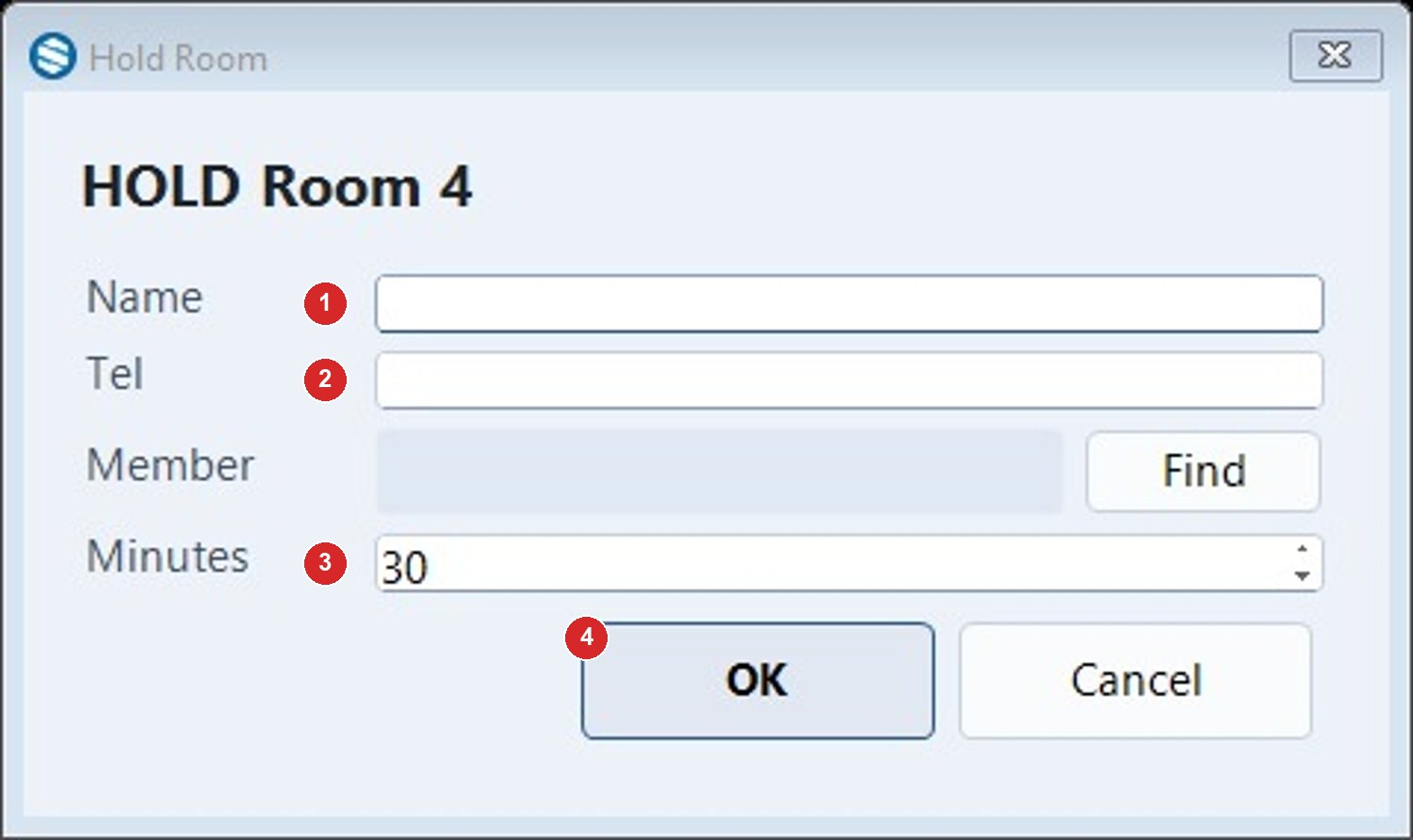
| Step | What to do |
|---|---|
| 1 | Enter the guest’s Name. |
| 2 | Enter the guest’s Tel. |
| 3 | Enter how many Minutes to hold the room (30 by default). |
| 4 | Press OK. |
2. Read the table map
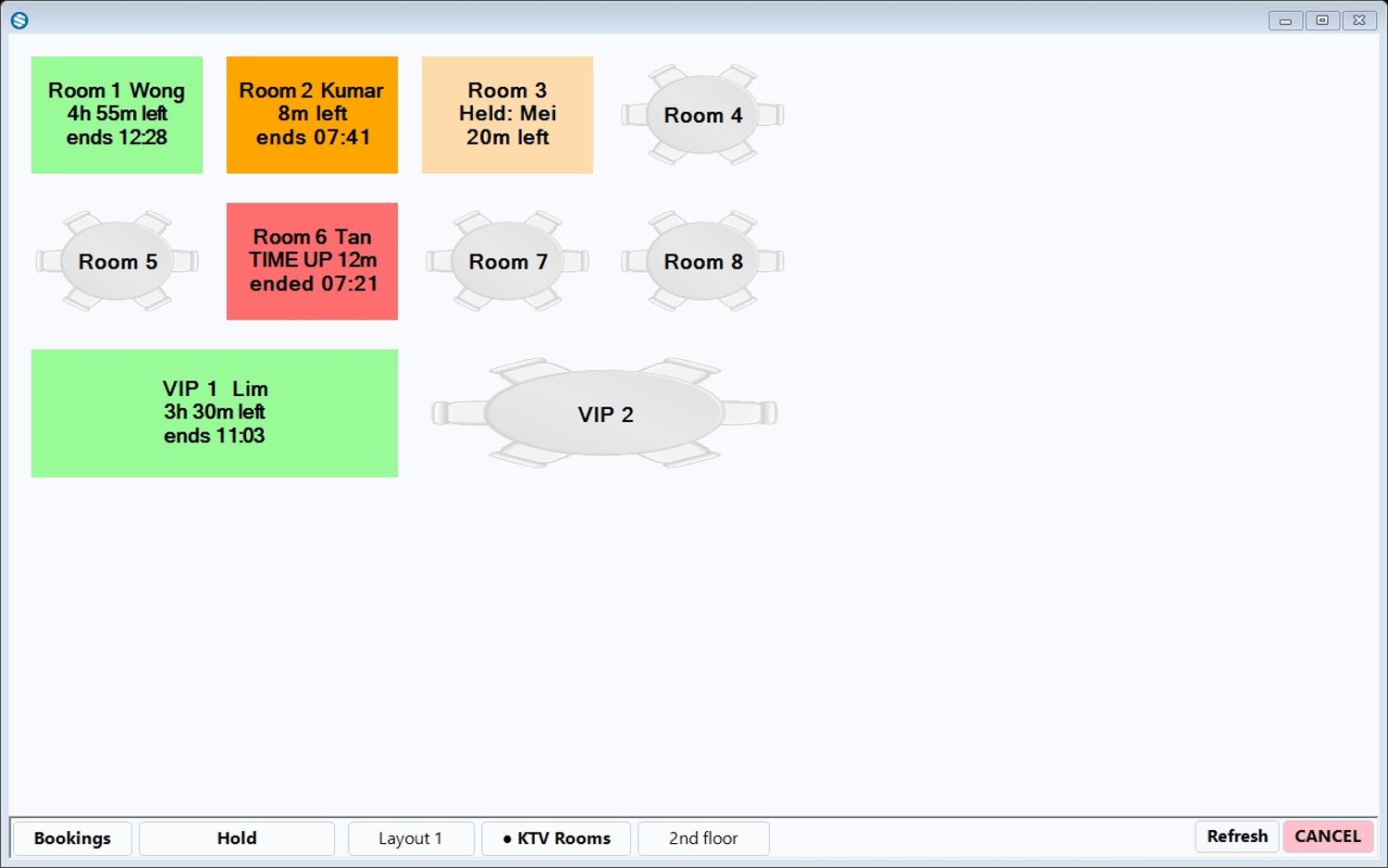
A held room shows ‘Held: name’ and the minutes left (light orange). A room in use shows the guest, the time left and the end time (point at it for the phone number): green while time is left, orange in the last 10 minutes, red with TIME UP when the time is over. The map updates by itself every minute.
3. Start the room time
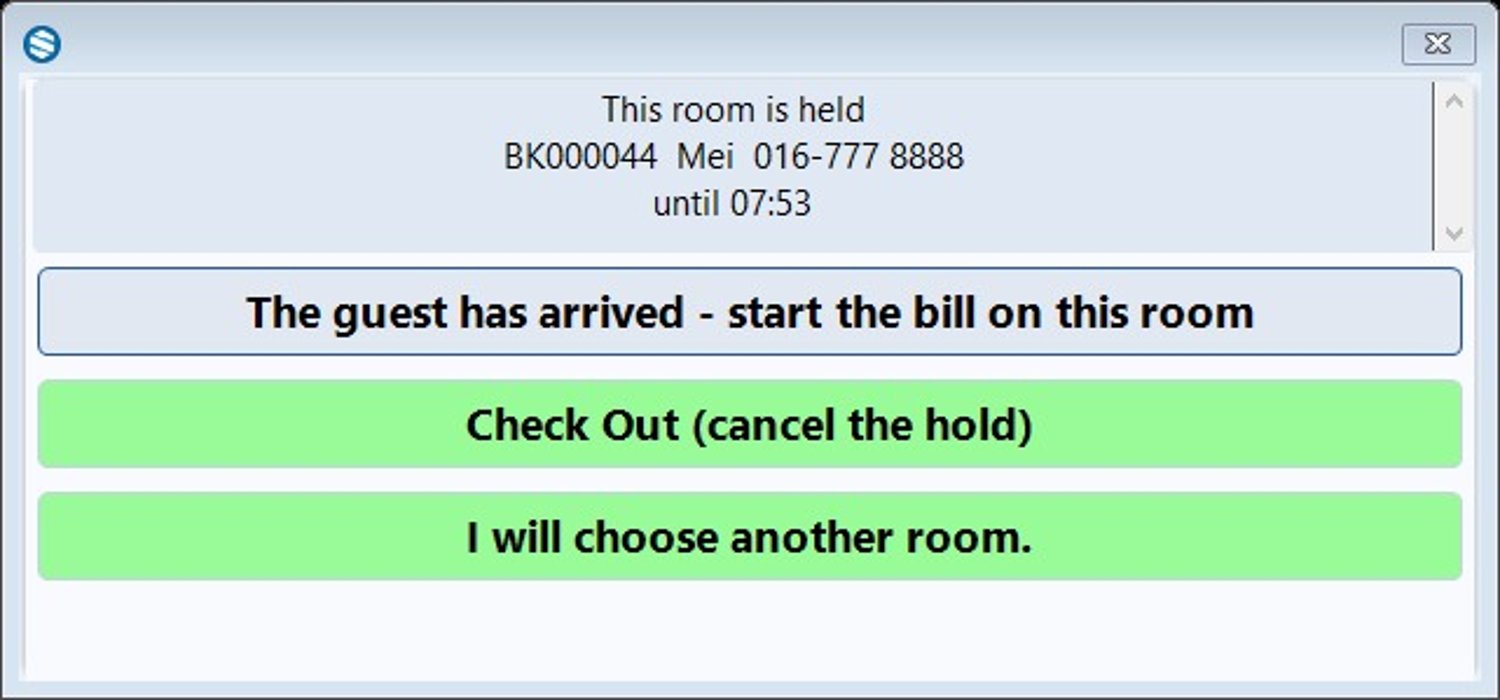
Click the room (for a held room choose ‘The guest has arrived’), sell the room package and take the payment as usual. The room time starts at the receipt time: Room 4 Hours paid at 20:05 ends at 00:05. A walk-in guest without a hold works the same way.
4. Add beer, food or more time
Click the room in use and press New bill on this room, then sell as usual. Every bill paid on the room joins the session. An extension adds its minutes to the end time; if the time was already up, it counts from the payment time. A voided or refunded package takes its minutes off again.
5. See the room’s bills in Room Info
Clicking a room in use opens Room Info: the guest, the start time, the time remaining, the end time, every bill of the session, one row per item with its room minutes and amount (an add-on sits under its item; a package counts once at its own price), and the total so far. Voided bills are crossed out and not counted.
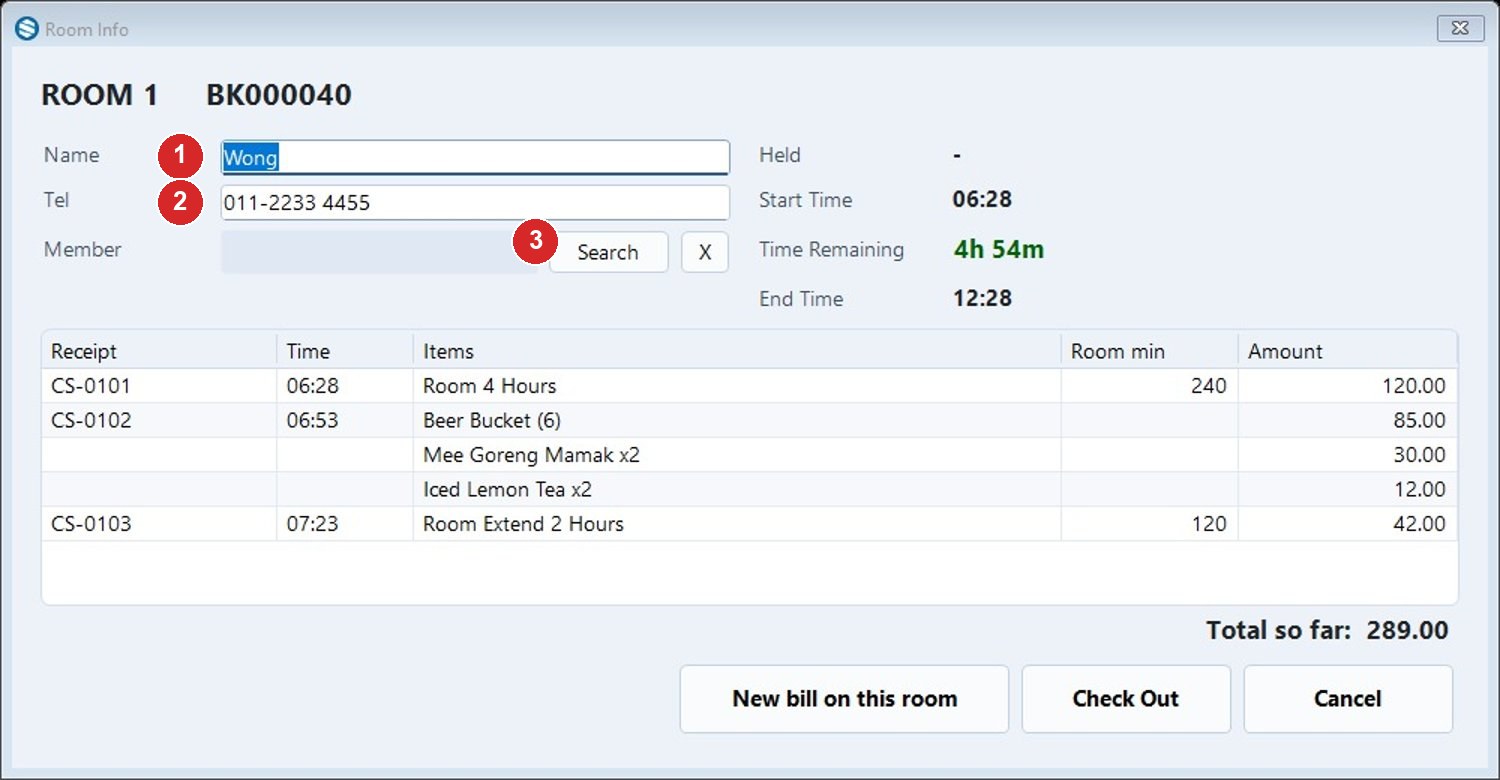
| Step | What to do |
|---|---|
| 1 | You can correct the guest’s name in Name. |
| 2 | You can correct the guest’s phone in Tel. |
| 3 | Click Search to look for a member. |
6. Check Out
When the guest leaves, open Room Info and press Check Out, then OK. The room is empty again. Nothing is refunded. Check Out on a held room cancels the hold.
7. Room Session Report
On the POS sales screen open the Action menu > Room Session Report. Show lists each session with its guest, start and check-out time, every receipt with one row per item, and the session total.
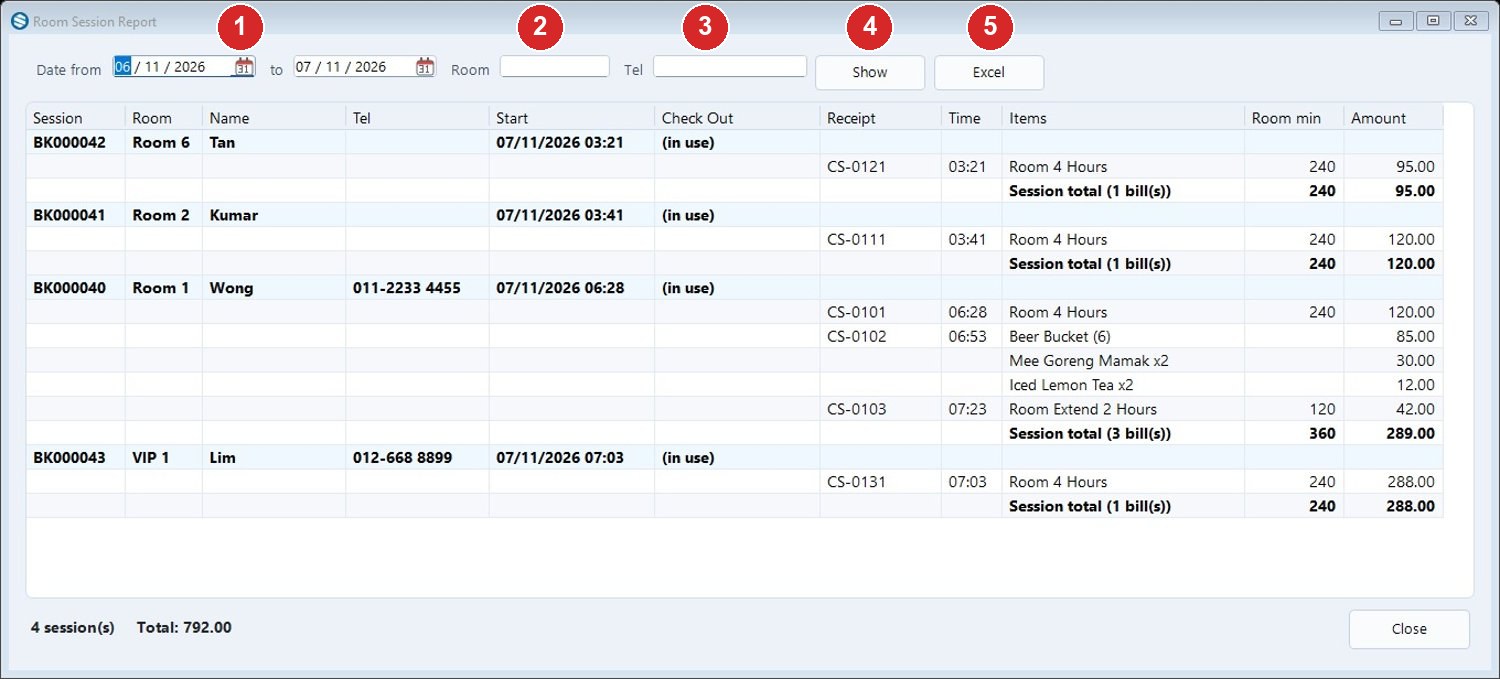
| Step | What to do |
|---|---|
| 1 | Choose the dates. |
| 2 | Type a room if you like. |
| 3 | Type a phone number if you like. |
| 4 | Press Show. |
| 5 | Press Excel to save the same list as a file. |
8. Keep a guest’s leftover beer
Record kept bottles with Stock Received (or a Stock Adjustment with a plus quantity) at the LEFTOVER location, unit cost 0, with the guest’s Name and Tel on each line. When the guest comes back and drinks them, make a Stock Issues (or a Stock Adjustment with a minus quantity) at LEFTOVER with the same Tel.
9. Forfeit bottles after 30 days
Open Leftover Beer (Stock Adjustment > Action, or the POS Action menu). It lists what each guest still keeps; bottles kept 30 days or more are shown in red. A Stock Transfer opens filled in from LEFTOVER to the outlet: save it to finish.
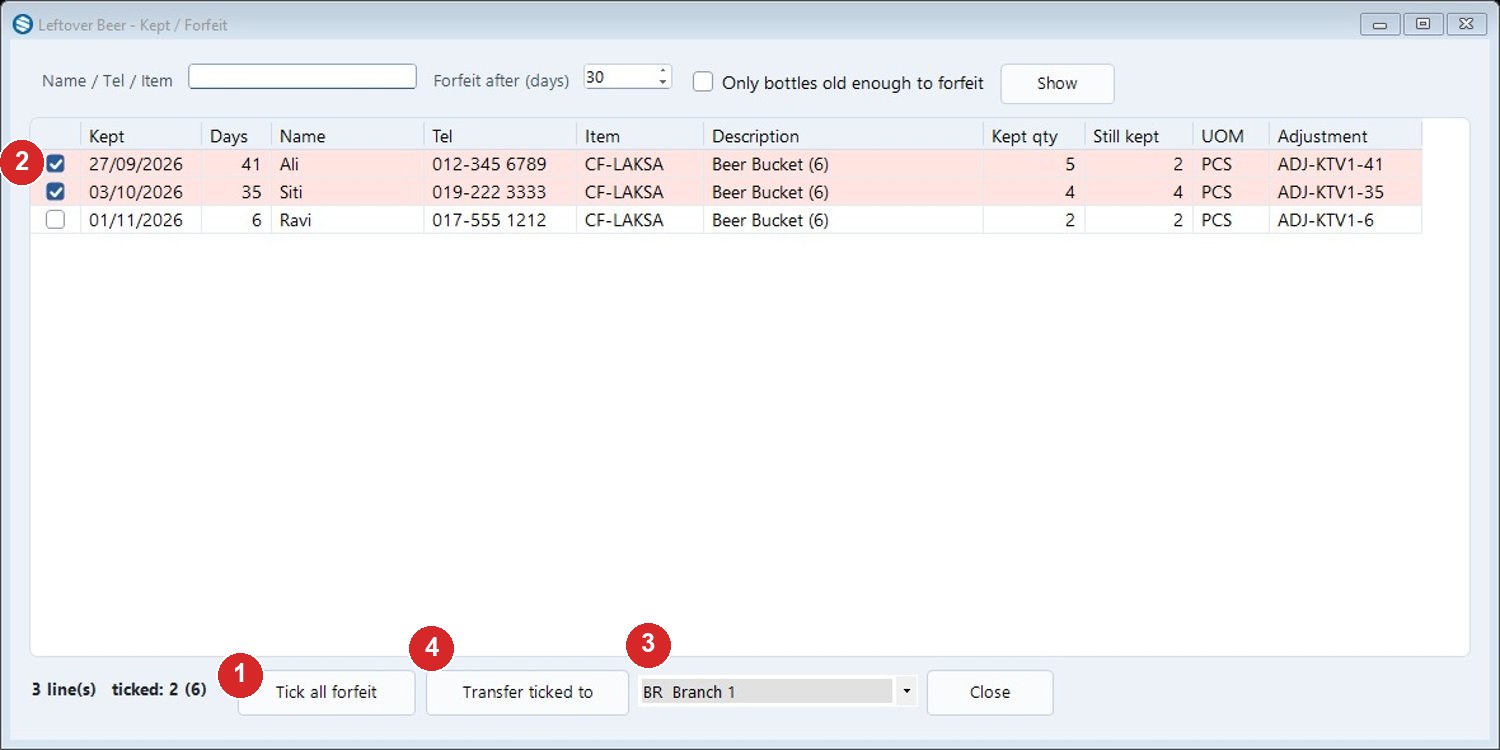
| Step | What to do |
|---|---|
| 1 | Press Tick all forfeit. |
| 2 | Or tick the lines yourself. |
| 3 | Choose the outlet location. |
| 4 | Press Transfer ticked to. |
Tips
- The guest’s phone number is how kept bottles are matched; spaces and dashes do not matter (012-345 6789 is the same as 0123456789).
- What a guest still keeps = kept – taken – forfeited, taken from the oldest kept bottles first.
- The hold minutes, the warning minutes before the end and the forfeit days can be changed in System Settings: PS.RoomSession.HoldMinutes, PS.RoomSession.WarnMinutes and PS.Leftover.ForfeitDays.
- A room session stays on its room across a shift close and past midnight, until Check Out.
- The owner can watch the rooms from a phone or another PC with Web Access > Table Status.
- To print the room’s end time on the receipt, add a line with
(or with a format such as dd/MM/yyyy HH:mm) to the receipt format; , and are there too. They stay empty on a bill that is not on a room. - To see who took a booking, pick the staff member in Booked by on the booking form. It shows on the room and in Room Info, and prints on the receipt with
.
Common problems
There is no Hold button on the table map
Room Session is not switched on: check that System Settings > Misc Flag has both (Enable.Booking) and (Enable.RoomSession), then open the POS again.
The package was paid but the room shows no time
Check the package item’s Num1 (its minutes) and that the bill was made on the room’s table, not at the counter.
The forfeited bottles are still on the Leftover Beer list
The Stock Transfer that opened was not saved. Press Transfer ticked to again and save the transfer.