
This guide shows you how to create members in a batch, check a member in, let a member redeem an item with points, forfeit expired points, generate a batch of vouchers, and send one message to many members. The examples generate VIP0001 to VIP0050, 99 year-end RM 50 vouchers, and an SMS points reminder to members with more than 100 points.
Before you start
- Generate Members is on the Member screen (Point of Sale > Point of Sale Setup > Membership > Member, Actions). Member Check-In opens from the member’s Total Visit box or from a check-in button on the POS sales screen.
- Generate Vouchers is on the Voucher screen (Point of Sale > Point of Sale Setup > Voucher, Actions). Take a database backup first, because voucher generation cannot be undone.
- For SMS, an SMS Blasting key must be set up in Main > System Settings > SMS Blasting.
Steps
1. Generate members in a batch
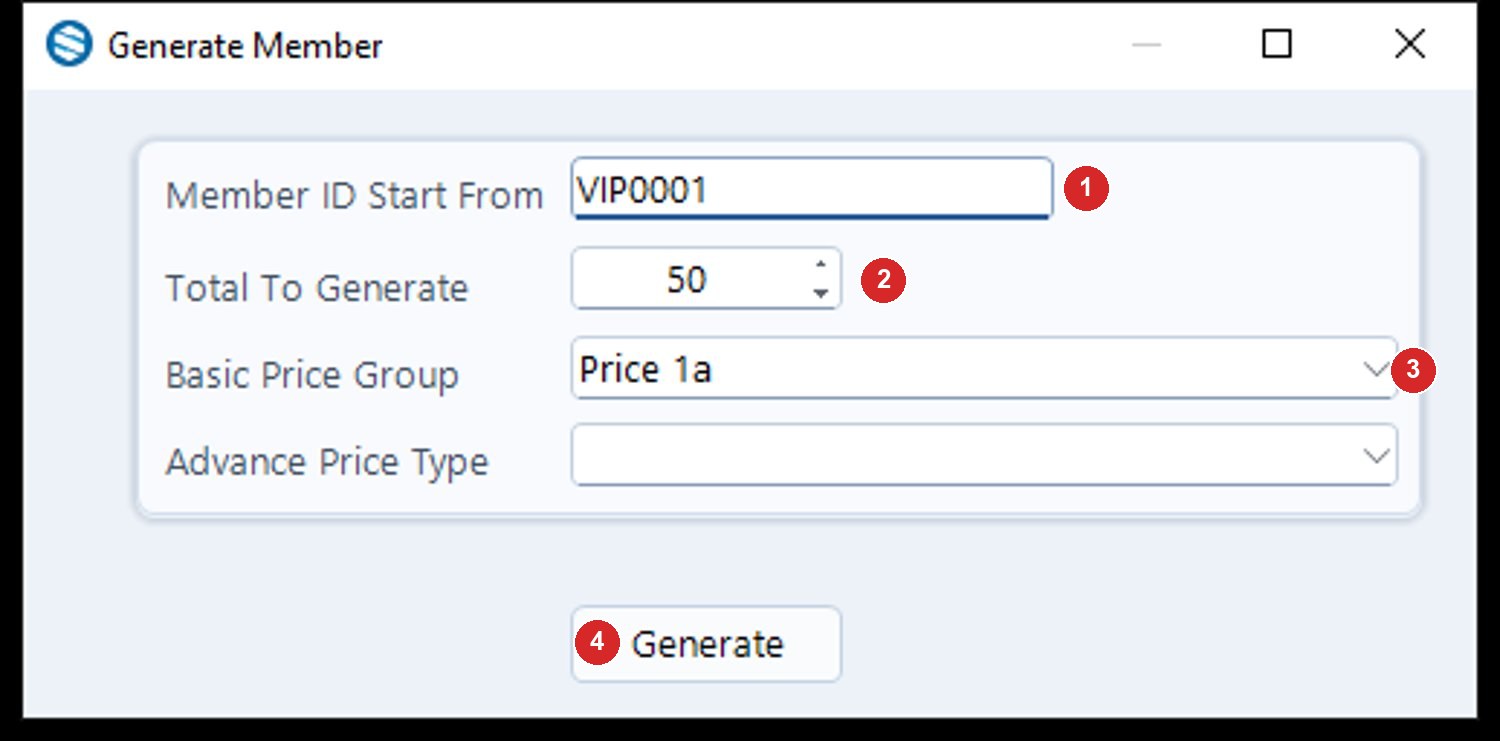
On the Member screen choose Actions > Generate Members. “Members generated successfully.” means all were created.
| Step | What to do |
|---|---|
| 1 | Member ID Start From: the first ID, letters followed by digits (here VIP0001). |
| 2 | Total To Generate (here 50, so VIP0001 to VIP0050). |
| 3 | Basic Price Group, and Advance Price Type if needed. |
| 4 | Click Generate and confirm. |
2. Check a member in
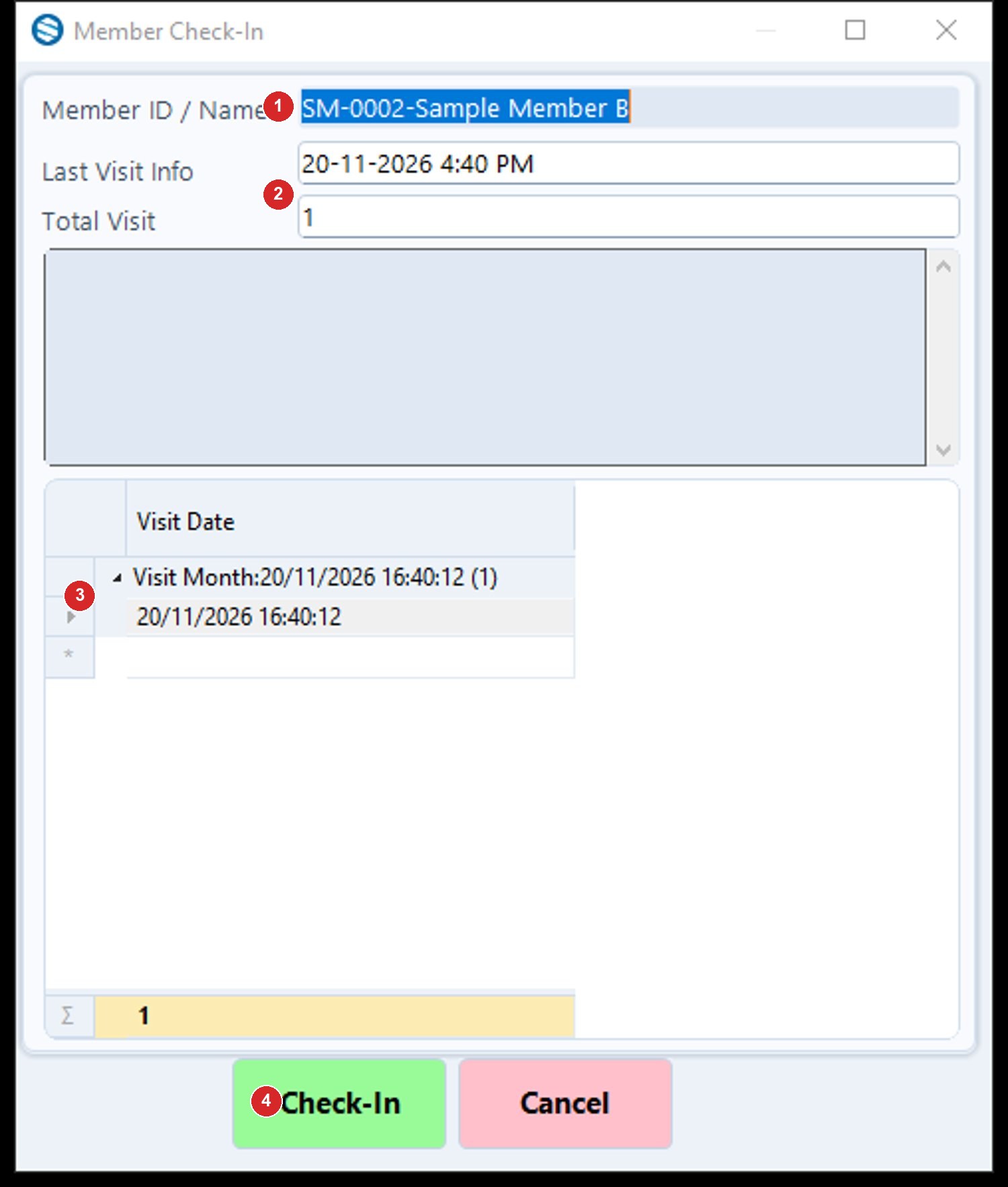
Open Member Check-In from the member: on the Member screen click the button in the Total Visit box, or use the check-in button your company added to the POS sales screen. The visit history, Total Visit and Last Visit Info fill in.
| Step | What to do |
|---|---|
| 1 | Member ID / Name: type the member’s code or name, or use the search button beside the box. |
| 2 | Last Visit Info and Total Visit (here 20-11-2026 4:40 PM, 1 visit). |
| 3 | The list shows each Visit Date. |
| 4 | Click Check-In to record the visit, or Cancel to close. |
3. Redeem an item with points
Open Redeem Item by Point from the sale. The member’s available points are checked and shown as Available Point. For each item, click Redeem on its row to redeem it with the full points required. Click Remove to remove the redemption. Click OK to apply.
4. Forfeit points
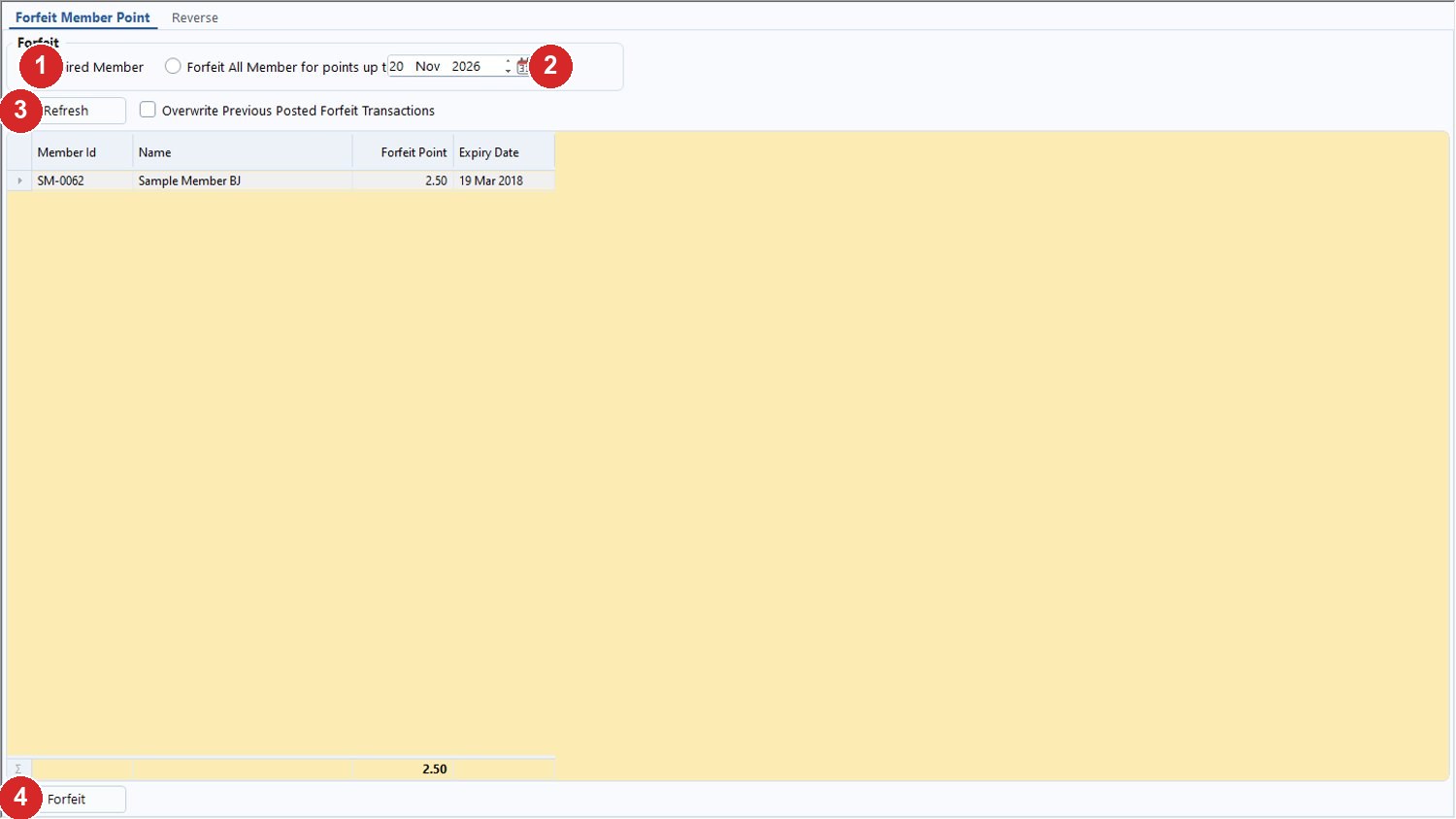
Go to Point of Sale > Utilities > Forfeit Member Point. Answer “Proceed to forfeit Member Points?” with Yes. “Done.” is shown and the screen closes.
| Step | What to do |
|---|---|
| 1 | Expired Member: forfeit the points of members whose membership has expired. |
| 2 | Or Forfeit All Member for points up to, and pick the date. |
| 3 | Click Refresh to preview the members and points (here SM-0062, 2.50 points, expired 19 Mar 2018). |
| 4 | Click Forfeit. |
5. Reverse a forfeit
On the Reverse tab enter Date From and Date To (the forfeit dates). Click List to see the forfeits in that range, then click Reverse. The program shows “Reversed :” with how many succeeded and lists any that failed with the reason.
6. Generate a batch of vouchers
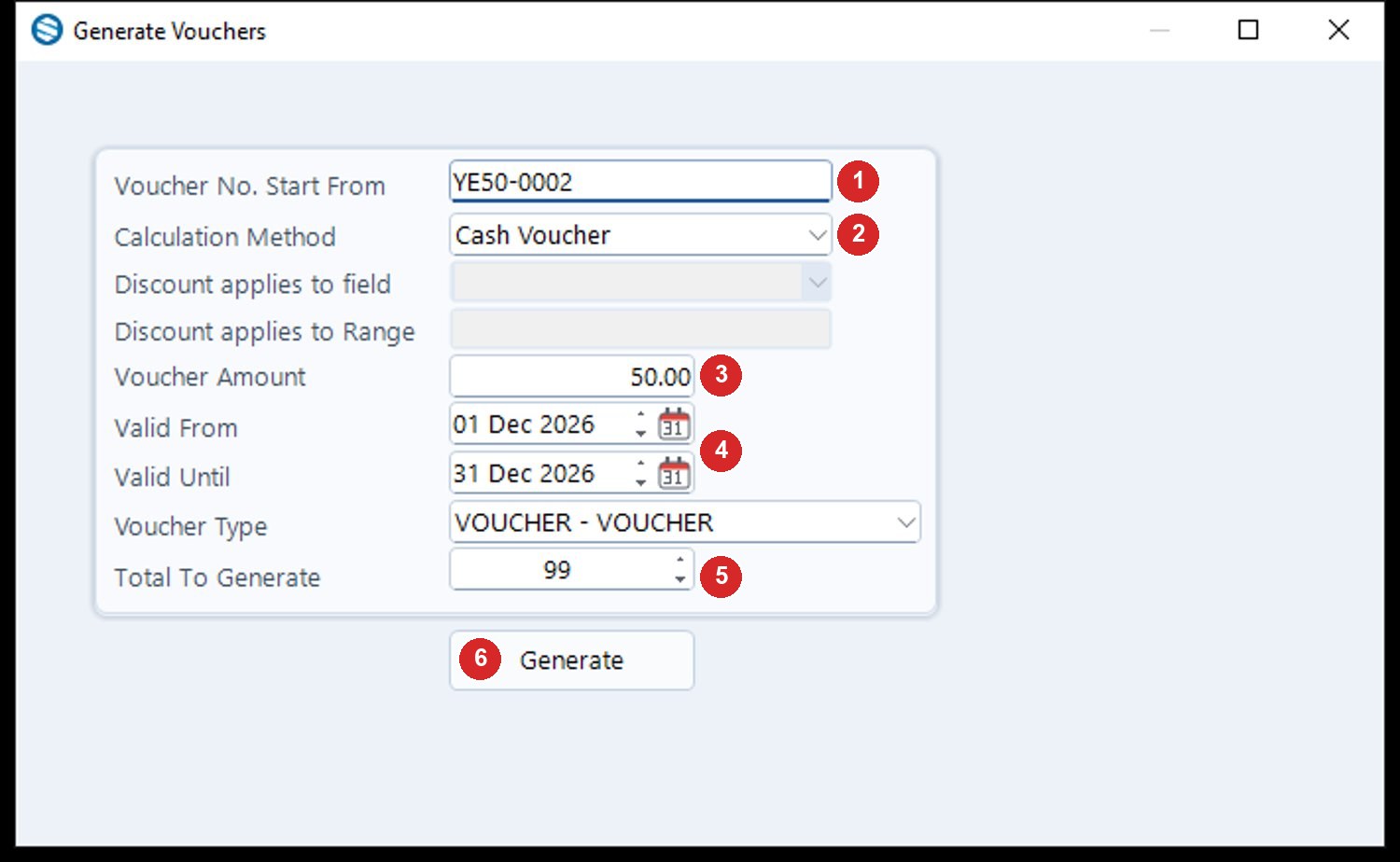
On the Voucher screen choose Actions > Generate Vouchers. For a discount voucher also fill in Discount applies to field and Discount applies to Range; the amount box becomes Discount (%).
| Step | What to do |
|---|---|
| 1 | Voucher No. Start From: the first code; it must have a number part (here YE50-0002). |
| 2 | Calculation Method: Cash Voucher or Discount Voucher. |
| 3 | Voucher Amount (here 50.00). |
| 4 | Valid From and Valid Until if the vouchers expire (here 01 to 31 Dec 2026). |
| 5 | Voucher Type and Total To Generate (here 99). If locations are listed, tick the ones that may use the vouchers. |
| 6 | Click Generate, tick the box in the confirmation window and click OK. Refresh the record listing to see the new vouchers. |
7. Prepare an SMS or e-mail to members
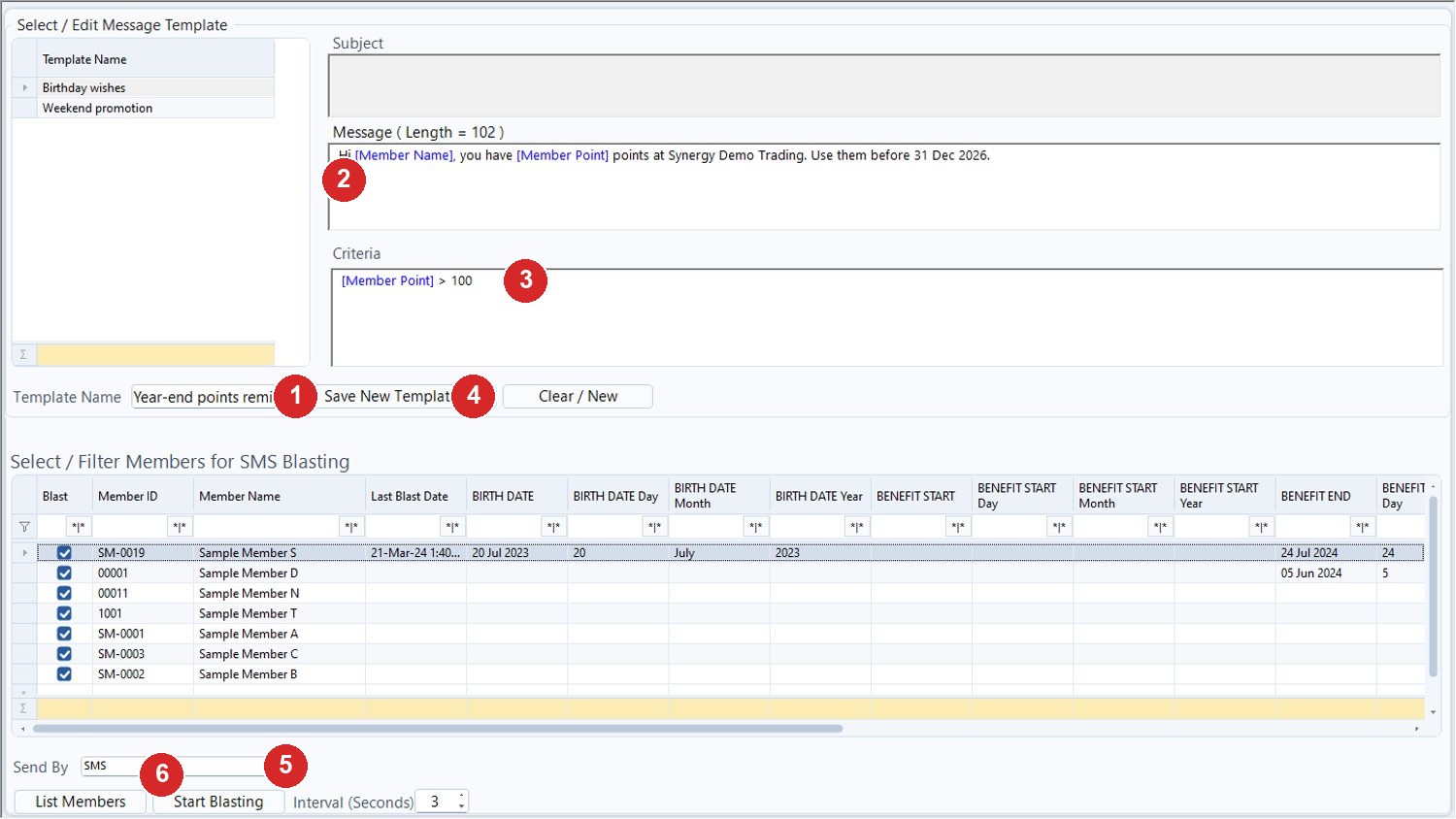
Go to Point of Sale > Utilities > SMS Blasting. Pick an existing template on the left, or click Clear / New. Right-click in Message or Criteria for a list of member fields such as [Member Name] and [Member Point]. For e-mail, fill in Subject.
| Step | What to do |
|---|---|
| 1 | Template Name (here Year-end points reminder). |
| 2 | Message: the text, with member fields in brackets. |
| 3 | Criteria: the filter that picks the members (here [Member Point] > 100). |
| 4 | Click Save New Template (Update Template for an existing one). |
| 5 | Send By: SMS or e-mail. |
| 6 | Click List Members. The matching members are listed, all ticked. |
8. Send the message
Untick anyone you do not want to contact. For SMS set Interval (Seconds). Click Start Blasting and confirm the number of members. Click Stop Blasting to stop while it is sending.
Tips
- In Generate Member, semicolon and question mark characters are removed from the ID automatically, which helps when the ID comes from a scanner.
- Member Check-In is refused when the membership is expired or inactive. Renew or reactivate the member first.
- Redeem Item by Point works only while the sale is still pending. Once the sale is settled, OK is greyed out.
- Tick Overwrite Previous Posted Forfeit Transactions only if earlier forfeit entries should be replaced by the new run.
- Vouchers should be generated at HQ, not at a branch. At a branch you are warned that the transactions cannot synchronize to HQ.
- Discount (%) for vouchers must be between 1% and 100%.
- The SMS message length is counted live and turns red once it is over 160 characters. Only members with a telephone number (SMS) or an e-mail address (e-mail) are listed.
- E-mails are placed in a mail queue and sent by the mail sender, not instantly.
Common problems
Only some members or vouchers were created.
“Unable to create the following codes.” lists them. They are usually codes that already exist.
“Invalid Voucher format entered.” appears in Generate Member.
The starting ID is not a prefix plus number. Change it. The message says Voucher but it refers to the member ID.
“Invalid Voucher Format.” appears when generating vouchers.
The start number has no usable number part, or the number is zero.
Member Check-In says “Membership expired.” or “Membership Inactive.”
Look at the member record and renew or reactivate it.
Several members match in Member Check-In.
Use the search button and pick the right member.
“Total redemption points exceeded [Available Points].” appears.
Lower the redeemed points or check the member’s balance.
The Forfeit list is empty.
No member has points to forfeit under the chosen option.
“No records to reverse.” appears.
Click List first, and make sure the date range includes the forfeit date.
“No location selected.” appears when generating vouchers.
Tick at least one location.
“Please set up [SMS Blasting Key] in Main > System Settings > SMS Blasting” appears.
SMS sending needs a key in System Settings. Contact Synergy support if you do not have one.
Nobody is listed in SMS Blasting.
The filter may be too tight, or the members have no number or address.
Some members show Done @ or Fail @ instead of blank.
Those were already processed. Only unprocessed ticked rows are sent; failed rows are skipped on the next run too.
“Birthday Voucher already claimed.” appears at payment, with Claim Branch, Claim Date and Trx. Ref.
The member already used this year’s birthday voucher on that bill. One birthday voucher can be claimed once a year. If that bill was voided, the claim no longer counts.
“Failed to lock voucher.” appears when paying with a birthday voucher
The claim could not be saved. On a branch PC the claim is saved at HQ, so check the connection to HQ, then try again. If it keeps failing, close the payment window and open it again to skip the voucher claim.