
This guide shows how to add a member, import members from Excel, record a points redemption and create a voucher in Point of Sale. The examples use member SM-0002 Sample Member B, five new members imported from a list, a 500-point redemption worth RM 5.00, and a RM 50 year-end voucher. Setting up point earn and redeem rates, and extracting member data, is done with Synergy.
Before you start
- Take a backup before importing members. An import cannot be reversed.
- Prepare your member list in the Membership Import Excel template (or an Excel or CSV file with a header row). Contact Synergy if you need the template.
- For an import, make sure the file has a Member ID column.
Steps
1. Add or edit a member
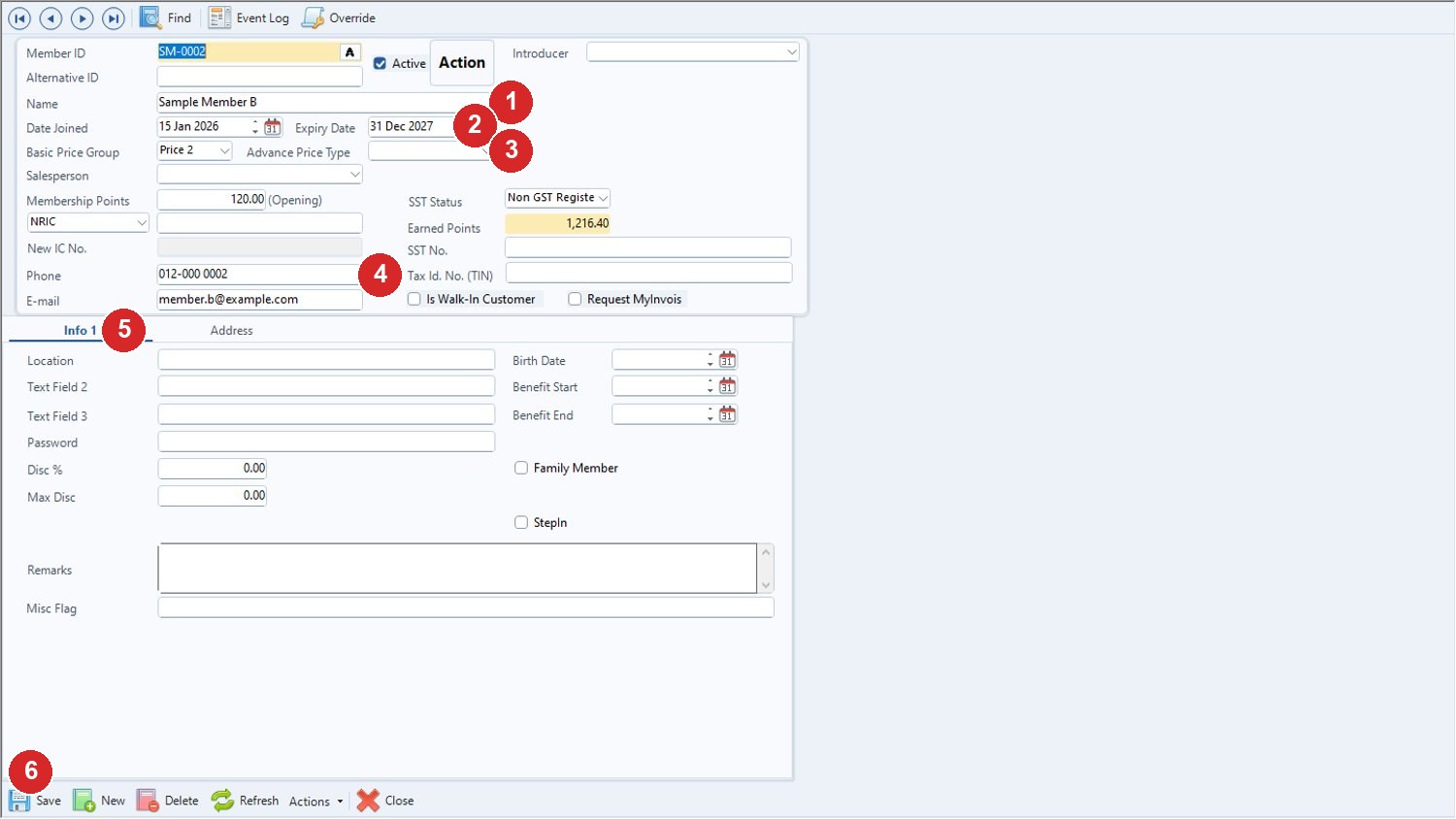
Go to Point of Sale > Point of Sale Setup > Membership > Member. Click New, or open a member. Member ID and Name are required. Earned Points shows the member’s current points.
| Step | What to do |
|---|---|
| 1 | Member ID and Name (here SM-0002, Sample Member B). |
| 2 | Date Joined and Expiry Date of the membership. |
| 3 | Basic Price Group (and Advance Price Type if your shop uses one): the prices this member gets. |
| 4 | Phone and E-mail, used for SMS and e-mail blasts. |
| 5 | Info 1 and Address pages: more details such as birth date and address. |
| 6 | Click Save. |
2. Import members from Excel
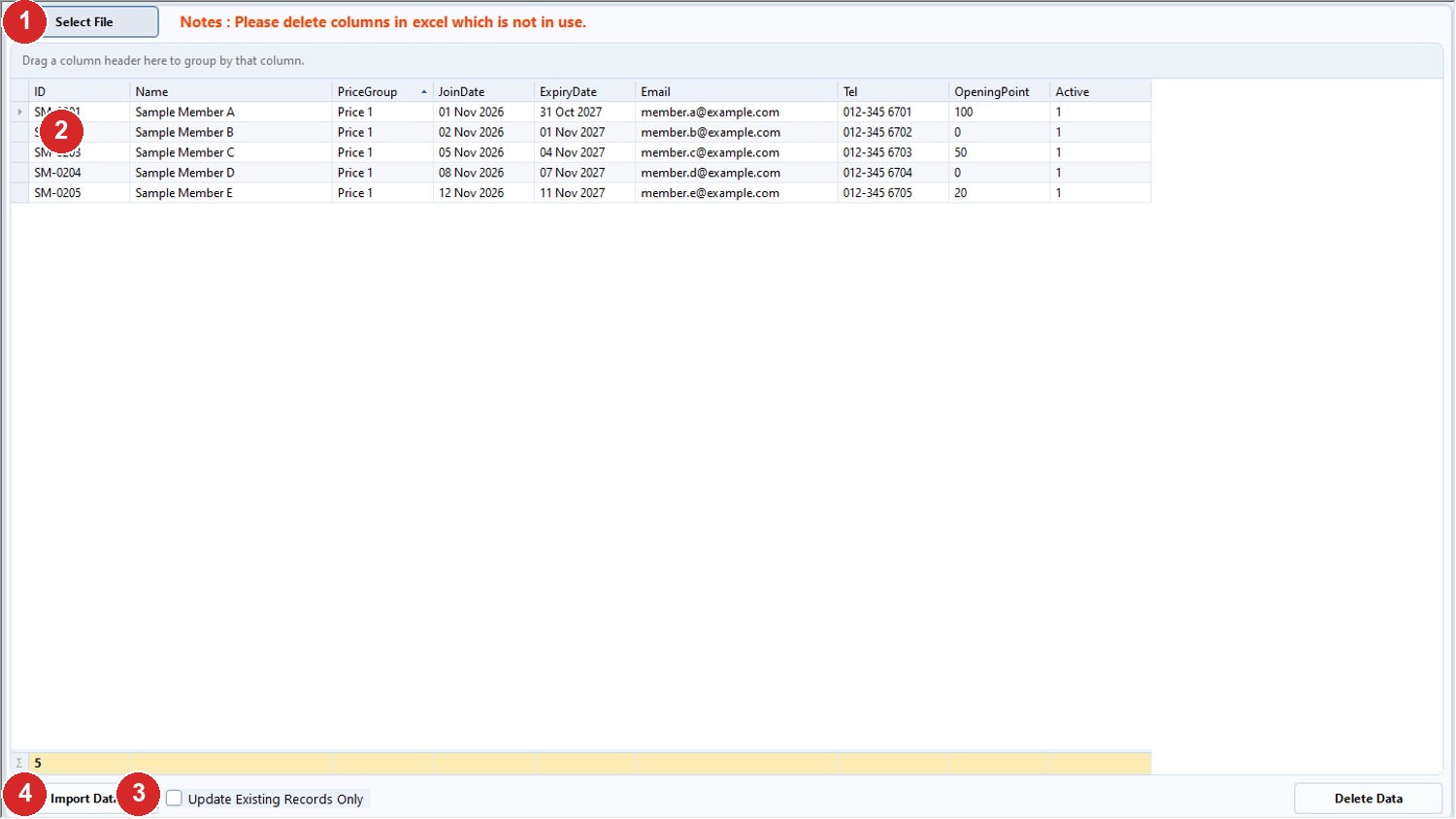
Go to Point of Sale > Utilities > Member Import Utility. In your Excel file, delete the columns you do not need first, because every column in the file is written to the members.
| Step | What to do |
|---|---|
| 1 | Click Select File and choose your Excel or CSV file. |
| 2 | Check the rows in the grid (here SM-0201 to SM-0205 with name, price group, dates, e-mail, phone and opening points). |
| 3 | Tick Update Existing Records Only if you do not want new members created. |
| 4 | Click Import Data and answer Yes. If a Member ID already exists, that member is updated with the values in your file. |
3. Redeem points
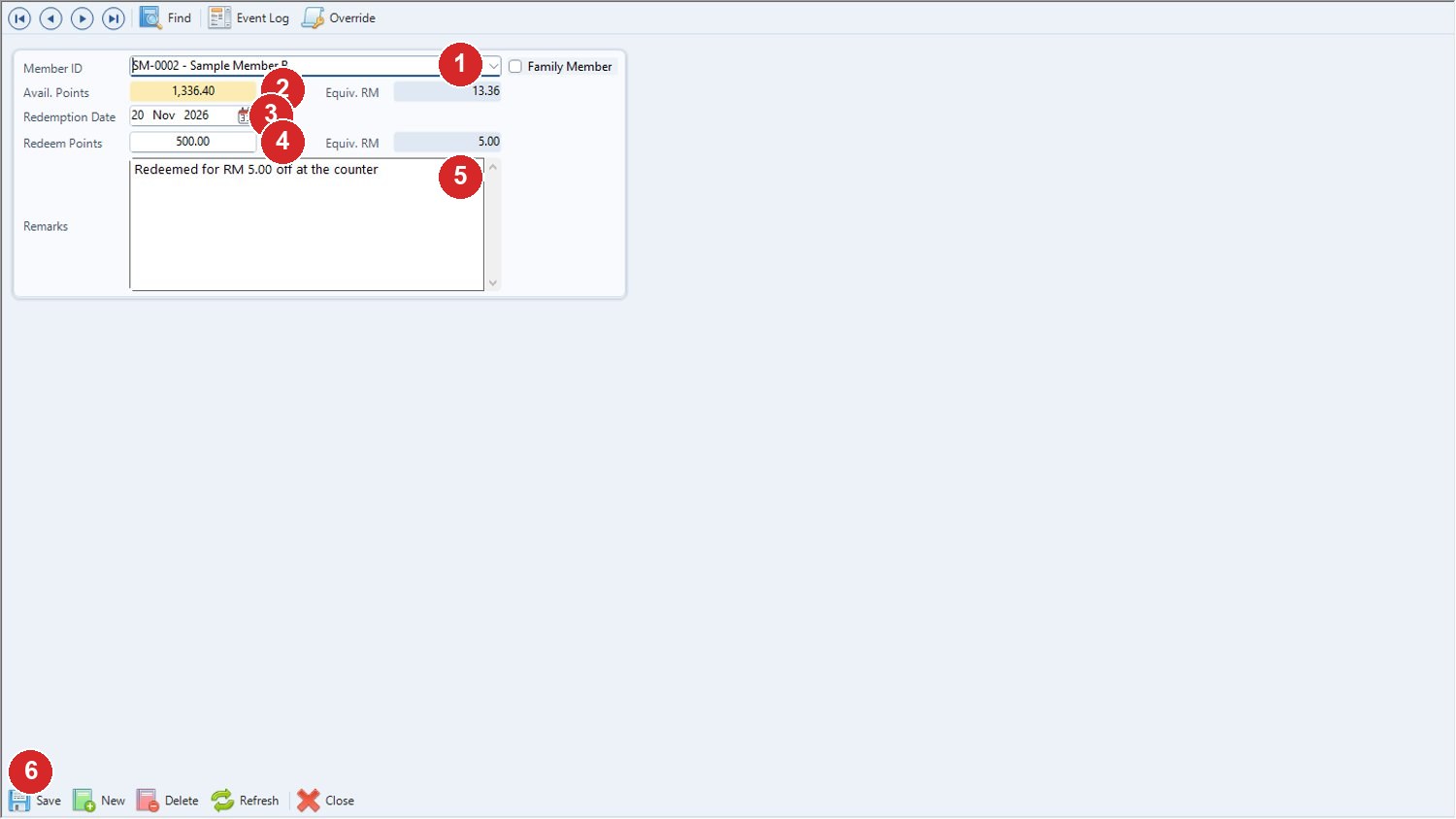
Go to Point of Sale > Point of Sale Setup > Membership > Points Redemption and click New. Equiv. RM shows what the points are worth at your redeem rate.
| Step | What to do |
|---|---|
| 1 | Member ID: choose the member. Avail. Points fills in (here 1,336.40, worth 13.36). |
| 2 | Avail. Points: the points the member has now. |
| 3 | Redemption Date: starts as today’s date. |
| 4 | Redeem Points: the points to use (here 500.00 = RM 5.00). |
| 5 | Remarks: what the points were used for. |
| 6 | Click Save. |
4. Create a voucher
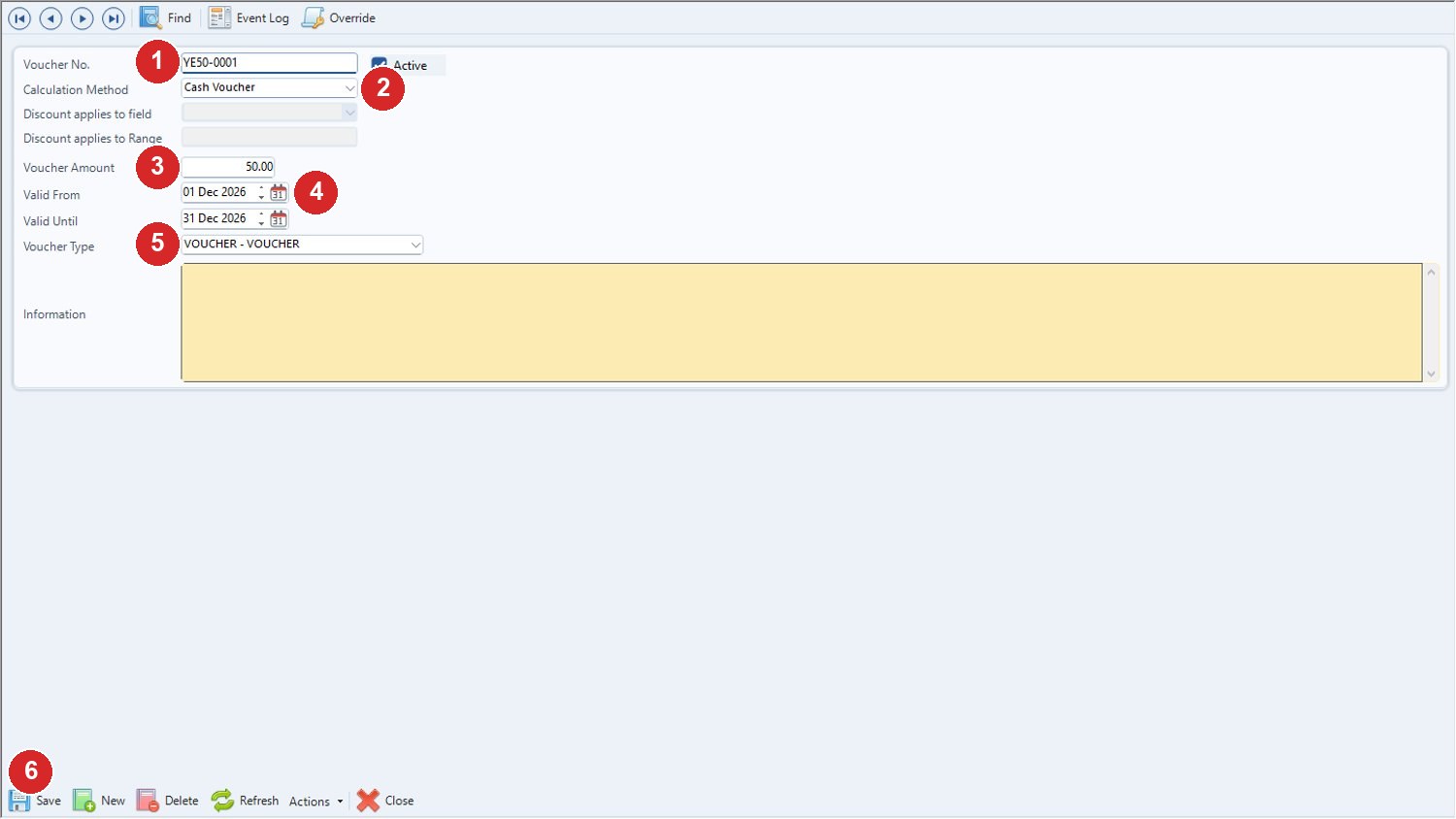
Go to Point of Sale > Point of Sale Setup > Voucher and click New.
| Step | What to do |
|---|---|
| 1 | Voucher No.: the code printed on the voucher (here YE50-0001). |
| 2 | Calculation Method: Cash Voucher (a fixed amount) or Discount Voucher (a percentage). For a discount, also choose Discount applies to field and enter Discount applies to Range. |
| 3 | Voucher Amount (Discount (%) for a discount voucher). |
| 4 | Valid From and Valid Until if the voucher expires. You can leave them empty. |
| 5 | Voucher Type. If a list of locations is shown, tick where the voucher can be used. |
| 6 | Click Save. |
Tips
- Never click Delete Data on the Member Import screen unless you really want to delete members. It permanently deletes every member listed in the grid and cannot be undone.
- If a file shows nothing after Select File, check that it has a Member ID column.
- Create vouchers at HQ. Vouchers created at a branch cannot synchronize to HQ.
- A discount voucher percentage must be above 0 and not more than 100.
- Once a voucher has been used in a sale, you cannot save changes to it or delete it.
- To create many vouchers at once, use Actions > Generate Vouchers on the Voucher screen.
- Create master data such as members at HQ first. Branches then download.
- Bonus points need the right user flag. If you see a permission message, ask for the flag to be added to your user.
Common problems
Equiv. RM is zero when redeeming points.
The cashback amount or points setting is not set up. Contact Synergy support.
Avail. Points is zero.
The member has no points, or the wrong member is chosen. Check the Member ID.
A member’s points balance is negative after redeeming.
Check the member’s balance at HQ. If it is negative there too, check that upload and download between the branches are done every night. If it is still wrong, contact Synergy support.
Members created at one outlet do not appear at another, or show duplicates.
Contact Synergy support. Have the branch name, a screenshot of any error text, and your HQ remote access ready. Keep automatic backup on and also make a manual backup on an external drive.
Message: Member ID column is required.
Your file has no Member ID column. Add one and select the file again.
Cannot save or delete a voucher.
It has probably already been used in a sale.
Message: No permission to award bonus point.
The user needs the AwardBonus flag. Reversing bonus points needs ReverseBonus.
Need point earn and redeem rates set up, or member data extracted.
Contact Synergy support. Have ready the earn and redeem rates you want.