
This guide shows how to read a customer’s MyKad with a MyKad reader and fill in the member record from it, instead of typing the details. First choose which MyKad detail goes into which member box, then read the MyKad on the Member screen.
Before you start
- A MyKad reader must be connected to the computer and working.
- Setting up (steps 1 to 3) is done once. Reading a MyKad (steps 4 to 6) is done for each member.
Steps
1. Open the MyKad Reader tab
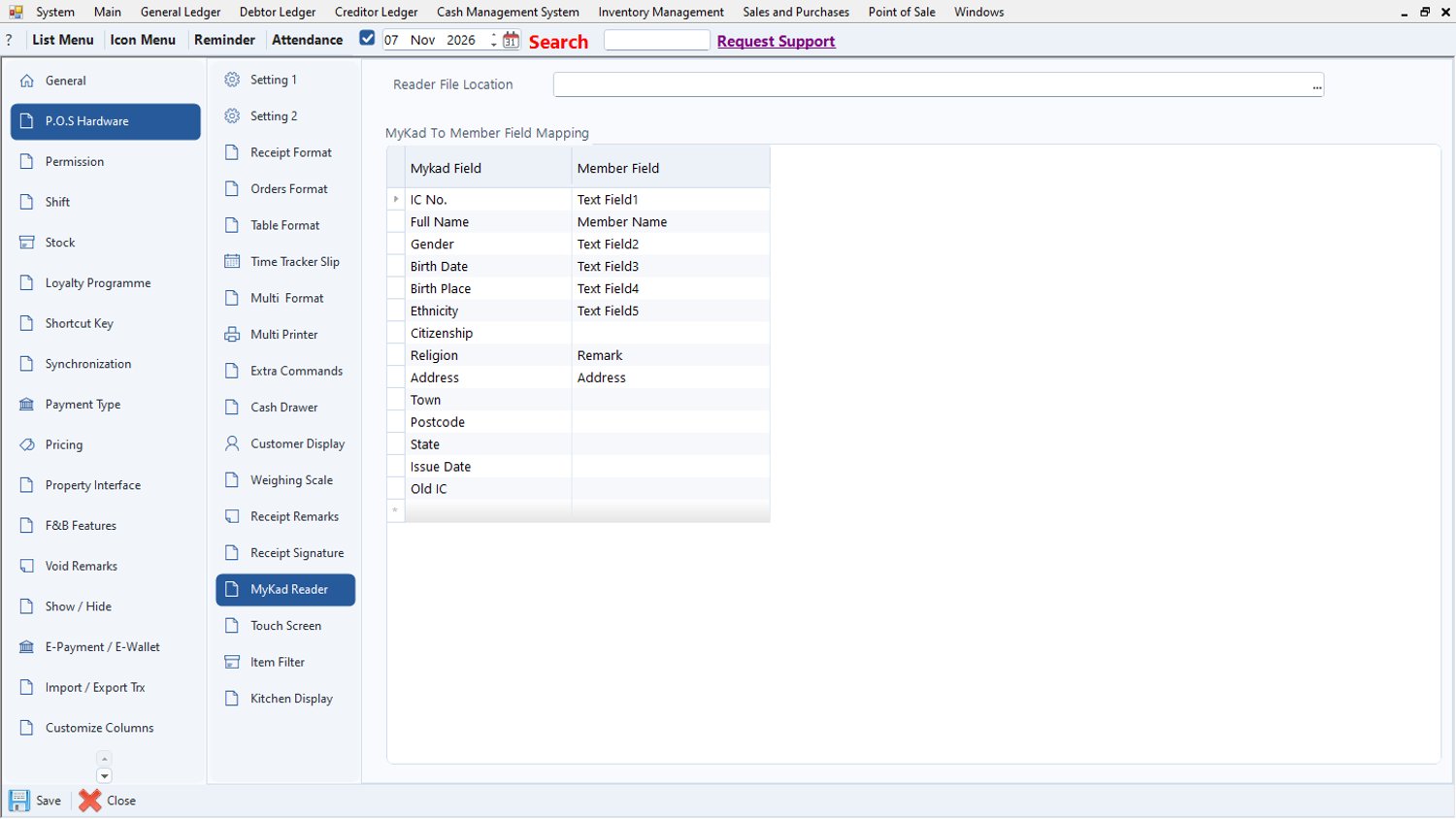
Go to Point of Sale > Point of Sale Setup > Point of Sale Settings, then P.O.S Hardware > MyKad Reader.
2. Choose the reader program if you were given one
If you were given a separate reader program, click the … button beside Reader File Location and choose it (an .exe file). If not, leave Reader File Location empty.
3. Map the MyKad details to member boxes
Under MyKad To Member Field Mapping, each row is a MyKad detail (IC No., Full Name, Gender, Birth Date, Birth Place, Ethnicity, Citizenship, Religion, Address, Town, Postcode, State, Issue Date, Old IC). In the Member Field column choose where it should go, for example Member ID, Member Name, Address, Remark or Alternative ID. There are also Text Field1 to Text Field5 and Date Field1 to Date Field3 for the other details. Leave Member Field empty for any detail you do not want to use. Then save the settings.
4. Open the Member screen
Go to Point of Sale > Point of Sale Setup > Membership > Member and add a new member.
5. Read the MyKad
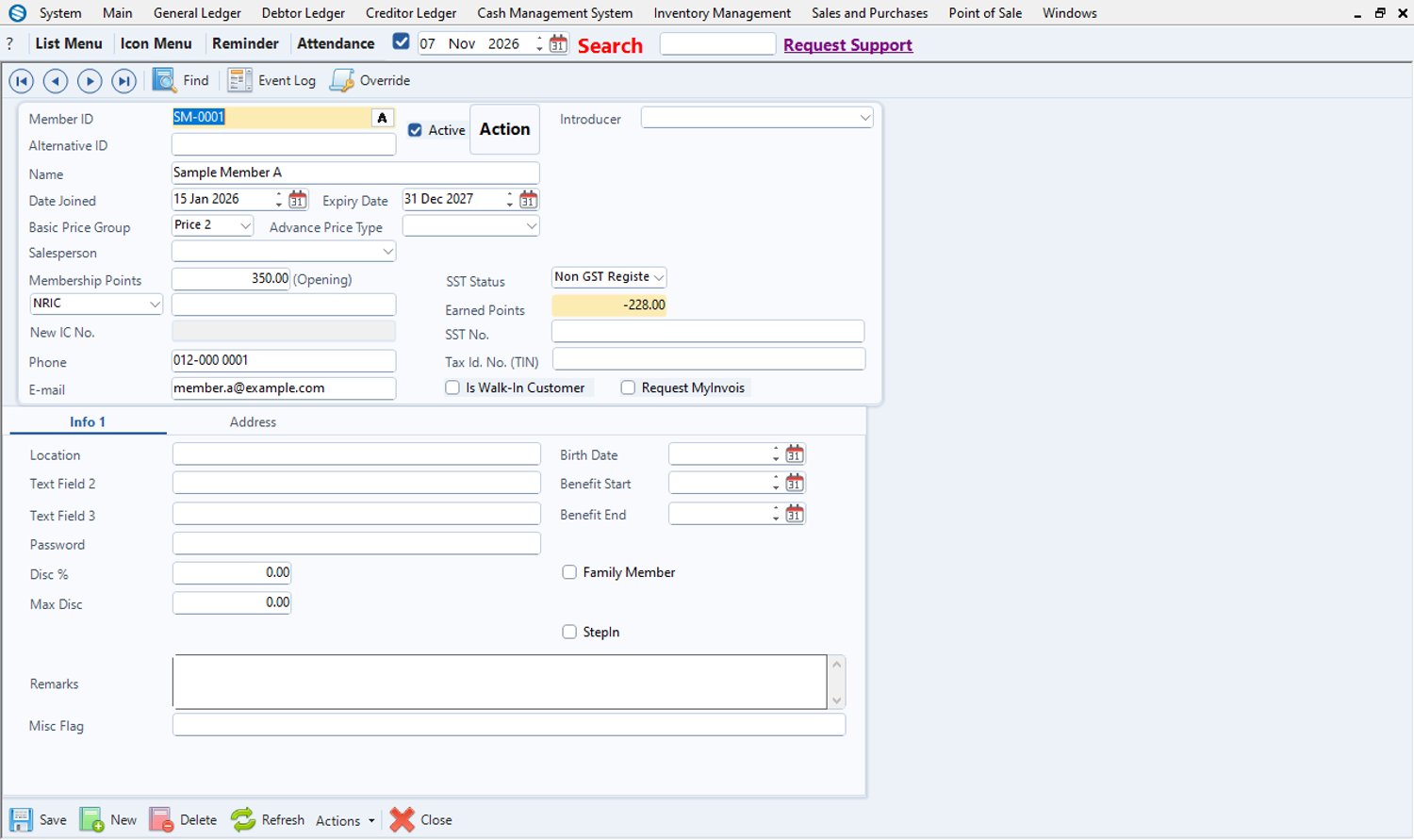
Put the MyKad in the reader. On the Member screen click Action, then choose Read MyKad Reader.
6. Check and save the member
The boxes you mapped are filled in from the MyKad. Check them, complete any other details and save the member.
Tips
- Only the details that you mapped are filled in. Map the ones you want, such as IC No. to Alternative ID.
- Date boxes are filled only when the MyKad gives a valid date.
- The Action list on the Member screen also has Scan Fingerprint.
Common problems
Unable to read MyKad.
Check that the reader is connected and the MyKad is in properly, then click Action and Read MyKad Reader again. The message may add more detail about the error.
Some errors found during reading MyKad.
Part of the MyKad could not be read. Take it out, put it in again and read it again, or type the missing details by hand.
Nothing is filled in after reading.
Check the MyKad Reader tab: a MyKad detail is only used when a Member Field is chosen for it. Save the settings after changing them.