
This guide shows you how to take a payment on the point-of-sale Receipt screen using cash, a payment terminal, vouchers, a cheque or loyalty points, how to print the receipt, and how to reverse an e-payment taken by mistake.
Before you start
- Open the sale at the point of sale and go to the payment (Receipt) screen.
- For terminal payments, make sure the terminal is connected to the computer and switched on.
- To reverse an e-payment you need a supervisor’s permission (“To Use E-Pay Tool”).
Steps
1. Check the total and enter cash
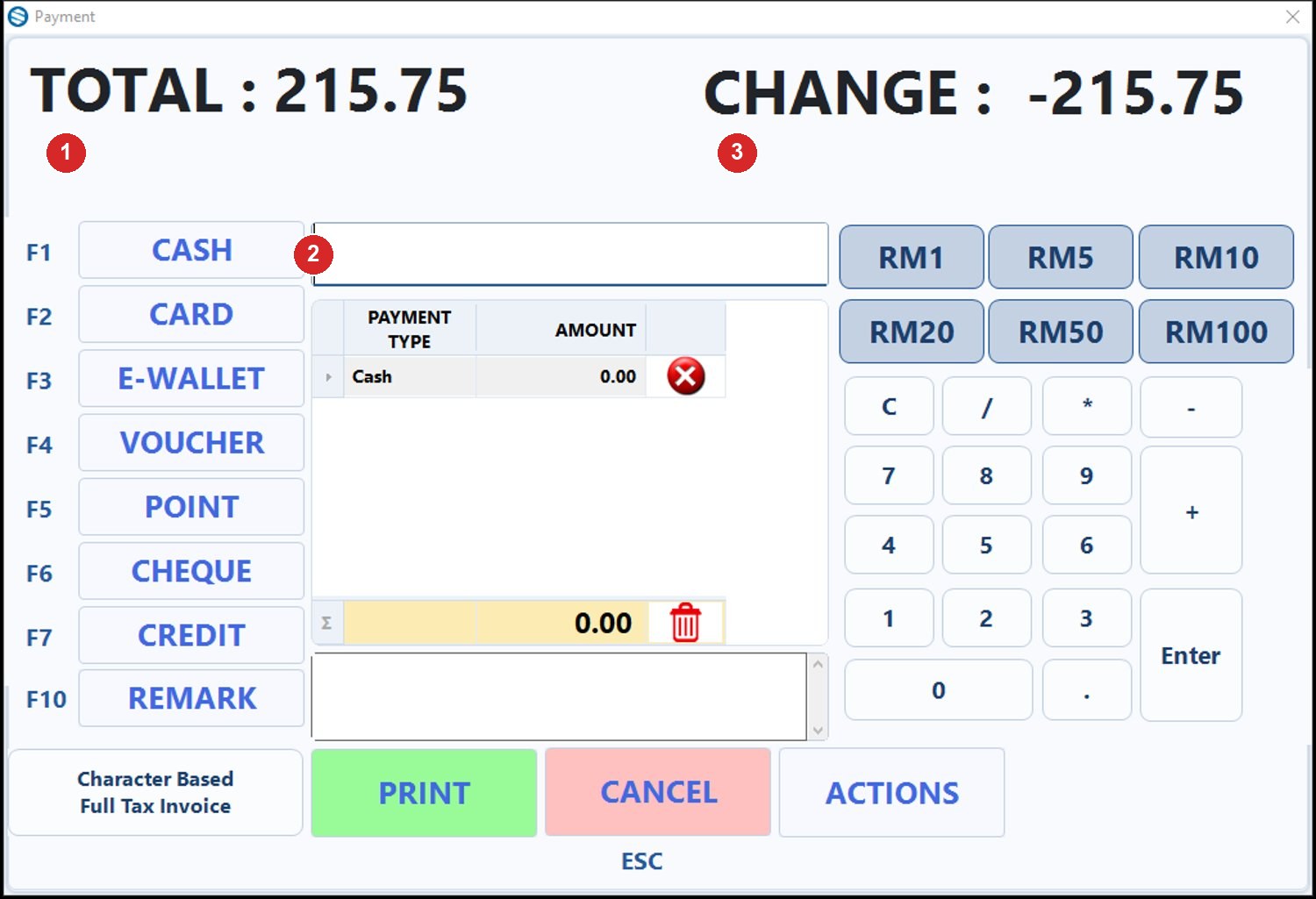
On the Receipt screen, amounts are rounded to the nearest 5 cents.
| Step | What to do |
|---|---|
| 1 | Check the Total at the top. |
| 2 | Enter the cash handed over in Cash Amount in the Cash box. If you click the empty box after entering other payments, it is filled with the balance still due. |
| 3 | Check the Change figure. |
2. Take a credit/debit payment
In the credit/debit box enter the Amount, the type, the reference and the Approval Code. When you click in the amount, it is filled with the balance still due. The type and approval code must be filled in when an amount is entered.
3. Pay on the payment terminal
If your shop uses a payment terminal, click the payment terminal button on the payment screen. Check the TOTAL AMOUNT shown, then follow the prompts on the terminal itself (insert, swipe or PIN). The request starts by itself; click the connect button to start it again if needed. When the terminal approves, the screen shows “Sales Request Completed.” and closes by itself.
4. Pay with vouchers
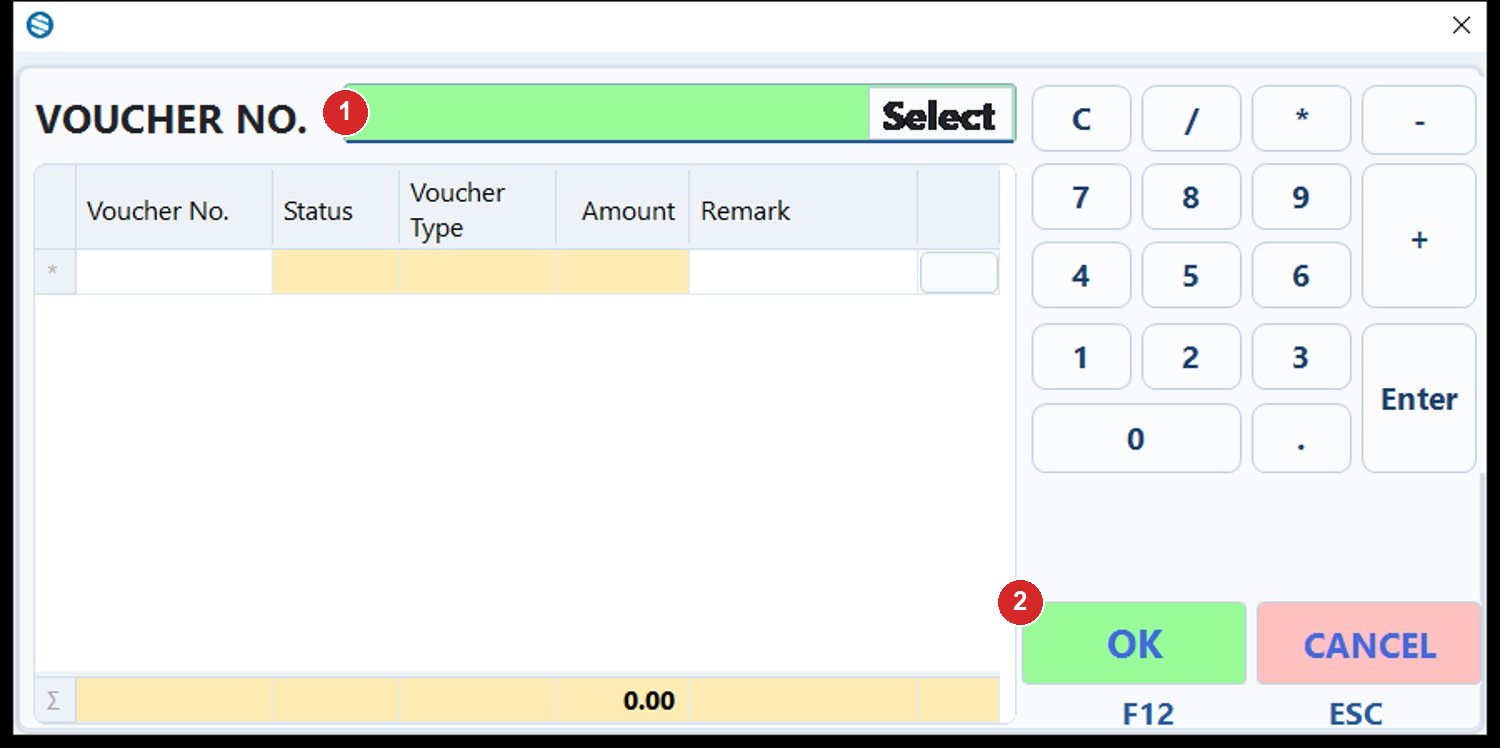
Open the voucher payment. The voucher is added to the list with its type and amount. Repeat for each voucher.
| Step | What to do |
|---|---|
| 1 | Type or scan the VOUCHER NO. and press Enter. |
| 2 | When all the vouchers are in the list, click OK. |
5. Pay by cheque
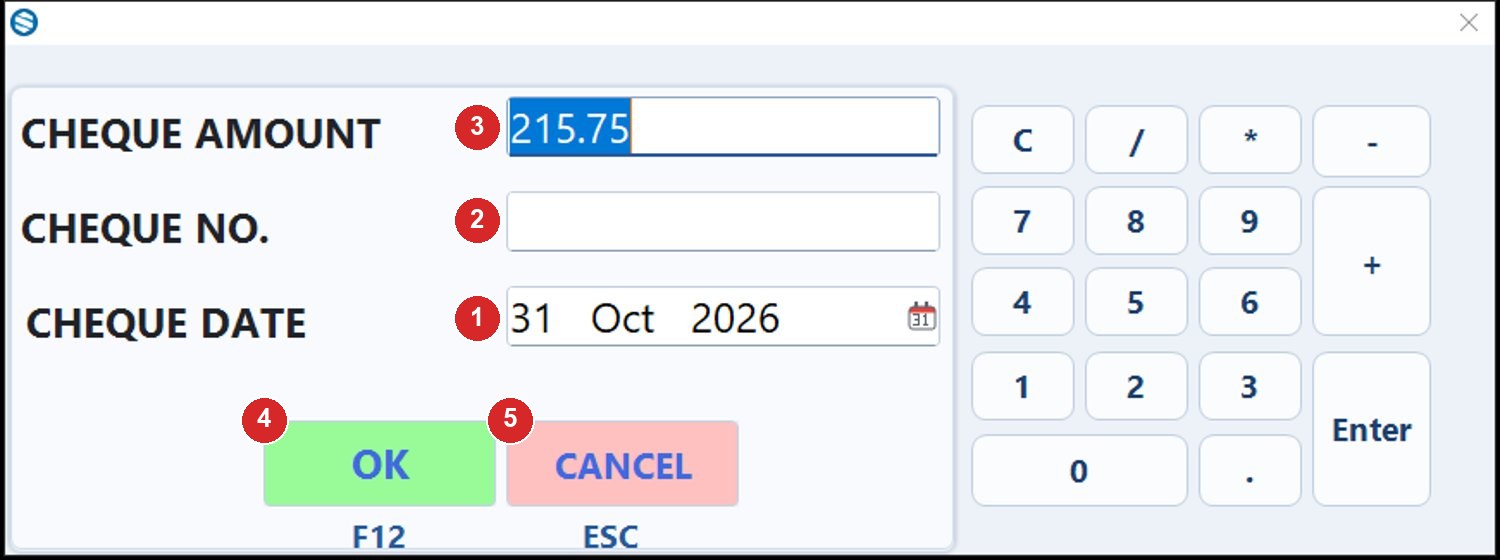
Open the cheque payment.
| Step | What to do |
|---|---|
| 1 | Fill in CHEQUE DATE. |
| 2 | Fill in CHEQUE NO. |
| 3 | Enter the CHEQUE AMOUNT. |
| 4 | Click OK (or the function key shown beside OK). |
| 5 | Click CANCEL (or press ESC) to leave without saving. |
6. Pay with loyalty points
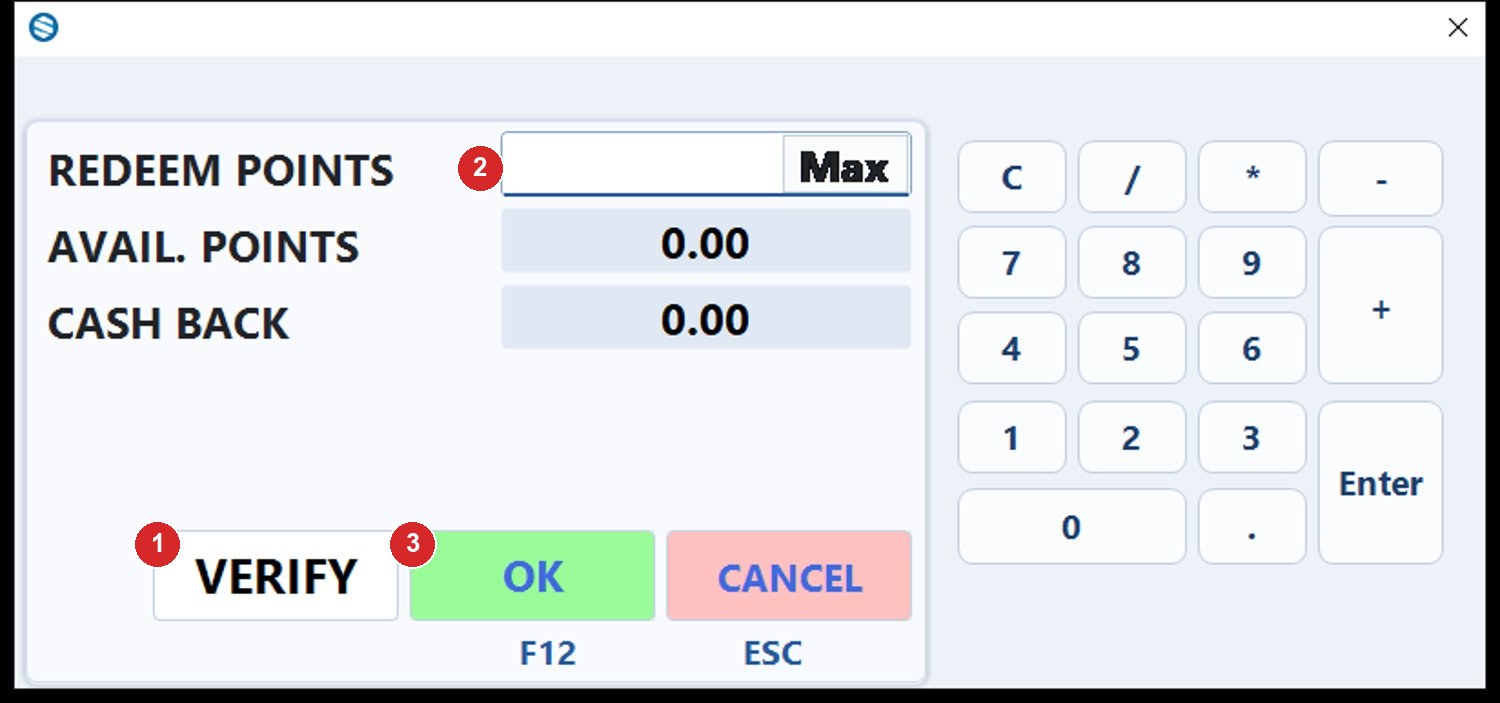
Open the point payment (Redeem Points). The CASH BACK value is worked out for you.
| Step | What to do |
|---|---|
| 1 | If the screen says “Please Click [VERIFY] button”, click VERIFY first to get the member’s current points in AVAIL. POINTS. |
| 2 | Type the number of points in REDEEM POINTS. |
| 3 | Click OK. |
7. Add a remark and print
Type any note in Receipt Remarks, or click the button in the box to pick a standard remark. Click Print Receipt. If a print format window opens, pick the Printer Type (Standard Printer, Receipt Printer, or Receipt Printer – Character Based) and the Layout Format (Simplified Tax Invoice or Full Tax Invoice), then click Print. Click Unlock Setting first if the options are locked.
8. Reverse an e-payment
Open the E-Payment Transactions tool from the sale. A supervisor’s permission is asked for. Find the payment in the list and click the reversal button at the end of its row. In the Confirmation window tick the box and click OK. Wait for “Done.” and the refreshed list. Use only the reversal button; the refund button does nothing.
Tips
- On a refund or exchange bill the credit/debit and voucher boxes are disabled. When the total is zero the Cash box is disabled too.
- On a refund the label changes to Refund Amount and you enter a negative amount. A cheque amount must also follow the sign of the bill: positive for a sale, negative for a return.
- A voucher may be used for less than its full value, but only one partly used voucher is allowed at a time.
- When your shop checks vouchers, the voucher type and amount come from the voucher and cannot be changed. Only one discount voucher is allowed.
- Points are rounded down to a complete redemption unit. For example, if 250 points are worth RM10, typing 255 becomes 250. Points used cannot exceed the available points, the amount still due on the bill, or the daily redemption limit if your company has one.
- The Printer Type is remembered for each computer. The Simplified or Full choice is remembered as the default for next time.
- For some e-wallet payments the reversal can only be done on the terminal. The message “Please use the Terminal to Reverse/Void transaction.” tells you this.
- If a terminal payment is cancelled during payment, check the terminal and its batch before charging again, to avoid a double charge.
Common problems
I cannot print the receipt.
The received amount must cover the total. When an amount is entered in the credit/debit box, the type and approval code must be filled in too.
“Received amount is less than Total Amount.” appears.
Payment does not cover the bill. If the bill has returned items you are asked to click Yes if this is a REFUND.
“Voucher amount cannot be more than Sale Amount” or “Total Voucher Amount is more than Bill Total” appears.
Remove the extra voucher or reduce the voucher amount.
A voucher is rejected as invalid.
Check the number, its dates, and whether it is active and valid for this location. It may also have been used already or typed twice (“Duplidate Voucher No. entered.”).
I cannot change the voucher amount.
When vouchers are checked, the amount is fixed by the voucher.
“Please enter a POSITIVE figure for Cheque amount.” or “Please enter a NEGATIVE figure for Cheque amount.” appears.
Use a positive amount for a sale and a negative amount for a return or refund.
OK is refused with “Please click [Verify]”.
Click VERIFY first when your shop verifies points through head office.
Cash back is zero after typing points.
You typed fewer points than one redemption unit, so the box was cleared.
“Invalid setting for Cash Back Amount” or “Invalid setting for Cash Back Redemption Point” appears.
The cash back rule is not set up. Contact Synergy support and have the message ready.
“Terminal not ready. Please try again.” or “Please check the USB connection.” appears.
Re-plug the USB cable, check the terminal is switched on, then click the connect button to try again.
“Amount is zero.” or “Reference id is empty.” appears when reversing an e-payment.
A zero amount cannot be reversed, and a payment without a reference number cannot be matched by the provider. Contact Synergy support and have the sale number ready.