
Use this guide when a promotion price does not apply at the till, a total shows odd sen (for example RM100.02 instead of RM100), an FOC item gives an error, or you want to know what sold on promotion. To create a bundle or buy N get N promotion, read the POS Promotions guide first.
Before you start
- Know the item code, the promotion dates and which outlets the promotion covers.
- Check whether the member has a different price type from the promotion.
Steps
1. Check the promotion itself
Open Promotion Pricing and look at the promotion. Most missing promotions are one of these.
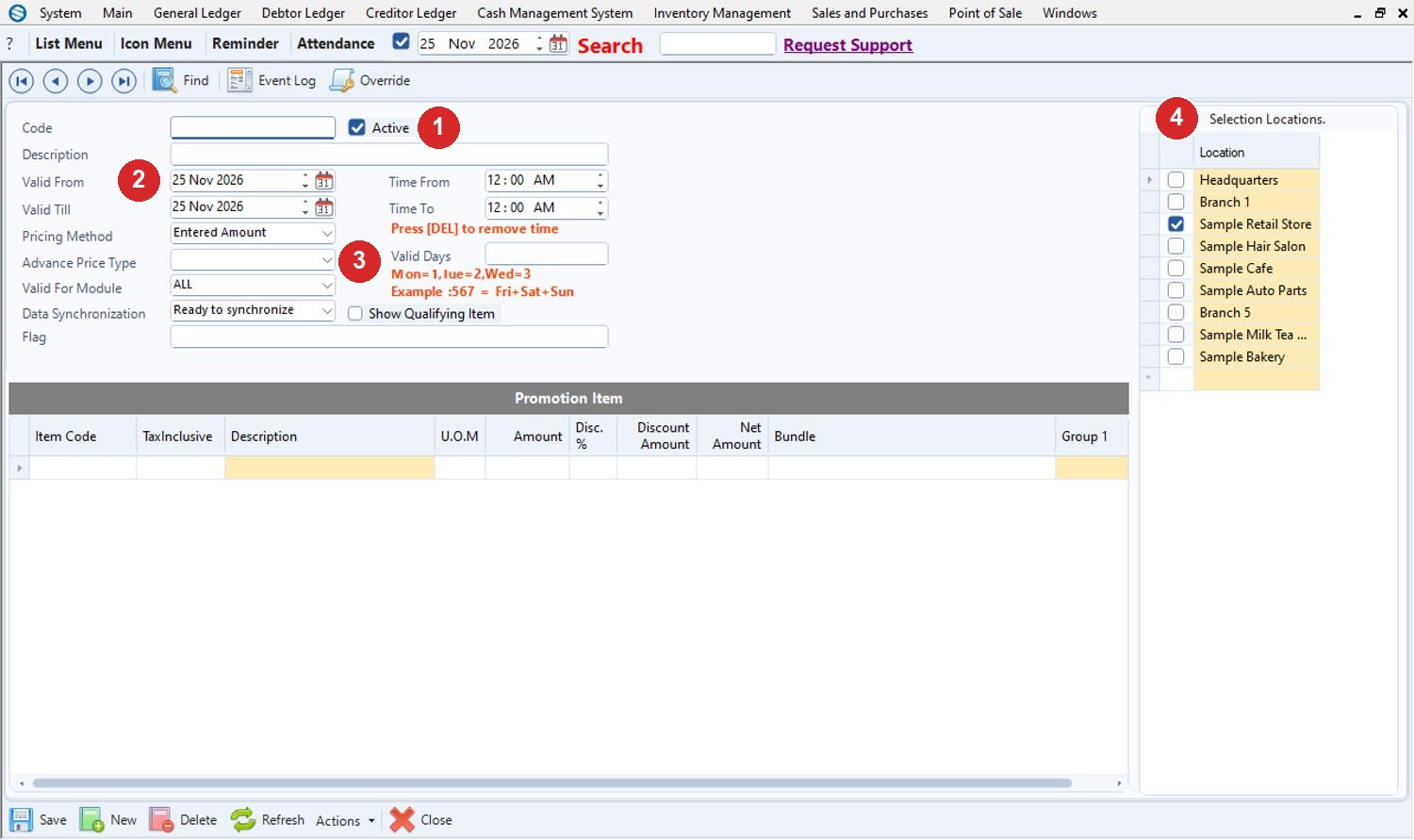
| Step | What to do |
|---|---|
| 1 | Check that Active is ticked. |
| 2 | Check the Valid From and Valid Till dates cover today. |
| 3 | Check the Advance Price Type. In one case the member’s price type was different from the promotion’s. |
| 4 | Check the location list: tick all outlets or the specific outlet that sells the item. |
2. Check the scanned item is in the promotion
In the Promotion Item list, make sure the item you scan is listed. A promotion on a single item is possible, so each item must be in it.
3. One item code in two promotions
One item code cannot have two different promotions at the same time. It can still be sold at the normal single price.
4. An FOC item gives an error
If the FOC item is the same as the promo item and an error appears, do not use the item’s own code. Create one Non-stock item with the code and description FOC and use it as the FOC item.
5. The total shows odd sen
If a total shows odd sen, go to Point of Sale Settings and set the default rounding.
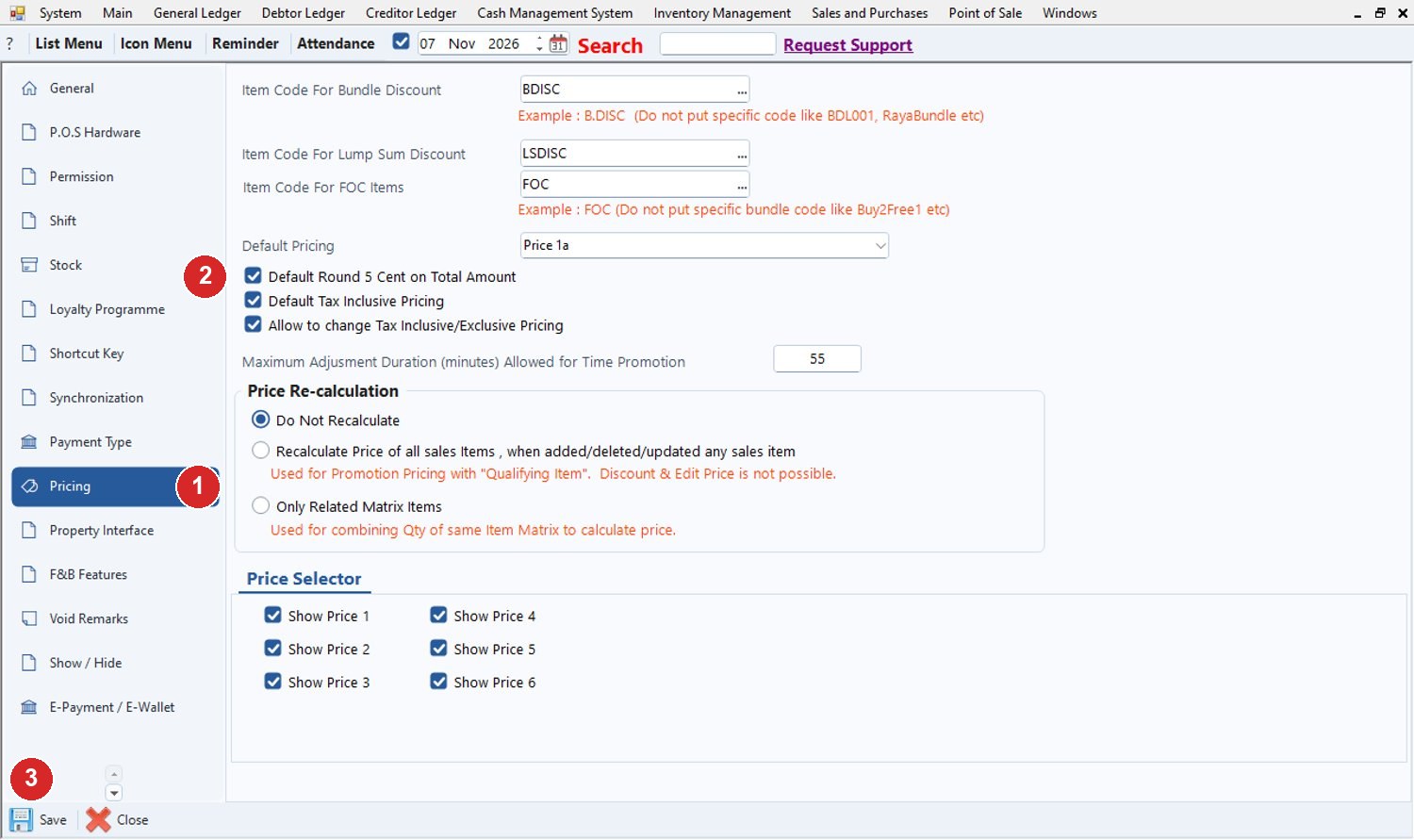
| Step | What to do |
|---|---|
| 1 | Click Pricing in the menu on the left. |
| 2 | Tick Default Round 5 Cent on Total Amount. |
| 3 | Click Save. |
6. See which items sold on promotion
In Promotion Pricing click Actions > Search Promo Trx By Item. There is no report for advanced-pricing promotions.
7. A promotion with a condition, such as spending over RM100
These are complex promotions. Ask Synergy support to set them up. Have the item, the dates, the outlet scope and the spending condition ready.
Tips
- At the till the cashier just scans the items. For example, buy 2 get 1 needs 3 scans.
- Set the location before you save a promotion, or it will not cover the outlet you expect.
- Some conditions, for example requiring 2 pieces of one item, may not be supported.
Common problems
The promotion is correct but still not applied.
Contact Synergy support. Have the item code, the promotion dates, the outlet and a screenshot of the Promotion Pricing screen ready.