
This guide shows how to create a promotion bundle (a fixed price for several items, or a buy N get N offer), attach it to items in Promotion Pricing, and check what sold on promotion.
Before you start
- Know exactly what the offer is: same item or different items, the price, and the end date.
- Have the item codes, prices and end date ready.
- Check that the item is not already in another promotion. One item code cannot have two different promotions at the same time, but it can still be sold at the normal single price.
- Decide whether the promotion covers all outlets or one outlet.
Steps
1. Open Promotion Bundle
Go to Inventory Management > Masterfile > Promotion Bundle.
2. Fill in the bundle
For a fixed bundle price (for example 3 items for RM10), use Discount By Each Bundle: the bundle price is given to each full bundle and the rest are sold at the Unit Price (the screen shows a worked example). The second method is for wholesale tier prices. For buy 1 get 1 or buy 2 get 1, choose one of the FOC item methods and enter the Buy Qty and Free Qty instead; leave Discount % empty if the FOC items should cost nothing.
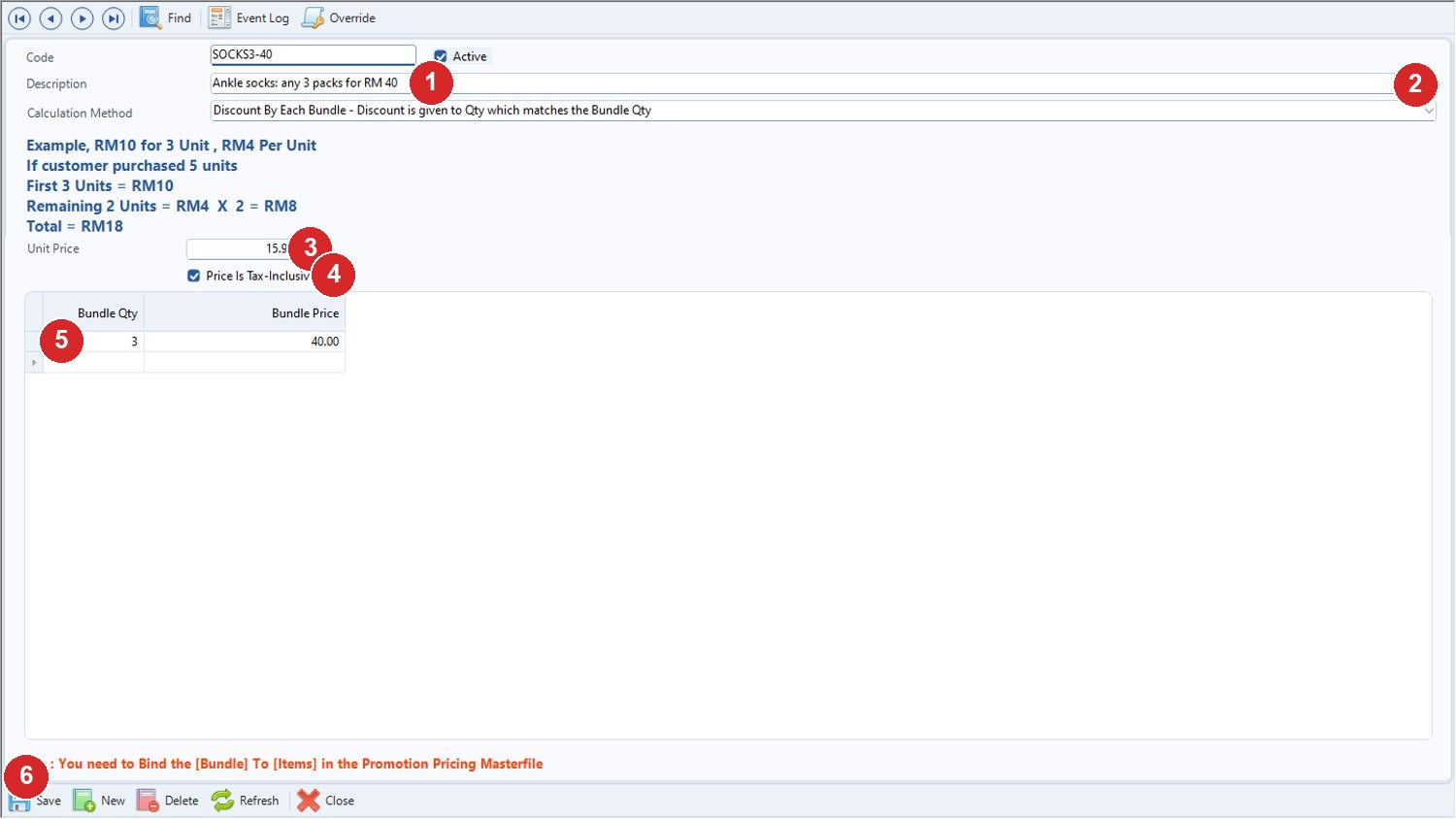
| Step | What to do |
|---|---|
| 1 | Code and Description (both required), and keep Active ticked. Here SOCKS3-40, any 3 packs of socks for RM 40. |
| 2 | Calculation Method: Discount By Each Bundle. |
| 3 | Unit Price: the normal price of one (here 15.90). |
| 4 | Tick Price Is Tax-Inclusive if the price includes tax. |
| 5 | Bundle Qty and Bundle Price in the grid (here 3 for 40.00). |
| 6 | Click Save. |
3. Set the FOC item (buy N get N only)
Tick FOC Same Item Only if the FOC item must be the same as the item bought. If an error appears when the FOC item is the same as the promo item, do not use the item’s own code. Create one Non-stock item with the code and description FOC and use it as the FOC item.
4. Save the bundle
Click Save. Free Qty cannot be more than Buy Qty, and both must be above zero.
5. Open Promotion Pricing
The bundle does nothing until it is attached to items. Go to Inventory Management > Masterfile > Promotion Pricing.
6. Fill in the promotion
Type a Code and Description for the promotion. The end date must not be before the start date. Each item line also needs a currency; if “Currency not specified.” appears, set it on the line.
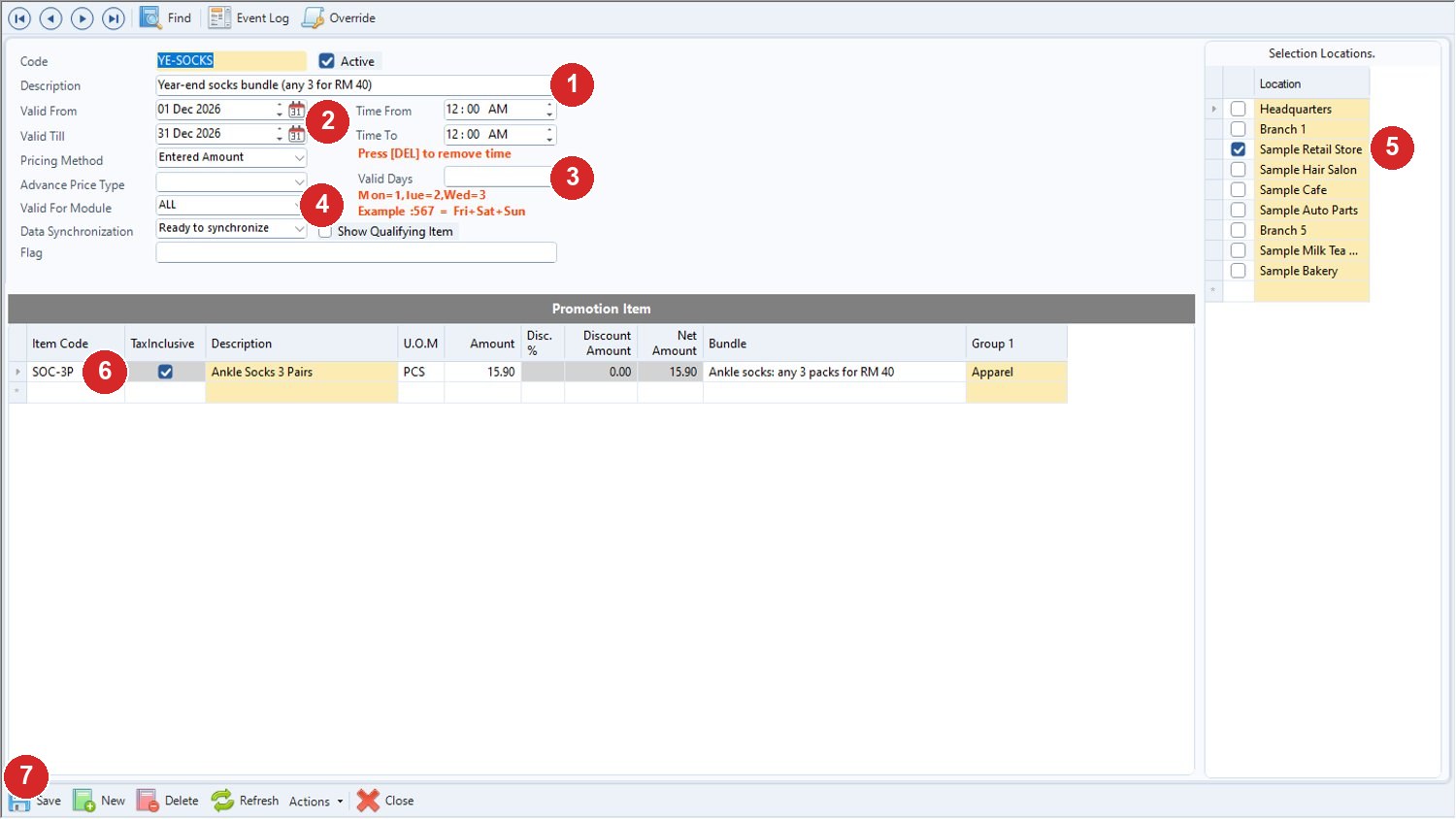
| Step | What to do |
|---|---|
| 1 | Code and Description (here YE-SOCKS, Year-end socks bundle). |
| 2 | Valid From and Valid Till (here 01 to 31 Dec 2026). Set Time From and Time To only if it runs at certain times; press DEL to remove a time. |
| 3 | Valid Days: the days it applies, for example 567 = Fri+Sat+Sun. Leave it empty for every day. |
| 4 | Pricing Method and Valid For Module. |
| 5 | Tick the locations the promotion covers, before saving (here Sample Retail Store only). |
| 6 | Promotion Item: add each item with its U.O.M and Amount, and choose your bundle in Bundle. |
| 7 | Click Save. Read any message shown, as the date range, location, module and item lines are all checked. |
7. Sell at the POS
The cashier simply scans the items. For example, buy 2 get 1 needs 3 scans.
8. See items sold on promotion
In Promotion Pricing, click Actions > Search Promo Trx By Item.
Tips
- If the total shows odd sen (for example RM100.02 instead of RM100), go to Point of Sale Setting > Pricing and tick default round 5 cent on total.
- Date and outlet scope not being set is a common reason a promotion does not work as expected.
- The locations you chose at your last save are pre-selected on the next new promotion.
- There is no report for advanced-pricing promotions.
- A bundle that does not apply at the till: confirm it is Active and attached to items.
Common problems
Cannot save the bundle
Check the messages: Code and Description are required; Unit Price must be above zero for the discount method; Buy Qty and Free Qty must be above zero; Free Qty cannot be more than Buy Qty.
Error when the FOC item is the same as the promo item
Create one Non-stock item with code and description FOC and use it as the FOC item.
Cannot save the promotion
Read the message shown. Check the dates (Invalid date range specified), that a location is selected, that Valid For Module is filled in, and that each item line has a pricing method, unit of measure and currency.
Duplicate items message
The same item and unit of measure is listed more than once. Remove the duplicate, or choose Yes to continue anyway if that is intended.
Bundle does not apply at the till
Confirm the bundle is Active and attached to items in Promotion Pricing.
Complex promotion, or a condition such as requiring 2 pieces of one item
Some conditions may not be supported. Contact Synergy support and have the item codes, prices, end date and outlet scope ready.