
A salesperson record holds the code, name, password, locations and item range of a person who sells at the point of sale. This guide shows how to create one at head office.
Before you start
- Create salespersons at head office (HQ). A salesperson created at a branch cannot synchronize to HQ.
Steps
1. Open the Sales Person screen
From the menu, go to Point of Sale > Point of Sale Setup > Sales Person. Click New for a blank record.
2. Fill in the salesperson
Fill in the boxes. Code and Description must be filled in.
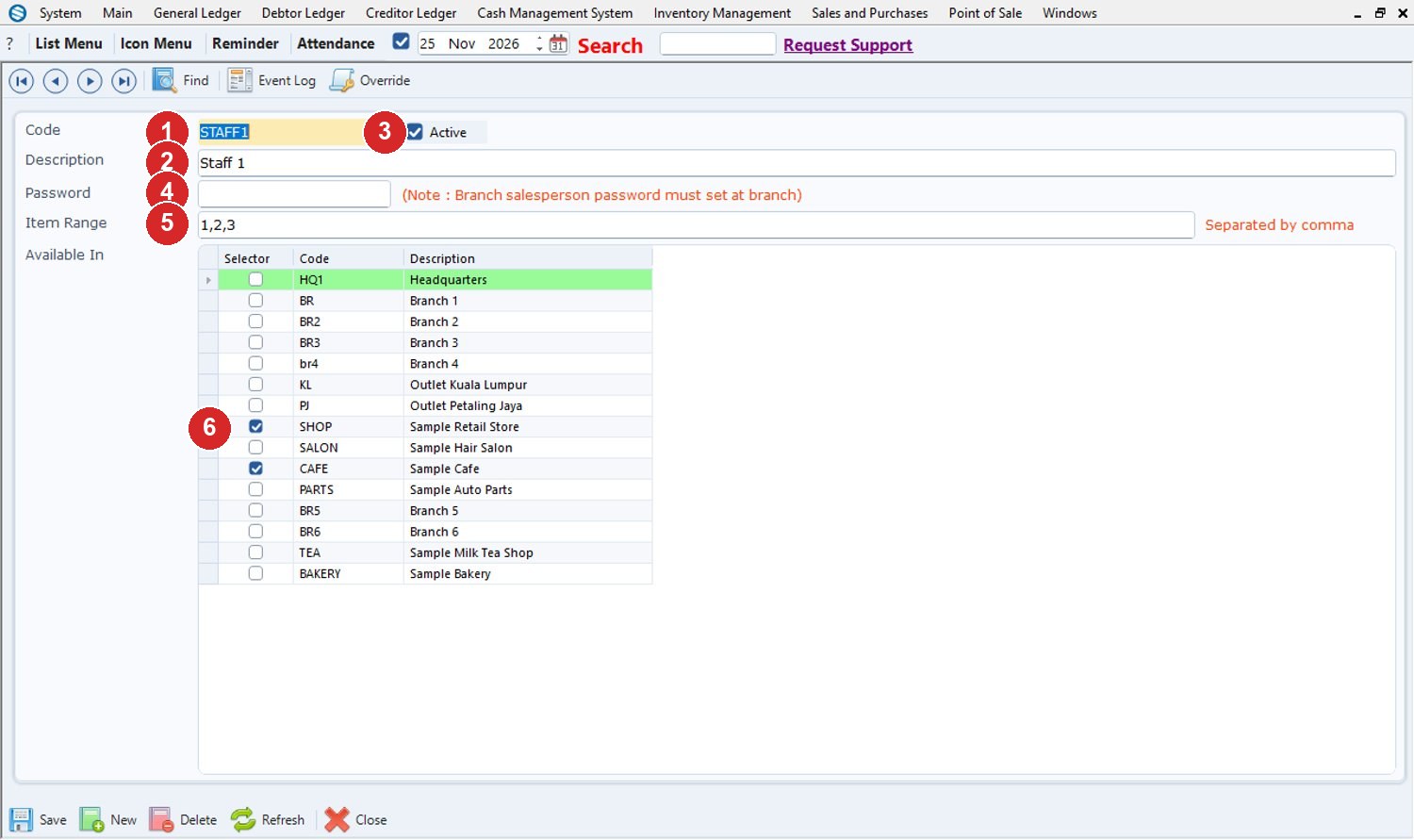
| Step | What to do |
|---|---|
| 1 | Type the Code (required). |
| 2 | Type the Description, the salesperson’s name (required). |
| 3 | Leave Active ticked while the person is working. |
| 4 | Type the Password the salesperson uses to log in at the point of sale. |
| 5 | If the person may sell only some items, type the codes in Item Range, separated by commas. |
| 6 | Under Available In, tick the locations where this salesperson may work. |
3. Save
Click Save. The salesperson now appears at the point of sale in the locations you ticked.
Tips
- A branch salesperson’s password must be set at that branch (the note beside Password says so).
- To stop using a salesperson, untick Active instead of deleting.
Common problems
Cannot add a salesperson at a branch: ‘Salesperson can be set up at HQ only’.
Add the salesperson at head office; it reaches the branch through synchronization.
A warning says creating a salesperson at a branch will cause transactions unable to synchronize to HQ.
Cancel and create it at HQ. Tick the box only if you understand the sync problem.
‘[Code] is required’ or ‘[Description] is required’.
Fill in the missing box.
The salesperson is not offered at a location.
Check that the location is ticked under Available In.
The salesperson cannot log in at a branch.
Set the password at that branch.