
This guide shows how to send orders to more than one printer, for example a kitchen printer and a bar printer, and how to set the order layout and printing options.
Before you start
- Install every order printer in Windows on this PC first. A printer name that is not installed is shown in red.
- Decide which items go to which printer, for example drinks to the bar.
Steps
1. Open the Multi Printer tab
From the menu, go to Point of Sale > Point of Sale Setup > Point of Sale Settings. Open the P.O.S Hardware tab, then the Multi Printer tab.
2. Add a row for each printer
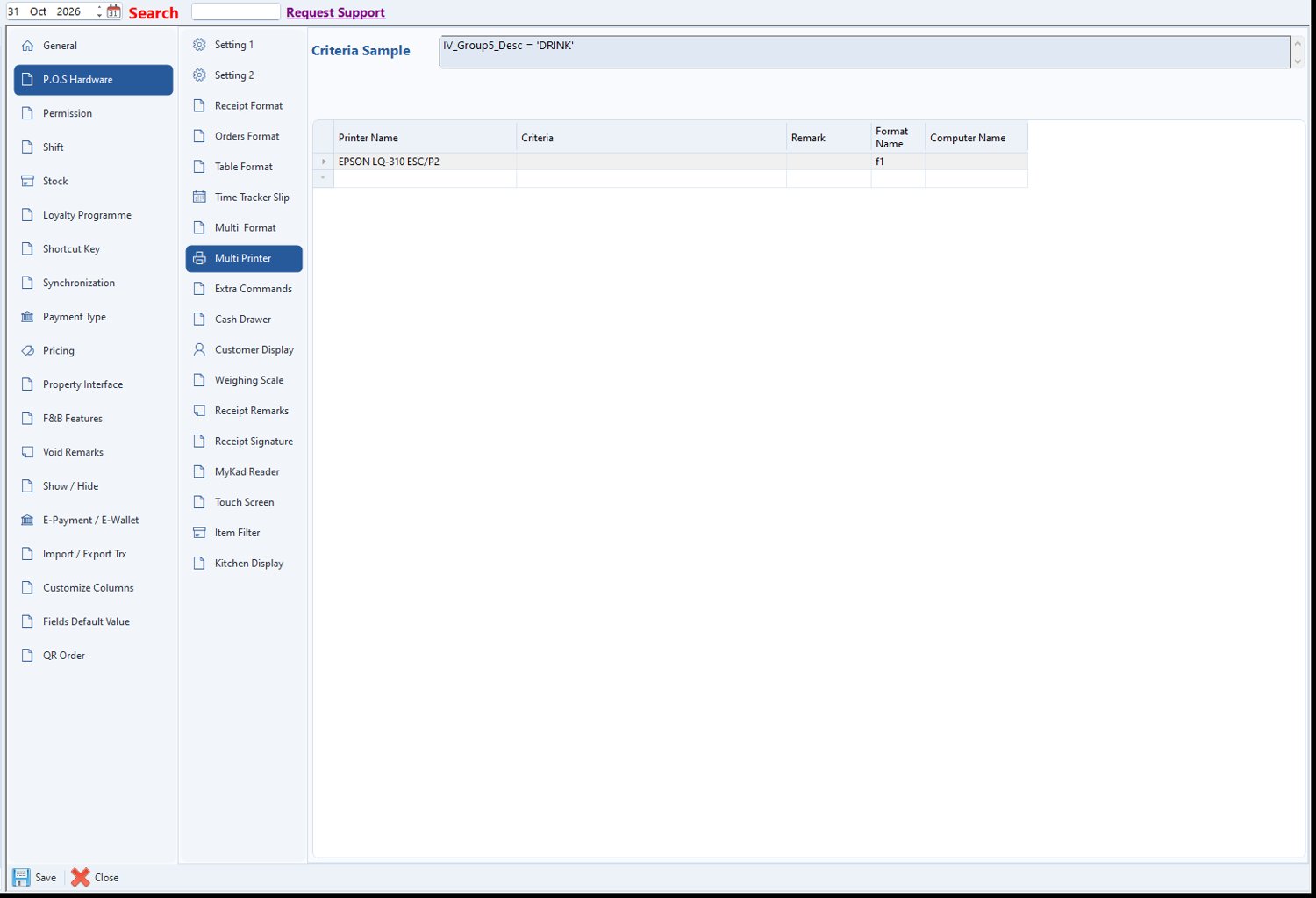
Add one row per printer and choose its Printer Name.
3. Type the Criteria
In Criteria type the rule that decides which items print on that printer. The screen shows a Criteria Sample to copy from: IV_Group5_Desc = ‘DRINK’.
4. Fill in the Remark
Type a Remark so you know where the order is printed, for example Kitchen or Bar.
5. Choose a format and computer if needed
Optionally choose a Format Name (the formats come from the Multi Format tab) and a Computer Name. The … button in the Computer Name cell fills in this computer’s name.
6. Open the Orders Format tab
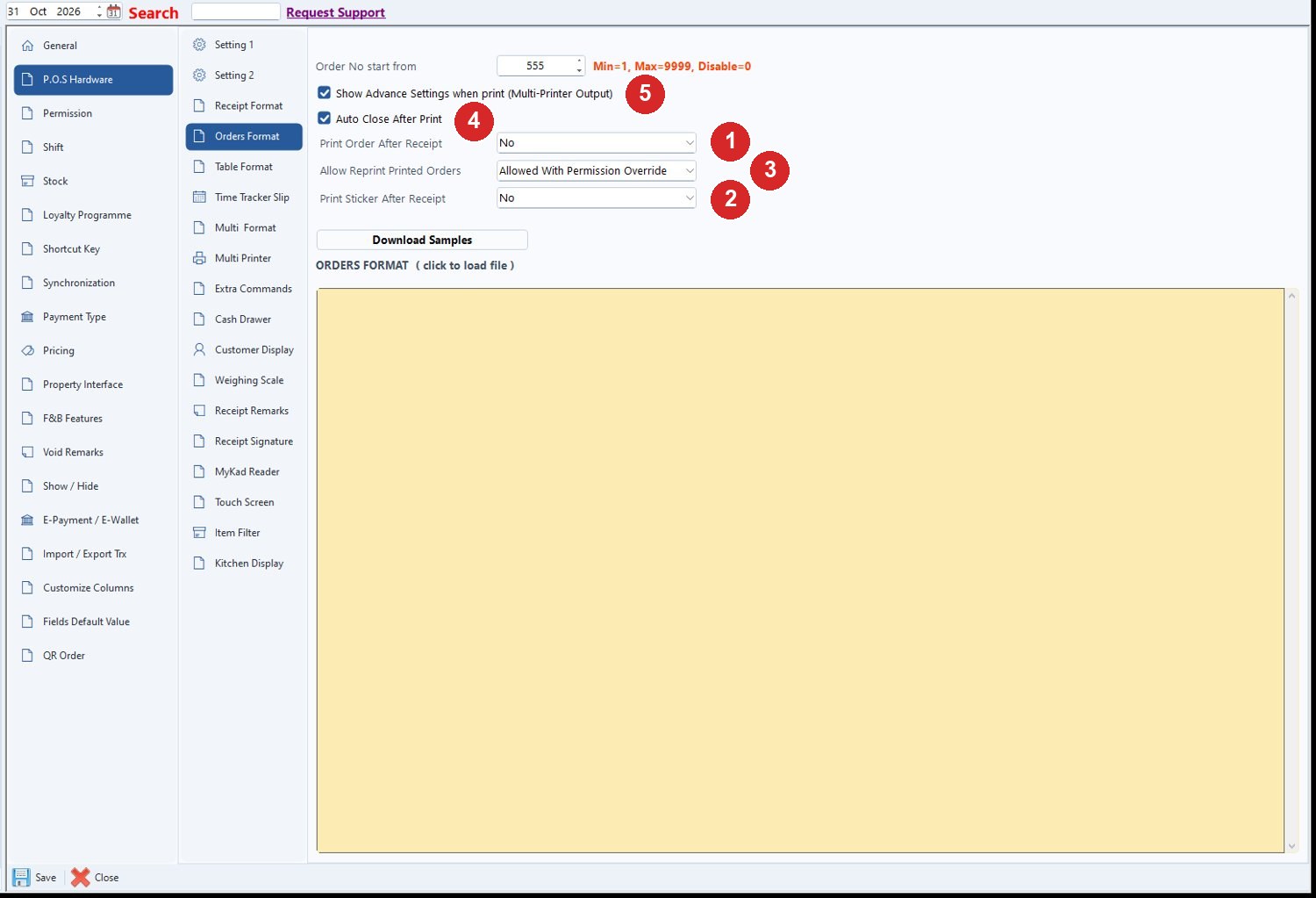
Open the Orders Format tab under P.O.S Hardware. Click the ORDERS FORMAT ( click to load file ) link to load the order layout file. Click Download Samples if you want sample layouts to start from.
7. Choose the printing options
Choose the printing options.
| Step | What to do |
|---|---|
| 1 | Set Print Order After Receipt to No, Always Ask or Direct Print. |
| 2 | Set Print Sticker After Receipt to No, Always Ask or Direct Print. |
| 3 | Set Allow Reprint Printed Orders to No, Yes or Allowed With Permission Override. |
| 4 | Tick Auto Close After Print if you want it. |
| 5 | Tick Show Advance Settings when print (Multi-Printer Output) if you want it. |
8. Set the order number start
In Order No start from, enter the first order number. The screen says Min=1, Max=9999, Disable=0.
9. Save
Save the settings, then place a test order to check each printer.
Tips
- The Multi Format tab has a note: if all kitchens use the same format, you only need to set one format there.
Common problems
Order prints on the wrong printer, or not at all
Check the Criteria of each row against the sample, and check the Printer Name is not shown in red.