
This guide shows how to switch on the member loyalty programme in the point of sale settings, choose how reward points are calculated and redeemed, and, if needed, convert the reward point rate of items and past transactions.
Before you start
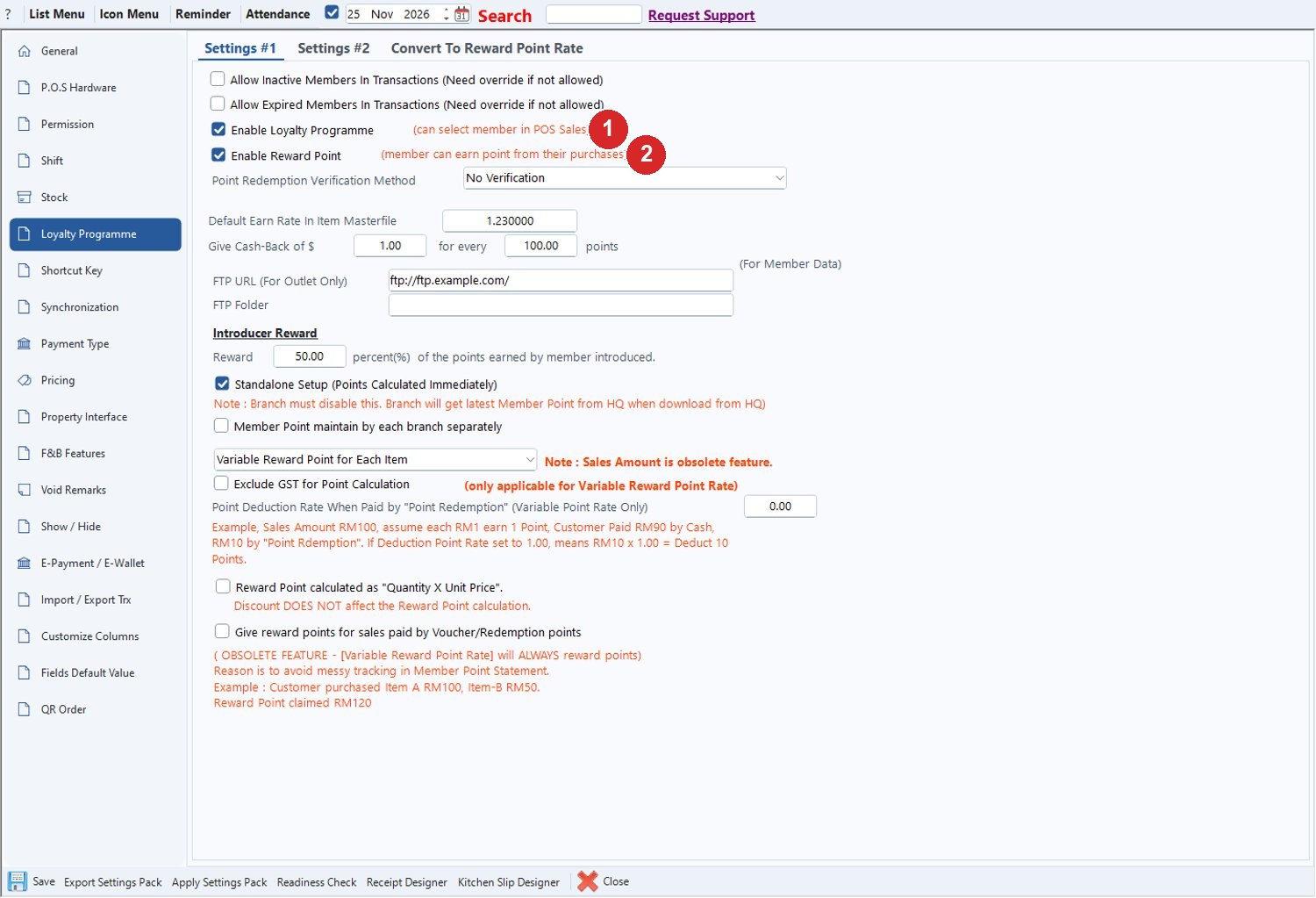
- Open the settings from Point of Sale > Point of Sale Setup > Point of Sale Settings, then open the Loyalty Programme tab and its Settings #1 sub-tab.
- Decide whether you want one point for every RM1 of sales, or a different rate for each item.
Steps
1. Switch the programme on
Switch the programme on.
| Step | What to do |
|---|---|
| 1 | Tick Enable Loyalty Programme so that members can be selected in point of sale sales. |
| 2 | Tick Enable Reward Point so that members can earn points from their purchases. |
2. Choose the calculation and verification methods
In Member Point Calculation Method choose Sales Amount (1 Point for RM1) or Variable Reward Point for Each Item. In Point Redemption Verification Method choose No Verification, Online Web Verification or Direct HQ Server Verfication (spelled this way on the screen).
3. Set how points are earned and redeemed
Fill in the Reward … for every … line for the earning rule, and Give Cash-Back of $ … for every … points for the redemption value.
4. Set the default earn rate and the introducer reward
Enter the Default Earn Rate In Item Masterfile. Then enter the Introducer Reward as a percent of the points earned by the member who was introduced.
5. Choose the other rules
Tick the options you want, for example Give reward points for sales paid by Voucher/Redemption points, Reward Point calculated as “Quantity X Unit Price”., Exclude GST for Point Calculation, Allow Inactive Members In Transactions and Allow Expired Members In Transactions. If inactive or expired members are not allowed, an override is needed to sell to them.
6. Set up head office and branch options
Standalone Setup (Points Calculated Immediately) works out points at once; the screen says a branch must disable it because the branch gets the latest member points from HQ. Member Point maintain by each branch separately lets each branch keep its own points. Enter FTP URL (For Outlet Only) and FTP Folder if member data is exchanged with outlets. Then click Save.
7. Convert the reward point rate (only if needed)
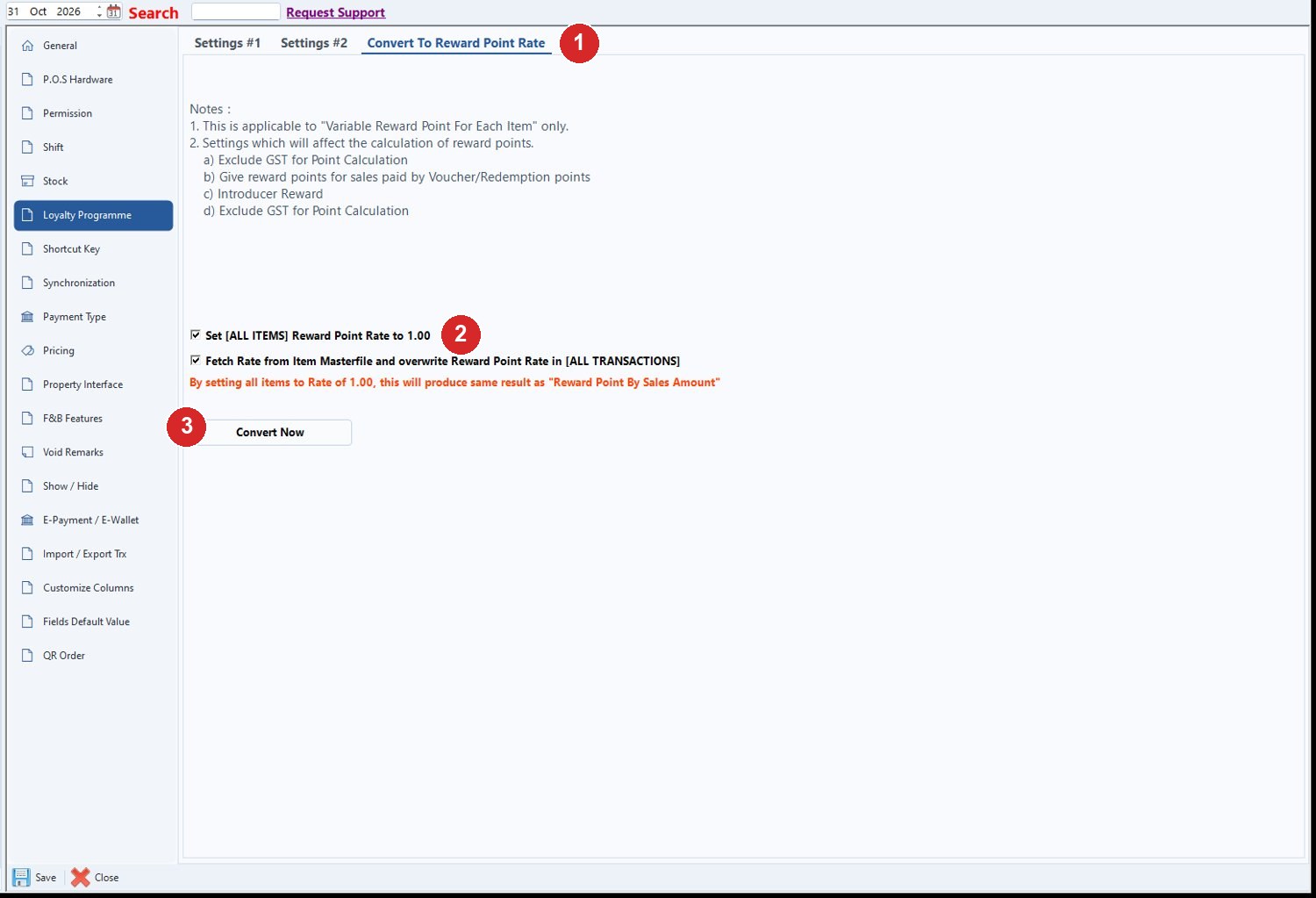
First make sure the calculation method is Variable Reward Point For Each Item. After Convert Now, read the warning, tick the checkbox and click OK. Afterwards, check your member points.
| Step | What to do |
|---|---|
| 1 | Open the Convert To Reward Point Rate sub-tab. |
| 2 | Tick the conversion you want. |
| 3 | Click Convert Now. |
Tips
- The screen notes that discount does not affect the reward point calculation, and that the Sales Amount method is an obsolete feature.
- Setting all items to a rate of 1.00 gives the same result as the older reward point method.
- On the Convert To Reward Point Rate tab, one choice copies each item’s current rate into ALL TRANSACTIONS and replaces their rate, so points of past transactions can change. The other sets ALL ITEMS to a rate of 1.00.
- The conversion cannot be reversed. Take a backup of your data first.
Common problems
Members are blocked at the point of sale.
Check whether the member is inactive or expired, and whether Allow Inactive Members In Transactions or Allow Expired Members In Transactions is ticked. If not allowed, an override is needed.
The program says: Please change the Reward Point calculation method to ‘Variable Reward Point For Each Item’ first.
Change Member Point Calculation Method on the Settings #1 sub-tab, save, then run Convert Now again.
On a branch, a message says the branch should not calculate member points directly.
Untick Standalone Setup (Points Calculated Immediately) on branches, unless member points are kept separately for each branch.
Member points look different after converting.
The rates in past transactions were overwritten and the conversion cannot be reversed. Restore your backup if the result is not what you wanted.