
This guide shows how to set the default pricing options of the POS, the item codes used for bundle discount, lump sum discount and FOC items, how prices are re-calculated, and which of the six prices the cashier can pick.
Before you start
- Know whether your shop prices are tax inclusive.
- Know the item codes you use for bundle discount, lump sum discount and FOC items.
Steps
1. Open the Pricing tab
From the menu, go to Point of Sale > Point of Sale Setup > Point of Sale Settings, then open the Pricing tab.
2. Set the default pricing
Under Default Pricing, tick what you need.
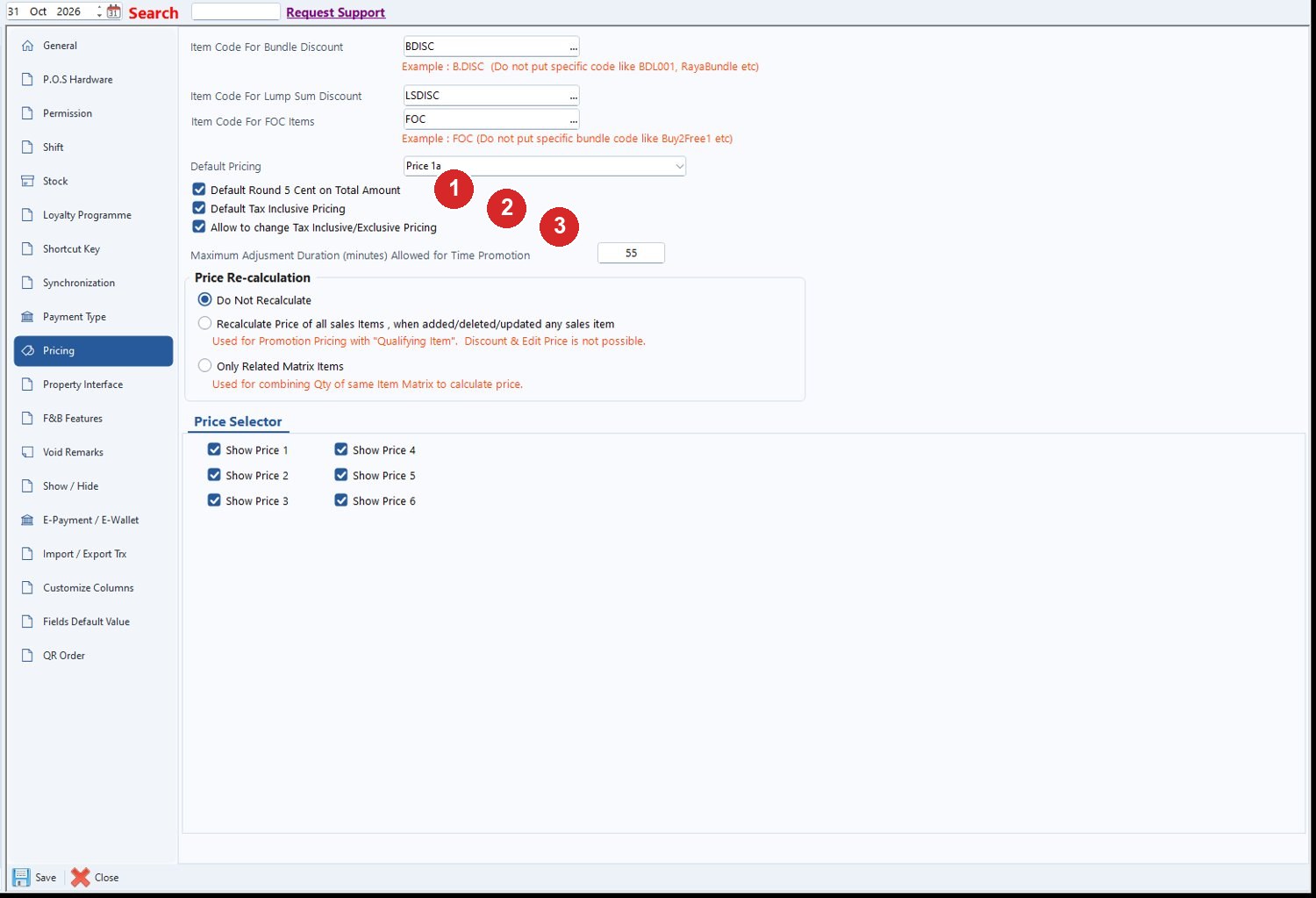
| Step | What to do |
|---|---|
| 1 | Tick Default Round 5 Cent on Total Amount as needed. |
| 2 | Tick Default Tax Inclusive Pricing as needed. |
| 3 | Tick Allow to change Tax Inclusive/Exclusive Pricing as needed. |
3. Enter the special item codes
Type the Item Code For Bundle Discount (example B.DISC), the Item Code For Lump Sum Discount and the Item Code For FOC Items (example FOC). The screen says not to use a specific bundle code such as BDL001 or Buy2Free1.
4. Set the time promotion limit
Type the Maximum Adjusment Duration (minutes) Allowed for Time Promotion.
5. Choose Price Re-calculation
Choose one: Do Not Recalculate; Only Related Matrix Items (combines the quantity of the same item matrix to calculate the price); or Recalculate Price of all sales Items, when added/deleted/updated any sales item (for promotion pricing with a qualifying item; discount and edit price are not possible).
6. Open the Price Selector sub-tab
Still on the Pricing tab, open the Price Selector sub-tab.
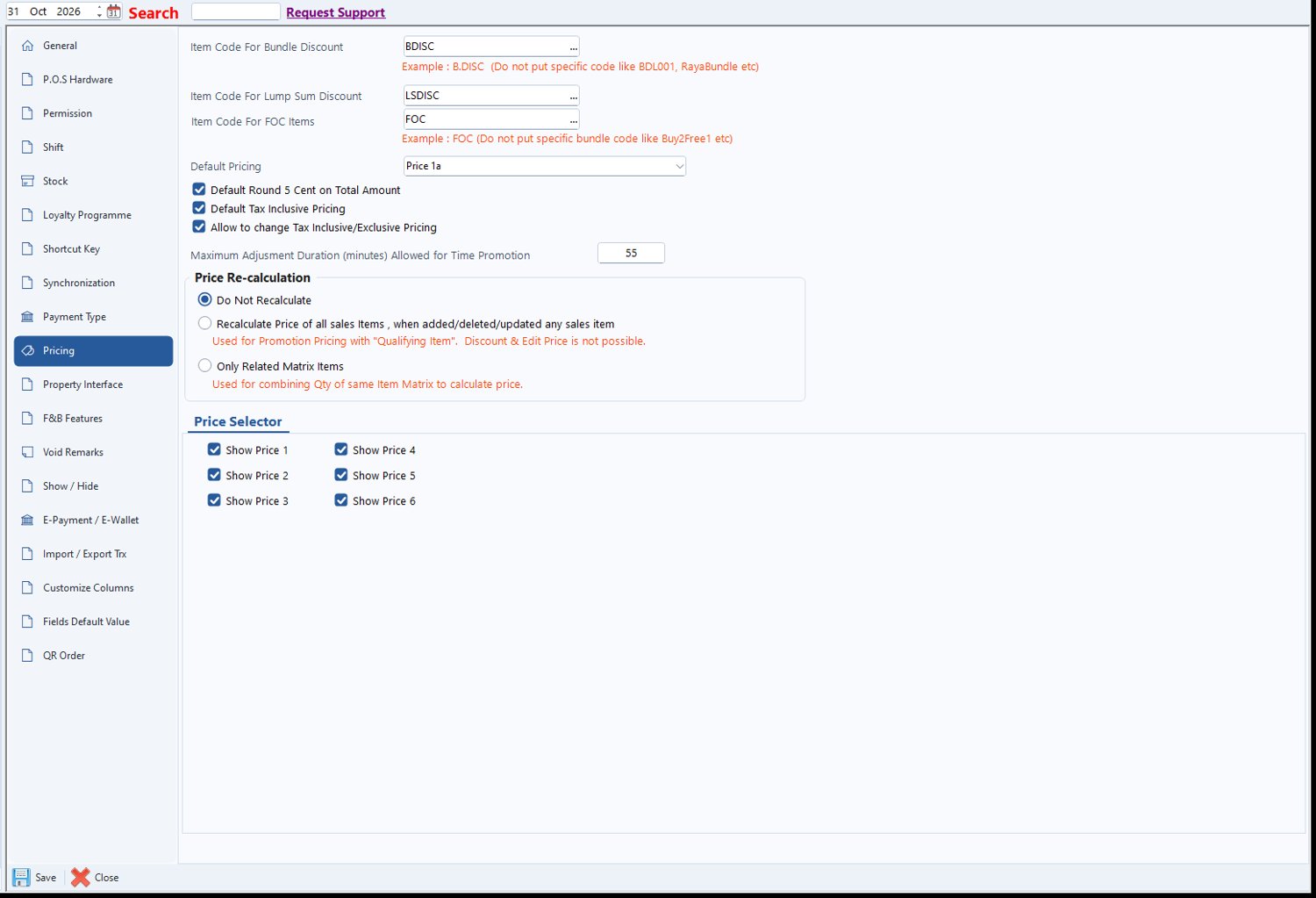
7. Choose the prices to show
Tick Show Price 1 to Show Price 6 for each price you want in the price selector.
8. Save
Save the settings.
Tips
- Use general codes like B.DISC and FOC, not codes of one particular bundle.
Common problems
Discount and Edit Price are not possible on the sales screen
This is expected when Price Re-calculation is set to recalculate the price of all sales items. Choose another option if you need to edit prices.