
Some shopping malls and property owners need your point of sale to send them your sales data. This guide shows which details to fill in on the Property Interface tab of the point of sale settings, using the information your property gave you.
Before you start
- Open the settings from Point of Sale > Point of Sale Setup > Point of Sale Settings, then click the Property Interface tab.
- Have the details from your property ready: the Tenant ID, the upload (FTP) address, user name and password, and anything else they gave you.
- The properties in the Property Name list depend on your licence.
Steps
1. Choose the property
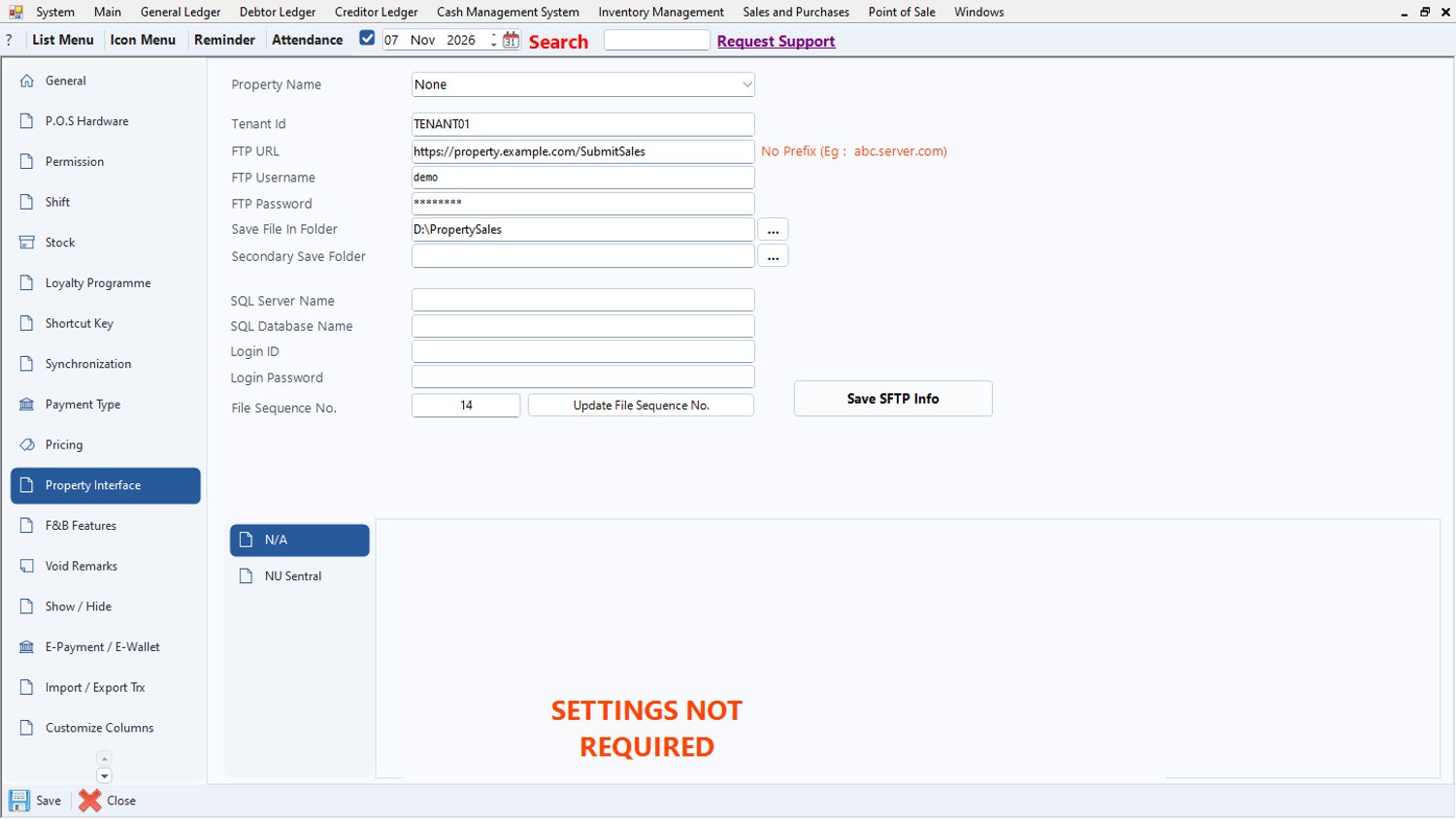
In Property Name, select your property from the list. The boxes shown below change with the property you choose.
2. Enter the Tenant ID
In Tenant ID, type the value your property gave you. For some properties this box is called Contract No. instead.
3. Choose where the files are saved
Click the … button next to Save File In Folder and choose a folder. You can choose a Secondary Save Folder the same way.
4. Fill in the connection details
Type the FTP URL without any prefix (for example abc.server.com), then the FTP Username and FTP Password. If your property gave you a Login ID and Login Password instead, or as well, enter them too.
5. Fill in the database details if given
If your property needs them, enter the SQL Server Name and the SQL Database Name.
6. Fill in the extra boxes
Some properties show extra boxes, such as Finger Print, Port No and Subfolder Path (SFTP), or Lot No., Salt and Contract Name. Fill in whichever boxes are shown. For some properties a First Transaction Date box is shown; enter the date your property asked for. If the tab says SETTINGS NOT REQUIRED, you have nothing more to fill in.
7. Save the SFTP details (SFTP properties only)
If the boxes Finger Print, Port No and Subfolder Path are shown, click Save SFTP Info. The program saves the details and opens the folder where the file is written.
8. Save the settings
Save the point of sale settings. The message Setting Saved. appears.
Tips
- Fill in only what your property gave you. The details must match exactly.
- FTP URL: type it with no prefix, for example abc.server.com.
- File Sequence No. is the running number of the sales file. The system assigns it automatically each time a file is generated, so normally do not change it.
- If you must change it, click Update File Sequence No., read the warning, tick the box in the window that opens and click OK. CANCEL keeps the old number. File Sequence Number Saved. appears afterwards.
Common problems
Save SFTP Info shows System encountered following errors :- with a list, and some boxes turn pink.
The list tells you what is missing: URL not specified., FTP ID not specified., Password not specified., Fingerprint not specified. or Port not specified. Fill in the pink boxes (FTP URL, FTP Username, FTP Password, Finger Print and Port No) and click Save SFTP Info again.
The property I need is not in the Property Name list.
The list depends on your licence. Contact Synergy and tell them the name of your property.
I do not know what to put in a box.
Ask your property for the exact value. The boxes you see depend on the property chosen.