
This guide shows how to control what the point of sale does with stock when items are sold (pictures, item filter, live stock, low stock warnings, serial numbers) and how to choose the keyboard keys used on the main screen and the sales screen.
Before you start
- Open the settings from Point of Sale > Point of Sale Setup > Point of Sale Settings.
- These options apply to every sale at the counters, so decide them for the whole shop.
Steps
1. Open the Stock tab
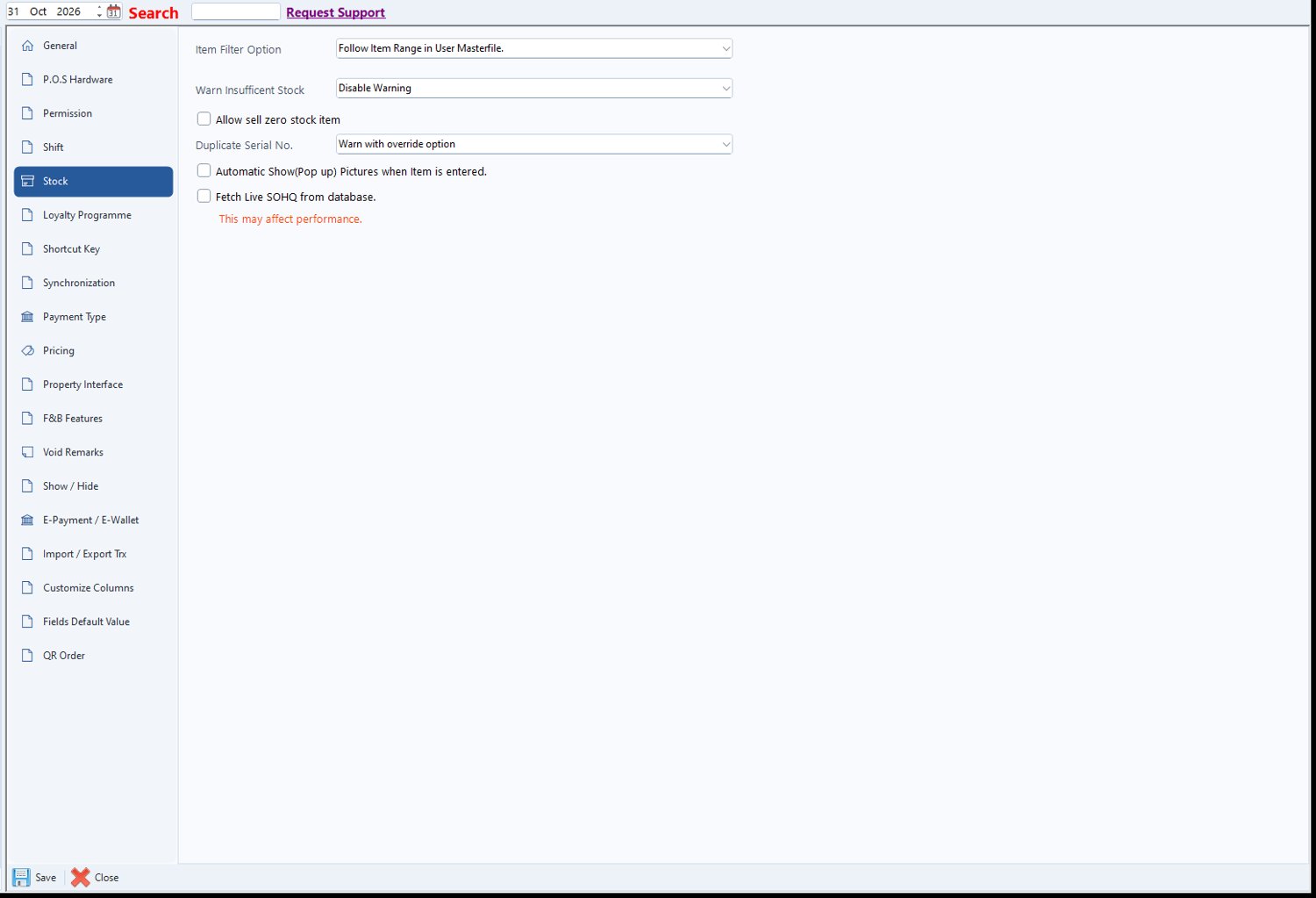
In the Point of Sale Settings, click the Stock tab on the left.
2. Choose pictures and the item filter
Tick Automatic Show(Pop up) Pictures when Item is entered. to show the item picture when a sale line is entered. In Item Filter Option choose Not filtered – Show All., Follow Item Range in Location Masterfile., Follow Item Range in Salesperson Masterfile. or Follow Item Range in User Masterfile.
3. Decide on live stock quantity
Tick Fetch Live SOHQ from database. if the counters must show the live stock on hand. The screen warns that this may affect performance.
4. Set the low stock warning
In Warn Insufficent Stock choose Warn when zero stock, Warn when below minimum stock or Disable Warning. Tick Allow sell zero stock item if cashiers may sell an item that has no stock.
5. Set how duplicate serial numbers are handled
In Duplicate Serial No. choose Allowed (No Warning), Show Warning Message or Warn with override option.
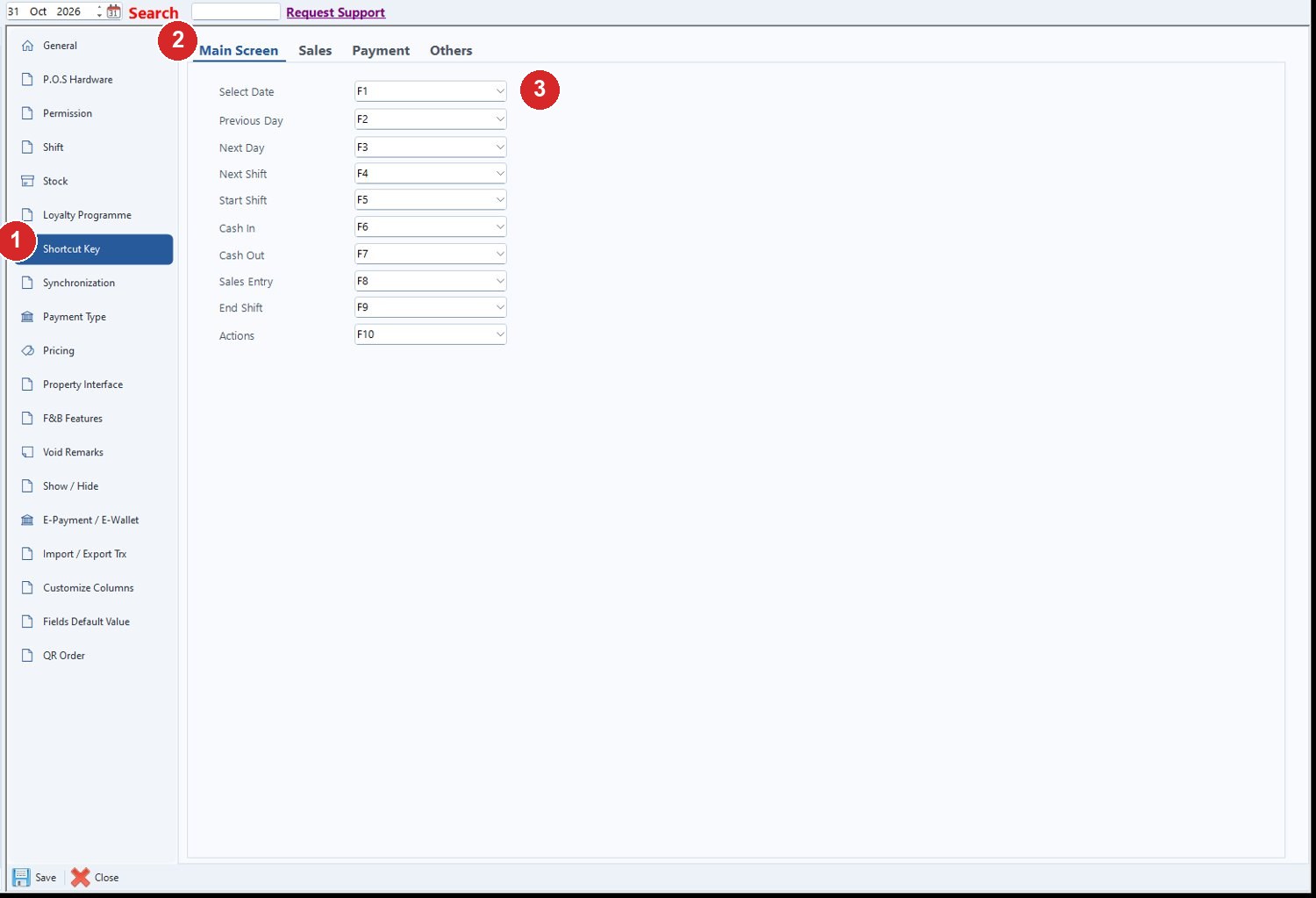
6. Set the keys for the main screen
Set the keys for the main screen.
| Step | What to do |
|---|---|
| 1 | Open the Shortcut Key tab. |
| 2 | Open its Main Screen sub-tab. |
| 3 | Next to each action (Select Date, Previous Day, Next Day, Start Shift, Next Shift, End Shift, Actions, Sales Entry, Cash In, Cash Out) choose a key from the drop-down list: None, F1 to F12 or ENTER. |
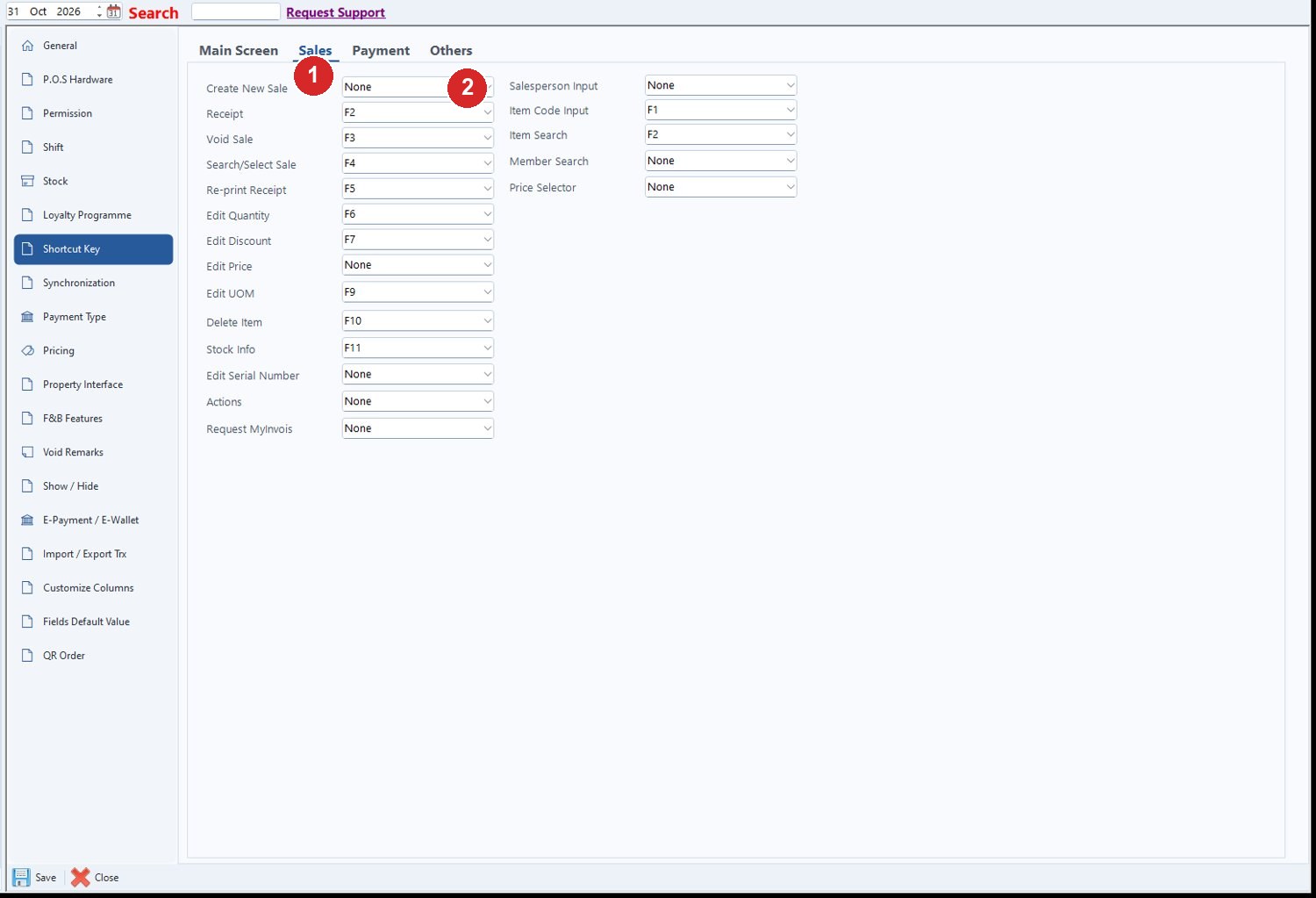
7. Set the keys for the sales screen
Set the keys for the sales screen.
| Step | What to do |
|---|---|
| 1 | Open the Sales sub-tab of Shortcut Key. |
| 2 | Choose a key for each action you use, such as Delete Item, Edit Price, Edit Discount, Edit Quantity, Re-print Receipt, Search/Select Sale, Void Sale, Item Code Input, Salesperson Input, Item Search, Stock Info, Edit Serial Number, Edit UOM, Member Search, Price Selector, Request MyInvois, Create New Sale and Receipt. None means no key. |
8. Save
Click Save at the bottom of the screen. The changes take effect after the settings are saved.
Tips
- The Shortcut Key tab also has Payment and Others sub-tabs.
- Use None for any action that should have no key.
Common problems
Cashiers cannot sell an item that has no stock.
Tick Allow sell zero stock item. on the Stock tab if selling without stock is wanted.
The point of sale is slow when picking items.
Check whether Fetch Live SOHQ from database. is ticked. Untick it if live stock is not needed.
A message about insufficient stock keeps appearing.
Review the Warn Insufficent Stock choice. Choose Disable Warning if you do not want the message.
A key does not do what you expect.
Check the key chosen for that action on the Main Screen or Sales sub-tab, and make sure you saved.