
This guide shows how to set up shifts in the point of sale settings: single or multiple shifts a day, when the business day starts, how salespeople sign in, and what happens when a shift is closed, including an e-mail of the sales summary.
Before you start
- Open the settings from Point of Sale > Point of Sale Setup > Point of Sale Settings, then click the Shift tab.
- To e-mail a report at the end of a shift, have the e-mail address(es) ready.
Steps
1. Choose the shift type
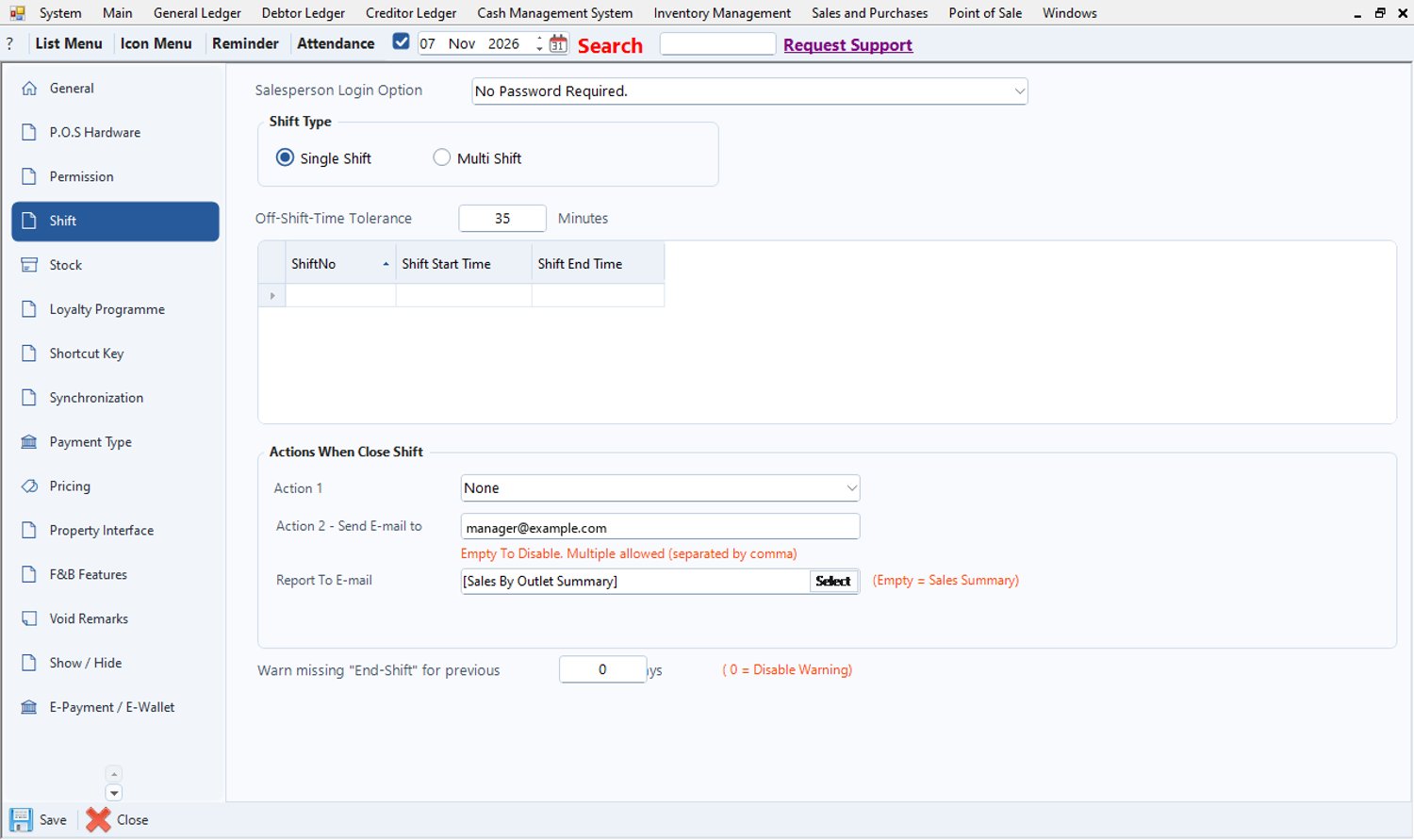
Under Shift Type, choose Multi Shift (several shifts a day) or Single Shift (one shift a day).
2. Set when the business day starts
If you chose Single Shift, set Business Day Starts At. This box can be edited only for Single Shift.
3. Set the Off-Shift-Time Tolerance
Enter the Off-Shift-Time Tolerance in Minutes.
4. Choose how salespeople sign in
In Salesperson Login Option choose one of: No Password Required., For Every Transaction (New Only), For Every Transaction (New & Edit), Require Password for Every Item, or Require Password When Salesperson is changed.
5. Choose what happens when a shift is closed
In the Actions When Close Shift box, set Action 1 to None, Preview Sales Summary or Print Sales Summary.
6. E-mail a report at the end of the shift
In Action 2 – Send E-mail to, type the e-mail address. Leave it empty to disable the e-mail, and separate several addresses with commas. Click the Select button of Report To E-mail to choose the reports to send: Sales Summary, Sales By Outlet (Grouping), Sales Cost Analysis, Transaction Detail Listing or Sales By Outlet Summary. If you choose none, Sales Summary is sent.
7. Warn about a missing End-Shift
In Warn missing “End-Shift” for previous … days, enter the number of days. Enter 0 to disable the warning. Then click Save.
Tips
- Settings on this tab are saved together with the rest of the Point of Sale Settings.
- The reports and addresses you choose decide exactly what is e-mailed when a shift is closed.
Common problems
No e-mail arrives when a shift is closed.
Check that Action 2 – Send E-mail to is filled in and correct. When it is empty, the e-mail is disabled.
I cannot edit Business Day Starts At.
It can be edited only when Shift Type is Single Shift.