
This guide shows how to set up the movement of point of sale sales and settings between a shop (branch) and head office, how to back up sales as files, and how to import those files again.
Before you start
- Open the settings from Point of Sale > Point of Sale Setup > Point of Sale Settings.
- Have your FTP URL, FTP user name and password, or your web server address, ready. Your head office or Synergy can tell you these.
- Save the settings before using the Test FTP and Ping buttons; the screen says they need a save first.
Steps
1. Switch on synchronization
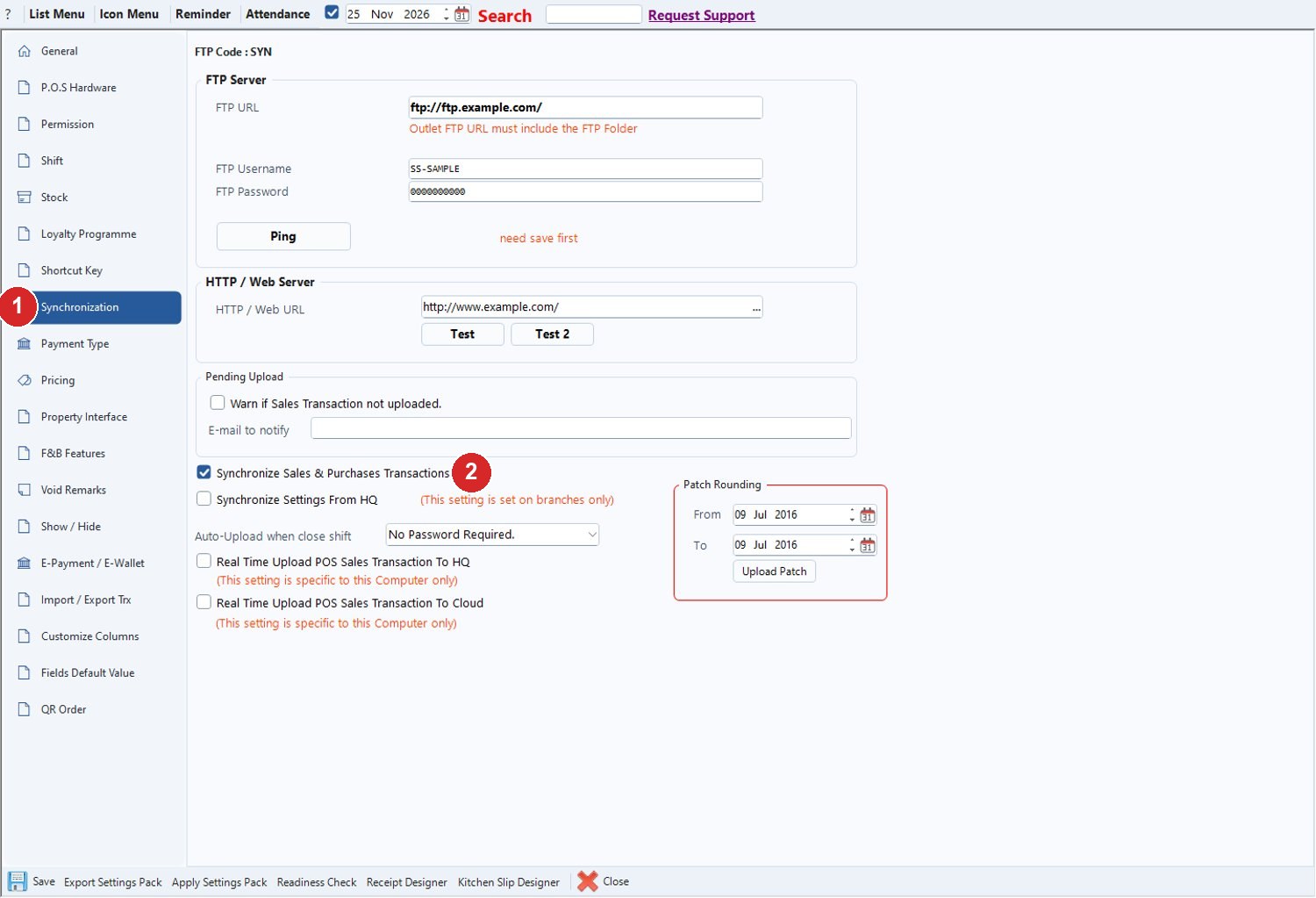
Switch on synchronization.
| Step | What to do |
|---|---|
| 1 | Click the Synchronization tab. |
| 2 | Tick Synchronize Sales & Purchases Transactions to send transactions between the branch and head office. |
2. Enter the FTP details and test them
In the FTP Server box enter FTP URL, FTP Username and FTP Password. The outlet FTP URL must include the FTP folder. Click Test FTP, or Ping to check the address. FTP OK means the test worked.
3. Enter the web server address and test it
In the HTTP / Web Server box enter the HTTP / Web URL and click Test (or Test 2). HTTP OK means the test worked.
4. Choose the branch and upload options
On branches, tick Synchronize Settings From HQ to take settings from head office. In Auto-Upload when close shift, choose what happens when a shift is closed: No Password Required., Auto Upload. or Pop-up Upload form only. You can also tick Real Time Upload POS Sales Transaction To HQ or To Cloud to send each sale as it happens.
5. Get a warning about sales not uploaded
Under Pending Upload, tick Warn if Sales Transaction not uploaded. and fill in E-mail to notify. Click Save.
6. Switch on the automatic backup of sales
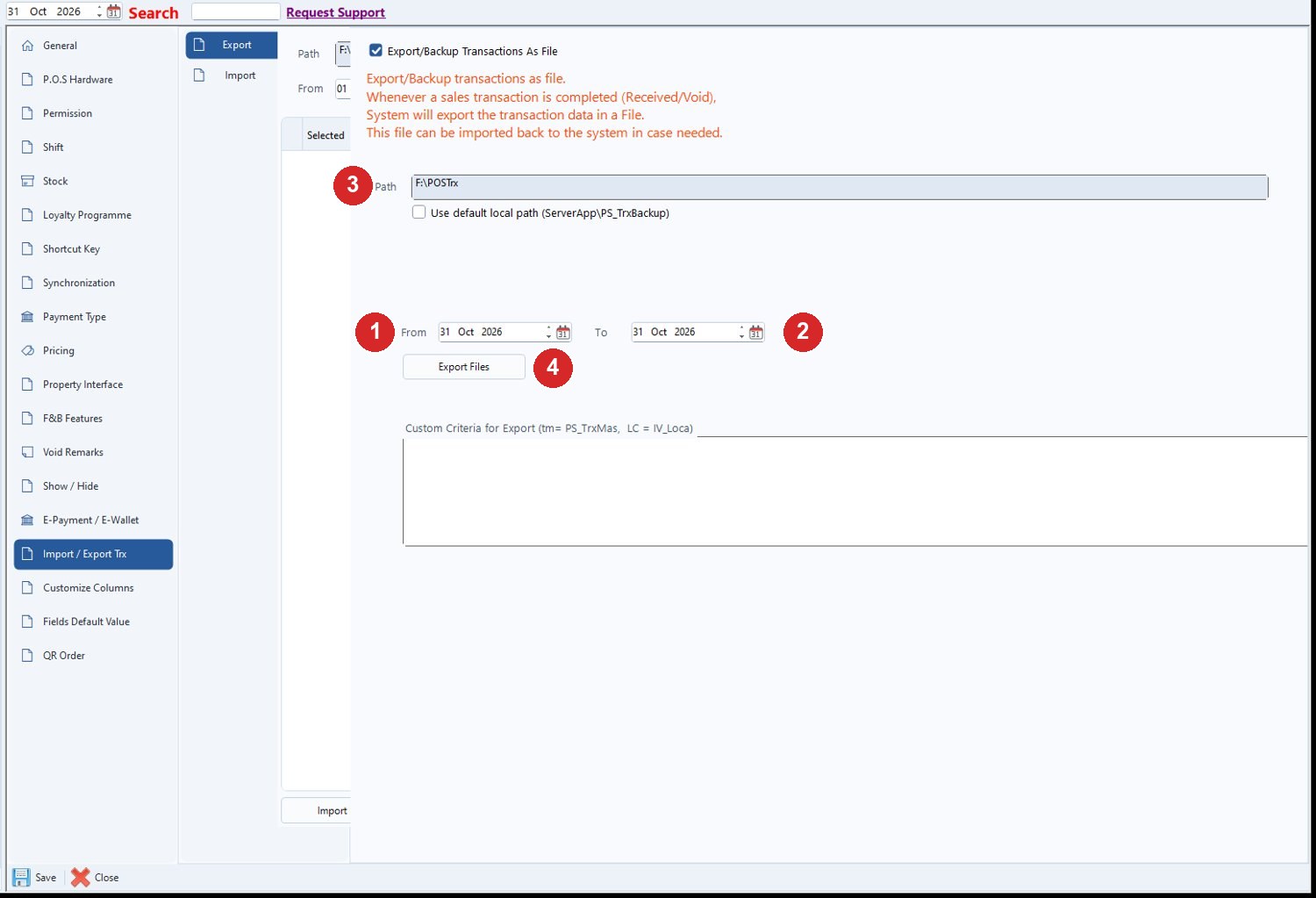
Open the Import / Export Trx tab and its Export sub-tab. Tick Export/Backup Transactions As File. Then either tick Use default local path (ServerApp\PS_TrxBackup), or untick it and enter your own Path with the Select Folder button. Click Save.
7. Export sales for a date range
On the Export sub-tab, export the sales. The program shows ‘[n] record found. Do you want to export files?’. Answer Yes to export the Received and Void transactions in that range.
| Step | What to do |
|---|---|
| 1 | Set From. |
| 2 | Set To. |
| 3 | Check the Path. |
| 4 | Click Export Files. |
8. Load the files to import
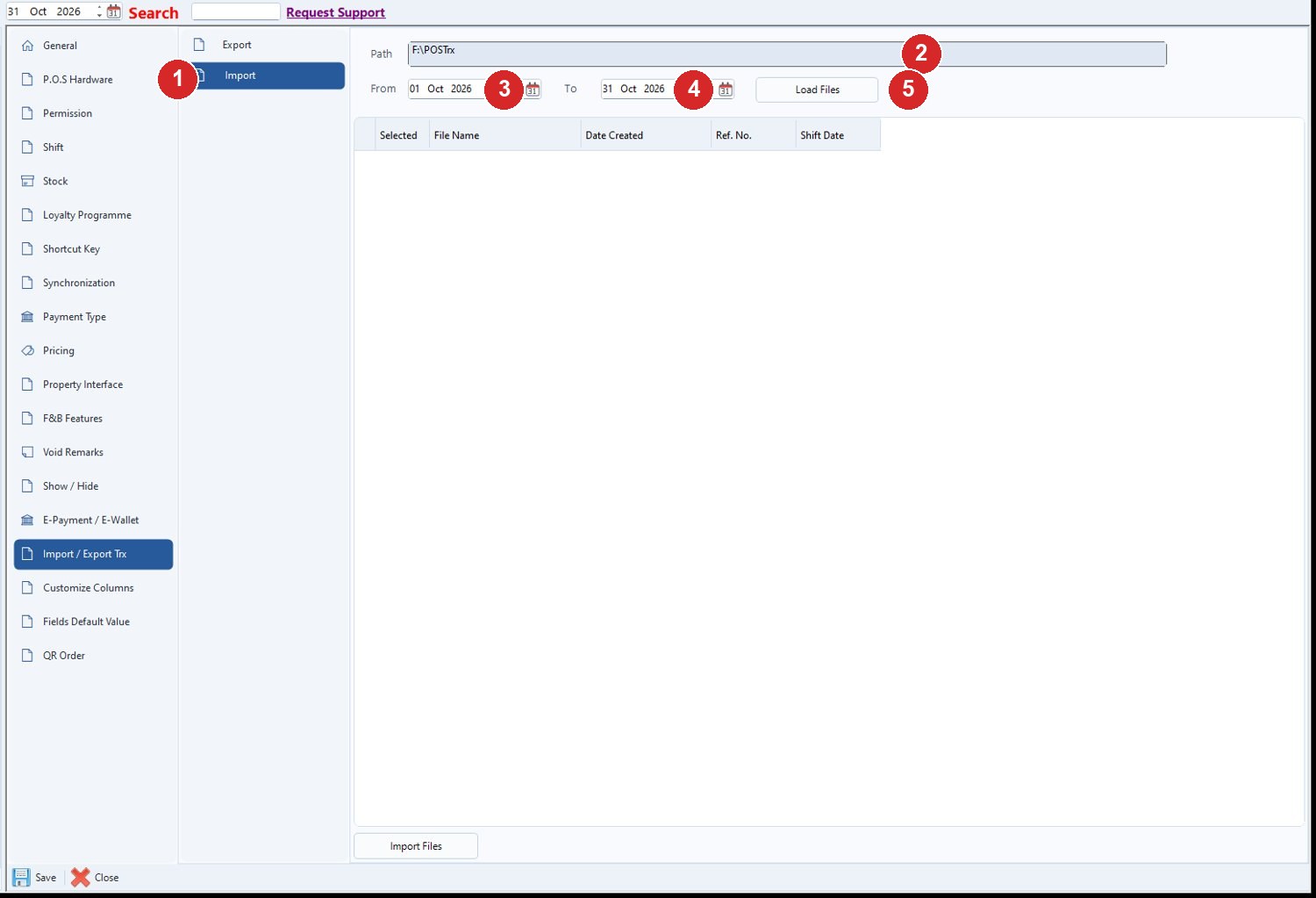
The .xml files in that date range are listed, each with a Selected tick.
| Step | What to do |
|---|---|
| 1 | Open the Import sub-tab. |
| 2 | Check the Path of the folder that holds the files. |
| 3 | Set From. |
| 4 | Set To. |
| 5 | Click Load Files. |
9. Import the files
Untick any file you do not want, then click Import Files and answer Yes to ‘Do you want to import the selected transaction?’. A box called Import Status lists the reference numbers under Done and the failed ones under Fail, with the error for each.
Tips
- Some settings on the Synchronization tab are marked (This setting is specific to this Computer only), so they are not shared with other tills.
- If you type your own Path and the folder does not exist, the program creates it when you save, but the first save is stopped with ‘System unable to create the folder’. The folder is then already created, so just click Save again.
- Import only works with files that came from a matching export and sit in the folder given in Path.
- Leave Custom Criteria for Export empty unless you know what to enter. A wrong criteria can give no result or an error.
Common problems
Test FTP fails.
Check the FTP URL (it must include the folder), user name and password, and make sure you saved the settings first.
Sales do not reach head office.
Check the tick boxes on the Synchronization tab and the Pending Upload warning.
‘[Path] is required.’ appears when saving.
Export/Backup Transactions As File is ticked but no path is set. Tick Use default local path, or enter a Path.
‘Invalid folder’ appears when loading files to import.
The Path folder does not exist. Correct the Path and click Load Files again.
No files appear when exporting.
Check the Path, and that the From and To dates cover the sales.