
This guide shows how to tell the POS how to read items sold by weight: the barcode format printed by the weighing machine, how quantity is worked out, and the port used to read the weight.
Before you start
- Have a sample barcode printed by your weighing machine, so you can match its length and letters.
- Know whether the quantity should come from the price in the barcode or be fixed at 1.
Steps
1. Open the Point of Sale settings
From the menu, go to Point of Sale > Point of Sale Setup > Point of Sale Settings.
2. Open the Weighing Scale tab
Go to the weighing scale tab in the point of sale settings.
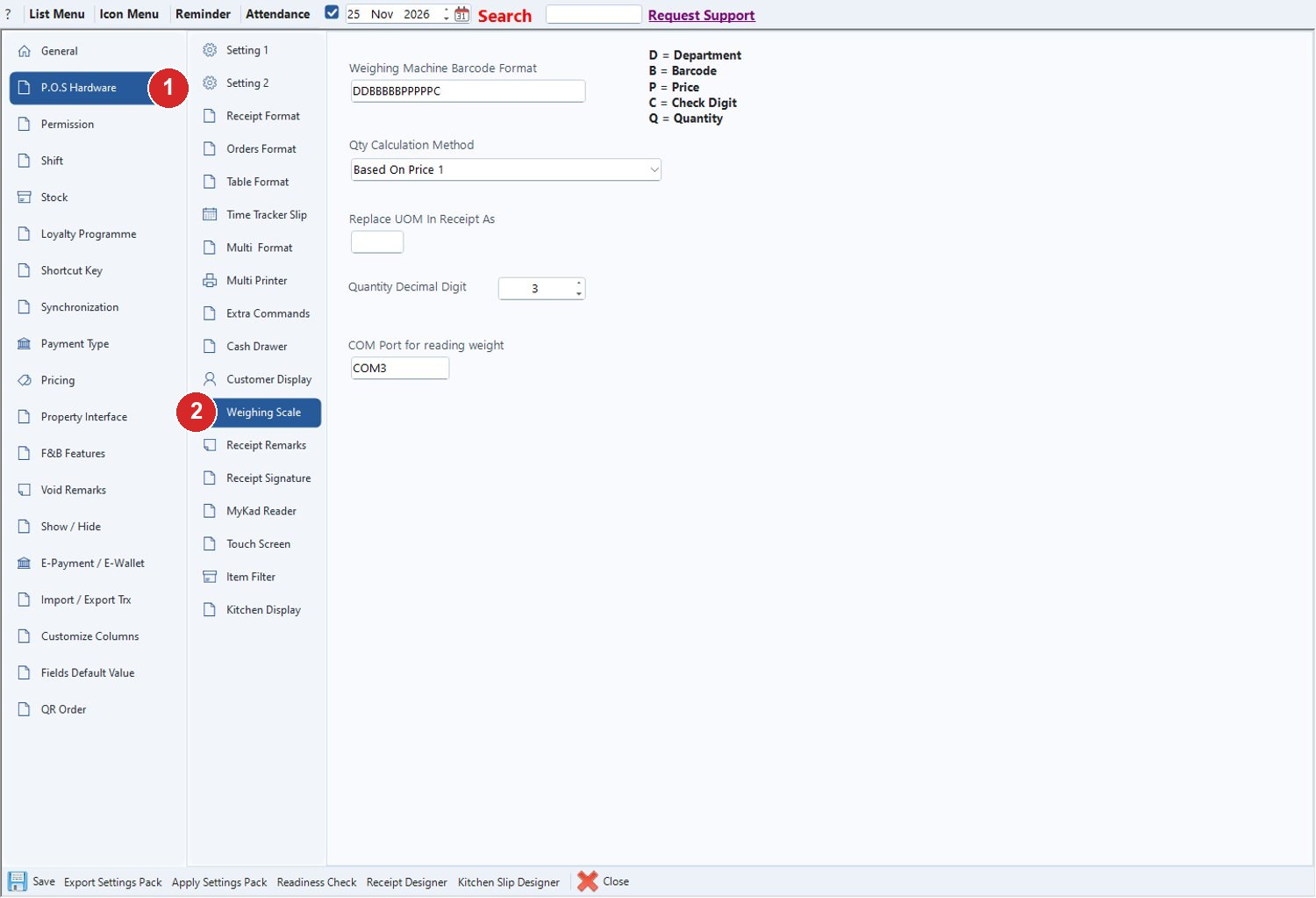
| Step | What to do |
|---|---|
| 1 | Click P.O.S Hardware. |
| 2 | Click Weighing Scale. |
3. Enter the barcode format
In Weighing Machine Barcode Format, type the pattern of your scale barcode. The sample is DDBBBBBPPPPPC. The screen explains the letters: D = Department, B = Barcode, P = Price, C = Check Digit, Q = Quantity. The number of letters must match the real barcode.
4. Choose how the receipt shows the unit
In Replace UOM In Receipt As, choose another unit name if the receipt should show one.
5. Choose how quantity is calculated
In Qty Calculation Method choose Fixed As 1, Based On Price 1, Based On Price 2 or Based On Price 3. Set Quantity Decimal Digit to the number of decimals to keep in the quantity.
6. Enter the weight port
If the POS reads the weight directly from the scale, type the port in COM Port for reading weight.
7. Save
Save the settings, then scan a weighed item at the counter to check the price and quantity.
Tips
- The same barcode format, quantity method and decimals are also used by the Sales Invoice and the POS transaction screen, so a change here affects weighed items there too.
Common problems
The price or quantity from a scale barcode is wrong
Check that the letters in Weighing Machine Barcode Format match the length and layout of the real barcode, and that the Qty Calculation Method is the one you want.