
Every POS sale belongs to a shift: a date, a shift number and a counter (till). This guide shows how to start a shift with your opening float, record cash taken in or paid out of the drawer, close the shift with the cash you counted, move sales left pending in an earlier shift, and correct the shift of a sale. The example is the SHOP branch on 20 Nov 2026: counter 1 opens with RM 200.00, makes four cash sales (212.00), receives 50.00 of small change from the office and pays 18.50 for cleaning supplies.
Before you start
- Open the main screen from Point of Sale > Transaction > POS Transactions. It opens for this PC’s branch and counter.
- Your user needs permission to close shifts, and to view or enter back-dated sales.
- Changing a sale’s shift details and resetting it to pending are meant for supervisors, and need a code from Synergy (step 8).
Steps
1. Choose the date and shift
The POS Transactions screen shows one shift at a time: its opening cash, cash in and cash out records, its sales and its closing cash. It opens on today’s date and the latest shift of your counter.
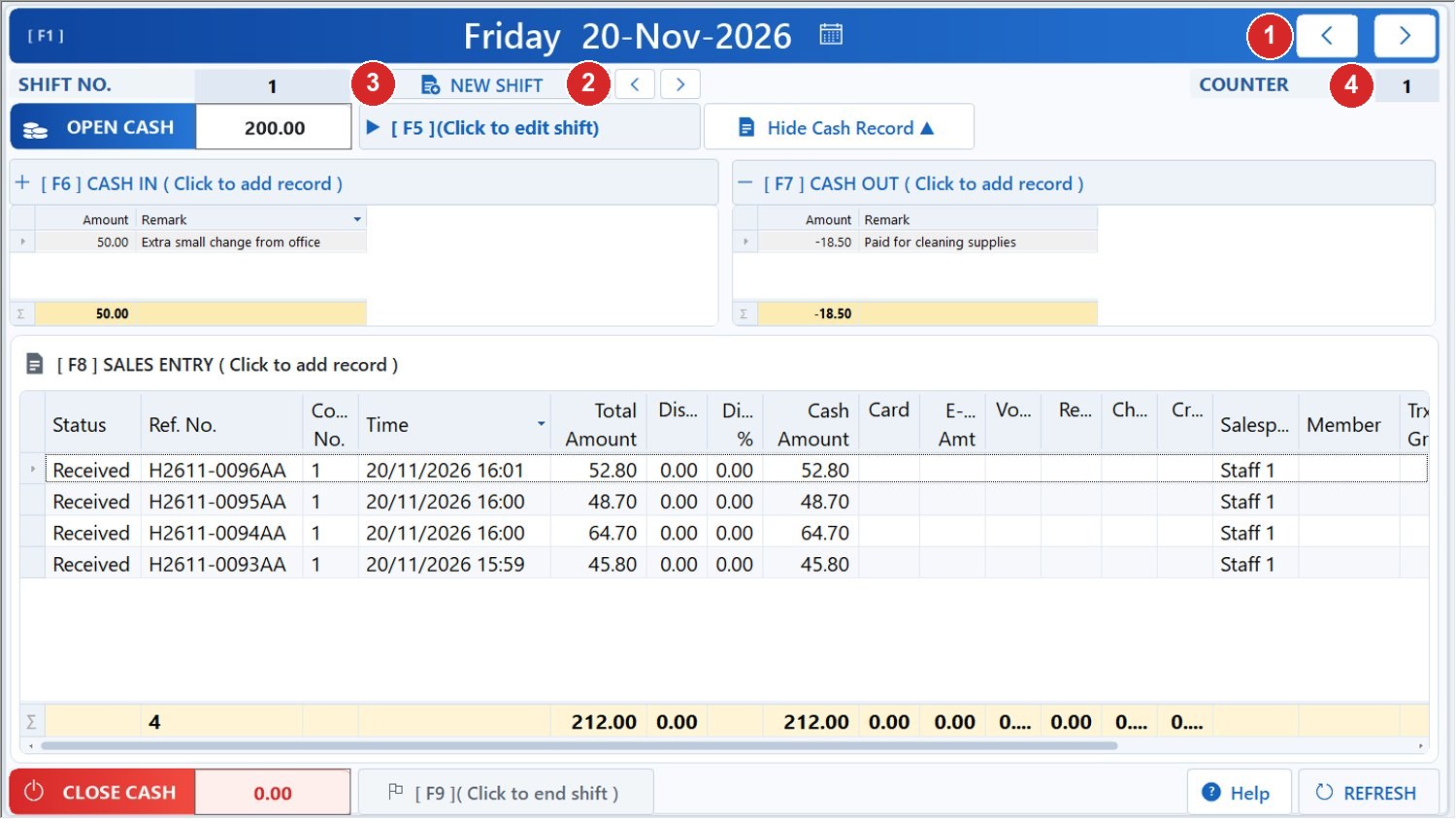
| Step | What to do |
|---|---|
| 1 | Change the date with the < and > buttons (or press F1 to pick a date). |
| 2 | Change the shift with the < and > buttons beside NEW SHIFT. |
| 3 | NEW SHIFT begins another shift on the same date (only when your POS settings allow more than one shift a day). |
| 4 | COUNTER shows the counter (till) number of this PC. |
2. Start the shift with the opening float
Click [ F5 ] ( Click to start shift ). The Start Shift window opens with the date, shift number, counter and time filled in. You must start a shift before taking sales. After it is saved, the button changes to ( Click to edit shift ) and OPEN CASH shows the amount.
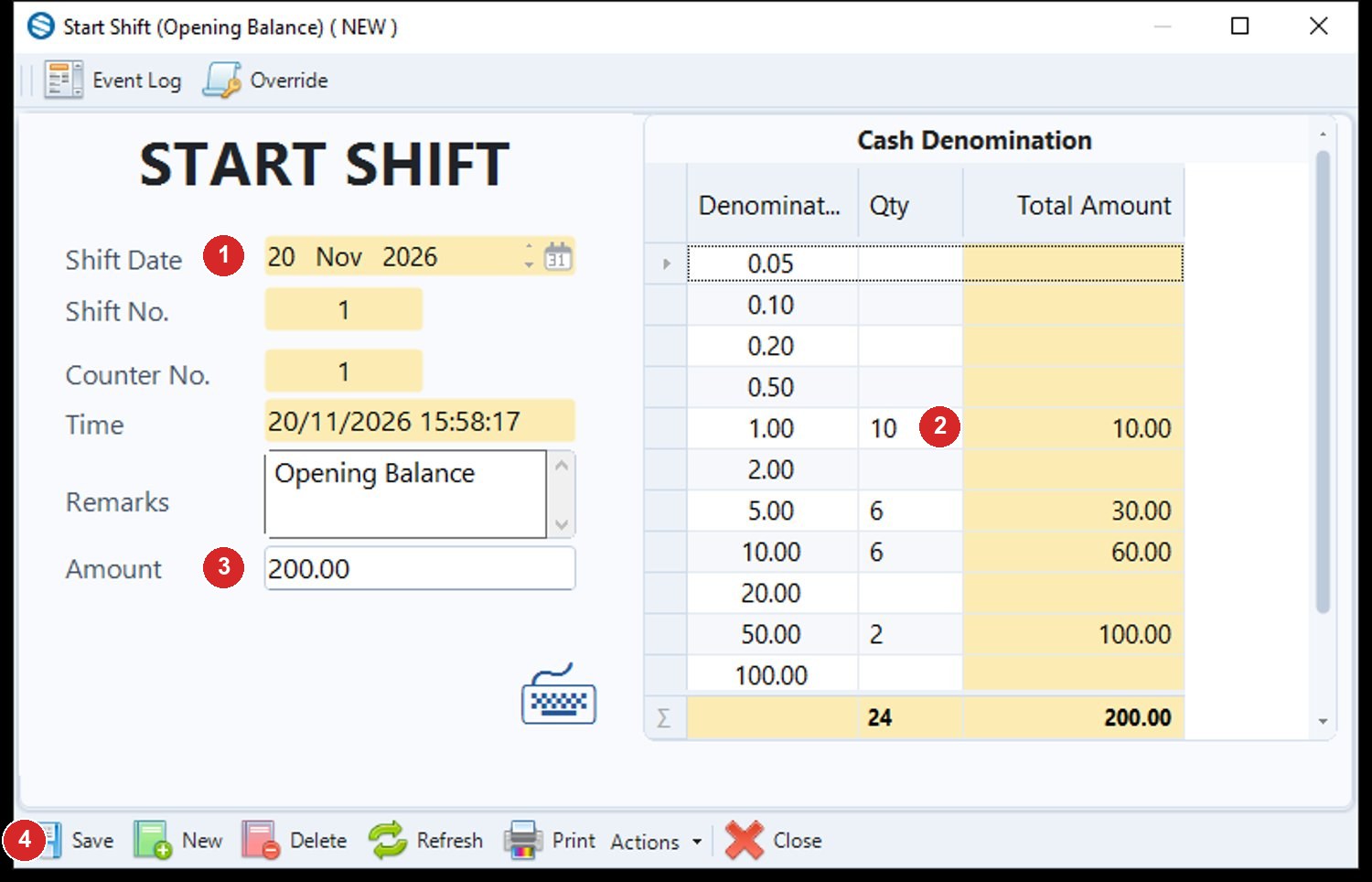
| Step | What to do |
|---|---|
| 1 | Check the Shift Date (and Shift No. and Counter No. below it). |
| 2 | Count the float in the drawer: type the Qty of each note and coin in Cash Denomination (here 2 x 50, 6 x 10, 6 x 5 and 10 x 1). |
| 3 | Amount adds up by itself (200.00). You can also type the amount without the count. |
| 4 | Click Save. |
3. Make sales
Click [ F8 ] SALES ENTRY ( Click to add record ) to open the sales screen and serve customers. Each finished sale appears in the list with its Ref. No., time, total and the amount paid by each payment type (Cash, E-Wallet Amt, Voucher and so on). Double-click a sale to open it again.
4. Record cash in and cash out
Use [ F6 ] CASH IN for money put into the drawer (for example small change from the office) and [ F7 ] CASH OUT for money taken out (for example paying for cleaning supplies). Both open the same kind of window. The records show in the CASH IN and CASH OUT lists of the shift; cash out amounts show as minus. Hide Cash Record hides these lists.
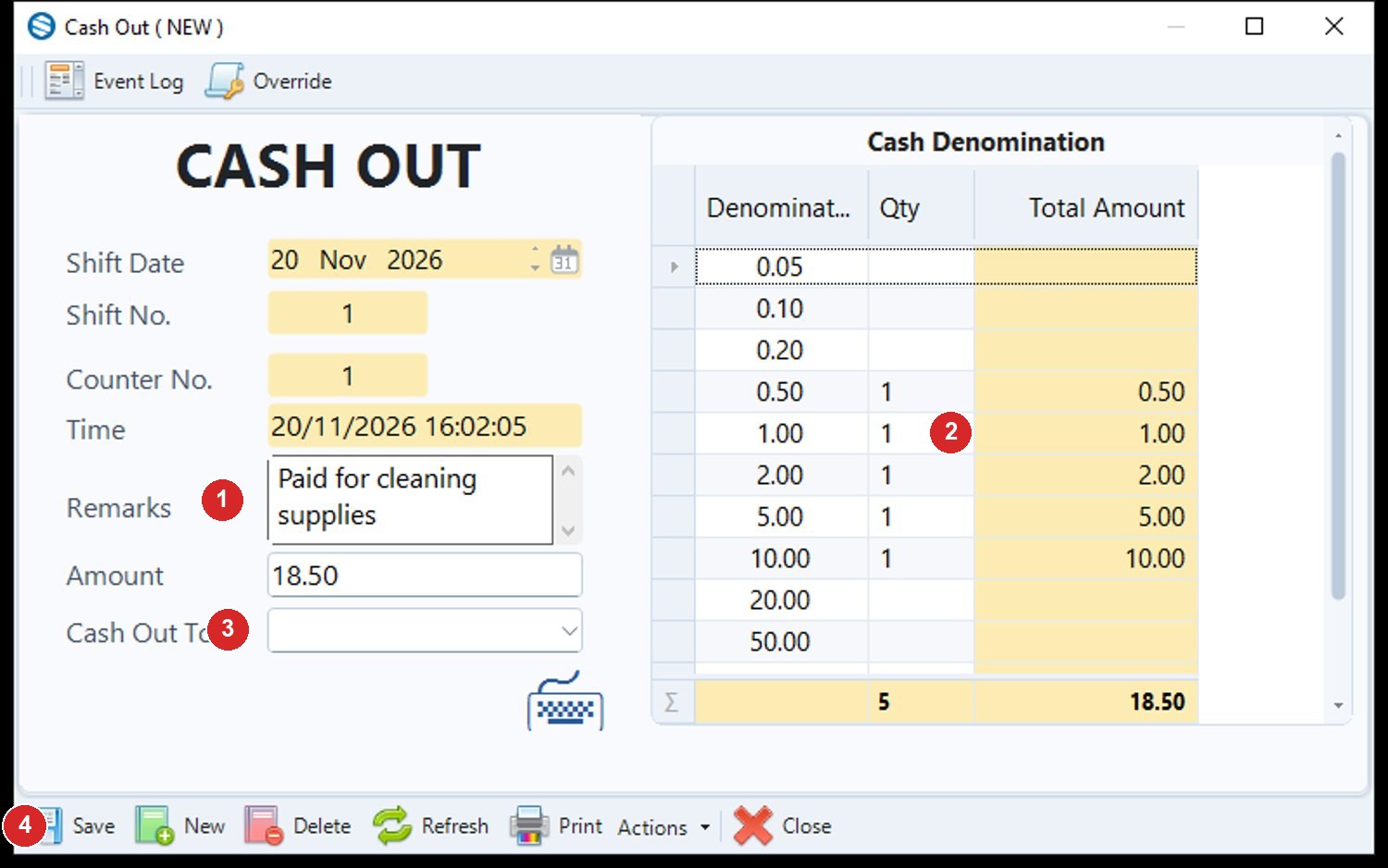
| Step | What to do |
|---|---|
| 1 | Remarks: why the money went in or out (here Paid for cleaning supplies). Remarks cannot be empty. |
| 2 | Count the cash by denomination, or type the Amount (here 18.50). |
| 3 | Cash Out To (Cash In From on a cash in): where the money went or came from. It is required only when your cash in and out are posted to the General Ledger. |
| 4 | Click Save. |
5. Close the shift with the cash you counted
At the end of the shift click [ F9 ]( Click to end shift ) and count the cash in the drawer. A shift cannot be closed while it still has pending (unpaid) sales: finish or void them first, or move them to the next shift later (step 6). Click REFRESH to reload the lists at any time.
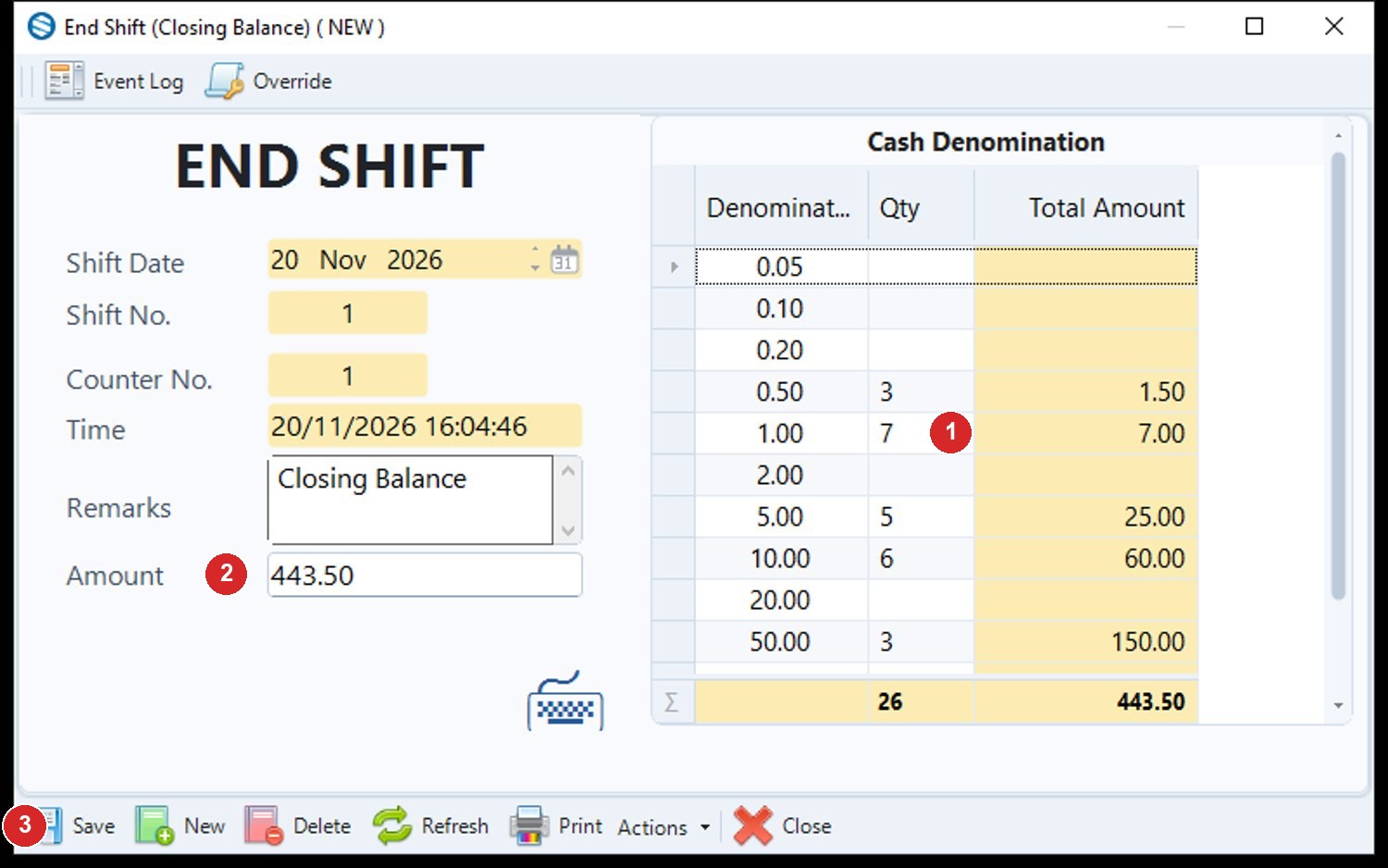
| Step | What to do |
|---|---|
| 1 | Type the Qty of each note and coin you counted (here 443.50 = 200.00 float + 212.00 sales + 50.00 cash in – 18.50 cash out). |
| 2 | Amount is the closing cash and shows as CLOSE CASH on the main screen. |
| 3 | Click Save. |
6. Move unfinished sales to the current shift
A sale left pending in the previous shift (for example a bill the customer did not pay before closing) can be moved into the current shift. Start the current shift first; it must be saved.
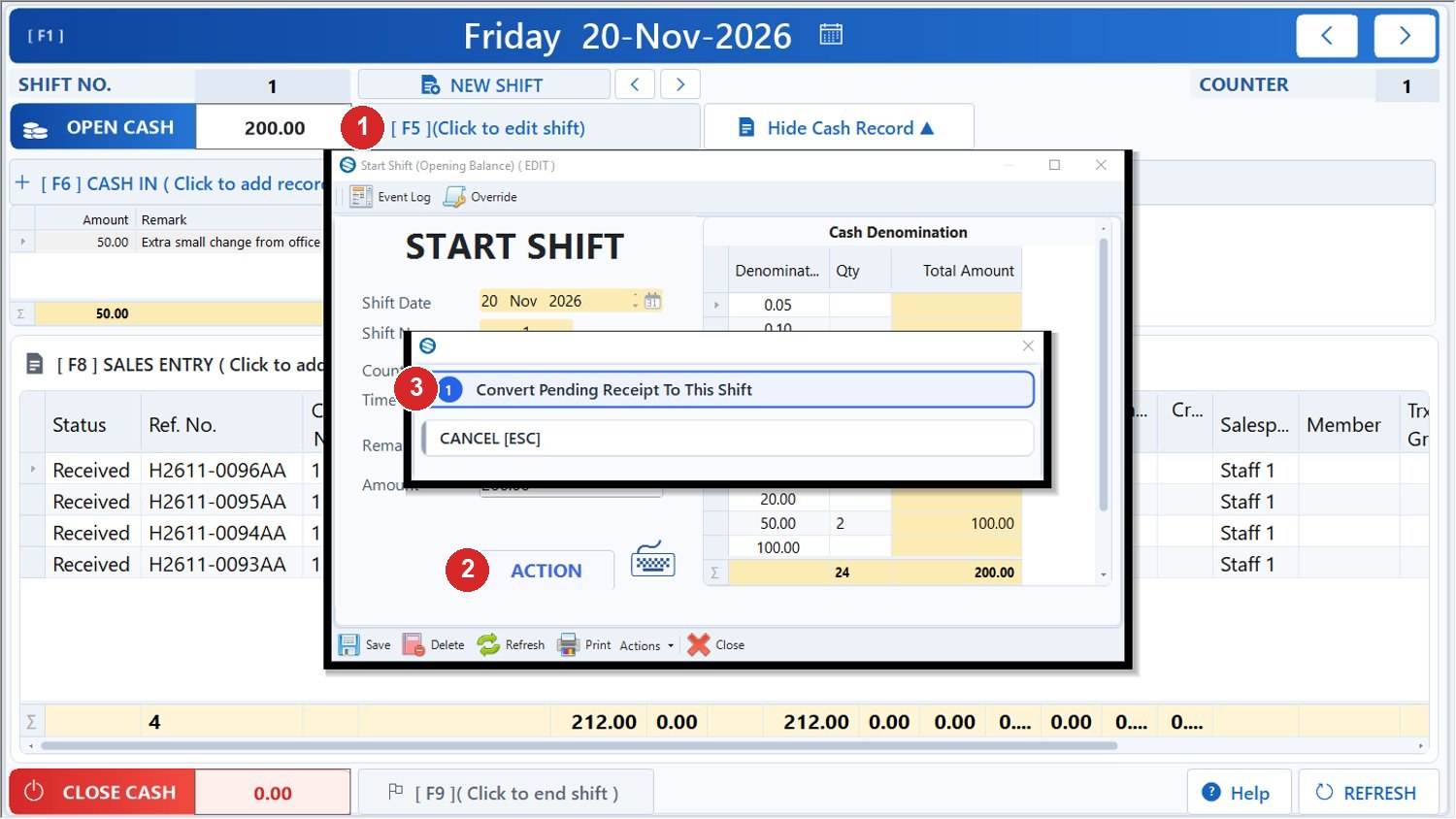
| Step | What to do |
|---|---|
| 1 | Click ( Click to edit shift ) to open the current shift’s Start Shift record. |
| 2 | Click ACTION. |
| 3 | Choose Convert Pending Receipt To This Shift. |
7. Tick and move the pending sales
The window lists the pending sales of the previous shift of this counter (here H2611-0092AA from 19 Nov 2026, 54.80). The bottom shows where they will go: Shift Date, Shift No. and Counter No. of the current shift.
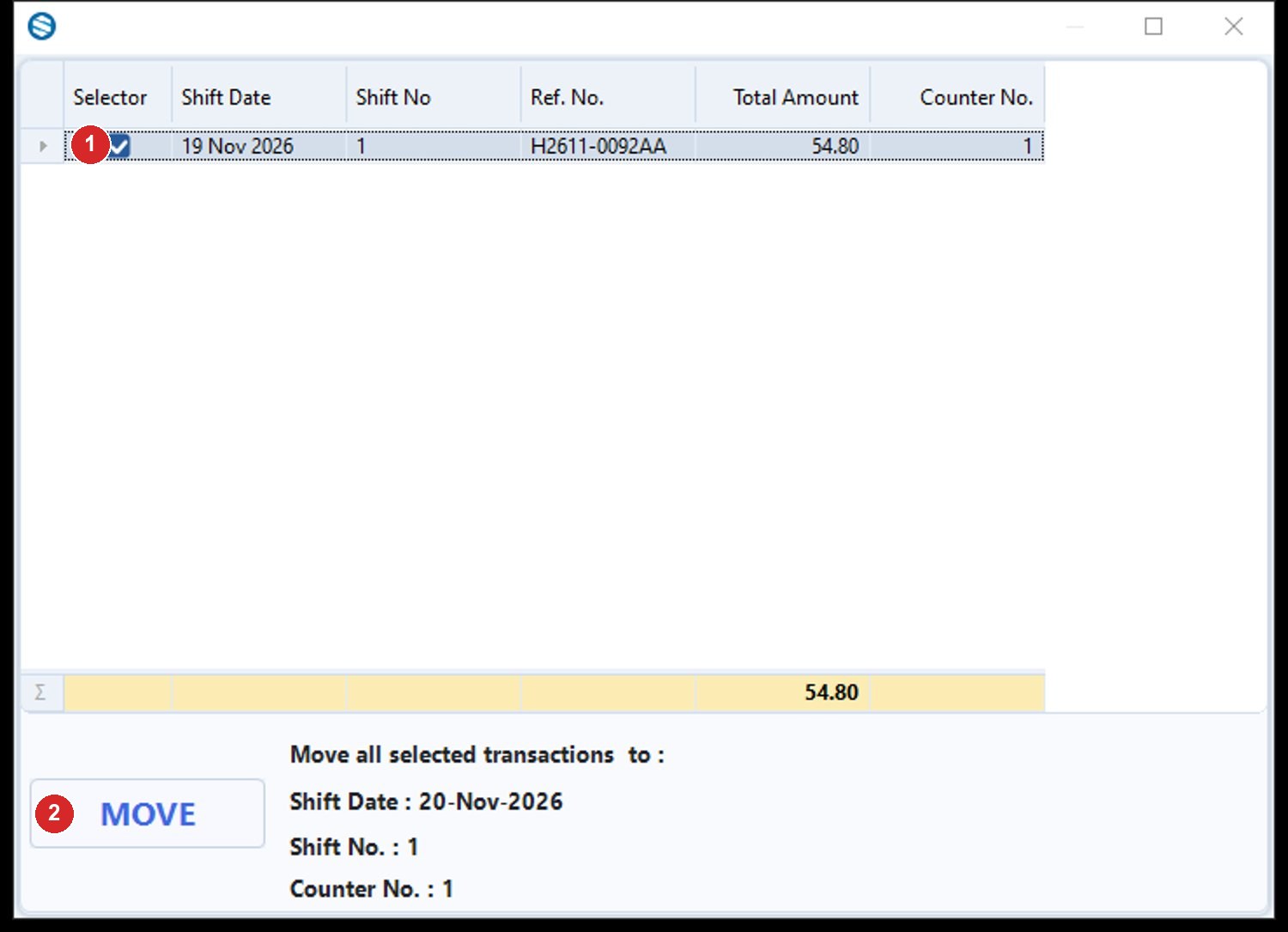
| Step | What to do |
|---|---|
| 1 | Every sale is ticked. Untick any you do not want to move; only ticked sales are moved. |
| 2 | Click MOVE and answer Yes to “Do you want to move selected pending transaction?”. “Pending transaction(s) have been moved.” confirms it. |
8. Correct a sale’s shift details
Double-click the sale in the list to open it. Click Action and choose Enable Record Editing. Synergy then asks for a code (“Editing of transaction is not allowed.”): get it from Synergy, unless your company already has the edit key. A supervisor then approves, and an Edit Record button appears on the sale. Click Edit Record to open this window. Ref No. shows the sale.
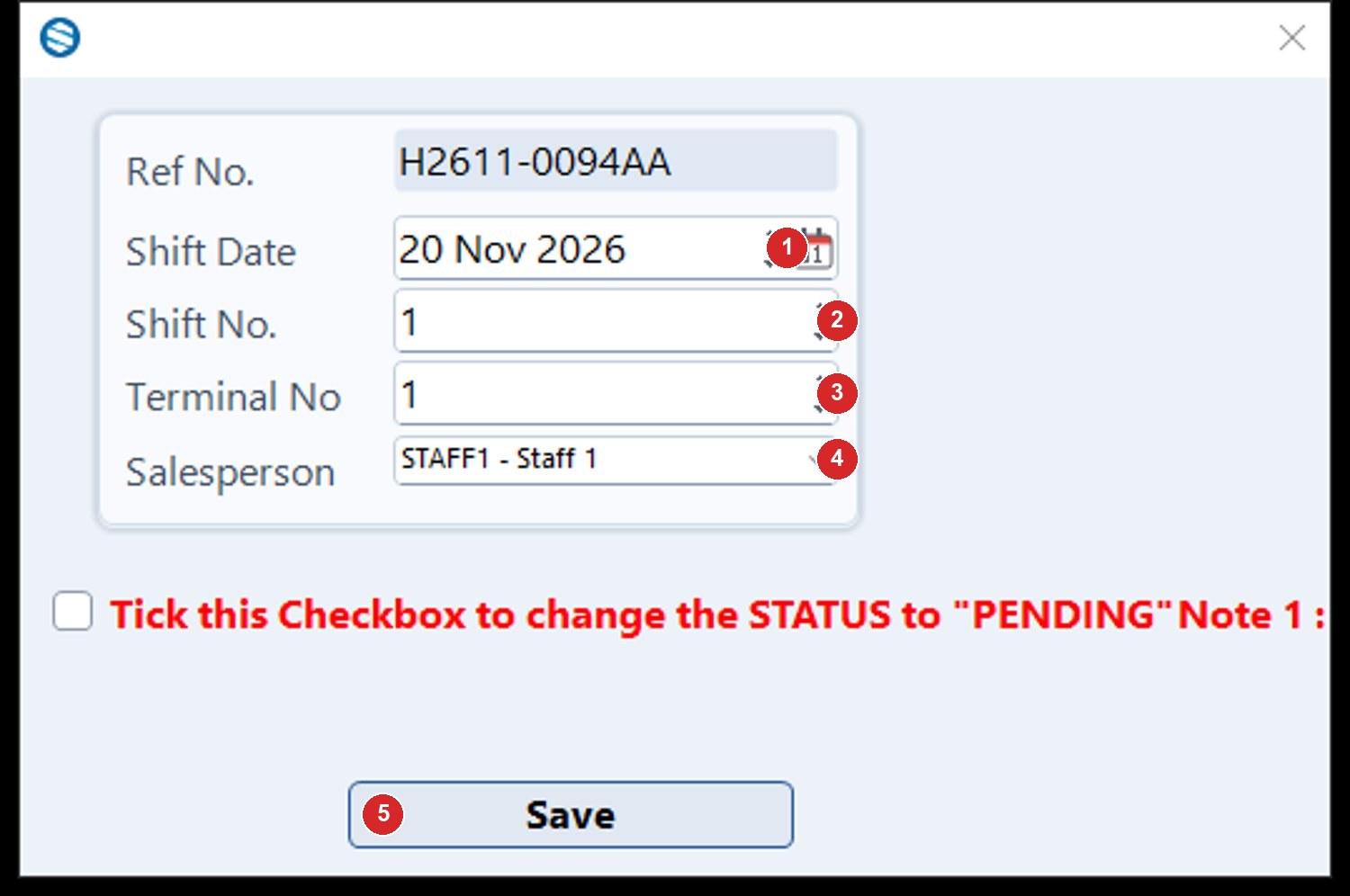
| Step | What to do |
|---|---|
| 1 | Shift Date: the date the sale belongs to. |
| 2 | Shift No. |
| 3 | Terminal No (the counter). |
| 4 | Salesperson. |
| 5 | Click Save. When “Done.” appears the window closes. |
9. Reset a sale to pending (only if needed)
In the same window, tick Tick this Checkbox to change the STATUS to “PENDING” only if you want to reset the sale to pending. This removes all payment information and lets you edit the items again. When you click Save, tick the checkbox in the confirmation box and click OK to continue, or click Cancel to go back.
Tips
- The function key of each button is shown in its label: F1 date, F5 start shift, F6 cash in, F7 cash out, F8 sales entry, F9 end shift.
- If the selected shift date does not match the computer date, you are warned that sales will be recorded under the selected date.
- If you are not allowed to enter back-dated sales, the screen opens in VIEW-ONLY mode for those dates.
- If your shop has pending transactions waiting to be uploaded, you may see a warning. Upload them.
- When your POS settings allow only one shift a day, saving shift 2 is refused: change the sale’s shift instead (step 8).
- The Convert Pending Receipt To This Shift action is only on a saved Start Shift record, not on Cash In, Cash Out or End Shift.
- Resetting a sale to pending removes its payment details, so the payments must be entered again.
Common problems
“Please start a shift first.” appears.
Open a shift by clicking ( Click to start shift ) before taking sales.
“There are [PENDING] transactions.” appears when closing the shift.
Finish (pay) or void the pending sales of the shift first. Pending sales can be moved to the next shift once it is started (step 6).
“[Remark] is required.” appears.
Type a remark in Remarks before saving.
“[Cash Out To] is required.” appears.
Your cash in and out are posted to the General Ledger. Choose where the money went (or came from).
“You do not have permission to [CLOSE SHIFT].” appears.
Your user cannot close shifts. Ask a supervisor or have the permission given to your user.
I cannot sell on an old date.
Back-dated sales need permission or an override.
“Shift has not been open yet.” appears.
This appears only in order-taking-only mode. Wait for another counter to start the shift.
“Please save record first.” appears when choosing Convert Pending Receipt To This Shift.
Save the shift record first, then choose the action again.
“No pending transaction from previous shift.” appears.
There is nothing to move: the previous shift of this counter has no pending sales.
There is no Edit Record button on the sale.
Choose Action > Enable Record Editing first, enter the code from Synergy and get a supervisor’s approval.
“Not allowed to change status. Because Serial Number locked.” appears.
A serial number lock duration is set, so a completed sale cannot be reset to pending. Void the sale instead.