
Run a ‘spend RM 50, get 1 gift item’ promotion at the POS counter. You choose which items can be gifts, for example a notebook and a tote bag, and the customer picks one of them. When the other items on the bill reach the amount, the gift line drops to 0.00 by itself and shows GIFT in its remark. If the bill later falls below the amount, the gift goes back to its normal price. The cashier is reminded at payment when a bill qualifies but has no gift yet. The promotion is set up with one item field and one line in Misc Flags; there is no separate promotion screen.
Before you start
- Every counter needs version 16.11.19 or later, and the database must be updated to the same version (Database Upgrade).
- Decide the amount (for example 50), the start and end dates, and which items can be gifts.
- Choose a short code for the promotion, for example GIFT50. It links the gift items to the promotion.
- You need access to Main > System Settings (Main).
Steps
1. Mark each gift item
Open the item (Inventory Management > Masterfile > Item) and go to the Alternative Item Codes tab.
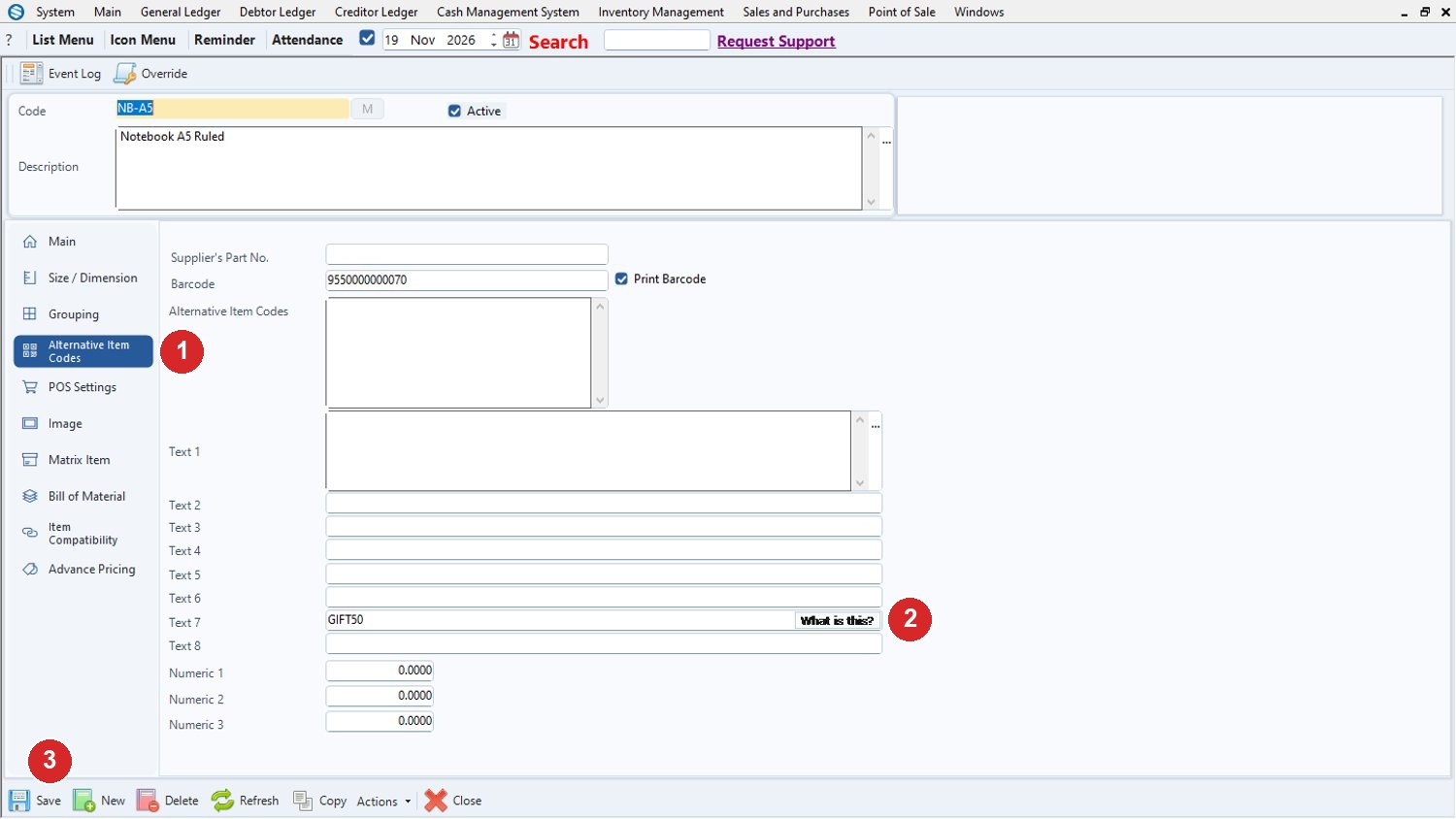
| Step | What to do |
|---|---|
| 1 | Click Alternative Item Codes. |
| 2 | Type the promotion code, for example GIFT50, in Text 7. If Text 7 already holds other text, add the code after it and keep the rest. |
| 3 | Click Save. Do the same for every item the customer may choose as the gift. |
2. Switch on the promotion in Misc Flags
Go to Main > System Settings (Main), open System Options and find the Misc Flags box. Add one new line at the end, for example: (POS.Promo.ByItem=2026-12-01=2026-12-31=50=100=GIFT50)(POS.Promo.ByItem.WholeBill)(POS.Promo.ByItem.MaxPerBill=1)(POS.Promo.ByItem.Prompt)(POS.Promo.ByItem.Remark=GIFT)
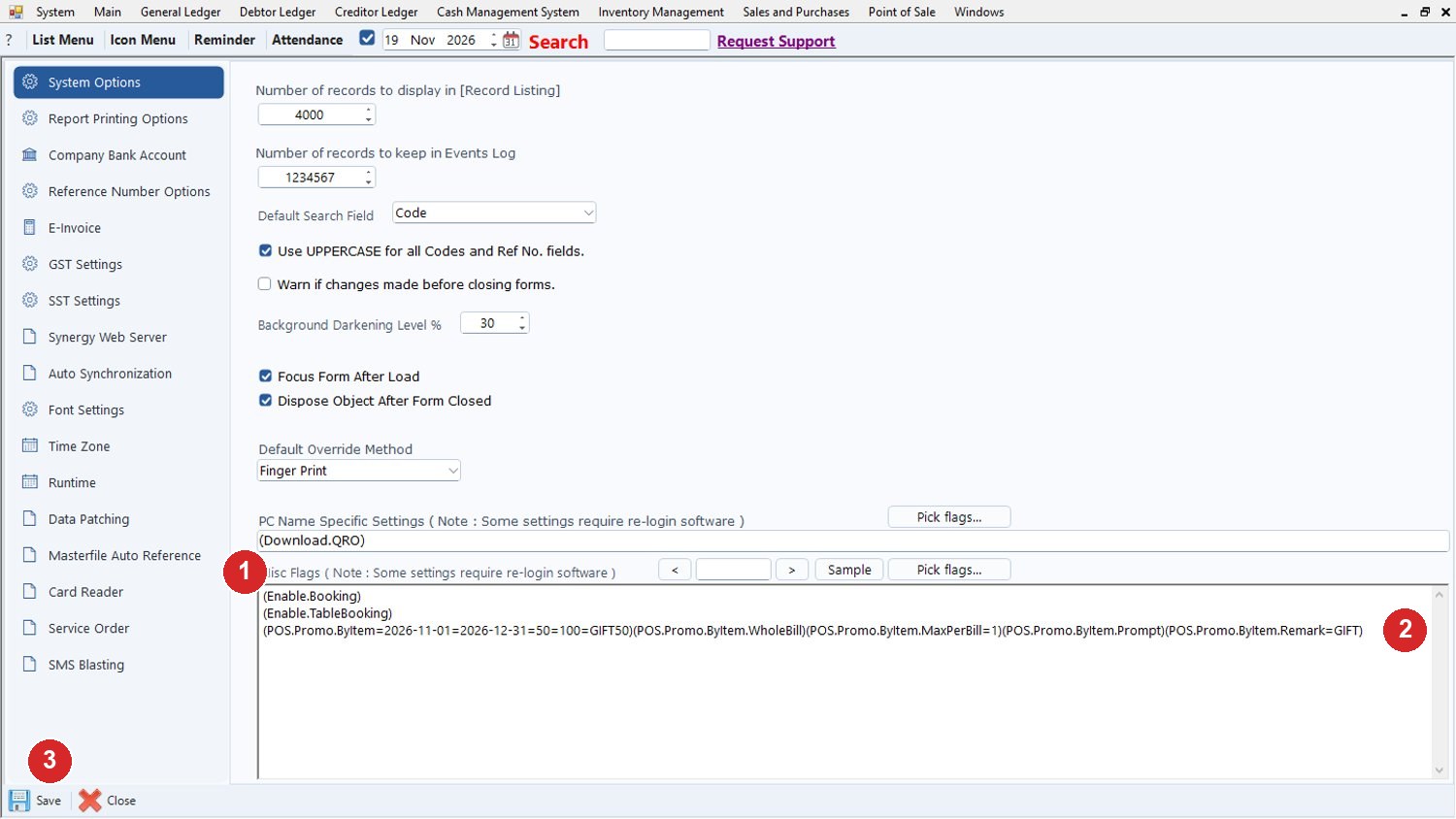
| Step | What to do |
|---|---|
| 1 | In Misc Flags, leave the existing lines as they are and add the new line at the end. |
| 2 | (POS.Promo.ByItem=start date=end date=amount=100=code): dates as year-month-day, the amount the bill must reach, 100 = the gift is 100% off, and the code you typed in Text 7. The other parts: WholeBill counts every other item on the bill in any scan order and leaves the gift items out of the total; MaxPerBill=1 gives at most one gift per bill; Prompt reminds the cashier at payment; Remark=GIFT writes GIFT on the gift line. |
| 3 | Click Save. Then sign out and sign in again on each counter so the new setting is used. |
3. Ring up the bill
The cashier scans the customer’s items as usual. The gift the customer chose can be scanned at any time, before or after the other items.
4. The reminder at payment
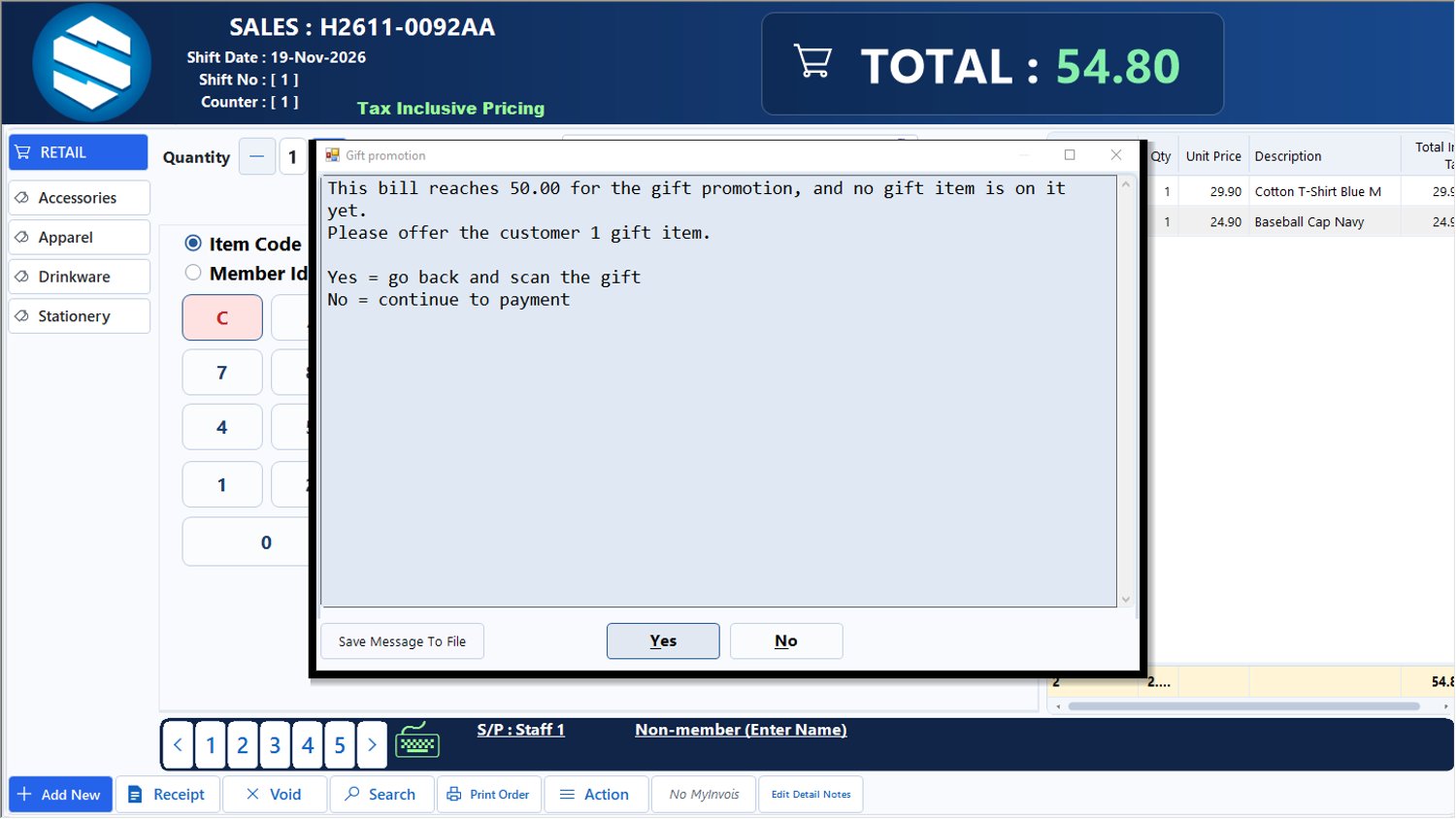
When the cashier presses Receipt and the other items reach the amount but no gift is on the bill yet, a Gift promotion message appears. Click Yes to go back and scan the gift the customer picks, or No to continue to payment without a gift. The message comes once per bill.
5. The gift on the bill
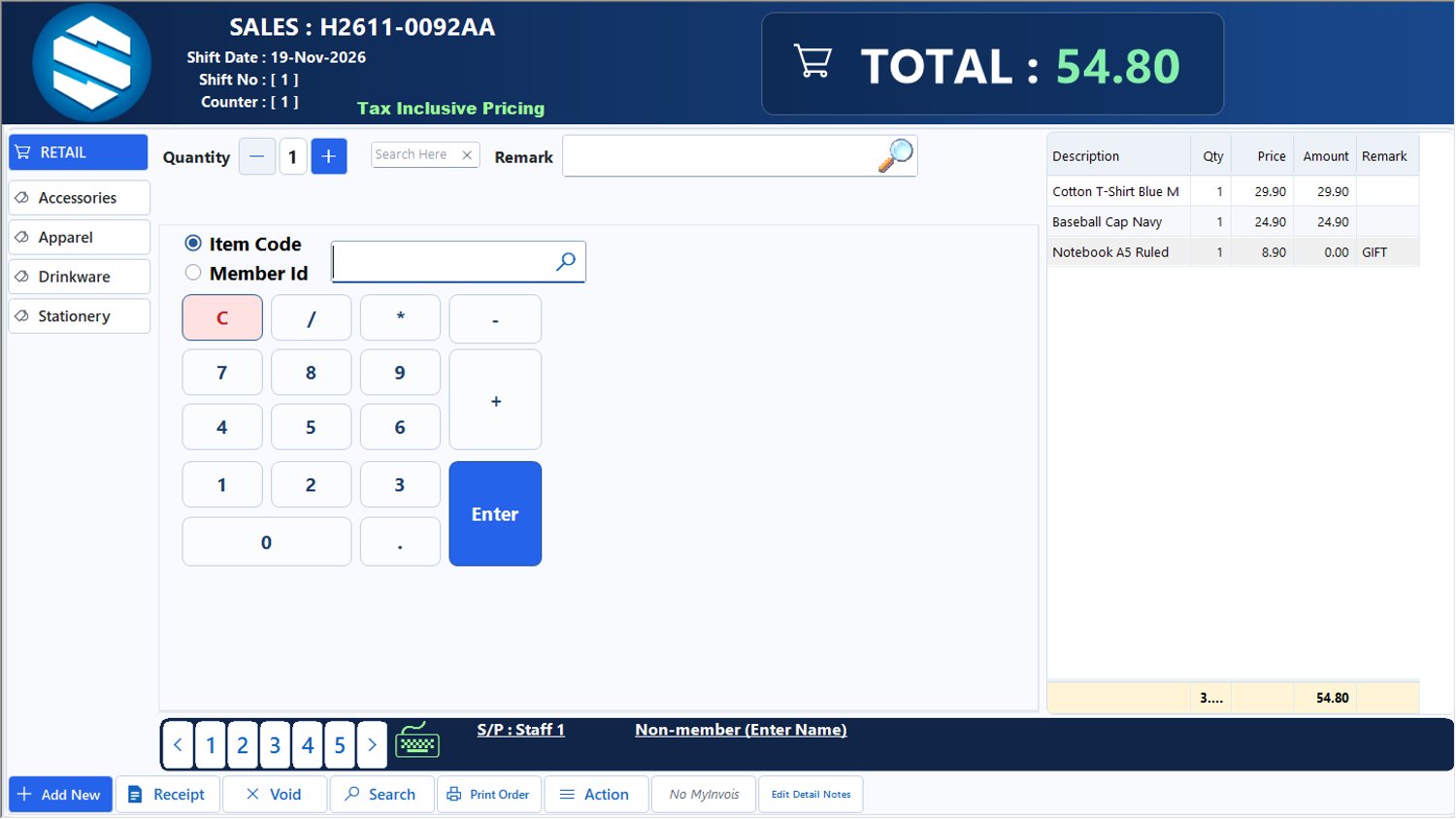
After the gift is scanned, its line shows the normal price, an amount of 0.00 and GIFT in the Remark column. The bill total does not change. If items are removed and the other items fall below the amount, the gift goes back to its normal price by itself. Then press Receipt and take payment as usual.
6. Change or end the promotion
To change the dates, amount or code, edit the line in Misc Flags and sign in again on the counters. To stop an item being a gift, remove the code from its Text 7. To end the promotion, remove the line from Misc Flags, or let the end date pass.
Tips
- On some systems the field is labelled Remark 7 instead of Text 7, or has a name your company gave it. It is always the seventh text field on the Alternative Item Codes tab.
- The dates are checked against the shift date of the counter.
- The code is found anywhere inside Text 7, so pick codes that are not part of each other. With codes GIFT5 and GIFT50, items marked GIFT50 would also count for GIFT5. An item can belong to two promotions with both codes in Text 7, for example GIFT50,GIFT80.
- A gift item that a customer buys as a normal purchase on a qualifying bill also becomes the gift. With MaxPerBill=1, only one unit drops to 0.00 and the rest are charged.
- The gift line reduces stock like a normal sale, and its discount shows in the usual sales and discount reports.
- If the gift line already has a remark typed by the cashier, that remark is kept and GIFT is not written.
- Only one Misc Flags promotion of this kind works at a time. If Misc Flags also has a line starting with (POS.MultiPromo.ByItem=, this gift promotion is not used.
- Each outlet with its own database needs its own Text 7 codes and Misc Flags line.
- GIFT prints on the receipt only if your receipt layout prints the line remark.
Common problems
The gift does not drop to 0.00
Check that today’s shift date is between the start and end dates, that the item’s Text 7 contains the same code as the Misc Flags line, that the other items on the bill reach the amount, and that the counter was signed in again after the change. Also check Misc Flags has no (POS.MultiPromo.ByItem= line.
A gift scanned first stays at full price
Add (POS.Promo.ByItem.WholeBill) to the line. Without it, only the items scanned above the gift count toward the amount.
A bill of 100 or more gets two gifts
Add (POS.Promo.ByItem.MaxPerBill=1). Without it, the bill earns one gift for every full amount.
The reminder does not appear at payment
Check that (POS.Promo.ByItem.Prompt) is in the line. The reminder does not come when a gift is already on the bill, when the other items do not reach the amount, or when it was already shown for this bill.