
This guide shows you how to install the Synergy Sales app on an Android phone or tablet and connect it to your Synergy server, so salespeople can take orders even without internet.
Before you start
- Get the Synergy Sales installation file (APK) from Synergy. If Android says it is not allowed to install unknown apps from that source, tap Settings and turn on Allow from this source.
- Ask your administrator for the server address, for example 192.168.1.10:5987.
- Have your normal Synergy desktop login name and password. Your login needs permission to add Sales Orders in the desktop program.
- Do the first set-up where the phone can reach the office server, for example on the office Wi-Fi.
Steps
1. Install the app
Open the installation file, tap Install, then tap Open. The app is called Synergy Sales. To update later, install the new file over the old one. Your orders and data stay on the phone.
2. Connect to the server
Connect the app to your Synergy server.
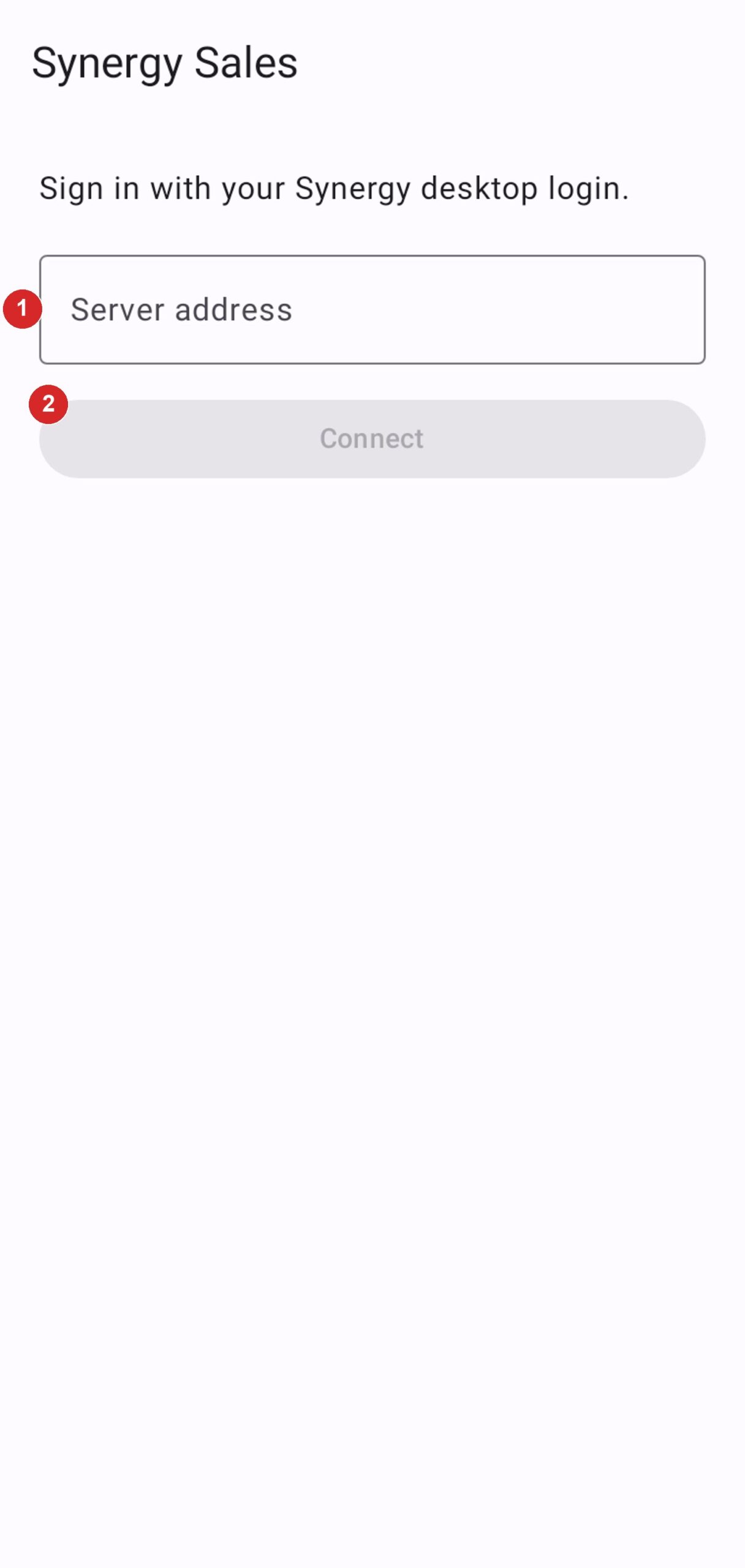
| Step | What to do |
|---|---|
| 1 | In Server address, type the address you were given |
| 2 | Tap Connect |
3. Choose your company
In Company, choose your company.
4. Log in
Use the same login as your Synergy desktop login.
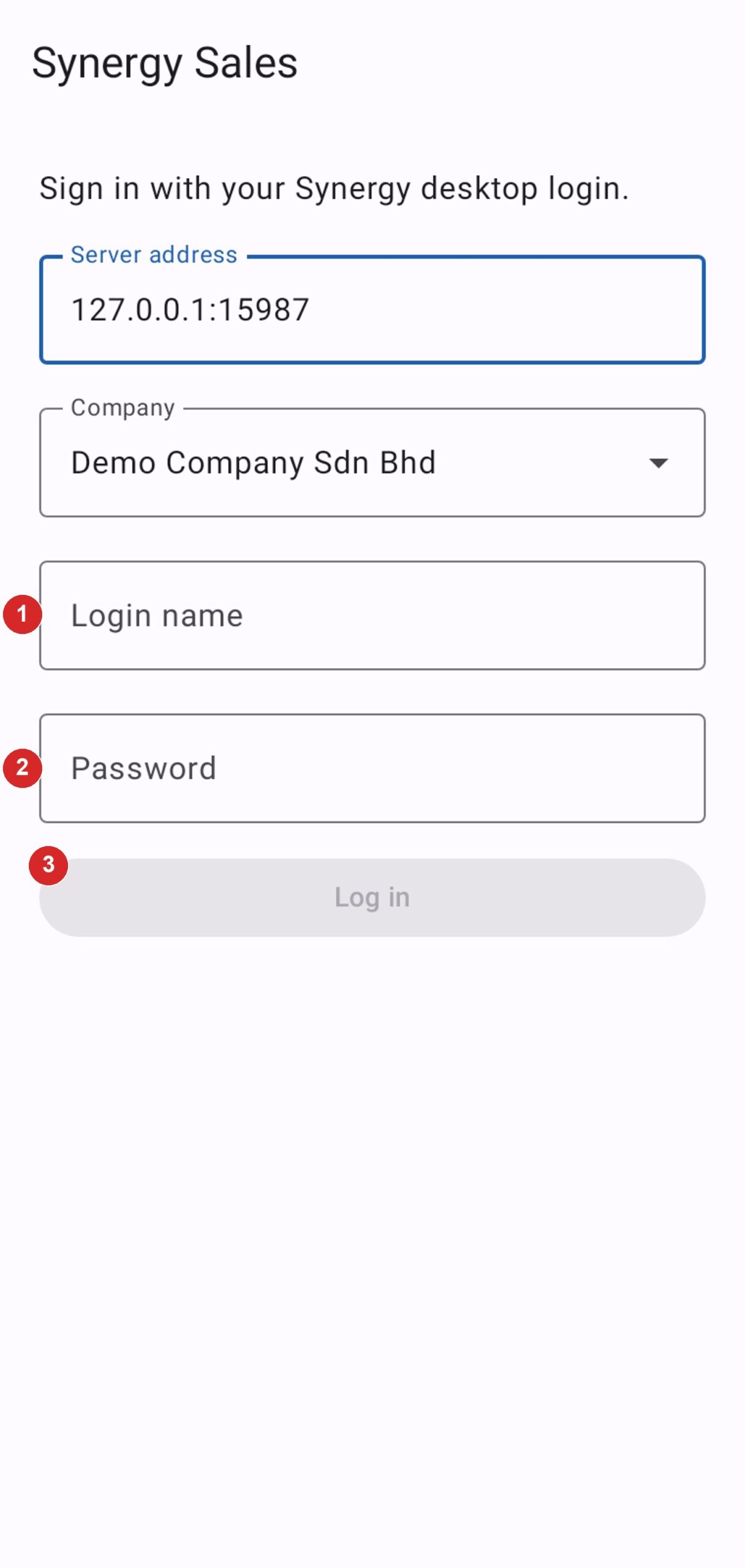
| Step | What to do |
|---|---|
| 1 | Type your Login name |
| 2 | Type your Password |
| 3 | Tap Log in |
5. Wait for the first download
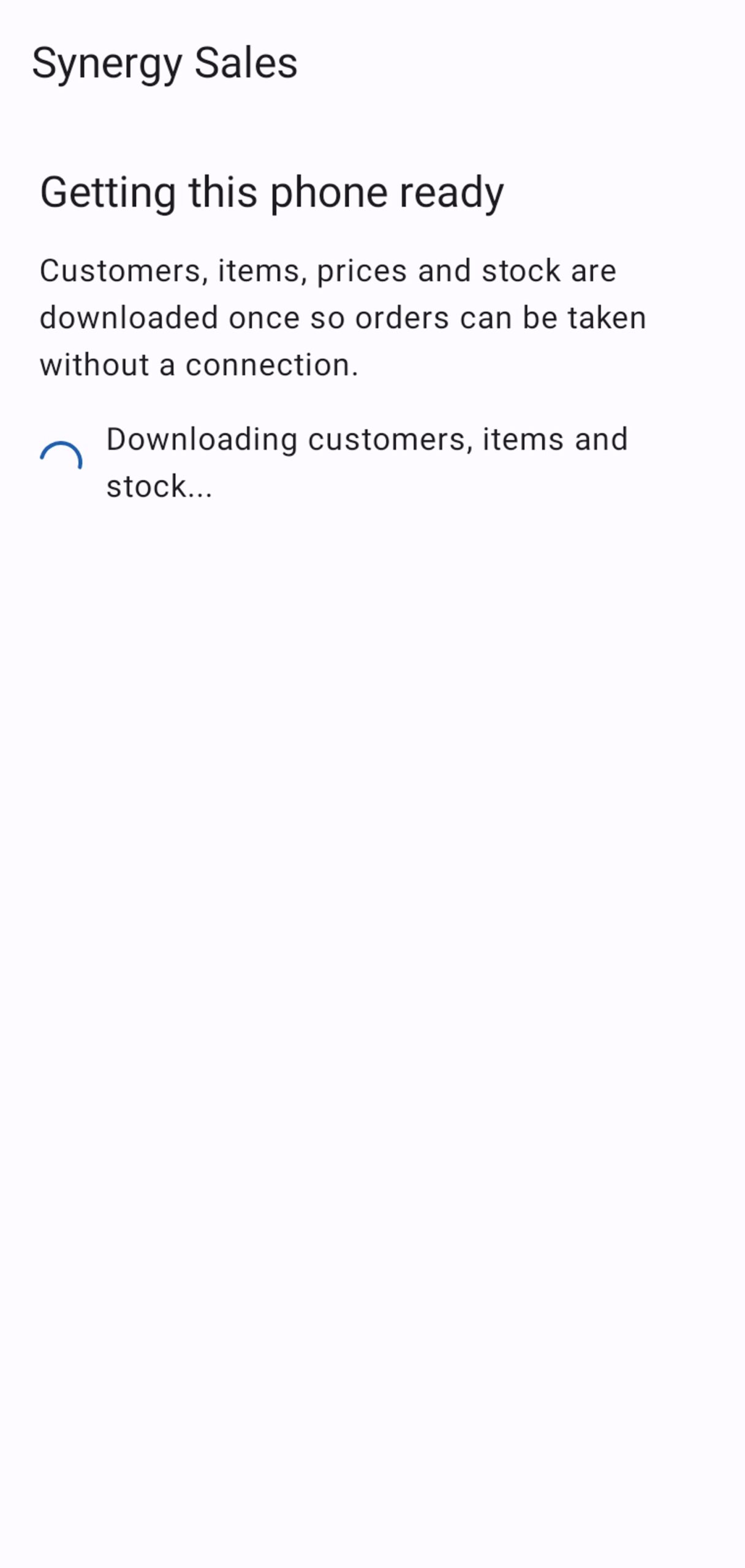
The screen “Getting this phone ready” downloads customers, items, prices and stock. The first time this can take up to a minute.
6. Start working
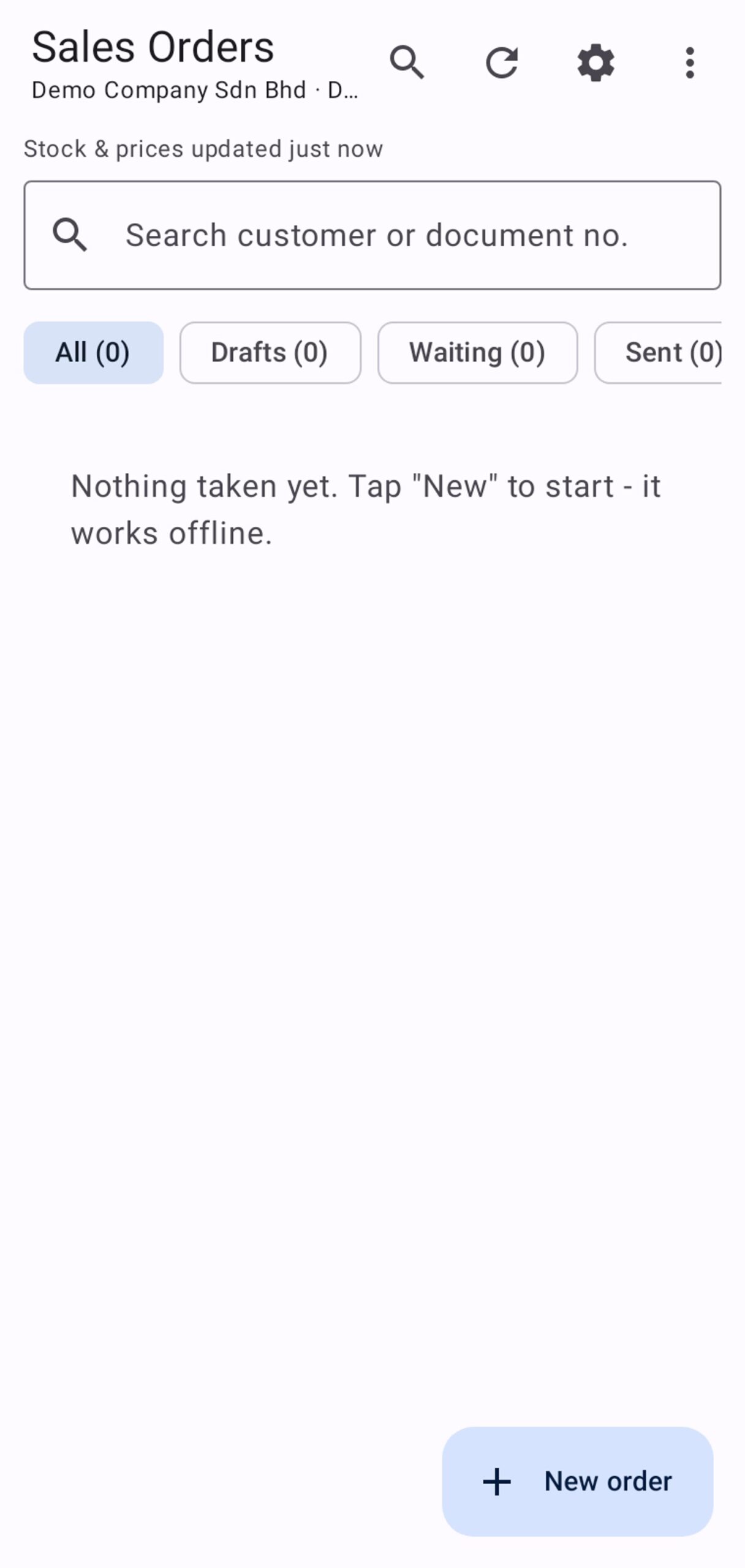
The Sales Orders screen appears. You are ready to take orders.
Tips
- You stay logged in for 30 days. After that a red bar says Login expired. Tap Log in and type your password. Orders you took meanwhile are not lost.
- Open Settings (the gear icon) to see your name, company and server, and to use Log out, Change server / company / user or Full sync (download everything).
- Settings also shows Your rights (from the desktop app): whether you may change price, sell below minimum price, change the date or change the location.
- The app also checks for updates. When a New version message appears, tap Update, or Later to be reminded another day.
Common problems
Connect does not work.
Check the server address for typing mistakes and check the phone is on the office Wi-Fi.
Log in is refused.
Check the login name and password, which are the same as the desktop program. Ask the office to check your user has permission to add Sales Orders.
There is no company in the list.
Tap Connect again to reload the list. If it is still empty, tell Synergy.