
This guide shows you how to take a Sales Order on the phone and submit it. The order is sent to the office by itself when the phone is online.
Before you start
- Finish the first set-up and log in (see the guide on installing and logging in).
- Customers, items, prices and stock are already on the phone, so you do not need internet to take the order.
Steps
1. Start a new order
On the Sales Orders screen tap New order. If you may take other documents too, the button says New and asks which one; choose Sales Order.
2. Choose the customer first
Tap Choose customer. Choose the customer before the items, because prices depend on the customer. Terms, agent and delivery address fill in by themselves.
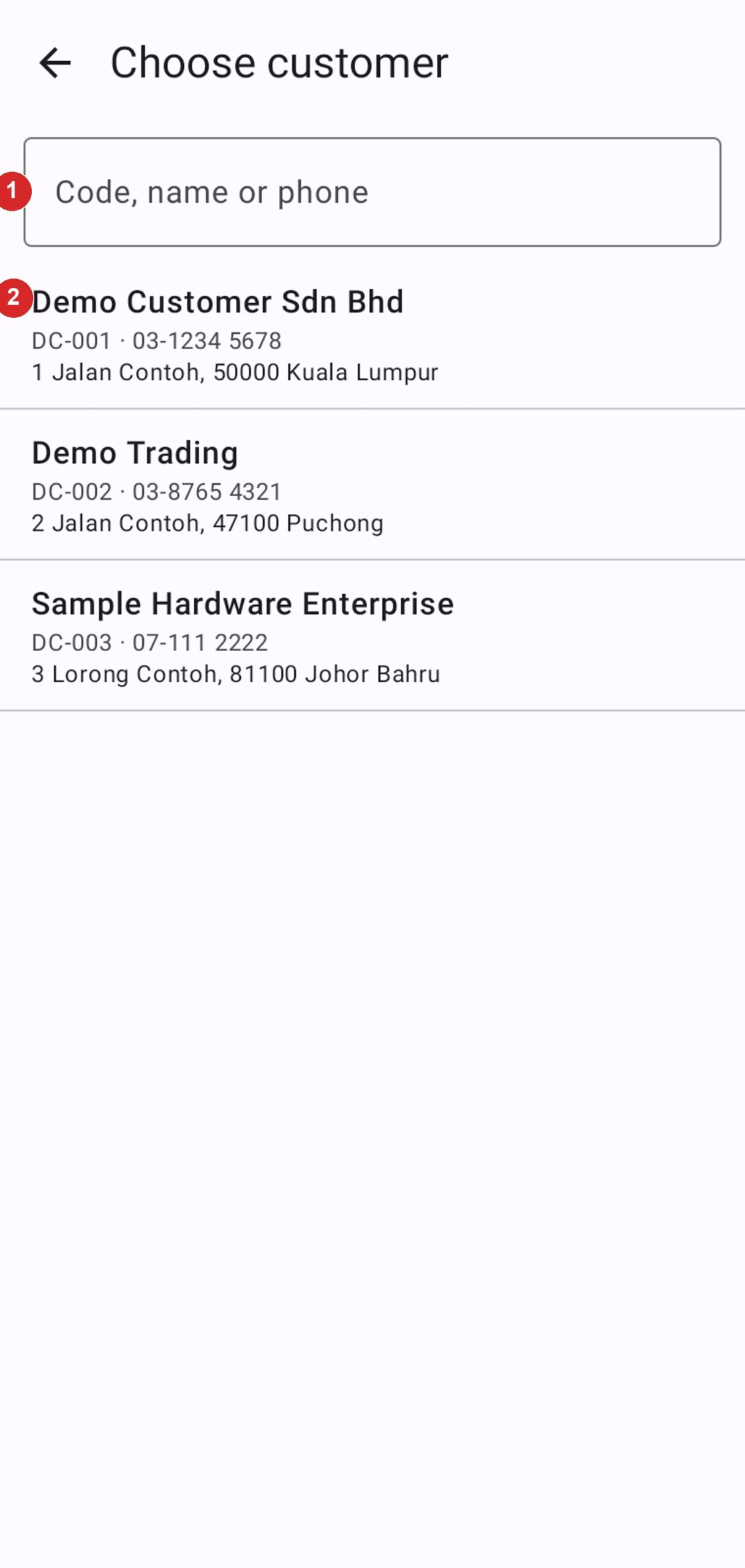
| Step | What to do |
|---|---|
| 1 | Search by code, name or phone number |
| 2 | Tap the customer |
3. Check the top part
Check the top part of the order. You can also type a remark if needed.
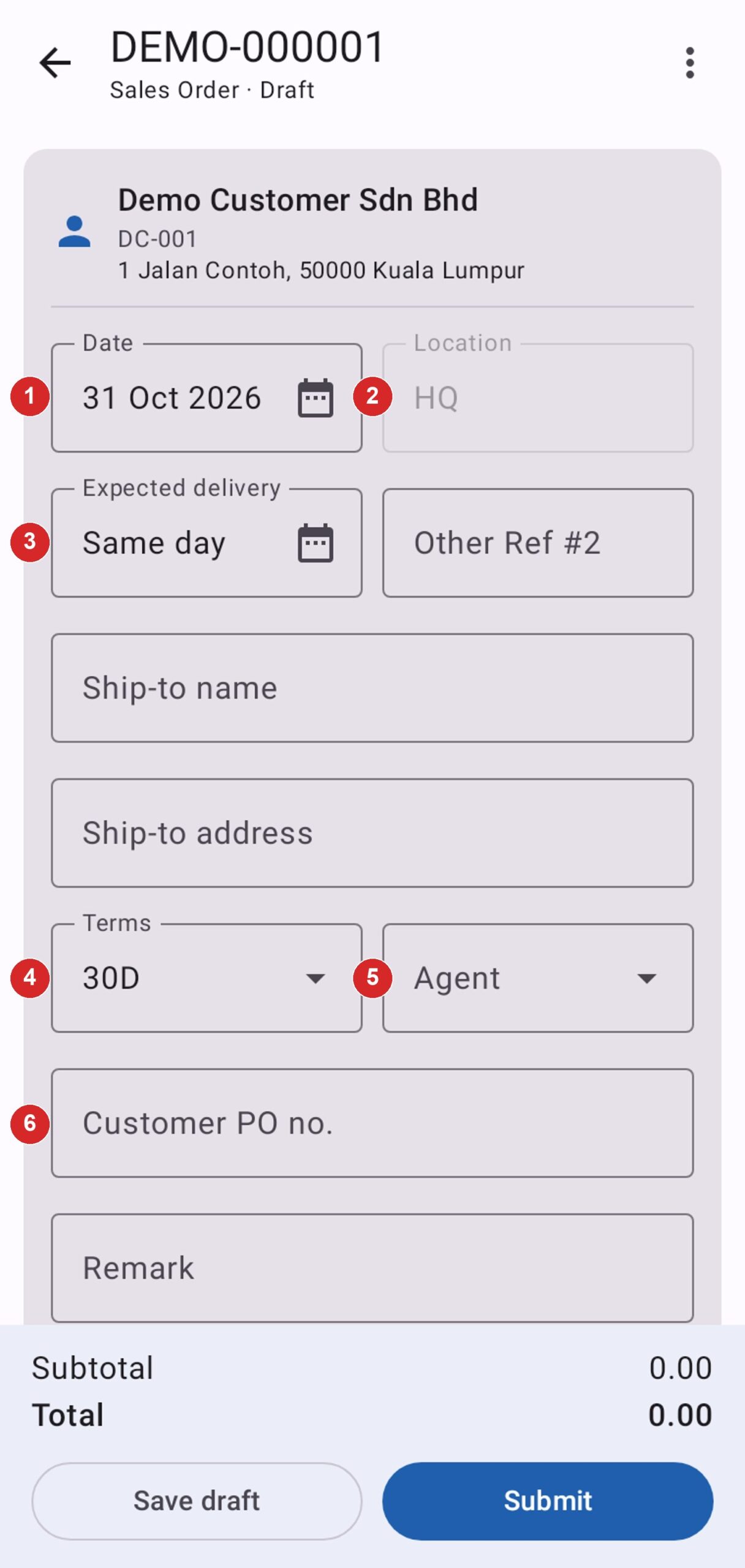
| Step | What to do |
|---|---|
| 1 | Check the date |
| 2 | Check the location |
| 3 | Add an expected delivery date if needed |
| 4 | Check the terms |
| 5 | Check the agent |
| 6 | Type a customer PO number if needed |
4. Add an item
Tap Add item.
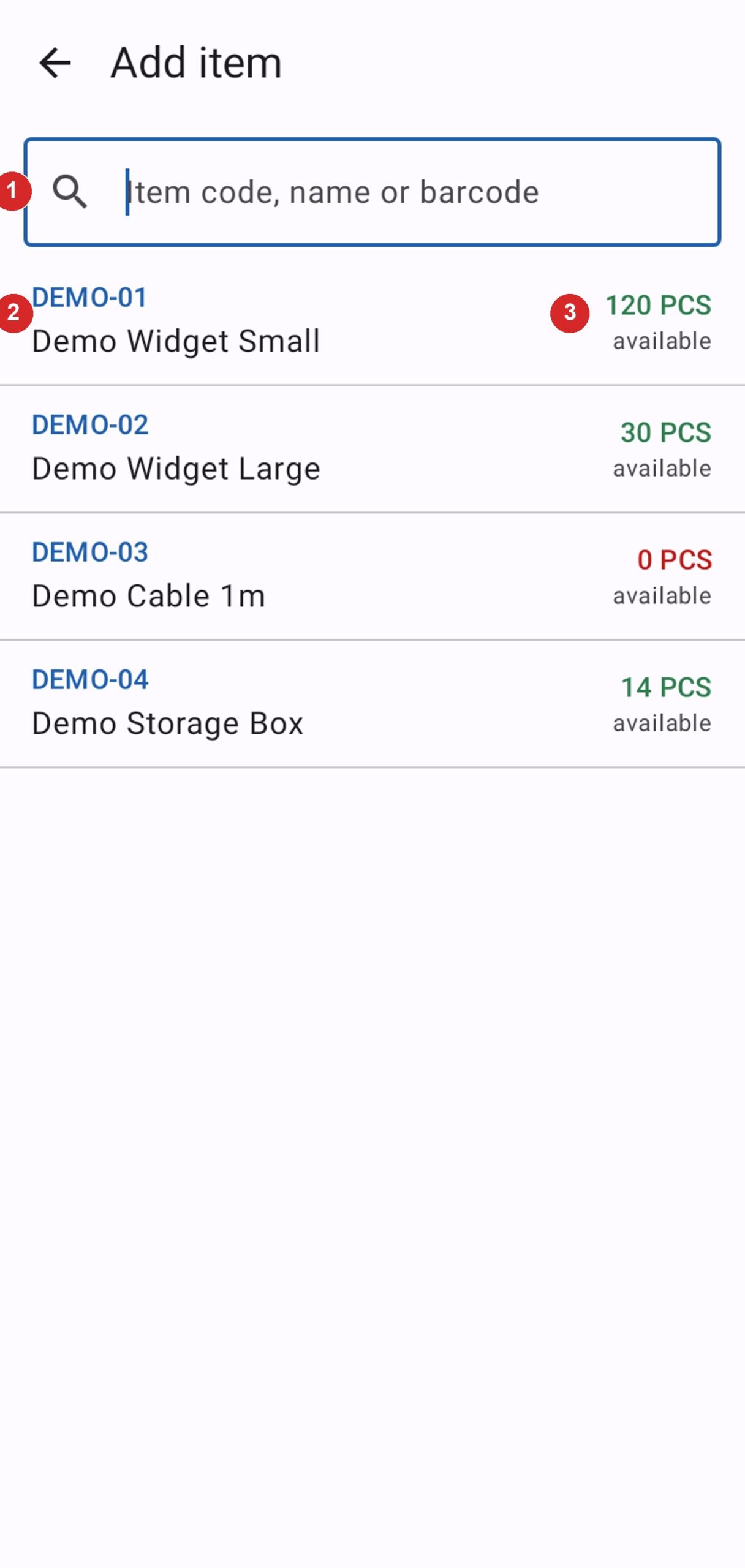
| Step | What to do |
|---|---|
| 1 | Search by item code, name or barcode |
| 2 | Tap the item |
| 3 | The green or red number is the stock available at the location |
5. Set the quantity and price
The price fills in by itself.
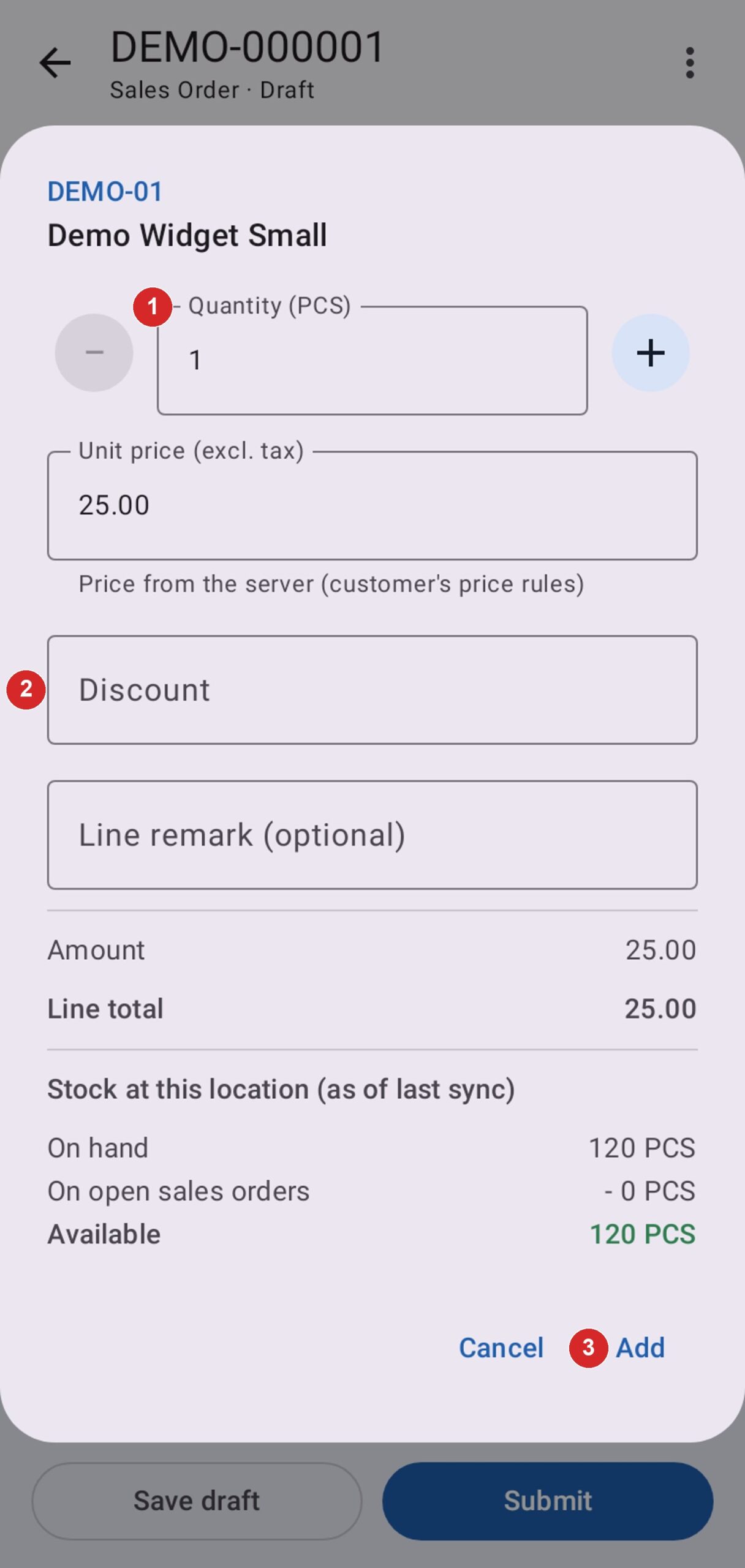
| Step | What to do |
|---|---|
| 1 | Choose the unit if the item has more than one, then type the quantity or use − and + |
| 2 | Type a discount such as 10, 10+5 or $3 if you are allowed to |
| 3 | Tap Add |
6. Add the other items
Repeat for every item. Tap an item line to change or remove it. If the item is already on the order, choose Add another line or Change existing.
7. Check the totals
Look at the bottom of the order.
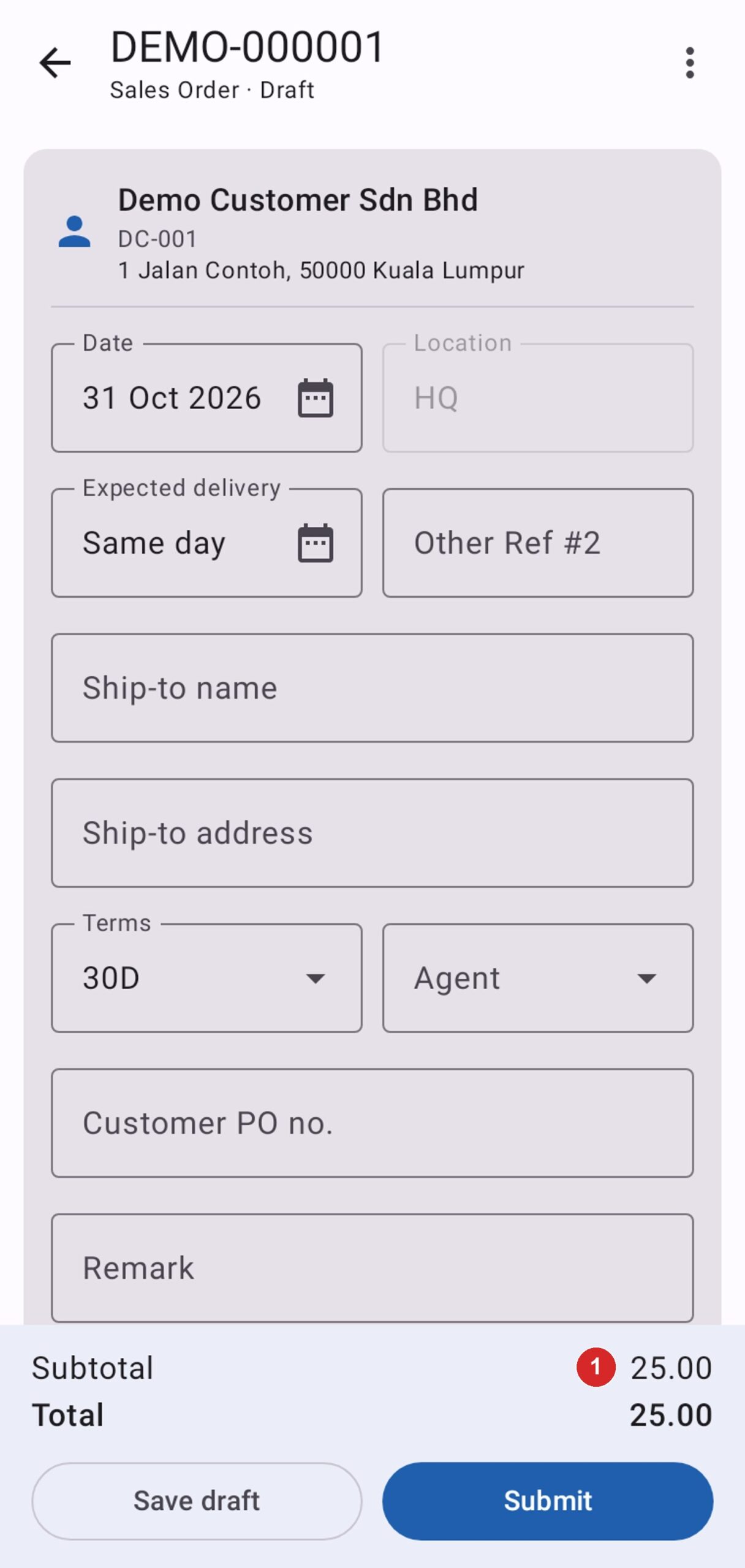
| Step | What to do |
|---|---|
| 1 | Check the Subtotal, Tax and Total |
8. Submit
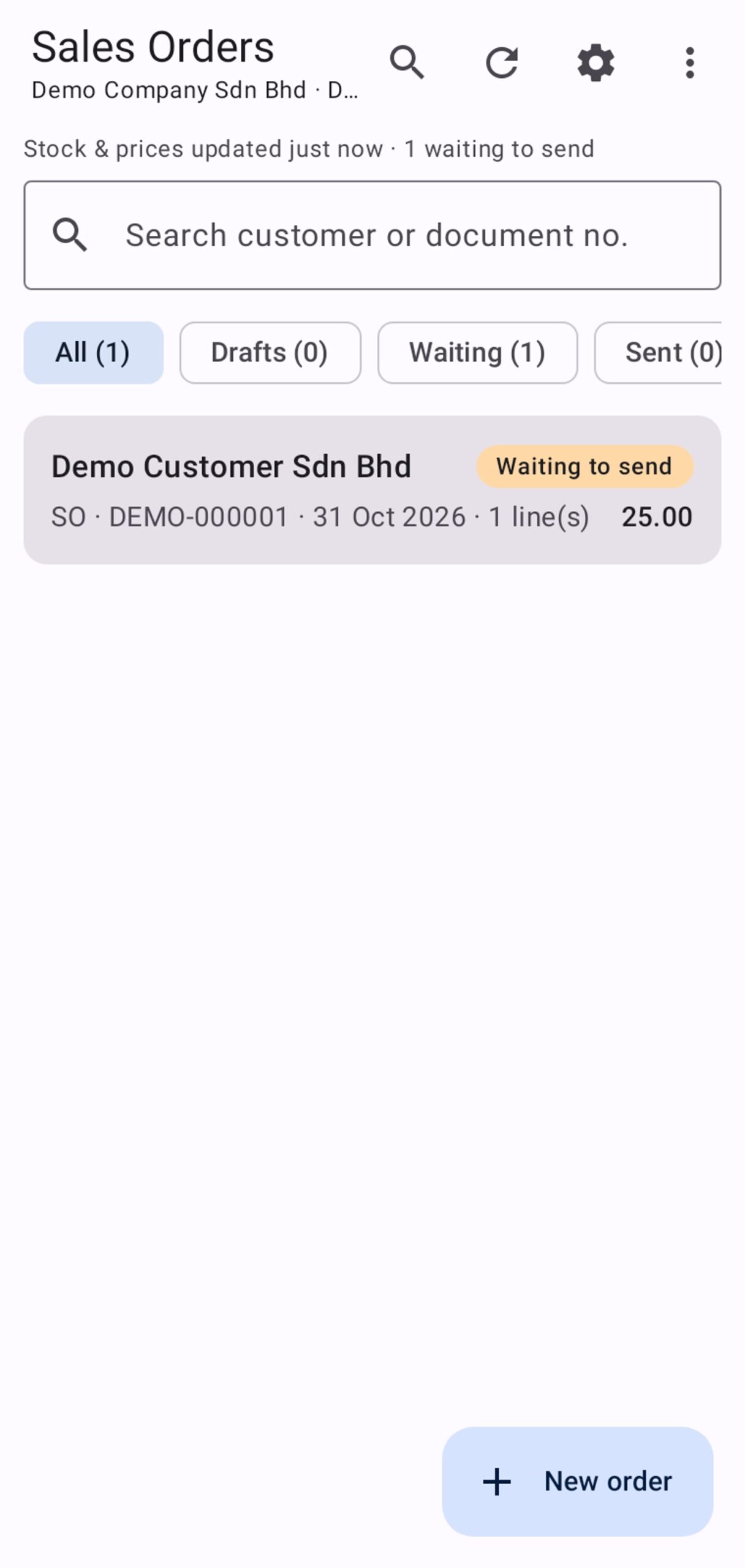
Tap Submit. If something is missing, a red box tells you what to fix. When all is fine the order moves to Waiting and is sent as soon as there is internet. Tap Save draft to finish later.
Tips
- If your customer is new, tap New customer in Choose customer and type at least the name and address. It works offline too, and the office gives it a customer code when it syncs.
- If the office has switched the checks on, Submit warns about not enough stock or a credit limit exceeded. You see Submit anyway? with Submit anyway or Go back.
- Offline, prices come from the customer’s downloaded price group and the line is marked offline price. Prices are before tax.
- Before sending, the order shows a phone number. After it is sent it gets the real Sales Order number.
- To repeat an order, open it, tap the three dots and choose to copy it as a new sales order. To delete a draft, open it, tap the three dots and choose Delete.
Common problems
A red box stops Submit.
Read it and fix what it says, for example choose a customer, add an item, or correct a price below the minimum.
The unit price cannot be changed.
Your login does not have the Change Price right. Ask the office.
I want to change an order that is Waiting.
Open it and tap Change it. It goes back to a draft. Submit again when done.