
One page for the accounts clerk in Acc2026: sales documents, receipts, purchases, payments, e-invoice, corrections, month-end and the ledger.
Before you start
- Your Acc2026 login with the permissions for the screens you use.
- Your customer (debtor) and supplier (creditor) records set up.
- Your bank statement at month-end.
Steps
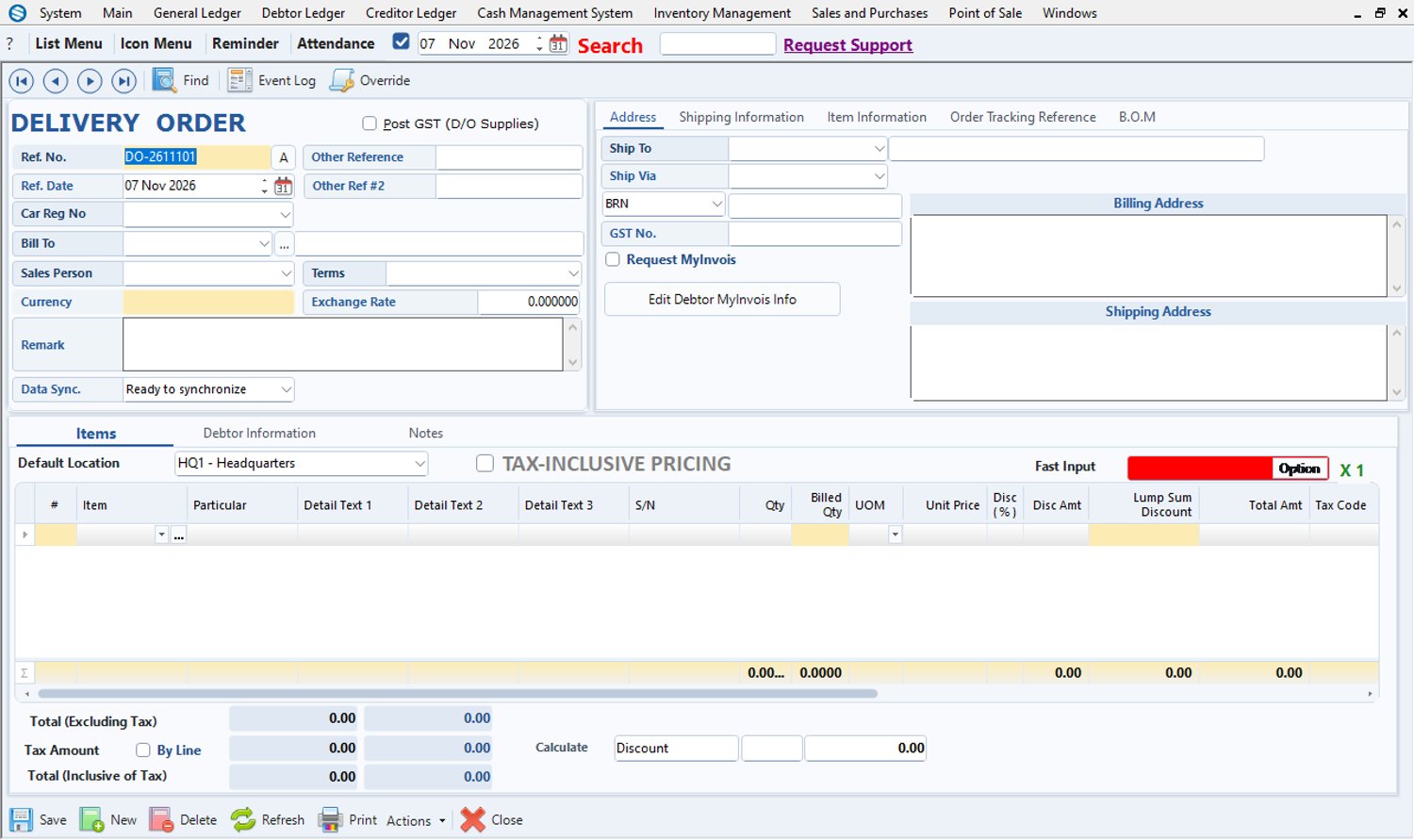
1. Quotation to Delivery Order to Invoice
Prepare the Quotation, record the Sales Order and the Delivery Order, then make one invoice from one or more Delivery Orders. Full guide: Synergy Acc2026 – Sales Documents: From Quotation to Delivery Order to Invoice
2. Receive a customer’s payment
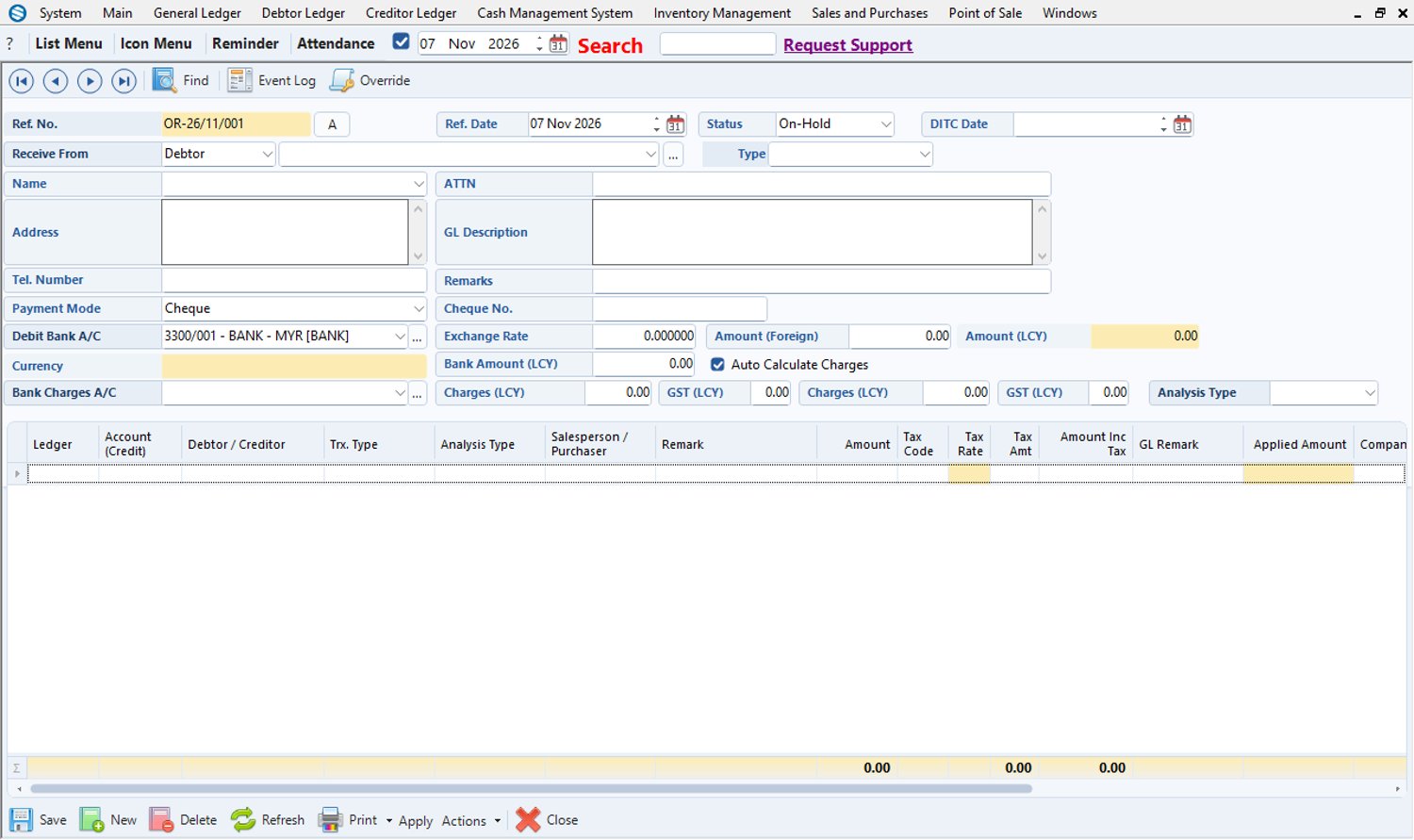
Open Bank Receipt, choose the debtor, the bank and payment mode, enter the amount, apply the receipt to the invoice and Save. The rest of the invoice stays outstanding. Full guide: Synergy Acc2026 – Receiving a Customer’s Payment
3. Credit notes and debit notes
Posting a credit note does not clear an invoice by itself: you also need Apply Open Credit. A debit note records a supplier’s price increase. Full guide: Synergy Acc2026 – Credit Notes and Debit Notes
4. Purchase invoices
Add the supplier, record a stock purchase in Invoice Received or an expense bill, and correct or import purchase bills. Full guide: Synergy Acc2026 – Purchase Invoices (Invoice Received)
5. Pay suppliers
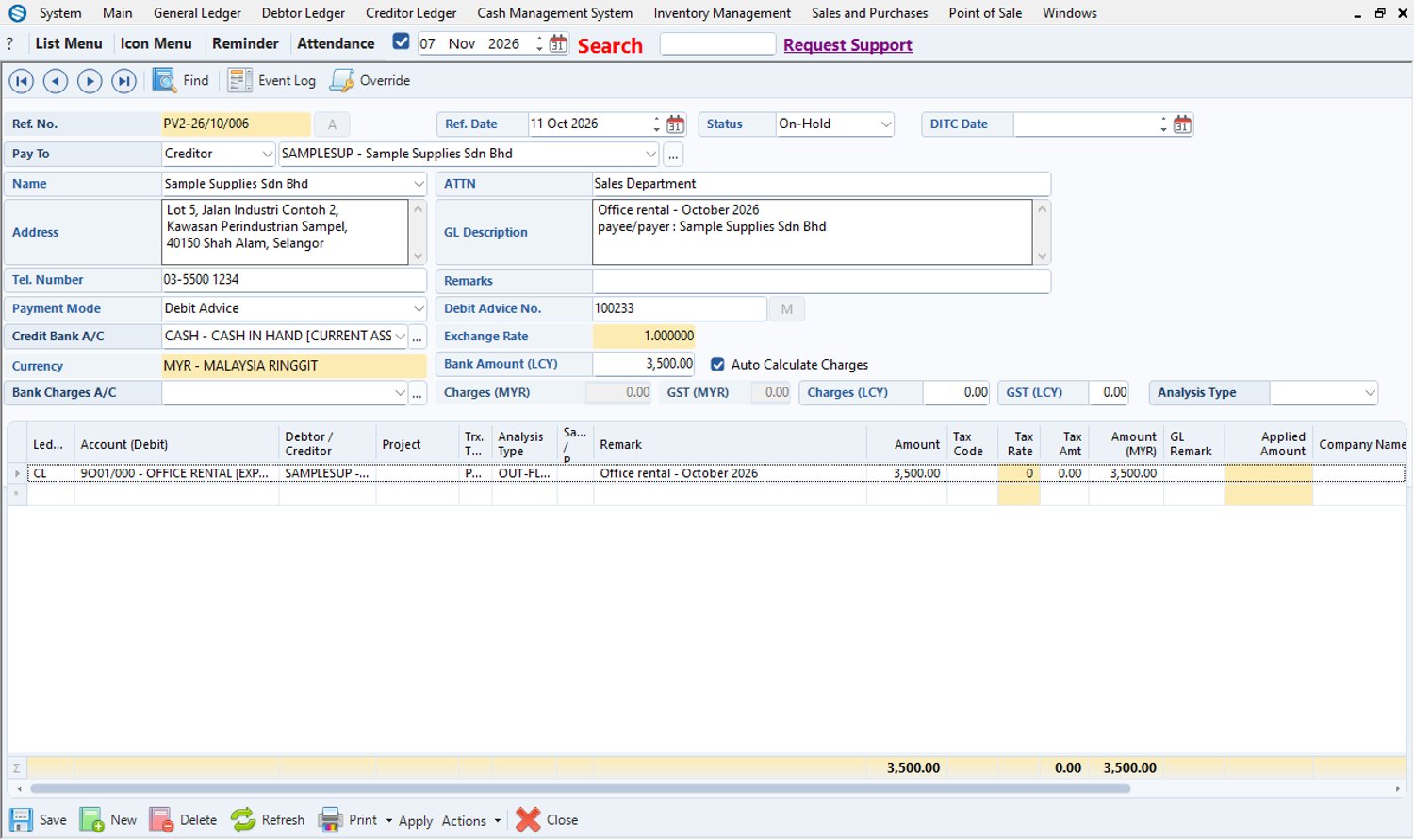
Open Bank Payment, choose who you are paying, pick the bank account, enter the amount and Payment Mode, apply the invoice and save. You can print one payment order that lists all invoices. Full guide: Synergy Acc2026 – Paying Suppliers and Printing a Payment Order
6. Petty cash and bank
Key in petty cash out, money paid out of or received through the bank, and clear the POSCC takings when they reach your bank. Full guide: Synergy Acc2026 – Petty Cash, Bank Payments and Money Received
7. E-invoice
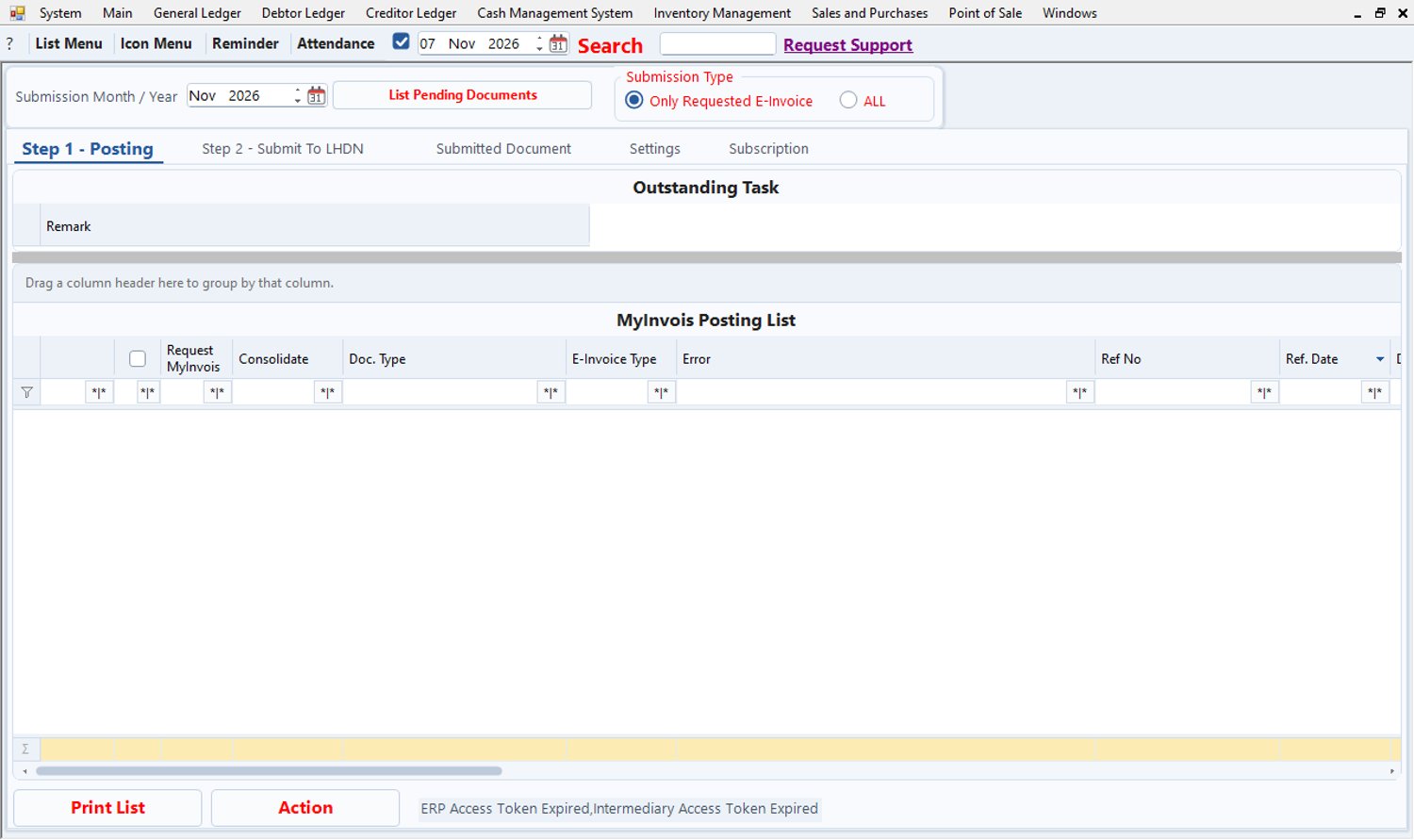
Post your sales invoices first. In Step 1 – Posting list and post the documents, then in Step 2 – Submit To LHDN submit them and check they are Valid. The monthly consolidated e-invoice is done in the first 7 days of the month after the sales. Full guides: Synergy Acc2026 – Submitting E-Invoices (Step 1 and Step 2); Synergy Acc2026 – Monthly Consolidated E-Invoice
8. Correct a posted or e-invoiced document
A posted or paid document cannot be edited directly: reverse the apply and the posting first, correct it and post again. A submitted e-invoice can be cancelled within 72 hours; after that make a Credit/Refund Note. Full guides: Synergy Acc2026 – Unposting and Correcting Posted Documents; Synergy Acc2026 – Changing or Cancelling an E-Invoice
9. Bank reconciliation and month-end
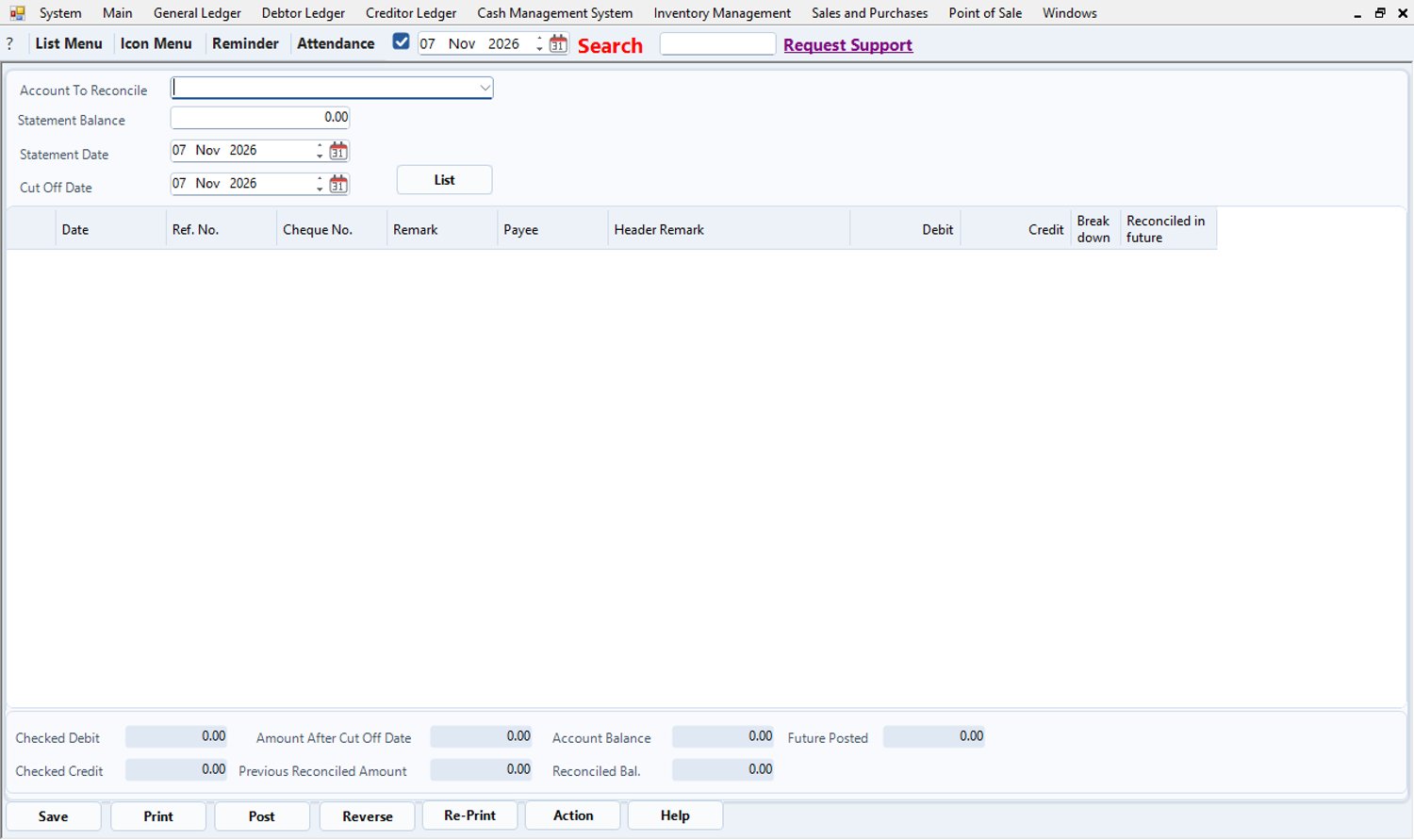
Reconcile each bank account against the statement and post it, then work down the Month-End Checklist. Full guides: Synergy Acc2026 – Bank Reconciliation and Why You Cannot Post; Synergy Acc2026 – Month-End Checklist
10. Journals and financial reports
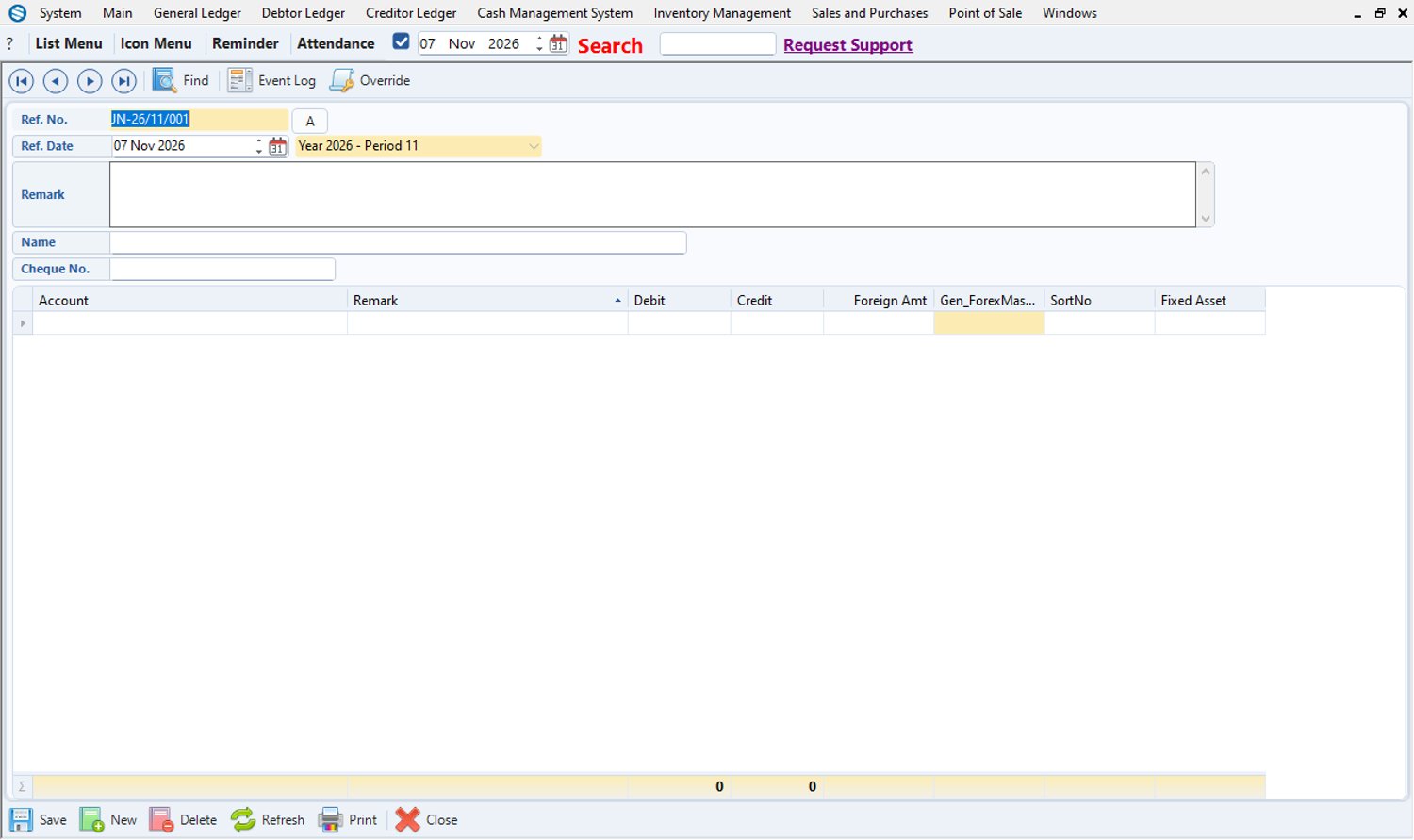
Enter a general ledger journal where total debit equals total credit, then check the P&L, the Balance Sheet and the Trial Balance. Full guides: Synergy Acc2026 – Journals and Accounting Adjustments; Synergy Acc2026 – P&L, Balance Sheet and Trial Balance: Finding Them and Checking Them
Tips
- Post your sales invoices first: an unposted invoice stays out of the e-invoice lists.
- Use the main PC to submit e-invoices.
- A lock date stops anyone from adding or changing transactions on or before that date.
Common problems
A credit note did not clear the invoice.
Run Apply Open Credit: tick the credit note and the invoice, then apply.
Posting the bank reconciliation is refused.
The Reconciled Bal. must equal the Statement Balance.
A message says transactions are locked.
Check the lock date in General Ledger > Settings > System Settings > Integration tab, Lock Transaction group.
An e-invoice shows Invalid or Rejected.
Read the exact error message, then go through the checks in Synergy Acc2026 – E-Invoice Rejected or Invalid: What to Check.