
One page for the daily till work in the Synergy Order App and the Acc2026 point of sale: open the shift, sell, take payment, handle voids and returns, and close the shift.
Before you start
- Know whether you sell on the Order App (phone or tablet) or at the Acc2026 POS counter.
- Have your float (the opening cash) ready.
- Have your own PIN if your shop uses Staff PIN sign-in.
Steps
1. Open your shift
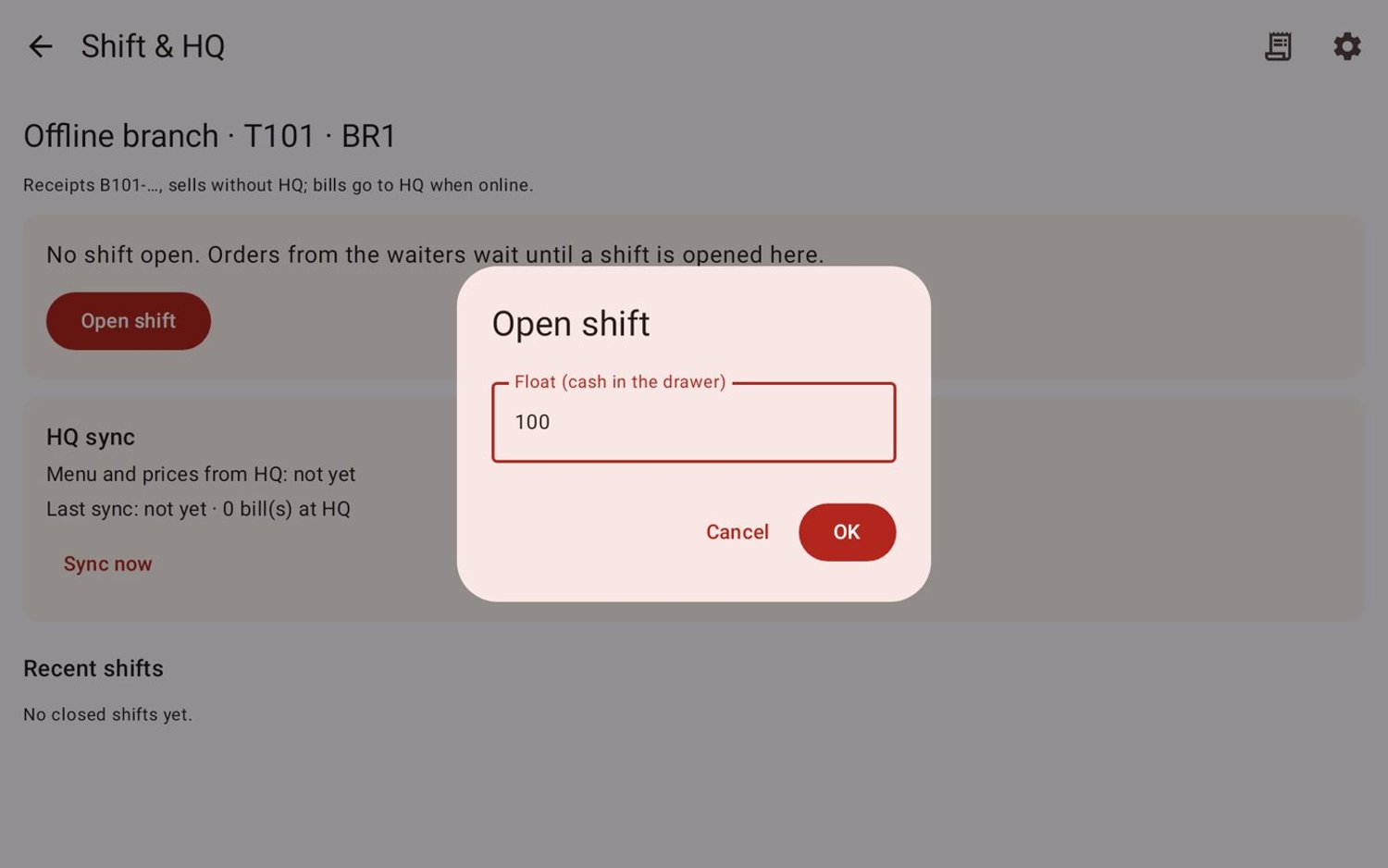
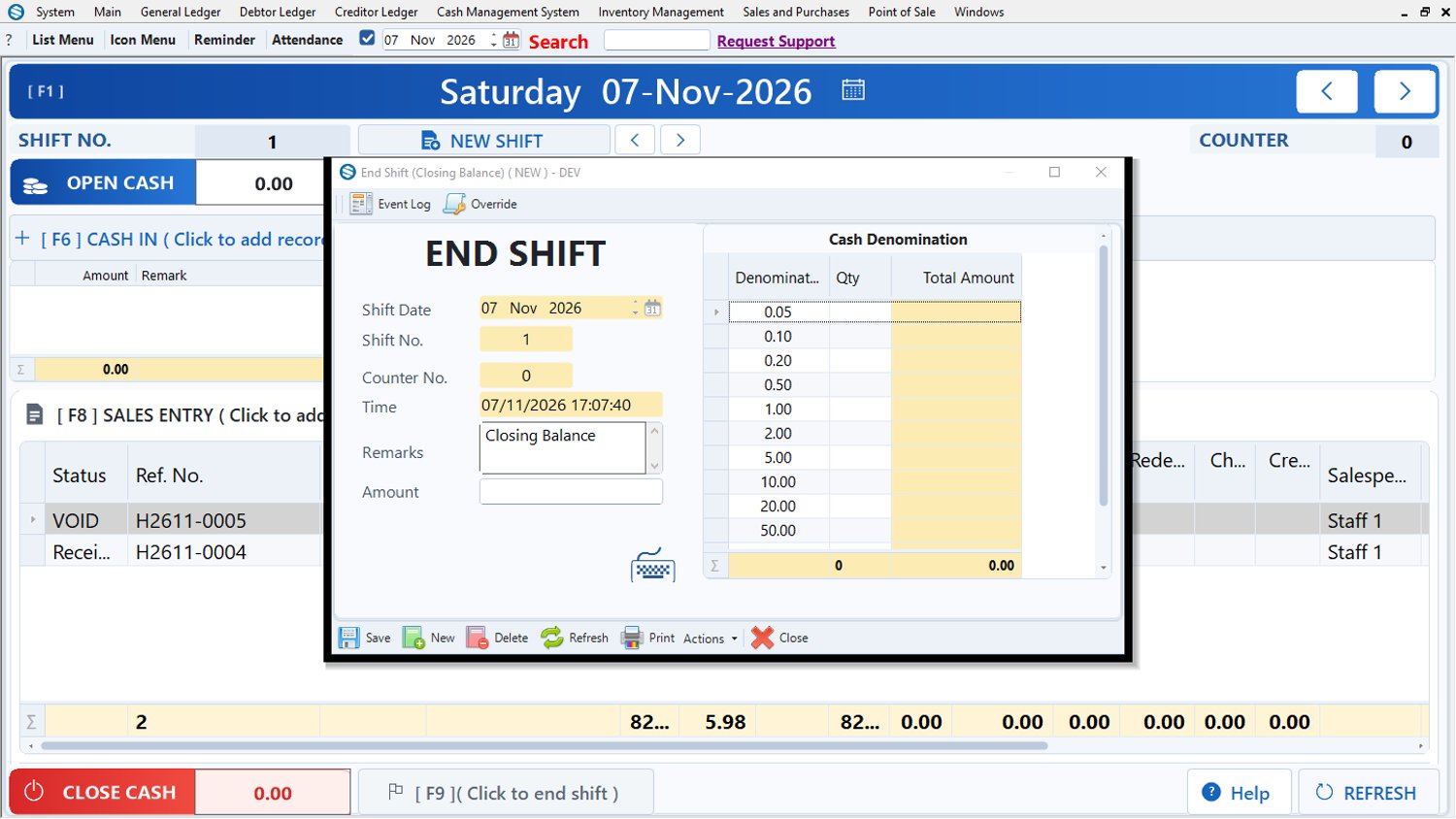
Order App on a branch phone: tap the red message, tap Open shift, type the float and tap OK. Acc2026 POS: click (Click to start shift) under OPEN CASH and enter the opening cash. Open a shift before you take payment. Full guides: Synergy Order App – Shifts and Counting the Cash; Synergy Acc2026 – POS Shifts, Cash In and Out, and Correcting a Sale’s Shift
2. Take a table order (Order App)
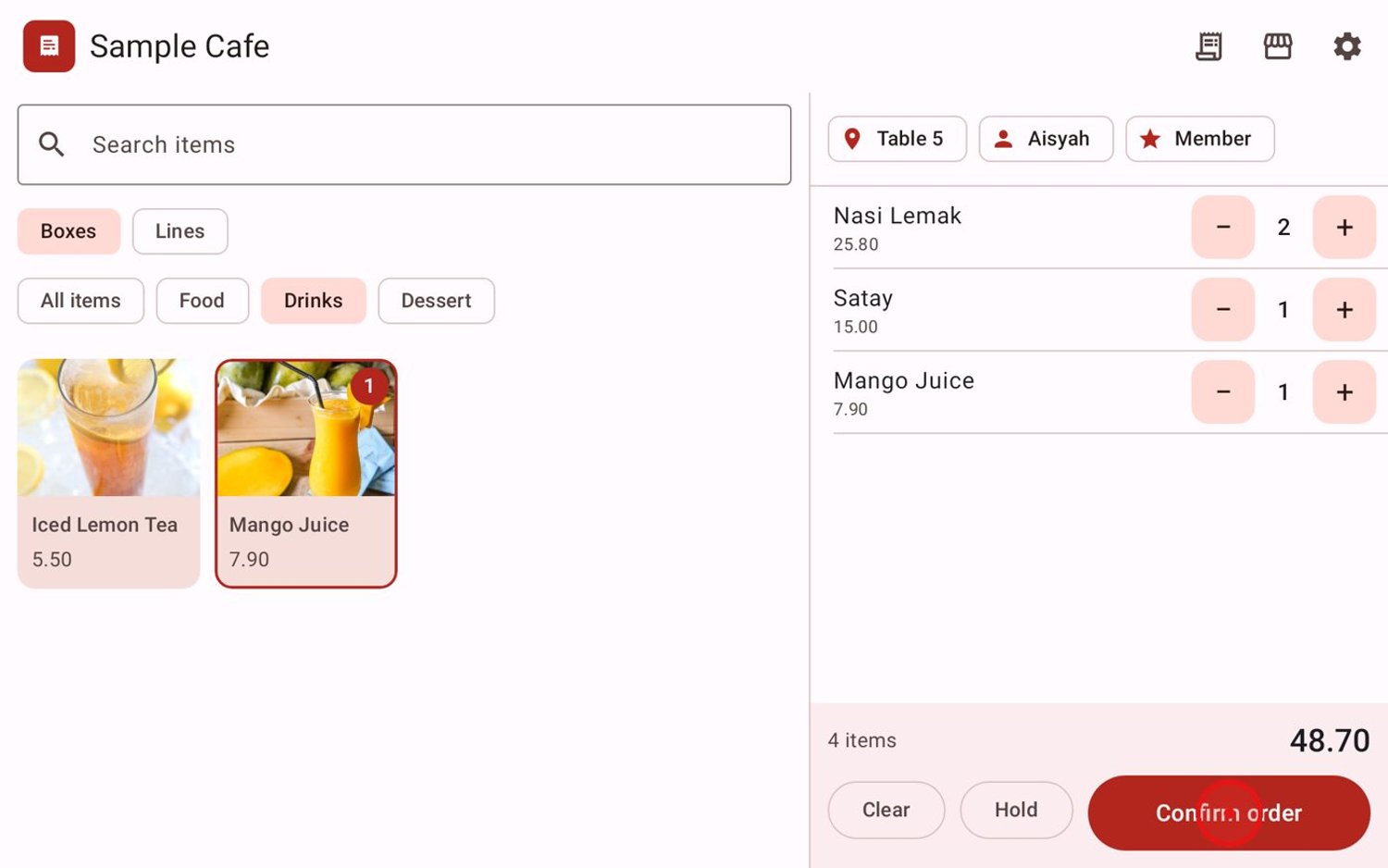
Tap Choose table and the guests’ table, tap Salesperson and your name, tap the dishes, then tap Confirm order and Confirm. The order is sent to the kitchen. Full guide: Synergy Order App – Taking an Order in a Restaurant
3. Scan a sale (Order App retail)
Scan each item with a scanner or the camera. Tap the number next to an item to change its quantity, then tap Pay. Full guide: Synergy Order App – Retail Till: Scan, Pay, Receipt
4. Ring up a cash sale (Acc2026 POS)
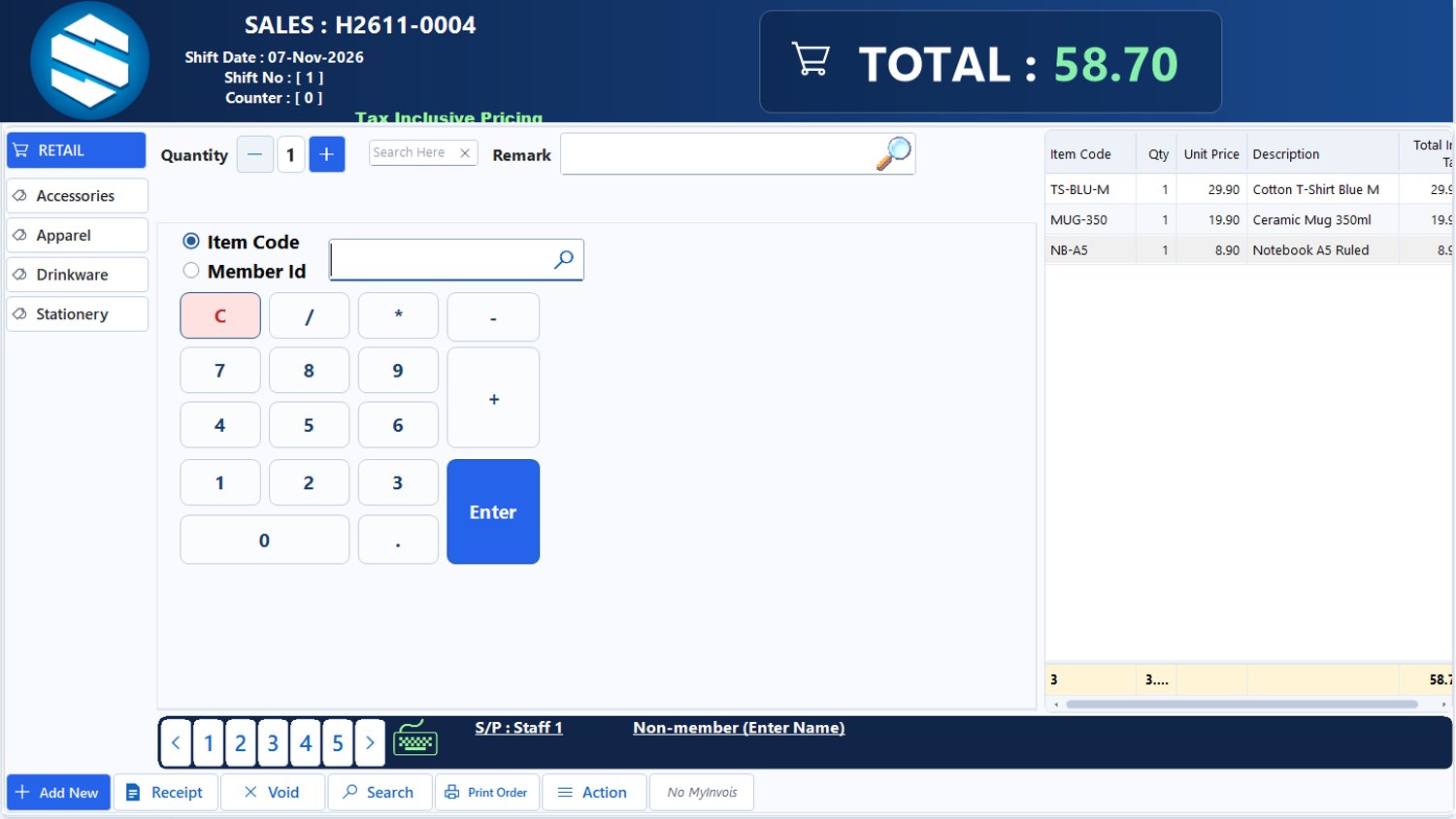
Start a new sale, add the items, choose the member and salesperson, take payment and print the receipt. Full guide: Synergy Acc2026 – Point of Sale: Making a Cash Sale
5. Take payment
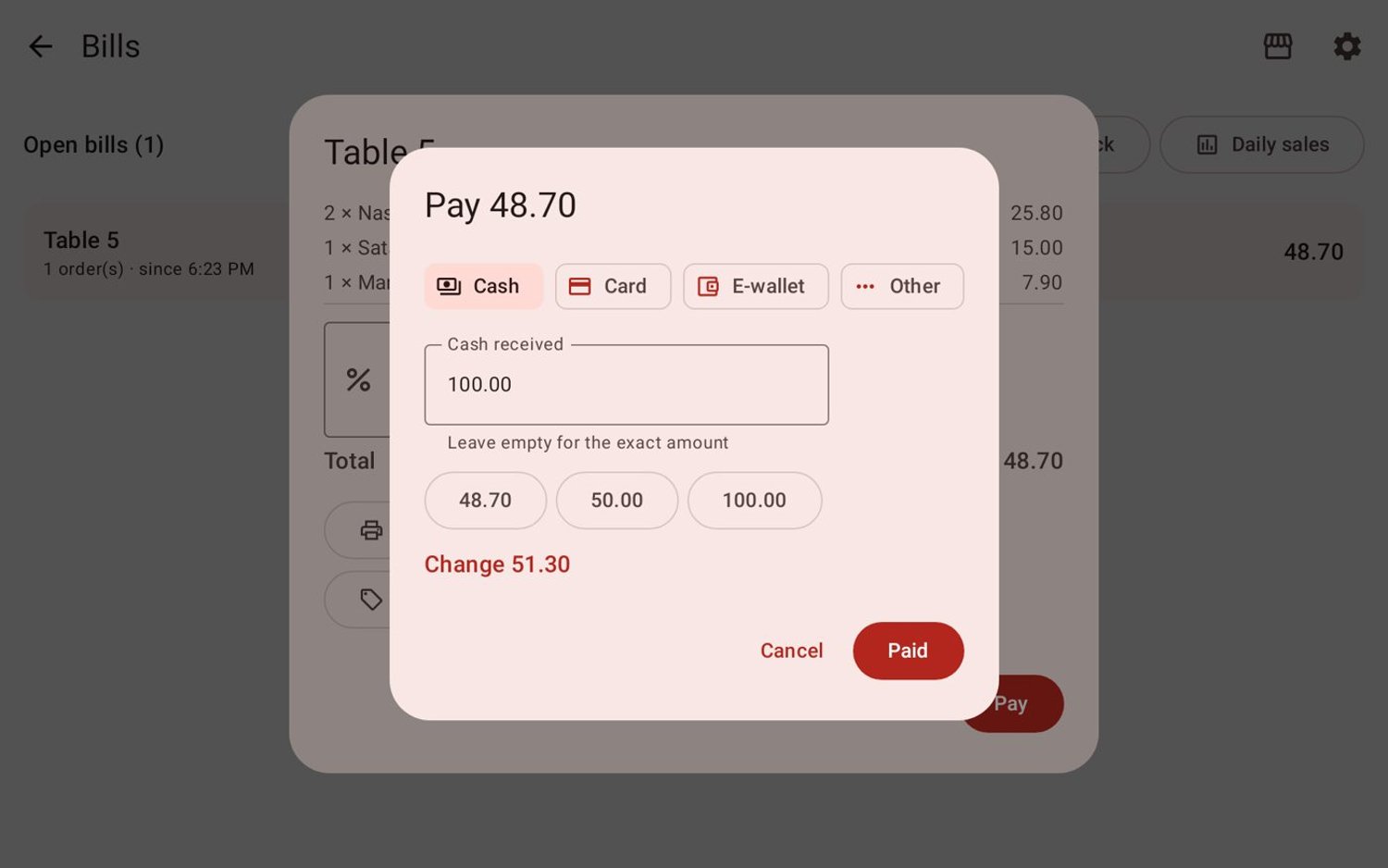
Order App: tap the receipt icon (Bills), tap the bill, tap Pay, choose the payment type, type the cash received or tap an amount, then tap Paid. At the Acc2026 POS, pick the QR payment type on the payment screen when the customer pays by QR. Full guides: Synergy Order App – Taking Payment; Synergy Acc2026 POS – Payment Types, QR and E-Wallet
6. Split, merge or void a bill
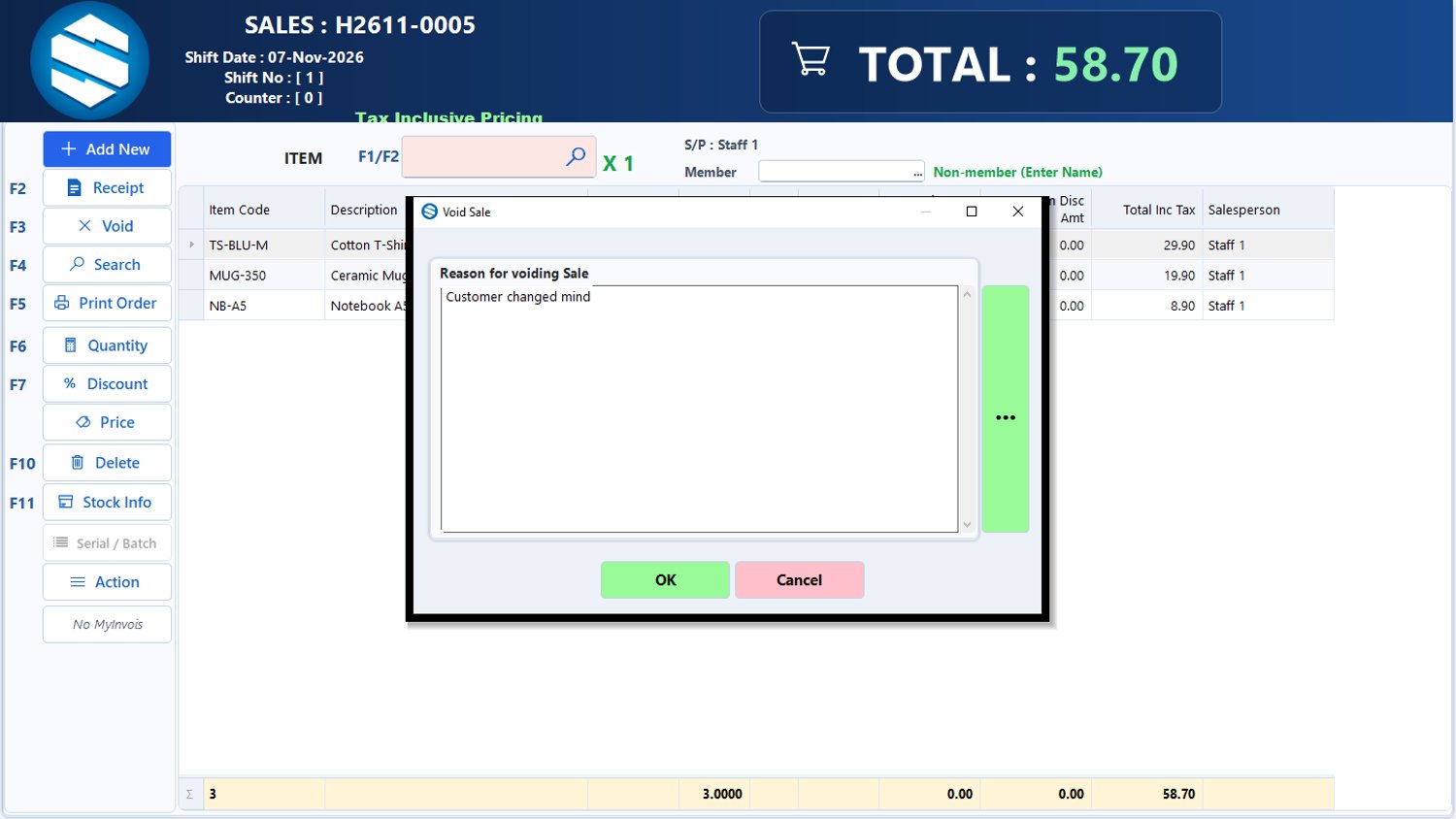
Order App: open the bill, tap Split bill, tick what moves and tap Move to; use Merge bills to put bills back together. Acc2026 POS: use Split Bills on the open sale, and type a reason when you void a sale. Full guides: Synergy Order App – Splitting and Merging Bills; Synergy Acc2026 – POS Void Sale, Split Bills and Discounts
7. Handle a return
Do not void the old sale. At the Acc2026 POS issue a Refund Note with today’s date and pick the original invoice number and date. For an exchange, refund the returned item first, then ring up the new item. Full guide: Synergy Acc2026 POS – Returns, Voids and Corrections
8. Cash in, cash out and close the shift
Order App: tap Cash in or Cash out, then type the amount and a remark. At the end of the day tap Close shift and type the cash you counted; pay or void open bills first. Acc2026 POS: use CASH IN and CASH OUT, and click (Click to end shift) under CLOSE CASH. Full guides: Synergy Order App – Shifts and Counting the Cash; Synergy Acc2026 – POS Shifts, Cash In and Out, and Correcting a Sale’s Shift
Tips
- Expected cash = float + cash in – cash out + cash sales.
- A branch phone can take payment only while its own shift is open.
- Voiding a sale at the Acc2026 POS needs a reason.
Common problems
The Order App phone will not take payment.
Tap the red message, then tap Open shift and type the float.
Please start a shift first. appears at the POS.
Click (Click to start shift) before taking sales.
I cannot find Merge bills.
Merge bills is on the main device of a network and shows when two or more bills are open.
Please state a reason for voiding this sale. appears.
Type a reason in the box and click OK again.