
One page of daily and weekly checks for the owner: sales, cash, stock, money owed, backups and who may do what.
Before you start
- Your Back Office PIN (4 to 8 digits) for the Order App.
- Your Acc2026 user ID and password.
- A few minutes at the end of each day.
Steps
1. Daily: today’s sales (Order App)
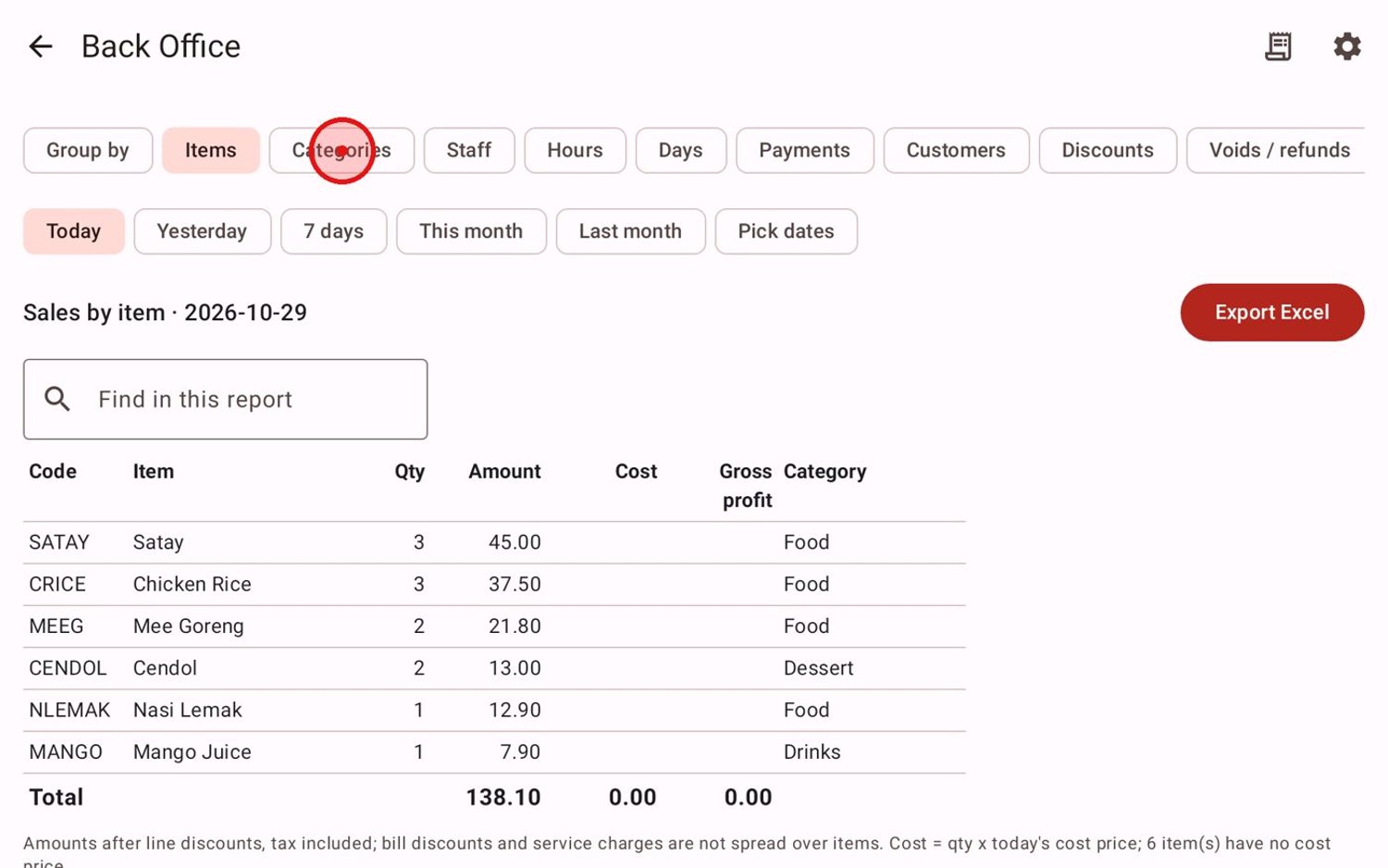
Tap the receipt icon, then Daily sales to see today’s total. In Back Office open Reports to see sales by item, category or hour, and tap Export Excel to save a report. Full guide: Synergy Order App – Reports in Back Office
2. Daily: POS sales and takings (Acc2026)
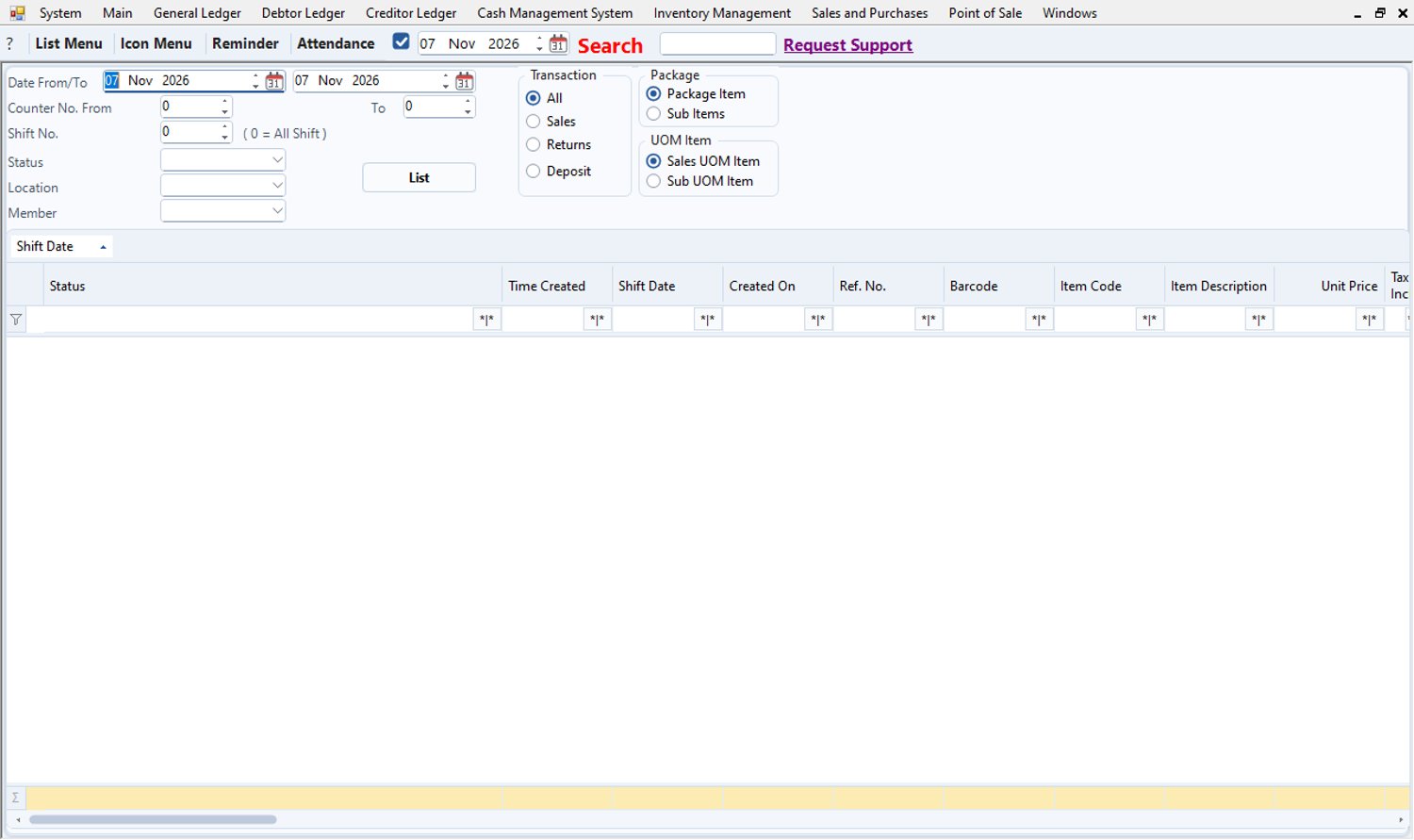
POS sales do not show in the Sales Invoice list. Use Point of Sale > Query > Daily Sales (Summary), Point of Sale > Reports > Collection By Payment for totals by payment type, and Point of Sale > Reports > Cash In/Out Report. Full guide: Synergy Acc2026 – POS Daily Sales, Cash In/Out and Collection Reports
3. Weekly: pick the right report
Many reports have similar names. Look up which one to open for member purchases, sales totals, ranked items, or stock in and out. Full guide: Synergy Acc2026 – Which Report Shows What
4. Daily: check the cash
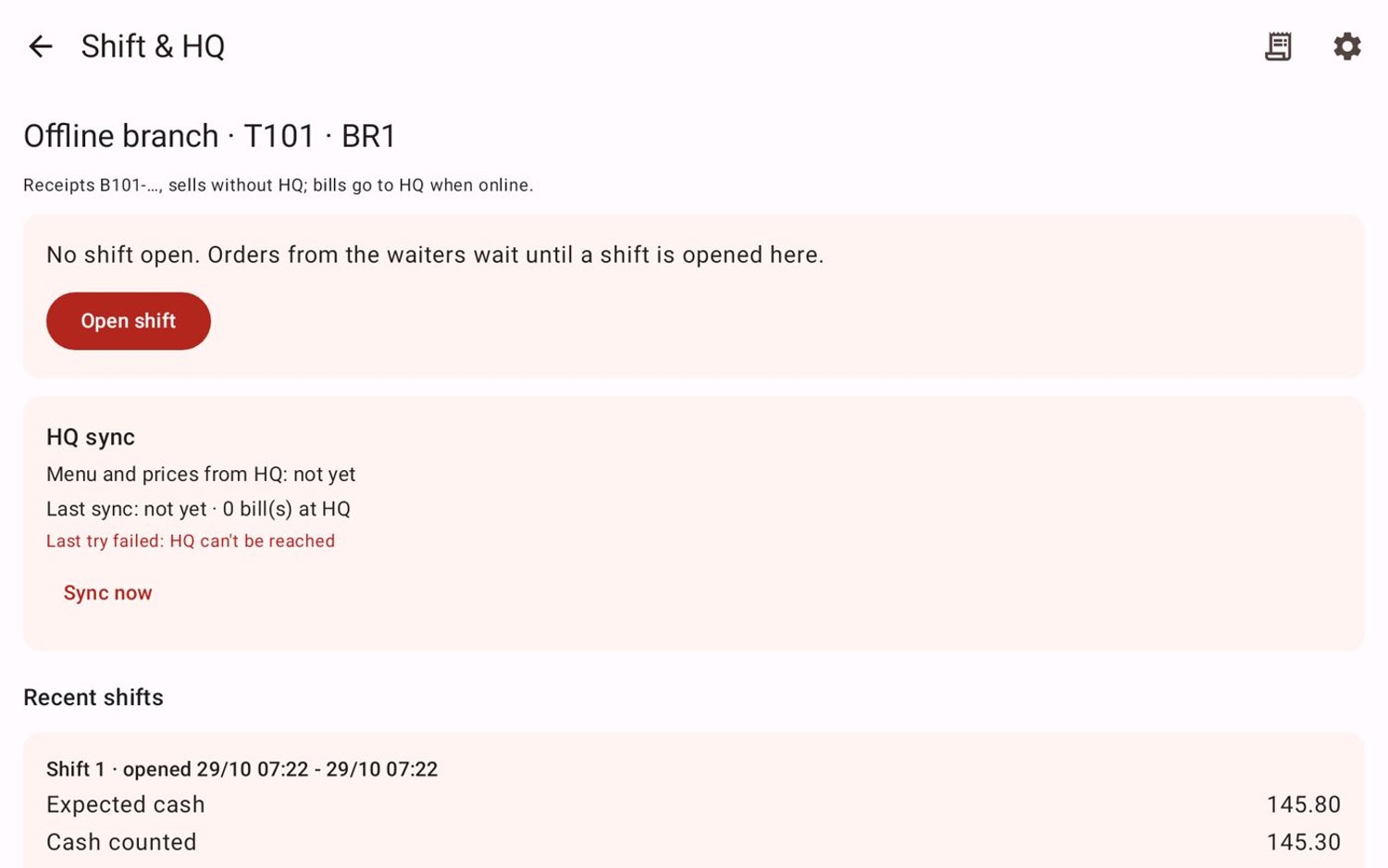
When a shift is closed the Order App shows the cash counted, the expected cash and the difference. Closed shifts are listed under Recent shifts. Full guide: Synergy Order App – Shifts and Counting the Cash
5. Weekly: check stock
In the Order App open the Stock screen to see what is low or out. In Acc2026 use Inventory > Stock Balance Listing for quantities and Stock Value Listing for value, and run Inventory Cost Posting first so costs are correct. Full guides: Synergy Order App – Keeping Track of Stock; Synergy Acc2026 – Stock Balance, Stock Value, Movement and Cost
6. Weekly: see who owes you
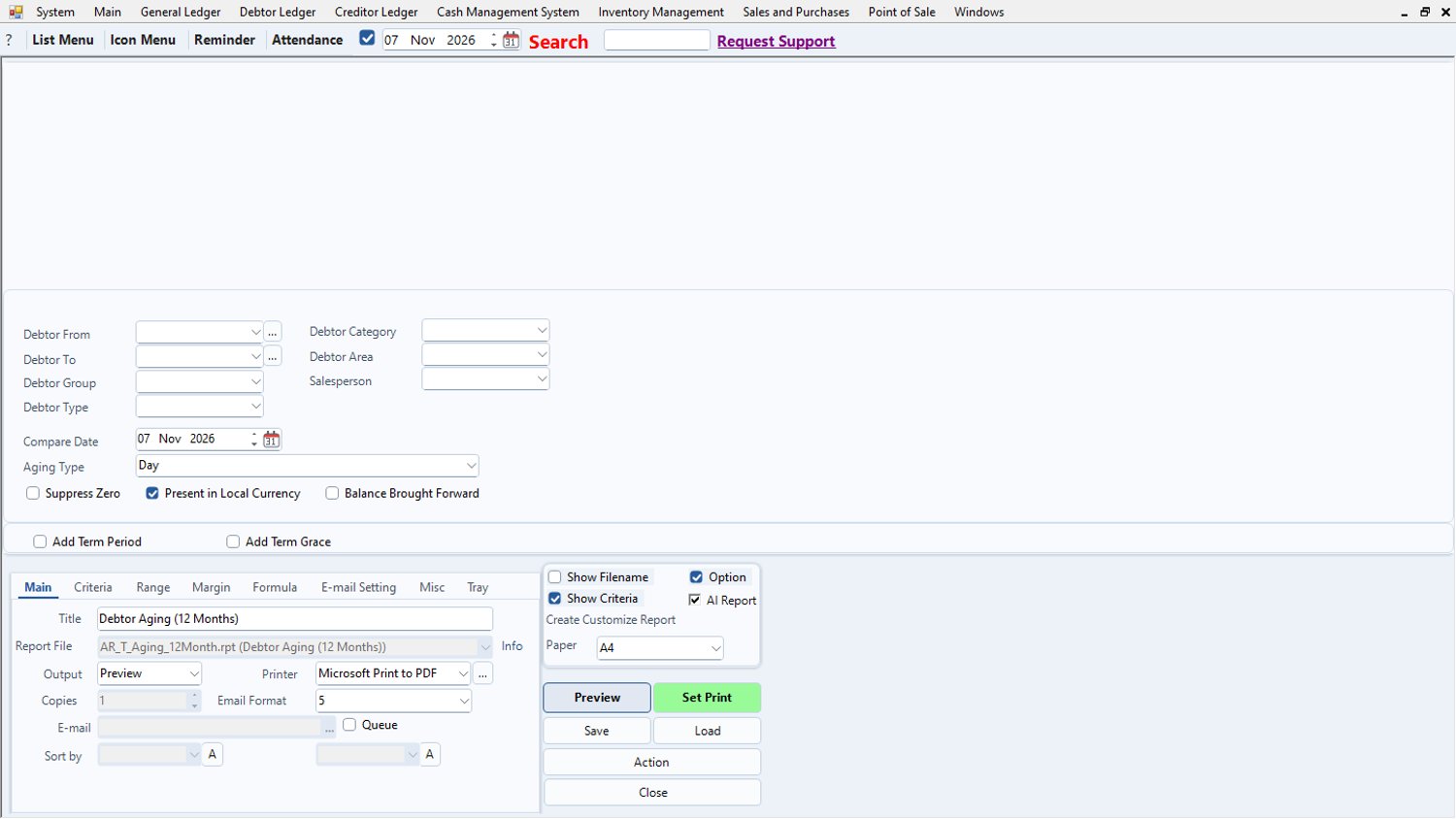
Run the debtor aging at Account > Debtor Ledger > Report > Aging for the date you choose, and list invoices that are due with Due Invoice Query. Full guide: Synergy Acc2026 – Debtor Aging and Credit Control
7. Monthly: Profit and Loss and Balance Sheet
Open the P&L at Accounts > General Ledger > Reports > Financial > P&L Accounts, and the Balance Sheet in the same Financial reports. Closing stock shows only if it is keyed in. Full guide: Synergy Acc2026 – P&L, Balance Sheet and Trial Balance: Finding Them and Checking Them
8. Weekly: check your backups
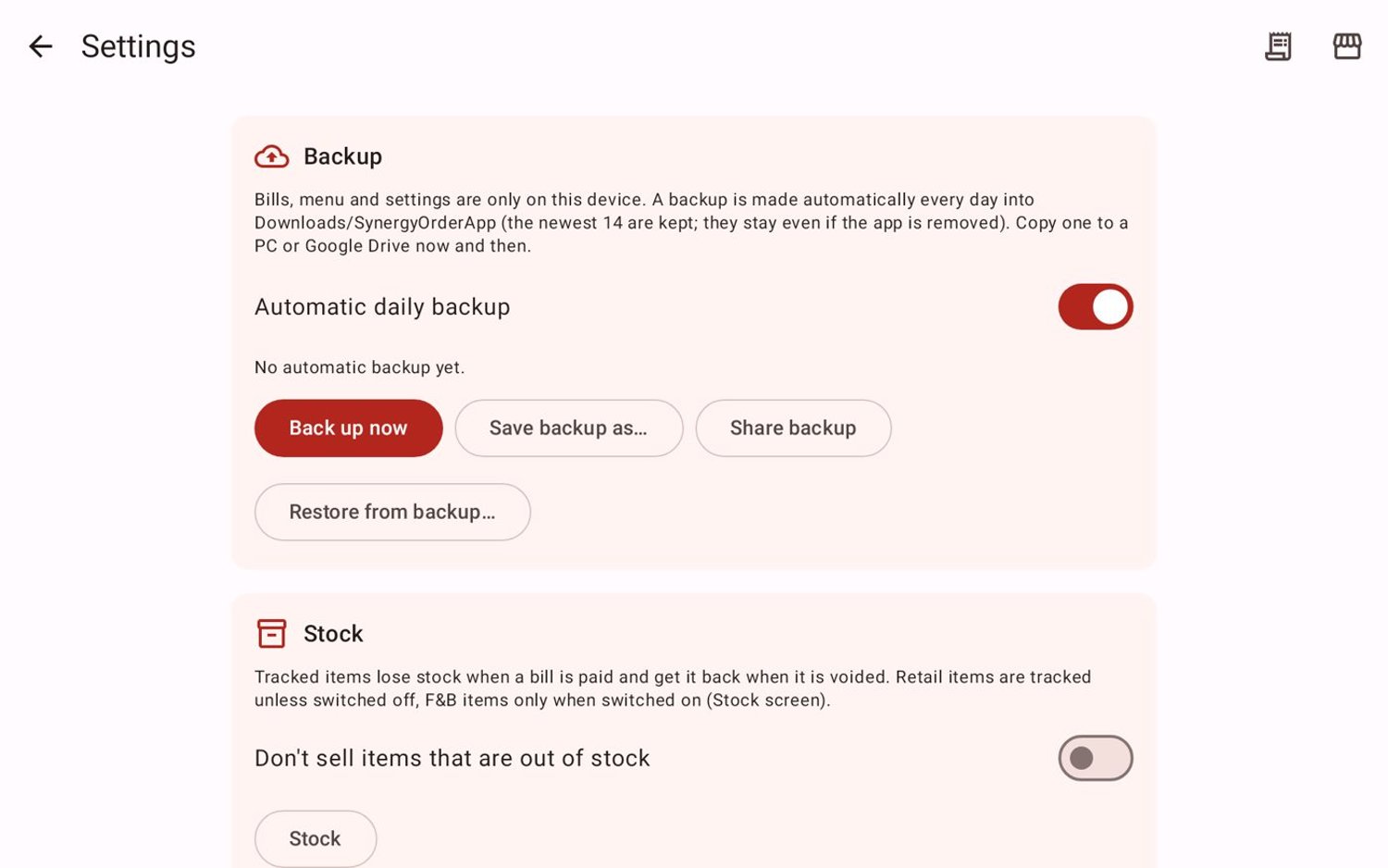
The Order App backs up every day automatically; tap Back up now in Settings to make one right away. In Acc2026 open the SynSoft folder, then Autobackup: the newest file should be recent. Keep a copy on a pendrive or external disk. Full guides: Synergy Order App – Backing Up Your Sales and Settings; Synergy Acc2026 – Backing Up Your Data
9. Set who can do what
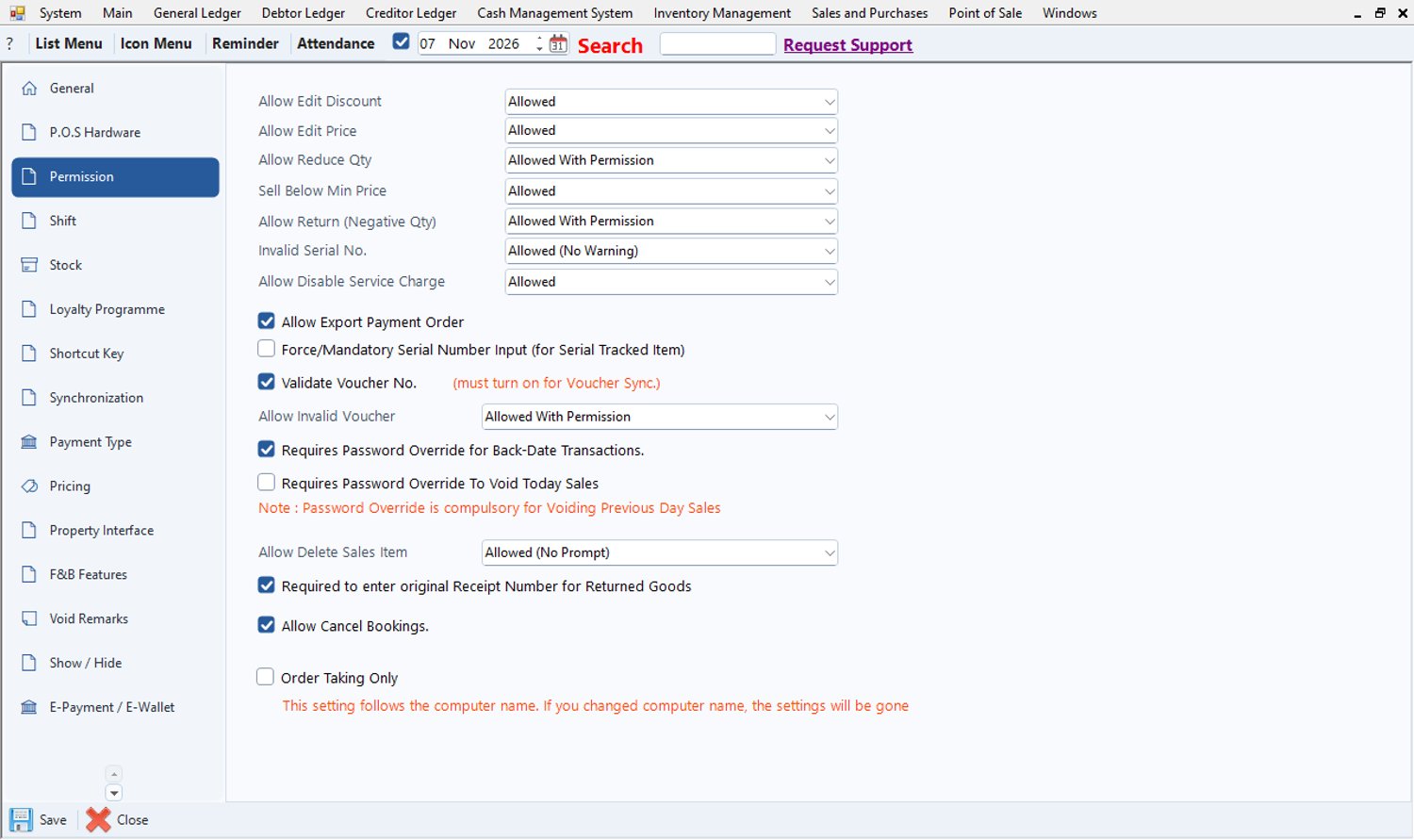
Give each staff member their own PIN and a role (Cashier, Supervisor or Manager) in Back Office. In Acc2026 create permission groups under Main > Application Security > Role, and set what cashiers may do in Point of Sale Settings > Permission. Full guides: Synergy Acc2026 – Permission Groups and User Rights; Synergy Order App – Staff PIN Sign-in
10. Month-end
Work through the checklist: e-invoices, bank reconciliation, stock take, debtor aging and backup. Full guide: Synergy Acc2026 – Month-End Checklist
Tips
- Back Office closes itself after 5 minutes without a touch.
- Order App backups are kept in Downloads/SynergyOrderApp (the newest 14); copy one to a PC or Google Drive now and then.
- If a sales total looks low, check for days with no sales and for voided or pending transactions, which are not counted.
Common problems
The POS report shows no rows.
Only today is included by default. Widen Date From/To and check Shift No. (0 for all), Counter No. and Status.
There is no recent file in the Autobackup folder.
The automatic backup may not have run, often because the disk is full. Delete old files in the Autobackup folder.
Cost or margin looks wrong, or costs show in red.
Run Inventory Cost Posting, then open the report again.
Nobody remembers the Back Office PIN.
Synergy support can help you set a new one: see Synergy Order App – Forgot the Back Office PIN.