
One page for the stock keeper: receive, issue, transfer, count and check stock, with serial numbers, batches and bins.
Before you start
- Your login for Synergy Web Access or Acc2026, with the right to use the stock pages you need.
- The location you are working in.
- Your counted quantities, if you are doing a stock take.
Steps
1. Receive goods
On the web purchase pages follow a purchase from the order to Goods Received and the supplier’s invoice. In the Order App open the Stock screen and receive stock for an item that has Track stock switched on. Full guides: Synergy Web – Purchase Orders, Goods Received and Invoices Received; Synergy Order App – Keeping Track of Stock
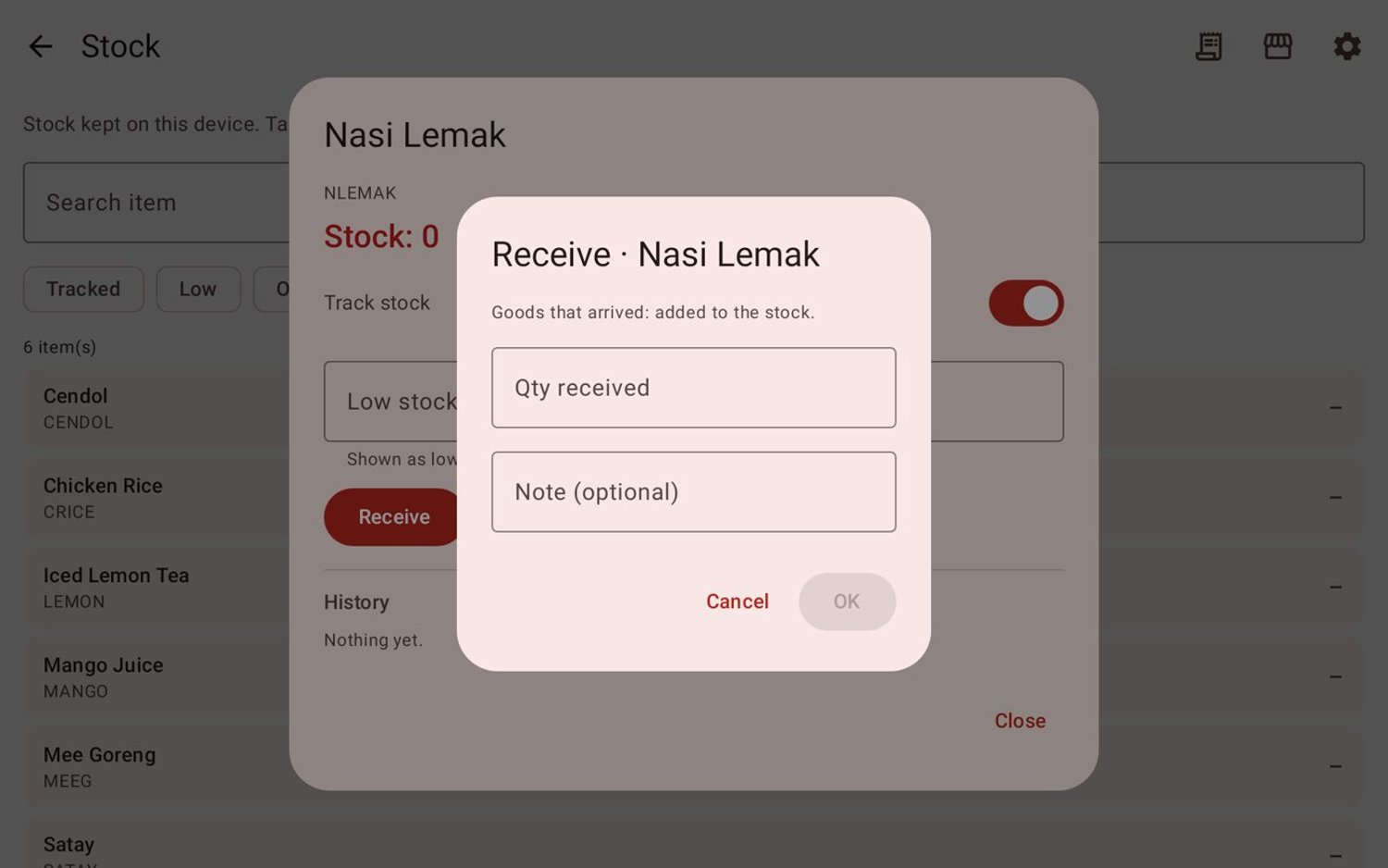
2. Stock-in, stock-out and adjustments
Stock-In receives stock into a location, Stock-Out issues it, and Stock Adjustment does both on one document. Scan or type the items, enter the quantities and save. Full guide: Synergy Web – Stock-In, Stock-Out and Stock Adjustment
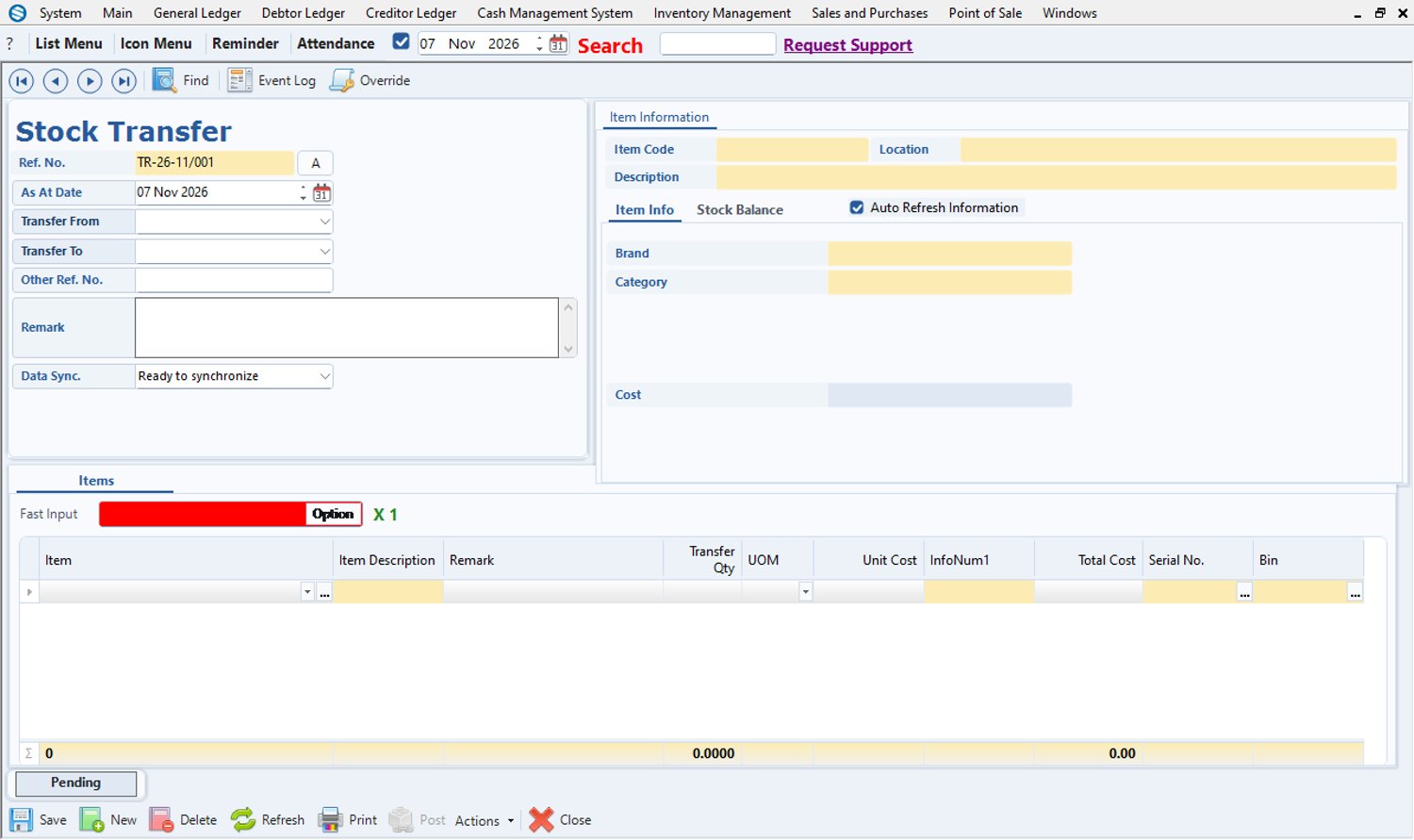
3. Transfer stock
Scan or type the items, save the transfer as pending and post it when the goods have moved. Between head office and a branch, do the transfer at HQ, then Upload at HQ and Download at the branch. Full guides: Synergy Web – Stock Transfer Between Locations; Synergy Acc2026 – Moving Stock Between Branch and Head Office
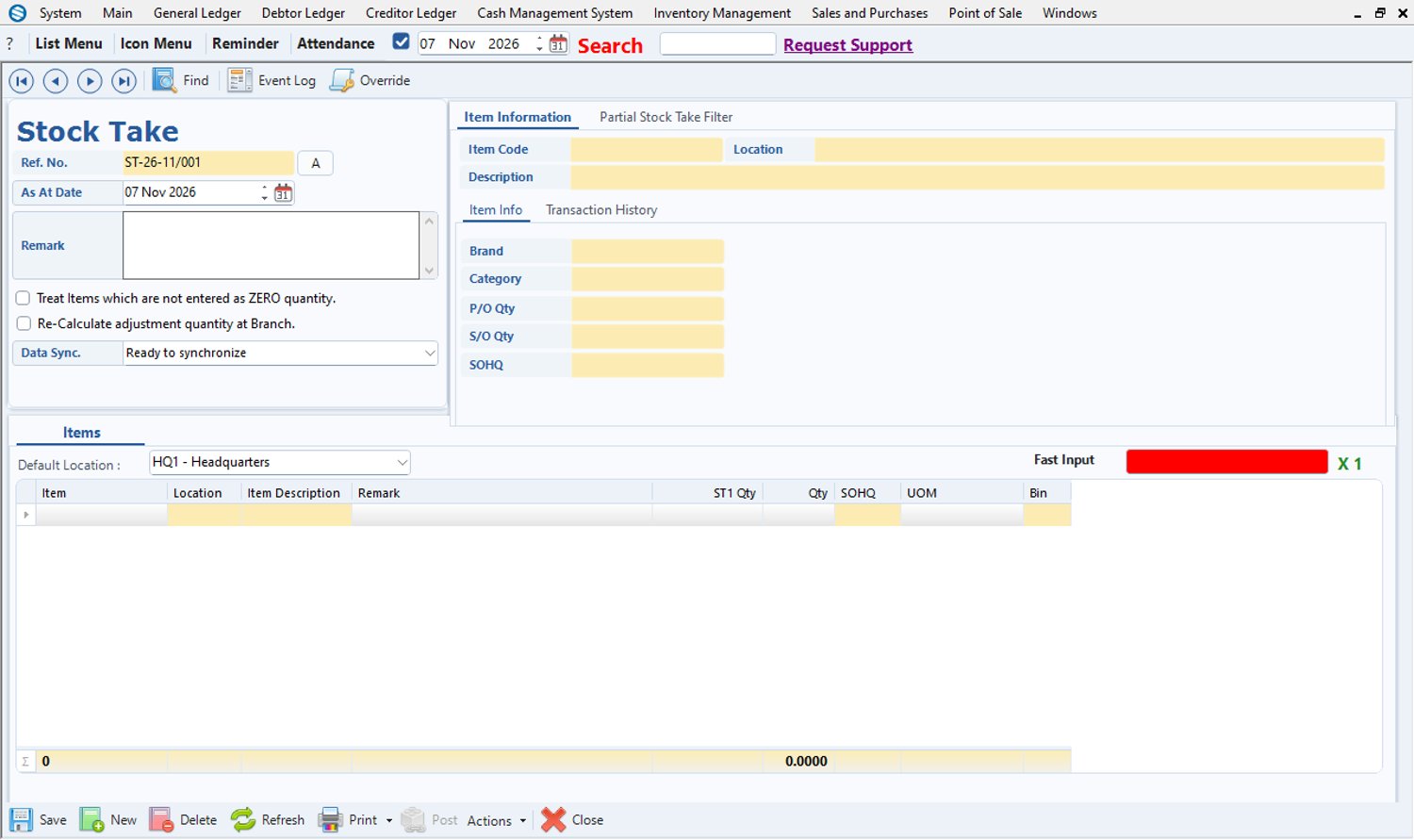
4. Stock take at the desk
Open Stock Take, set the location, enter the counted items, check the comparison report and post. Posting adjusts the system quantity to match your count. The web Stock Take page shows the variance and posts one stock adjustment. Full guides: Synergy Acc2026 – Stock Take Step by Step; Synergy Web – Counting Stock with Stock Take
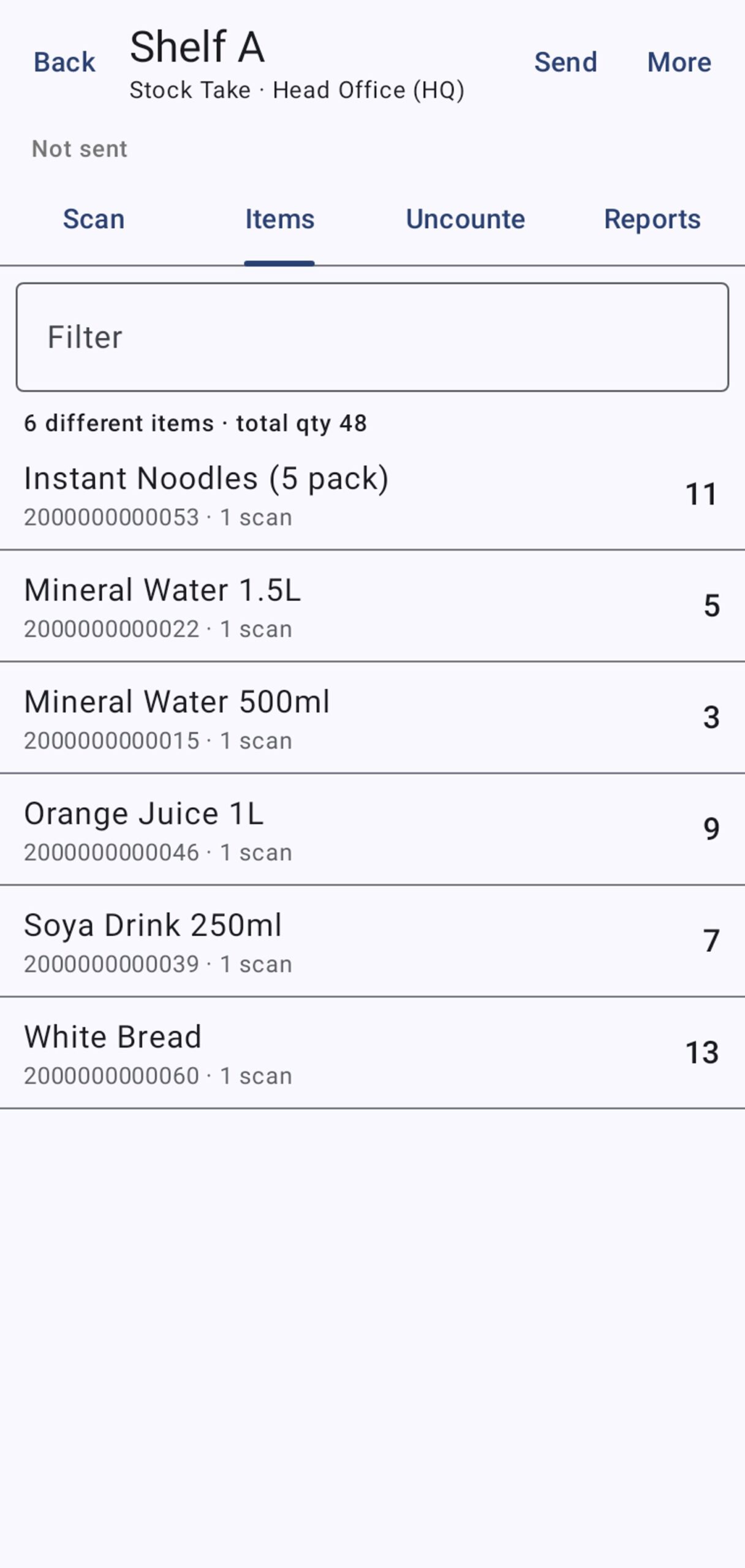
5. Count with a phone
Start a count in StockTake, scan the barcodes, check what is left to count and then send or export the result. Full guide: Synergy StockTake – Counting Stock and Sending the Count
6. Check stock
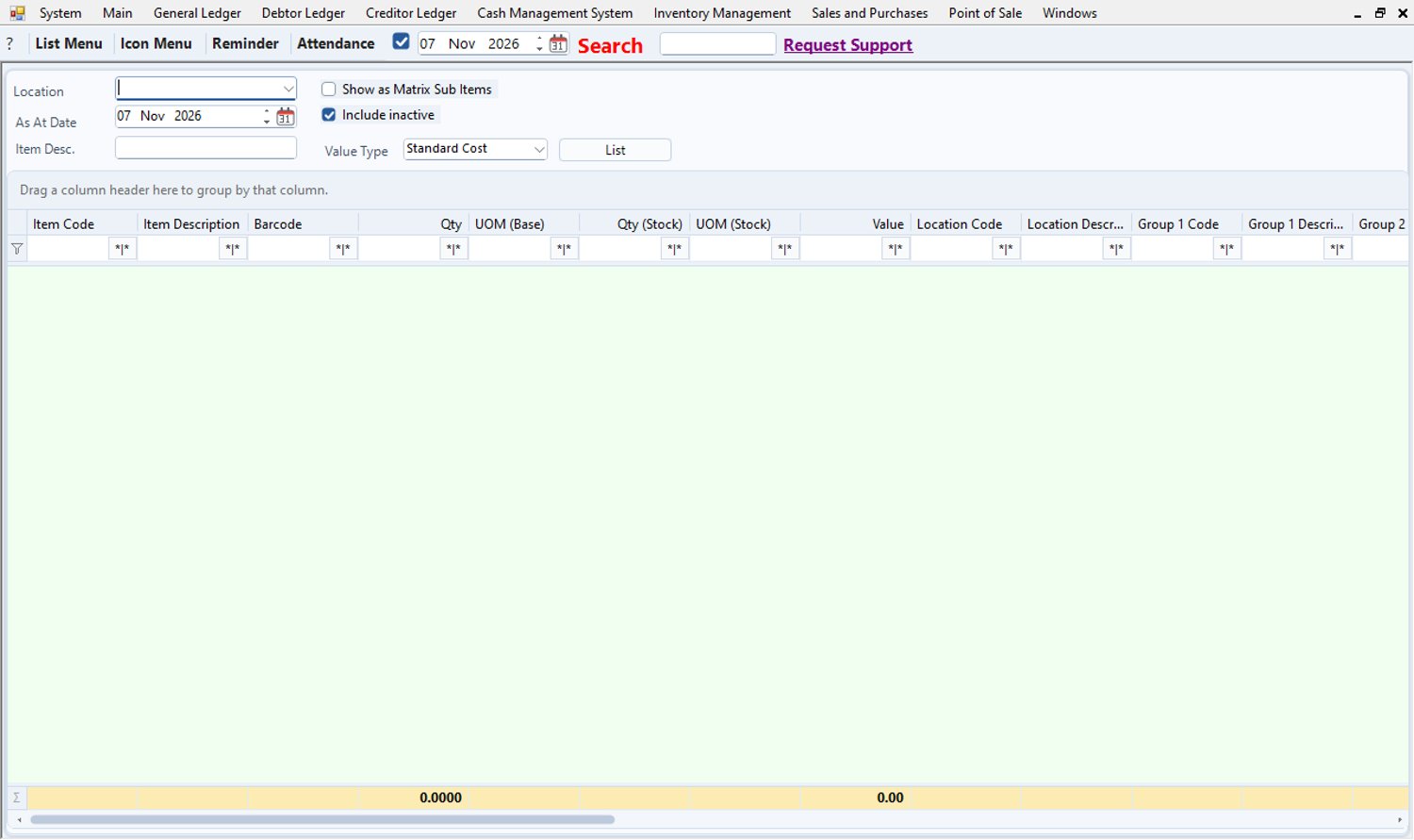
The Stock Balance Query shows quantity and value as at a date, and Stock Info finds an item with its stock and prices. The web Stock Queries page does the same from any browser. Full guides: Synergy Acc2026 – Check Stock Balance, Item Info and Prices; Synergy Web – Checking Stock Balance, Movement and Value
7. Track where stock moved
The Item Sales & Purchases Query lists sales, purchase and stock documents for an item together, and the Stock Movement queries show movement by batch, bin or size and colour. Full guide: Synergy Acc2026 – Track Stock Movement by Item, Batch, Bin or Matrix
8. Serial numbers and batches
Enter serial numbers on the document line where stock comes in, goes out or is transferred. Create a batch with its dates to track expiry, then key it on Goods Received and Stock Transfer. Full guides: Synergy Acc2026 – Serial Number Entry and Tracking; Synergy Acc2026 – Batches and Expiry Dates
9. Bins
A bin is the physical spot inside a location. Create a bin, move stock between bins with Bin Transfer, and enter bins or batches on document lines. Full guide: Synergy Acc2026 – Bins, Bin Transfers and Batch Entry
10. Barcode labels
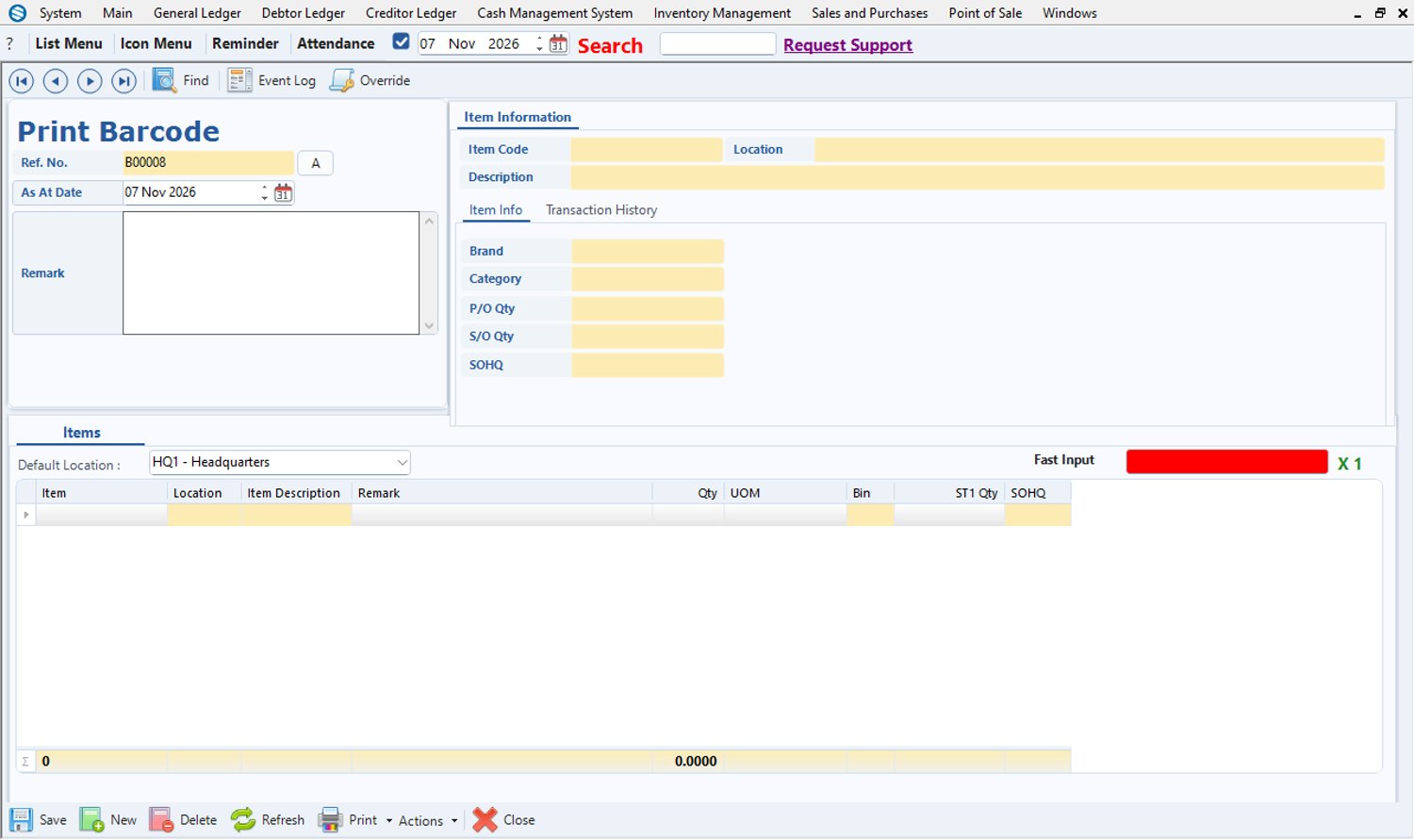
Open Barcode printing entry, enter the item code and the quantity of labels, then save and print. Full guide: Synergy Acc2026 – Barcode Labels and Barcode Scanning
Tips
- Costing is FIFO, so quantities must be correct. Fix wrong quantities with a stock take.
- Do the transfer between head office and a branch at HQ: branches only do POS transactions.
- Run Inventory Cost Posting before generating the closing stock list.
Common problems
The stock quantity looks wrong.
Make sure you used the normal Stock Balance Listing and not the serial number report.
Stock Movement Query shows an empty result.
Check the location and the dates.
A posted stock take cannot be changed.
A posted stock take is read-only. Click Unpost to change it.
Quantities cannot be keyed in stock documents.
Check that Data Sync. is Ready to synchronize and not Do not synchronize.