
Use these checks, in order, when Synergy StockTake cannot log in, download items or send a count to Synergy.
Before you start
- Have your Synergy server address and your Synergy login name ready.
- Counts you have already made stay on the phone. Nothing is lost while you fix the connection.
Steps
1. Check the phone is online
Make sure the phone is on the shop Wi-Fi (or has internet, if your Synergy is set up for outside access). Try opening a web page on the phone.
2. Check the server address
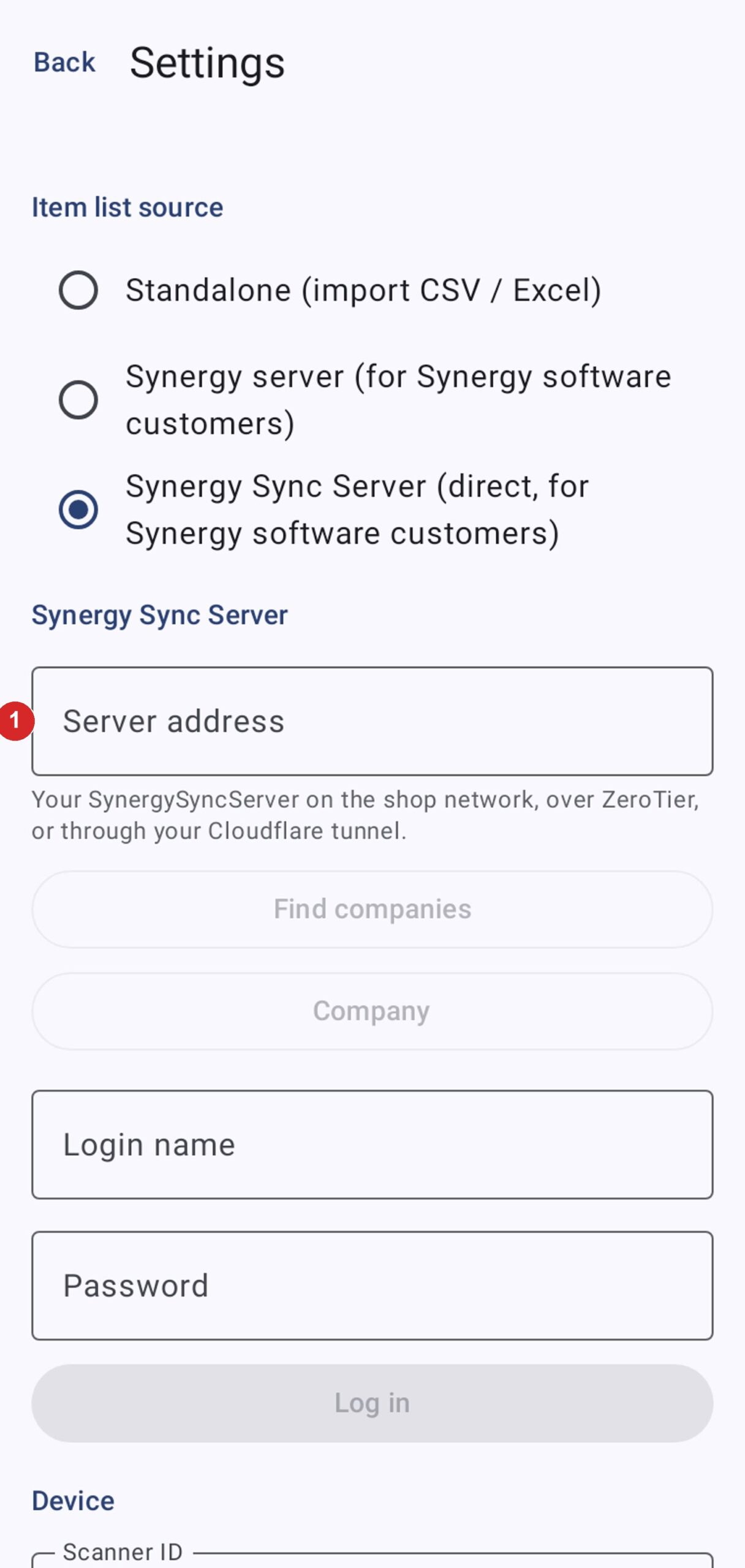
Open Settings. In Synergy server mode, also check the FTP code, then tap Save & test connection. You should see Connection OK.
| Step | What to do |
|---|---|
| 1 | Check the Server address (or Local server URL and Web server URL in Synergy server mode) for typing mistakes |
3. Find companies and log in again
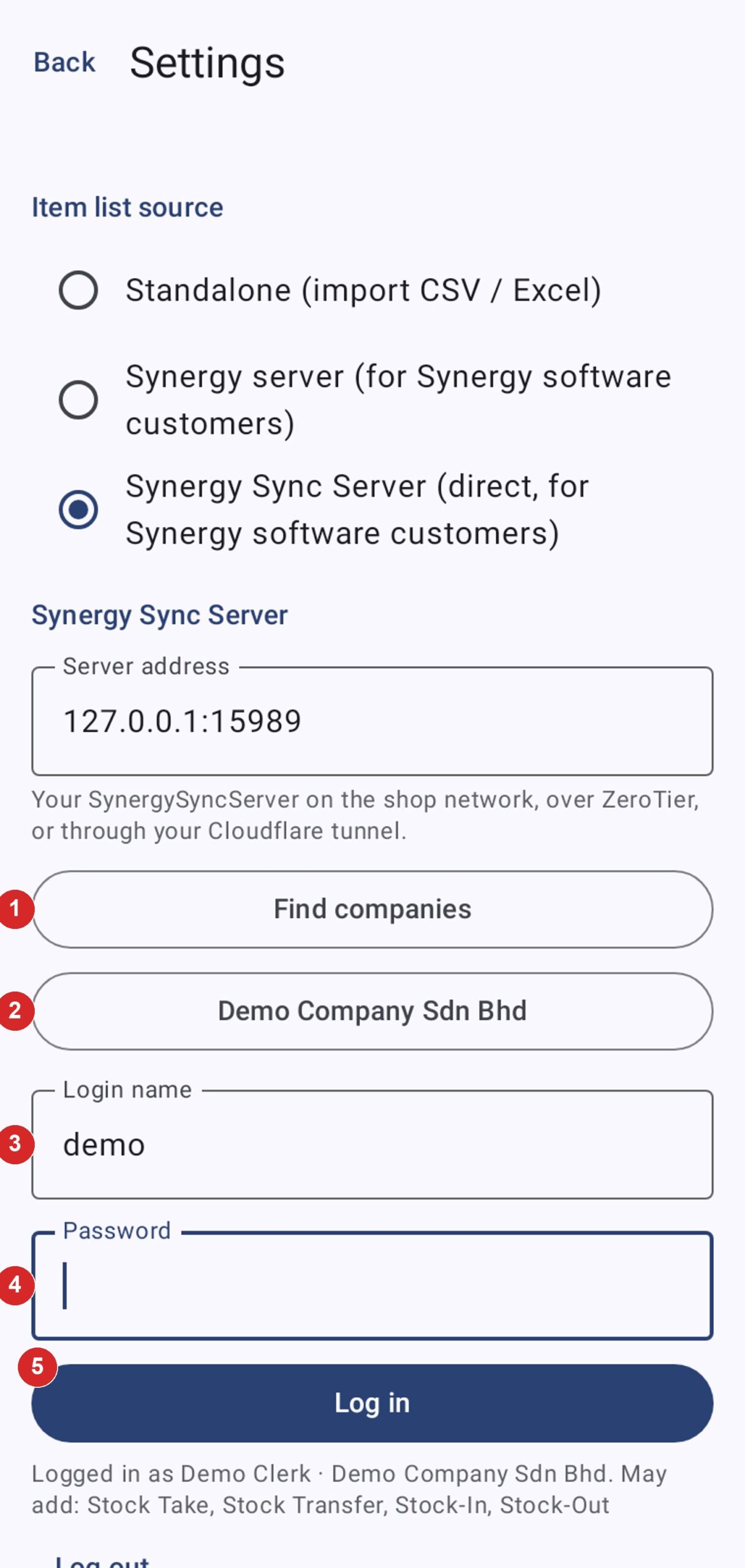
In Settings, log in again. If the app says Login expired – log in again, this is the fix.
| Step | What to do |
|---|---|
| 1 | Tap Find companies |
| 2 | Pick your Company |
| 3 | Type your Login name |
| 4 | Type your Password |
| 5 | Tap Log in |
4. Check what your login may do
If the New dialog says your Synergy user may not add a Stock Take, Stock Transfer, Stock-In or Stock-Out, ask the office to give your login that permission, then open Locations and download again.
5. Download the item list again
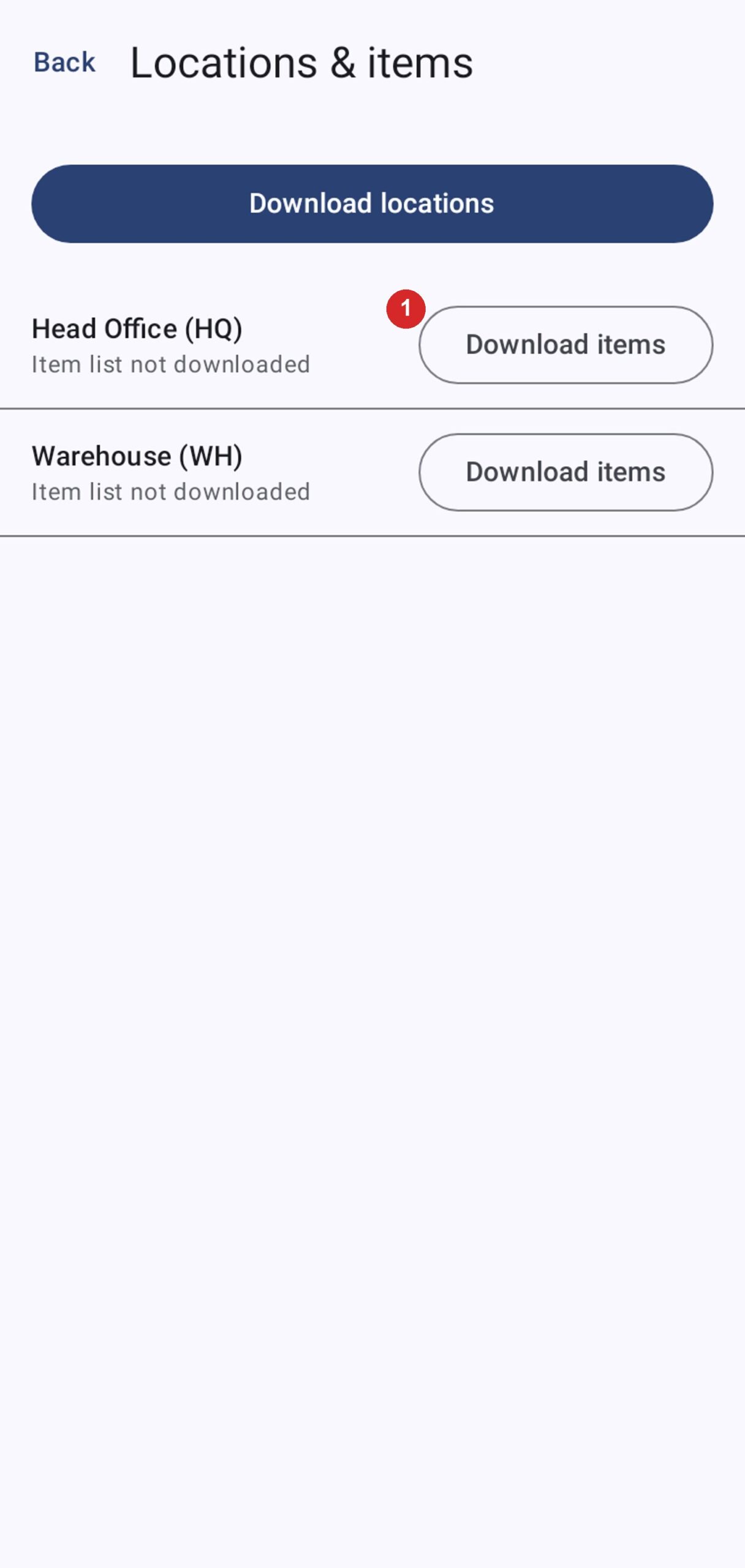
Open Locations (or Branches). If a location shows Item list not downloaded, the app cannot check scans for it.
| Step | What to do |
|---|---|
| 1 | Tap Download items or Refresh |
6. Send the count again
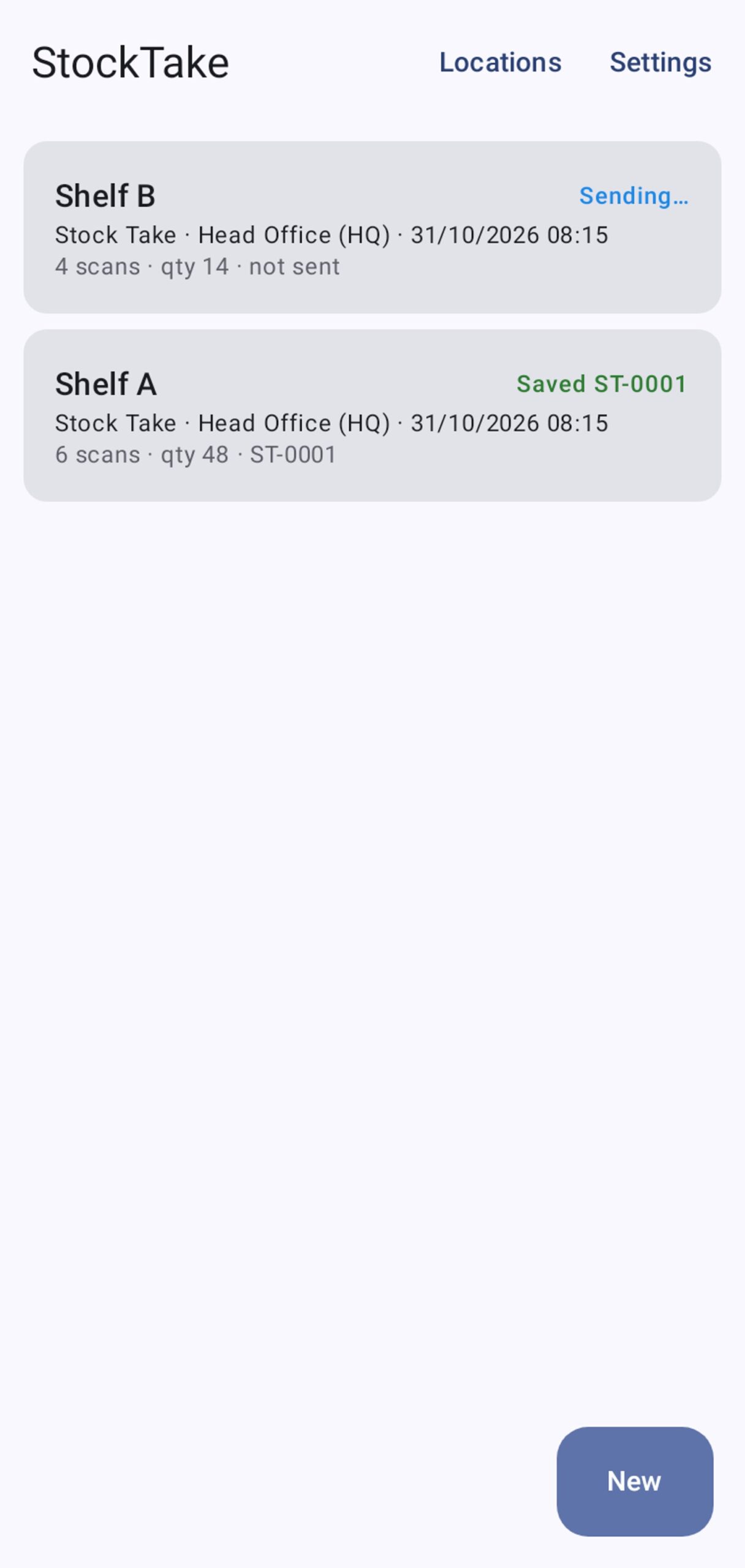
Open the count and tap Upload or Send. A count that shows Upload failed or Not saved can be sent again.
Tips
- An item that cannot be moved on the phone shows a message telling you to take it on the desktop.
- If the app says “This server has no StockTake app support yet (HTTP 404)”, ask Synergy to update your Synergy Sync Server.
- When you contact Synergy, have ready: the exact message on the screen, the server address, and the time it happened.
Common problems
“Invalid server address”.
Retype the Server address exactly as given to you, with the port number if there is one.
“Log in to SynergySyncServer in Settings first”.
Open Settings and log in under Synergy Sync Server.
“Server error” or “Server replied HTTP …”.
The server is reachable but has a problem. Wait a few minutes and try again, then tell Synergy the message.
“Set the server URL in Settings first”.
Open Settings and fill in the server details for Synergy server mode, then tap Save.