
This guide shows you how to start a count, scan barcodes, check what is left to count and then send or export the result.
Before you start
- Finish the first set-up: an item list must be on the phone (imported, or downloaded for your location).
- For Synergy direct, make sure you are logged in under Settings.
- Allow the camera when the app asks, unless you use a phone with a built-in scanner.
Steps
1. Start a new count
Type a Name if you like, for example Shelf A, then tap Start.
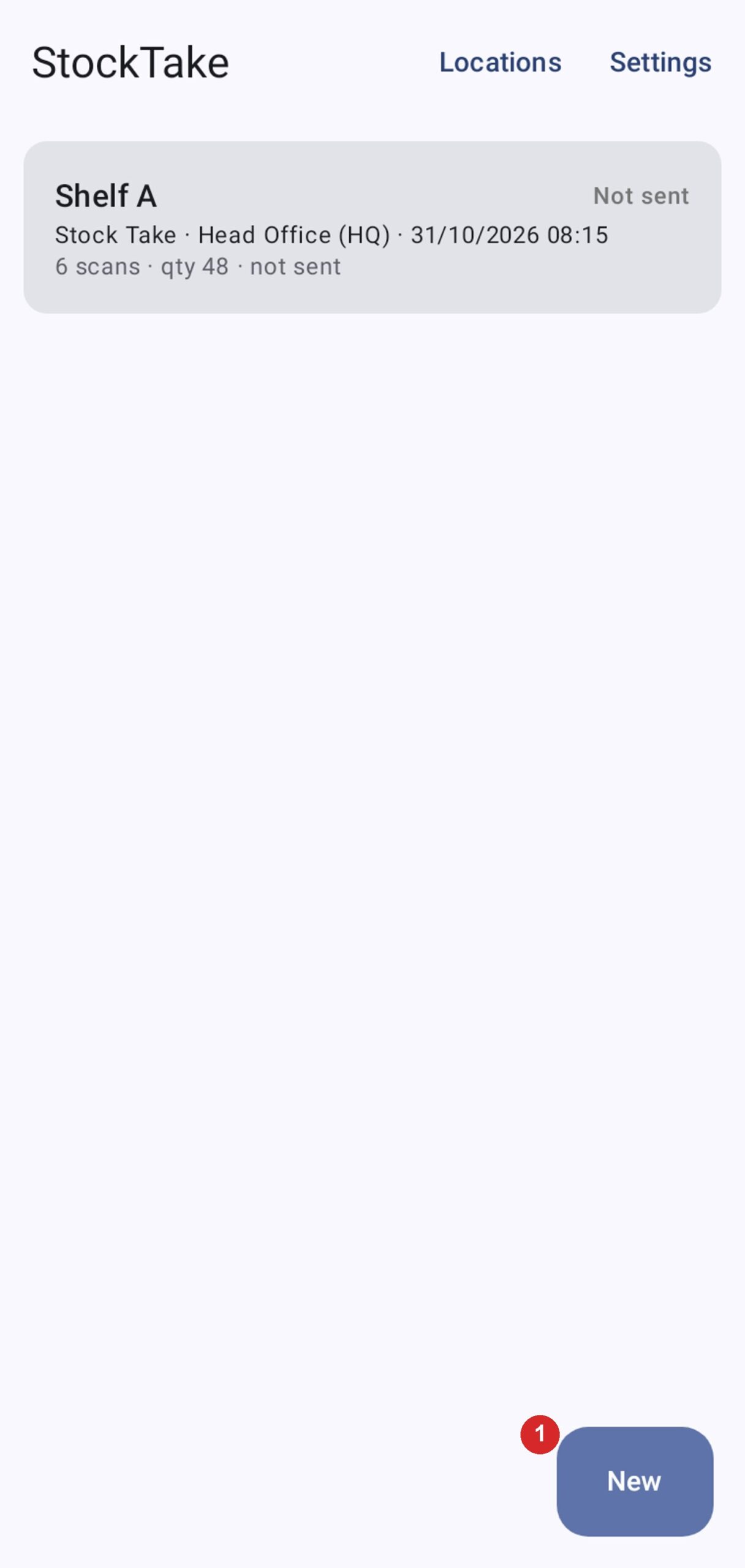
| Step | What to do |
|---|---|
| 1 | On the main screen tap New count (in the direct mode the button is called New) |
2. Direct: choose what you are doing
In the direct mode, choose what you are doing.
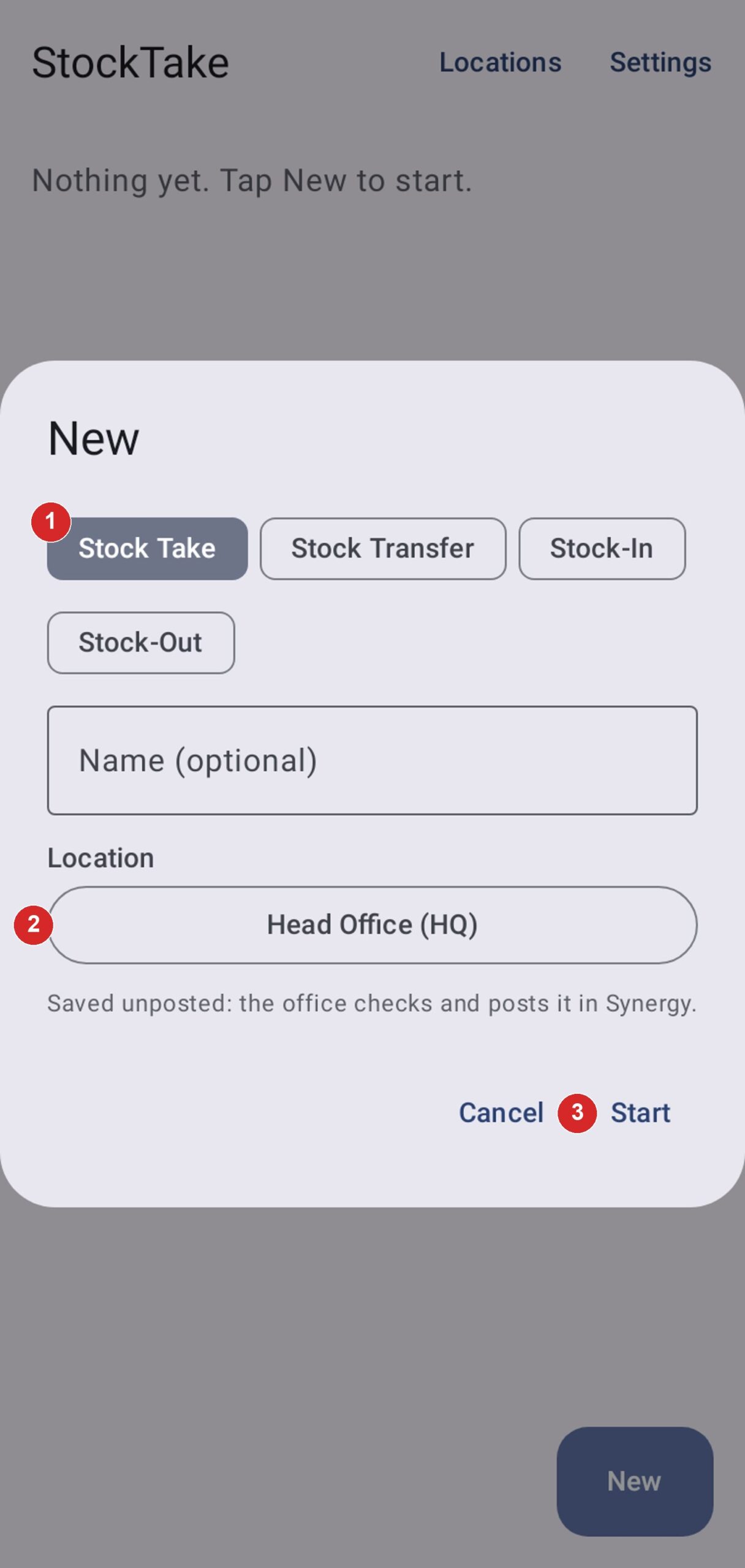
| Step | What to do |
|---|---|
| 1 | Tap Stock Take, Stock Transfer, Stock-In or Stock-Out (only the types your Synergy login may add are shown) |
| 2 | Pick the Location (for a transfer, the From location and To location) |
| 3 | Tap Start |
3. Scan the barcodes
Each scan adds 1.
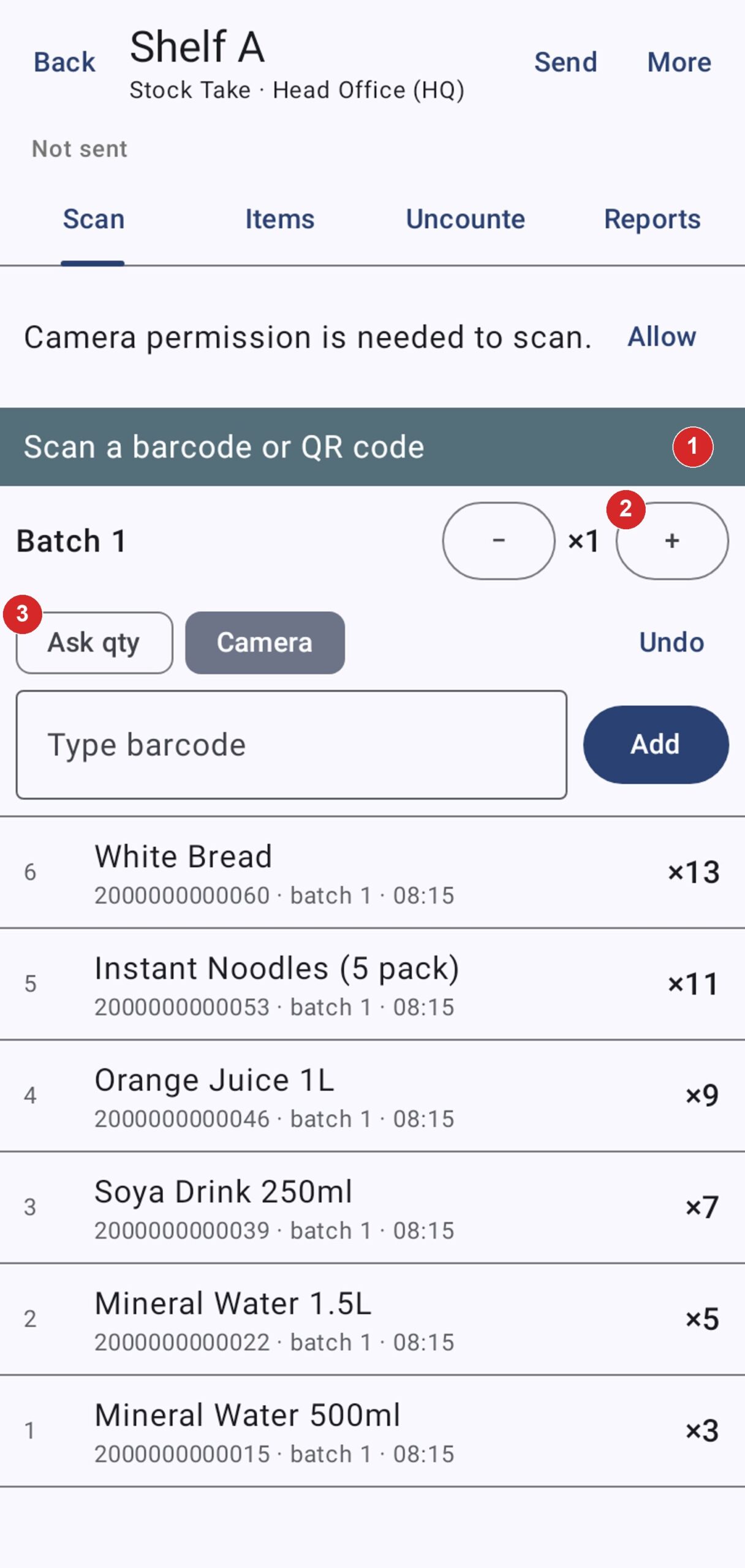
| Step | What to do |
|---|---|
| 1 | On the Scan tab, point the camera at a barcode or QR code, or use the phone’s built-in scanner |
| 2 | To count a box of several, tap + or − to set a multiplier before scanning |
| 3 | Or switch on Ask qty to type the quantity each time |
4. Fix a mistake
Tap Undo to remove the last scan. Tap a line in the list to change its quantity, or choose Delete to remove it. If a barcode is not in the item list, tap Find the item for this barcode to link it to the right item.
5. Type a barcode by hand
If a barcode will not scan, type it into the Type barcode box and tap Add.
6. Check your progress
Use the tabs to check your progress.
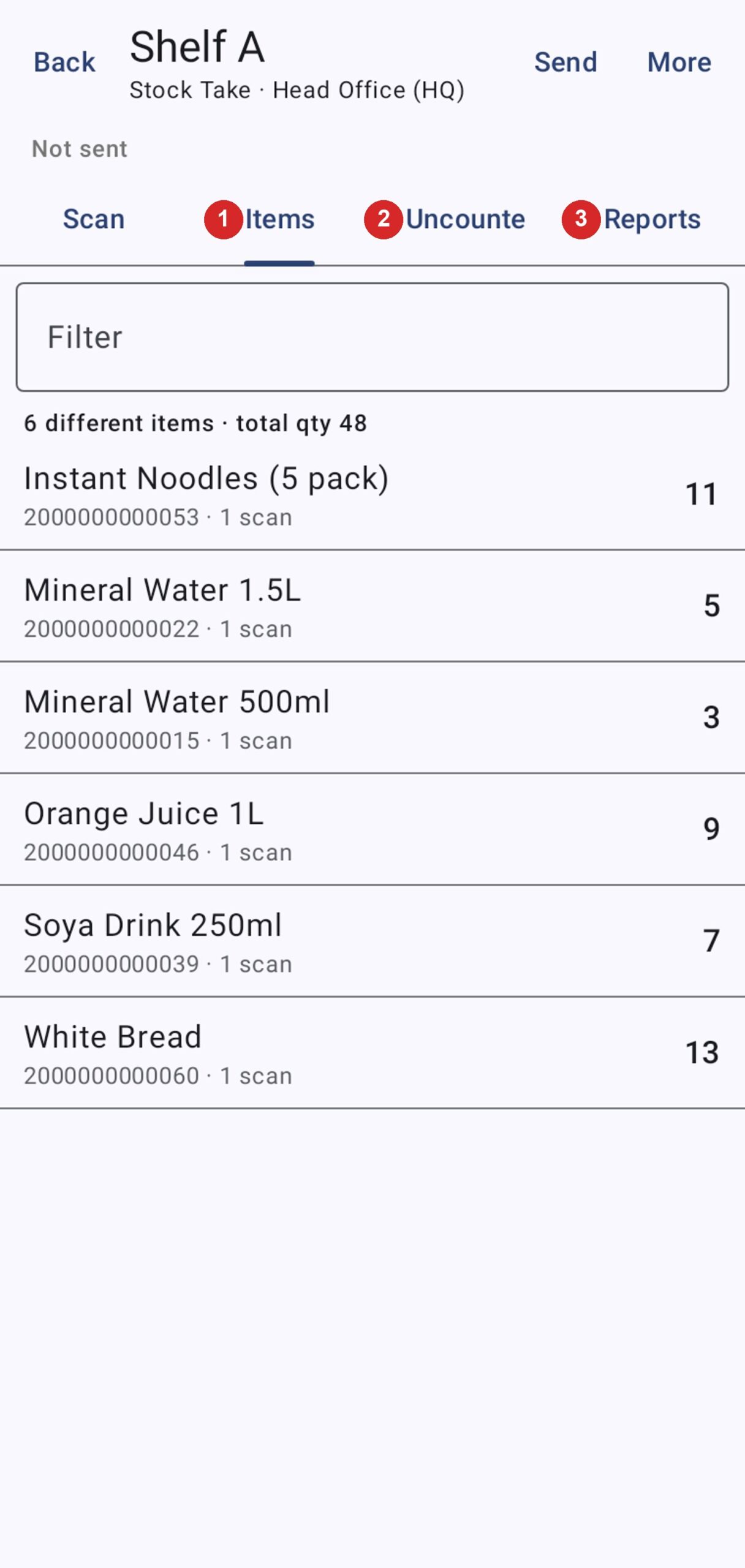
| Step | What to do |
|---|---|
| 1 | Items tab: see everything counted so far |
| 2 | Uncounted tab: see items you have not counted yet |
| 3 | Reports tab: shows the summaries |
7. Send the count
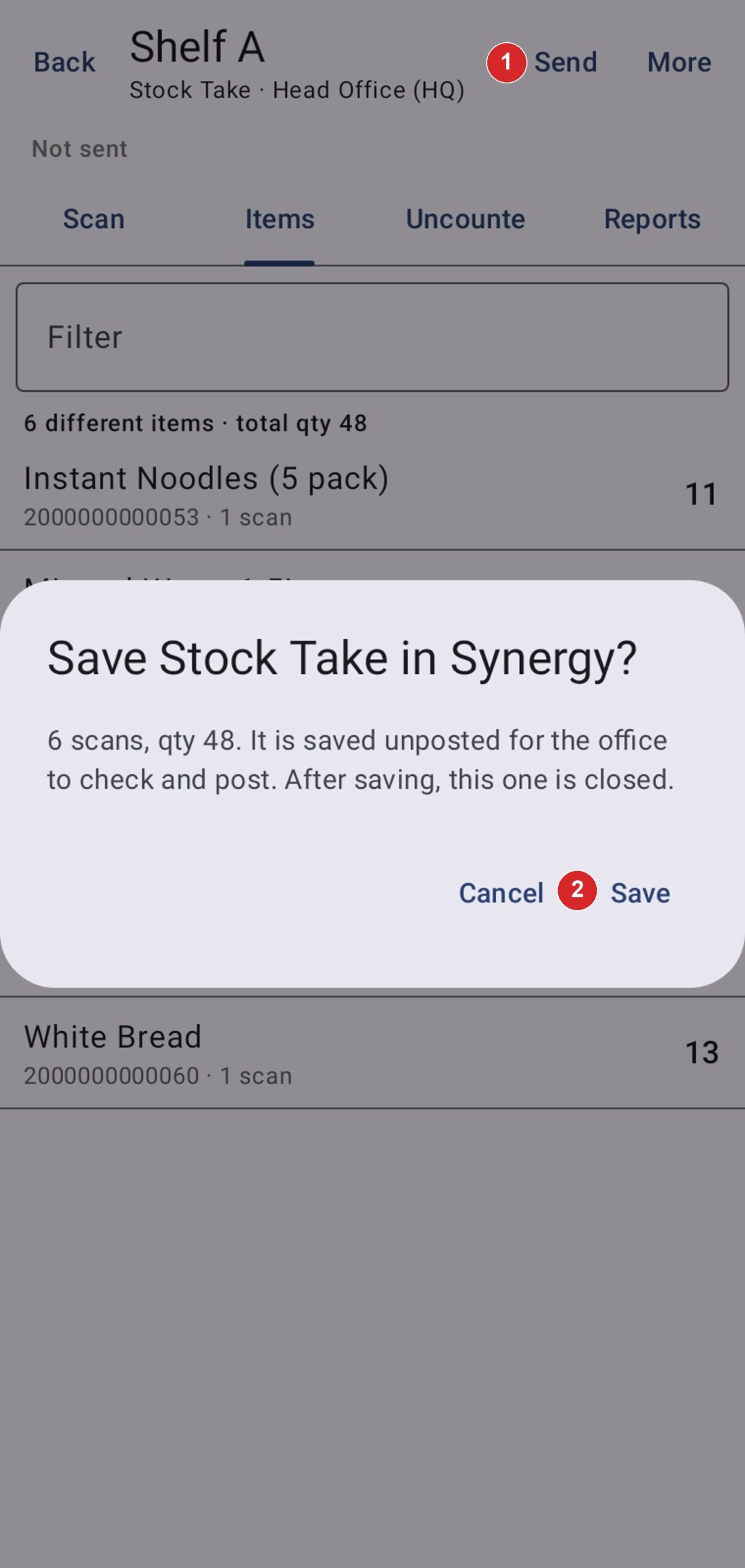
The count turns to Uploaded, or Saved with its document number. Stock Take is saved unposted for the office to check and post in Synergy.
| Step | What to do |
|---|---|
| 1 | Tap Send (direct mode) or Upload (Synergy server mode) |
| 2 | In direct mode, confirm the question that appears |
8. Standalone: export the count
In Standalone mode, tap Export, or open the Reports tab and tap Export Excel or Export CSV. Then share the file, for example by e-mail.
Tips
- Use More, then New batch, to start a new batch inside the same count. Delete a batch removes one batch only.
- In direct mode a saved document is closed. To count more, start a new one with New.
- Stock Transfer is saved as a pending transfer unless you switch on Post (move the stock) when saved. Stock-In and Stock-Out move the stock as soon as they are saved.
- On the main screen each count shows its status: Not uploaded, Uploading, Uploaded, Upload failed or Changed since upload.
Common problems
The line says “Not in the item list” and nothing is added (direct mode).
Only items in your location’s item list can be counted. Tap Refresh in Locations to download the latest list.
“Already saved as …: start a new one for more”.
That document is closed. Start a new one with New.
“Nothing to send yet” or “Nothing to upload yet”.
The count has no scans. Scan or add at least one item first.
A count shows Upload failed or Not saved.
Check the connection, then tap Upload or Send again. See the guide on connection problems.