
This guide shows you how to install Synergy StockTake on an Android phone and choose how it gets its item list, either from a CSV or Excel file or from your Synergy software.
For Synergy staff – where to get it: The StockTake installer is in
\\svr\Freeware\Android Stock Take.
Before you start
- Get the Synergy StockTake installation file (APK) from Synergy and keep it on the phone. If Android blocks the install, allow installs from that source when it asks.
- To work from a file, have a CSV or Excel item list ready with the columns item code, description, barcode and expected qty.
- To connect to your Synergy software, ask your Synergy administrator for the server address, and have your normal Synergy login name and password.
- The phone needs internet or the shop network only when it connects to Synergy. Counting itself works without a connection.
Steps
1. Install and open the app
Open the installation file on the phone, tap Install, then open Synergy StockTake.
2. Choose how you will use it
The first time, the app asks “How will you use StockTake?”. You can change this later in Settings.
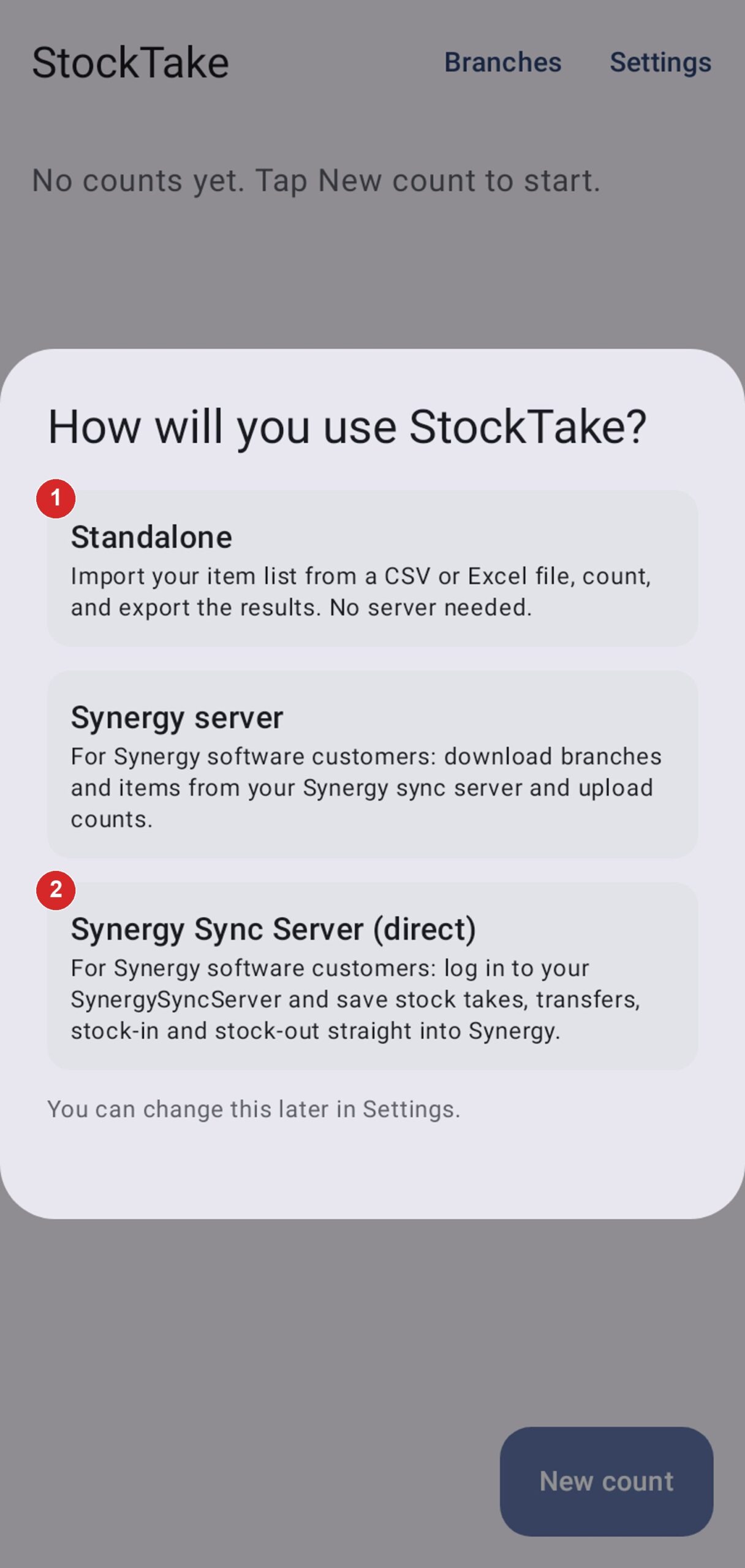
| Step | What to do |
|---|---|
| 1 | Tap Standalone to work from a file |
| 2 | Tap Synergy Sync Server (direct) to count straight into your Synergy software |
3. Standalone: import your item list
Tap Open Item list, then Import CSV / Excel and pick your file. Tap Get template if you need a sample file to fill in. Check the item count shown, then tap Import. You can also tap Sample items to try the app first.
4. Direct: log in
Tap Open Settings. Under Synergy Sync Server, fill in the details. The message “Logged in as …” appears.
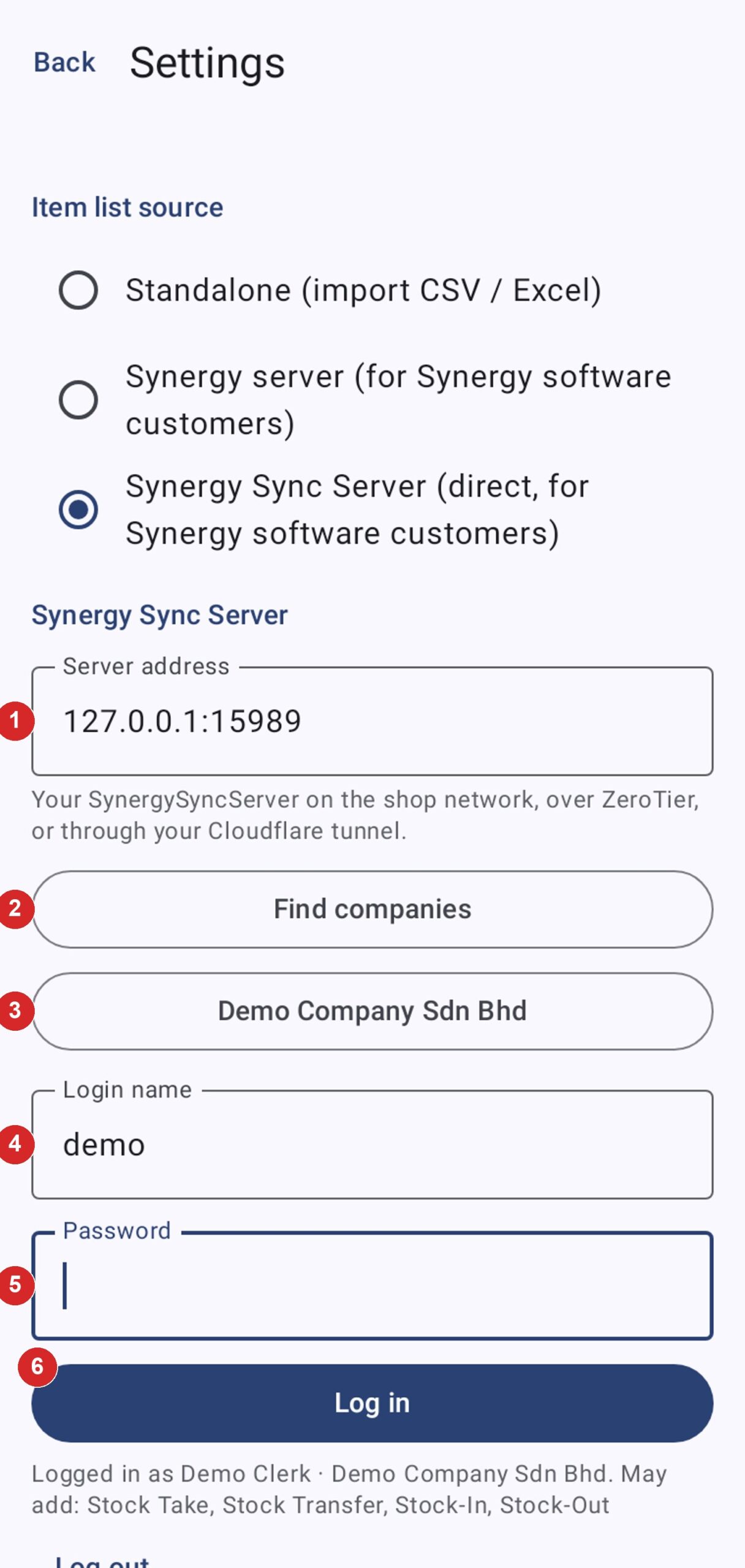
| Step | What to do |
|---|---|
| 1 | Type the Server address |
| 2 | Tap Find companies |
| 3 | Tap the Company button and pick your company |
| 4 | Type your Login name |
| 5 | Type your Password |
| 6 | Tap Log in |
5. Direct: download your locations
Go back to the main screen and tap Open Locations (or Locations at the top). The list of locations appears.
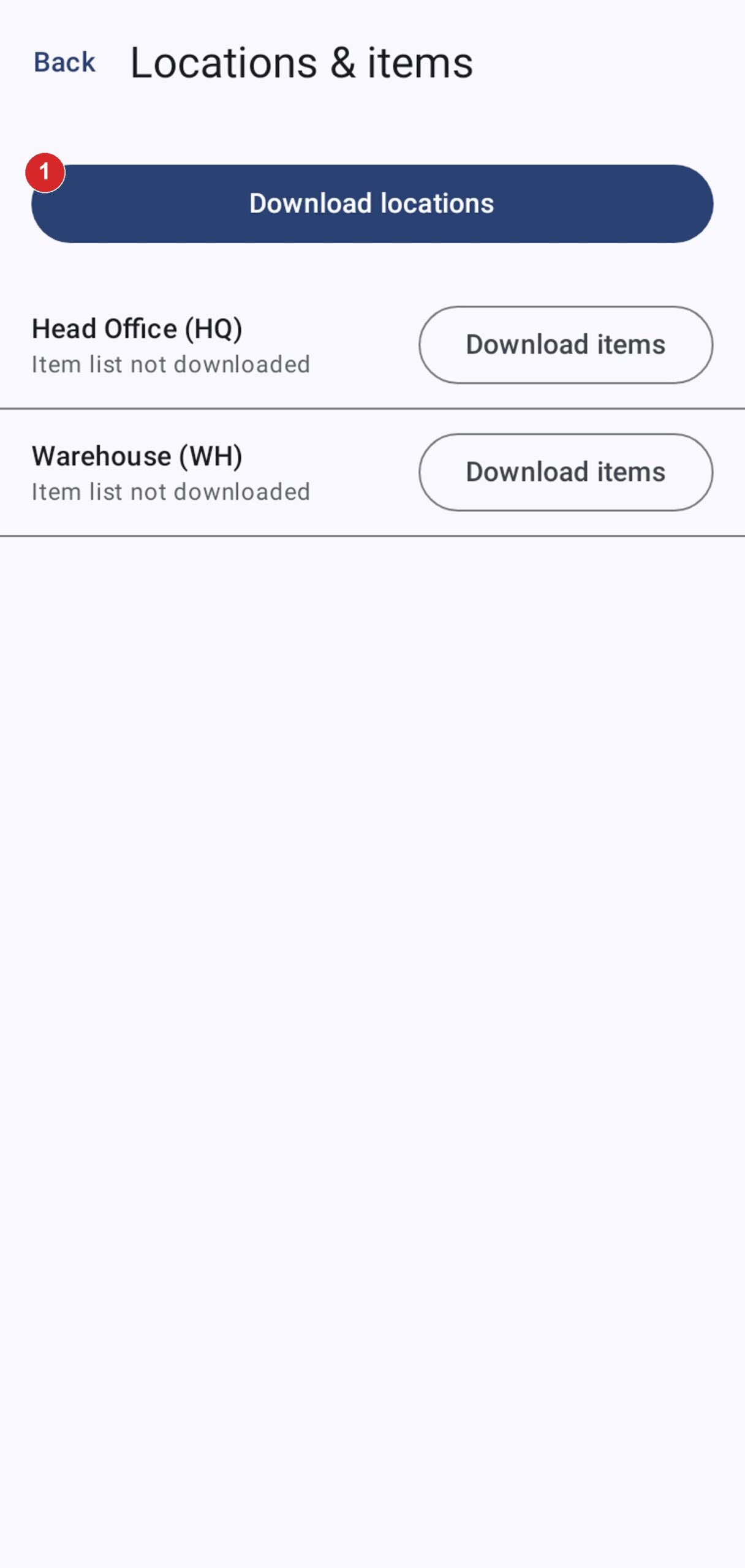
| Step | What to do |
|---|---|
| 1 | Tap Download locations |
6. Direct: download the items for your location
Wait until the item count appears.
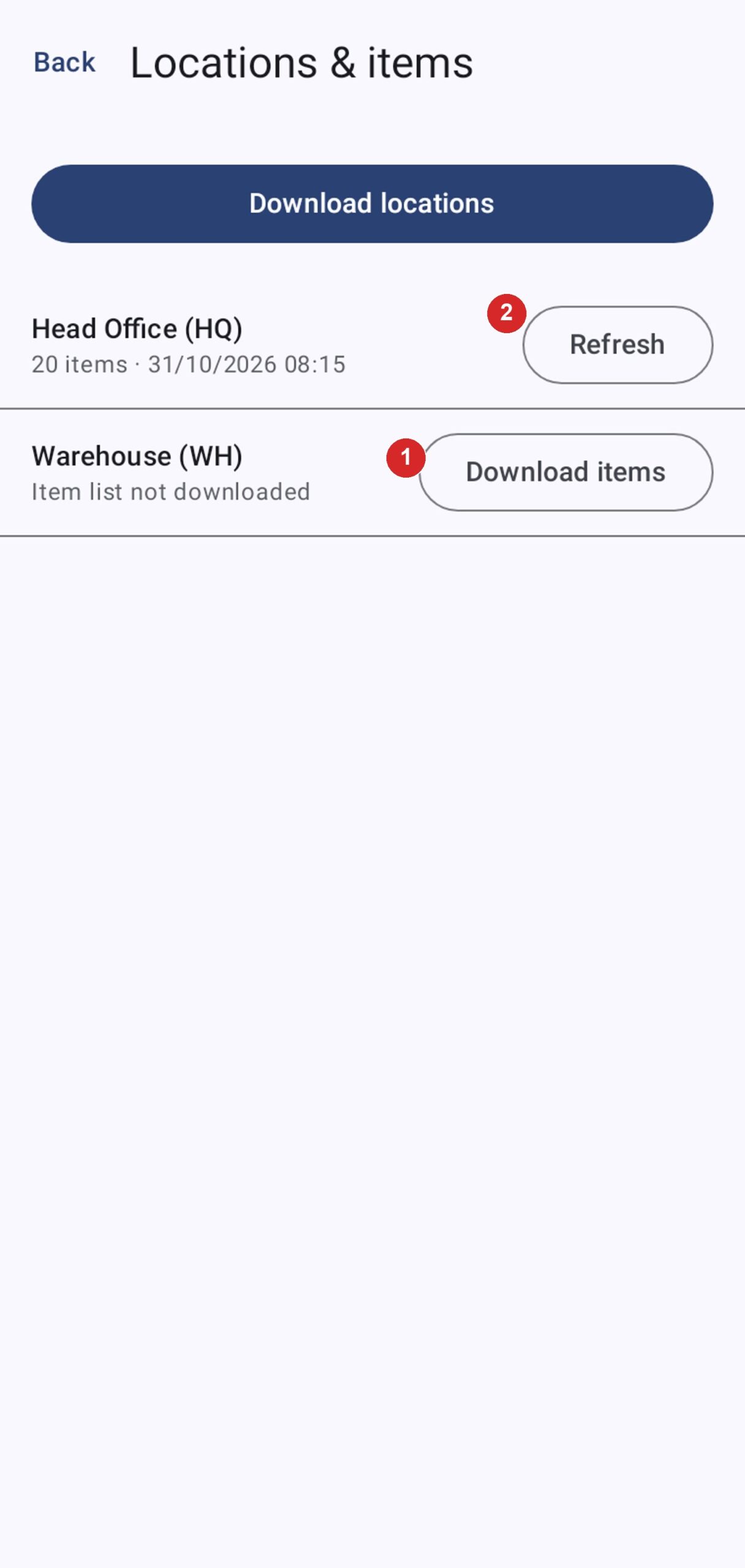
| Step | What to do |
|---|---|
| 1 | Next to your location, tap Download items |
| 2 | Tap Refresh later to get a fresh item list |
7. Optional: lock Settings with a PIN
In Settings under Advanced, type a Settings PIN of up to 8 digits and tap Save. Leave it blank for no PIN. Also check the Scanner ID under Device, then tap Save.
Tips
- Turn off Use camera under Device in Settings if your phone has a built-in barcode scanner.
- Beep on scan can be switched on or off in Settings under Device.
- Under Synergy Sync Server, the app shows what your login may add: Stock Take, Stock Transfer, Stock-In or Stock-Out.
- A login lasts for a limited time. If the app says Login expired – log in again, open Settings and tap Log in again.
Common problems
Find companies shows no companies or an error.
Check the Server address and that the phone can reach your shop network, then try again.
The app says “No item list yet” or “No item list for this branch”.
Import the item list (Standalone) or tap Download items for your location (Synergy).
The Log in button is greyed out.
Fill in the Server address, tap Find companies, pick a Company and type the Login name first.