
The Database Maintenance Utility lets you make a backup of the company database now, shrink its transaction log, re-index it, and set up automatic scheduled backups. Make a backup before any big change such as a restore or a purge.
Before you start
- The backup folder must be reachable from this computer. Backup is not allowed on every client PC.
Steps
1. Open the backup screen
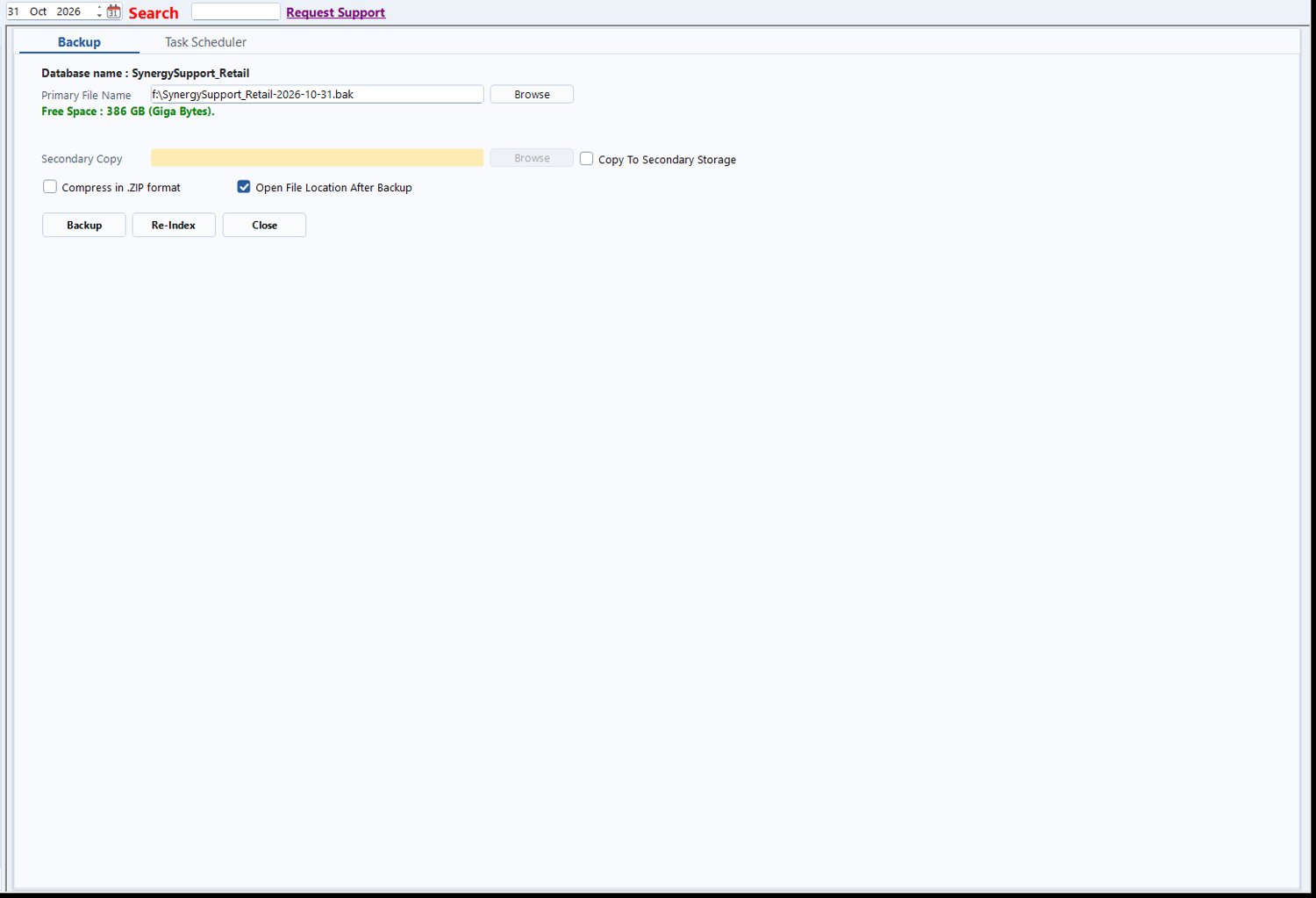
From the menu, go to Main > Backup Database > Backup Database. Open the Backup tab and check the database name shown at the top.
2. Check the file name
Primary File Name is filled in for you with the database name and today’s date. Click Browse to choose another folder.
3. Choose the options
Tick Compress in .ZIP format, Open File Location After Backup or Copy To Secondary Storage if you want them. For a secondary copy, use the second Browse to choose its location.
4. Run the backup
Click Backup. If the file already exists, you are asked whether to overwrite it.
5. Shrink or re-index (optional)
Click Truncate Transaction Log to shrink the log. The message Log Truncated successfully. appears. Click Re-Index, answer the question, and wait for Reindex Completed.
6. Set up scheduled backups (optional)
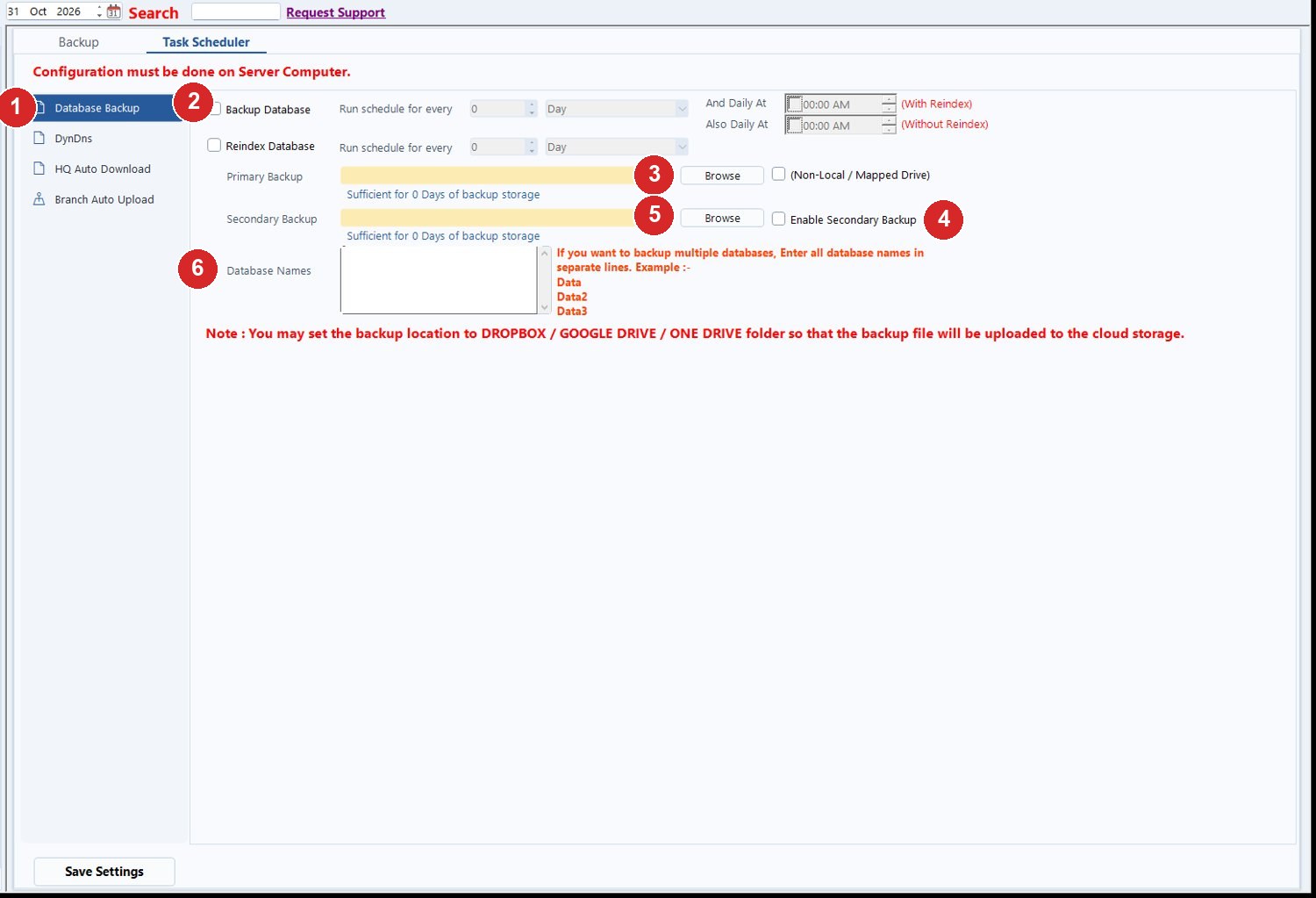
Set up the scheduled backups here.
| Step | What to do |
|---|---|
| 1 | Open the Database Backup tab. |
| 2 | Tick Backup Database. |
| 3 | Choose the Primary Backup folder. |
| 4 | Optionally tick Enable Secondary Backup. |
| 5 | Choose the Secondary Backup folder. |
| 6 | List the Database Names, one per line. |
7. Set the schedule and save
Set Run schedule for every and Also Daily At (and Reindex Database with its own schedule if you want it). Click Save Settings. Restart the licence server afterwards so the schedule takes effect.
Tips
- The backup folder can be a Dropbox, Google Drive or OneDrive folder.
- The Task Scheduler tab says the scheduled configuration must be done on the server computer.
- The disk space label turns red when space is low, and a warning appears when you back up. Move old backup files to an external disk.
Common problems
You don’t have access to Database Backup Folder. Please check in [Connection Setup]
The shared backup folder cannot be reached. Check the backup folder in the connection setup.
You don’t have ‘Write-Permission’ to the folder
The chosen folder cannot be written to. Choose another folder or ask your IT person to give write permission.
Please provide a filename for the backup
The file name box is empty. Fill it in.
[Primary Backup Location] is required, [Database List] is required or Invalid Schedule Interval
Complete the schedule fields on the Database Backup tab.
System not configured to allow backup on Client PC
Backup is not allowed from this computer. Do the backup on the server computer.