
Company Information holds your business details that appear on documents and are used for tax and e-invoice submissions: registration number, address, contact details, tax numbers, logo and letter head. Video on putting your letter head on printed documents (steps 4-6, 1:07): https://youtu.be/Ea1Jrps1nds
Steps
1. Open Company Information
From the menu, go to Main > Shared Masterfile > Company Information. Check the Company Information tab.
2. Fill in the business details
On the Company Information tab, fill in the business details.
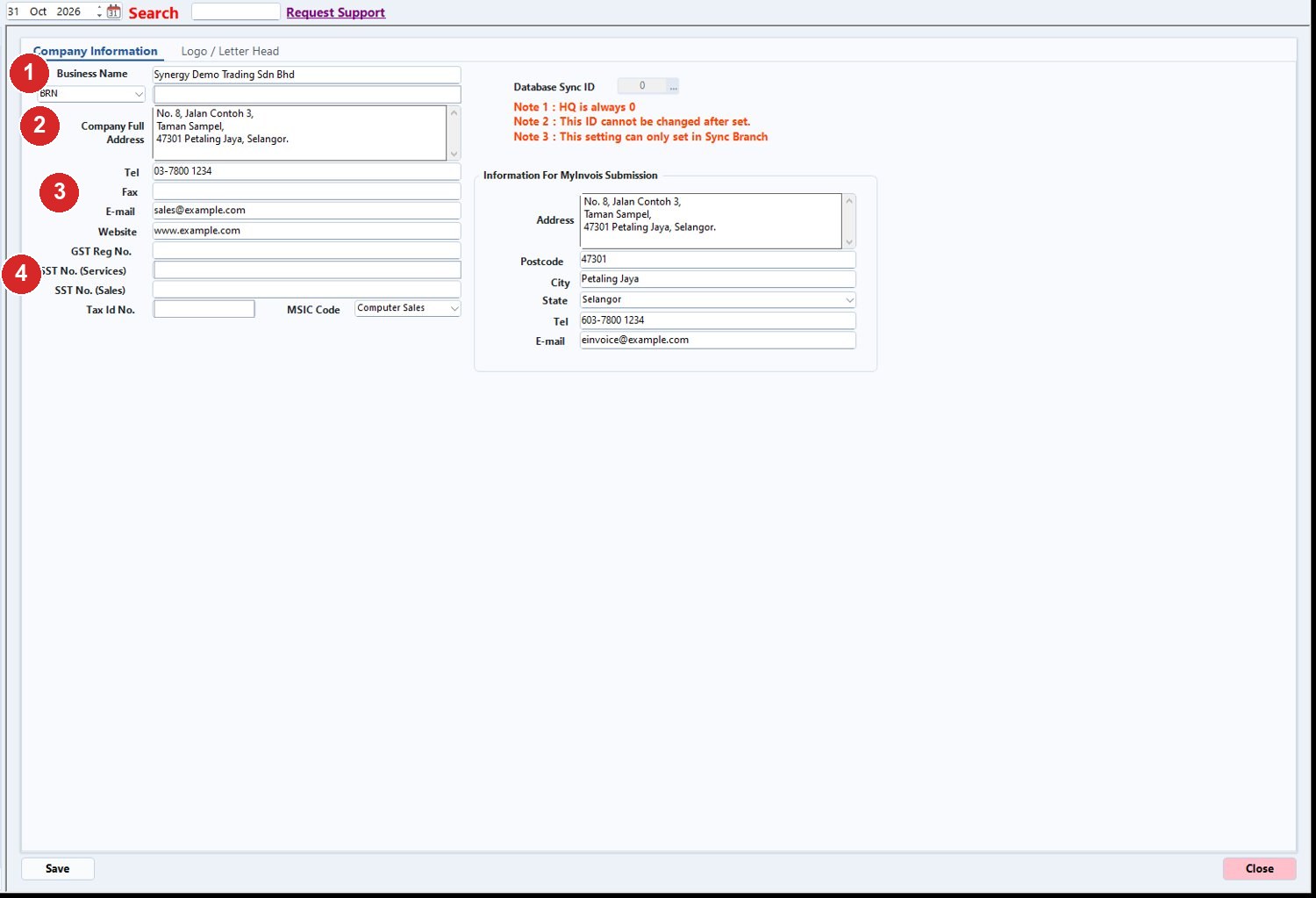
| Step | What to do |
|---|---|
| 1 | Type the Business Name. |
| 2 | Type the Company Full Address. |
| 3 | Fill in Tel, Fax, E-mail and Website. |
| 4 | Fill in the tax numbers: GST Reg No., Tax Id No., SST No. (Sales) and SST No. (Services). |
3. Fill in the MyInvois details
In Information For MyInvois Submission, fill in Address, Postcode, City, State, Tel, E-mail and MSIC Code. Pick State and MSIC Code from the lists.
4. Set the logo or letter head
Open the Logo / Letter Head tab and choose the picture.
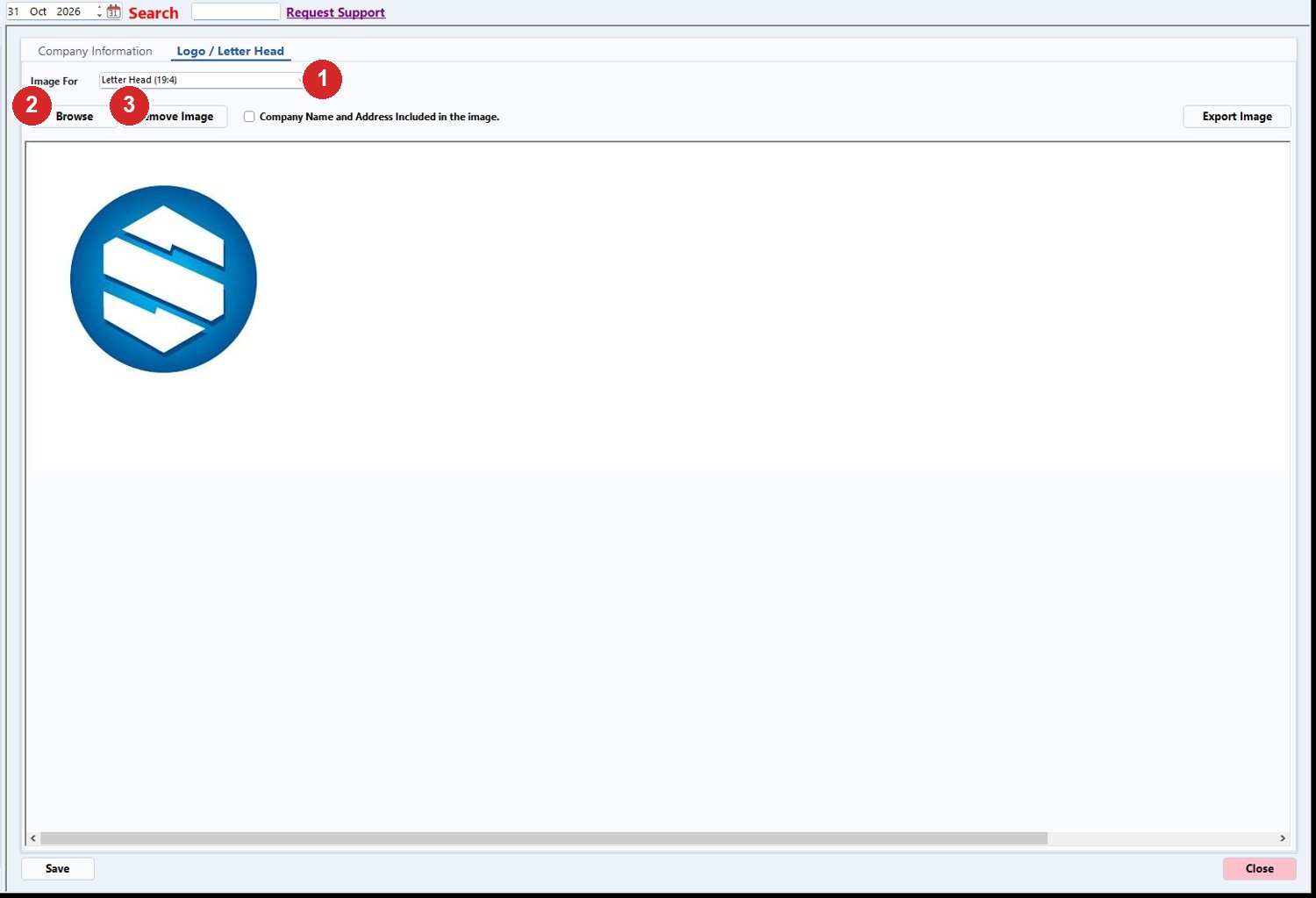
| Step | What to do |
|---|---|
| 1 | In Image For, choose Letter Head or Background (A4). |
| 2 | Click Browse and choose a picture file (bmp, jpg, gif, tif or png). |
| 3 | Click Remove Image to clear the picture. |
5. Avoid printing the name twice
Tick Company Name and Address Included in the image. if your picture already has your name and address.
6. Save
Click Save. The notice Company Information saved. appears. Click Close to leave.
Tips
- Database Sync ID should be set once only and never changed afterwards. HQ is always 0. If you change it, the program asks you to tick an acknowledgement box.
- Changing the business registration number needs a hash key from Synergy support. The program offers to send the request.
- Export Image saves the picture as a PNG file named Export Company Letterhead and opens its folder.
- Your bank details are kept in a different place: Main > System > System Settings (Main), on the Company Bank Account tab.
Common problems
Invalid [State] selected. or Invalid [MSIC] selected.
The text typed is not in the list. Pick an item from the list.
Hash Key Is Required for changing BRN.
Click Yes to send the request to Synergy support, then wait for the key. The registration number reverts if the key is missing or wrong.
The business name cannot be edited.
On some installations the business name is fixed by the licence.