
This guide shows how to set up each foreign currency the company uses, and how to record its exchange rates for a date, either by typing them or by fetching them from Bank Negara.
Before you start
- Have the accounts for exchange gains and losses ready.
Steps
1. Open Foreign Currency
From the menu, go to Main > Shared Masterfile > Foreign Currency. Add a new currency or open an existing one.
2. Enter the code and description
Go to Main > Shared Masterfile > Foreign Currency, open or add the currency, then Save.
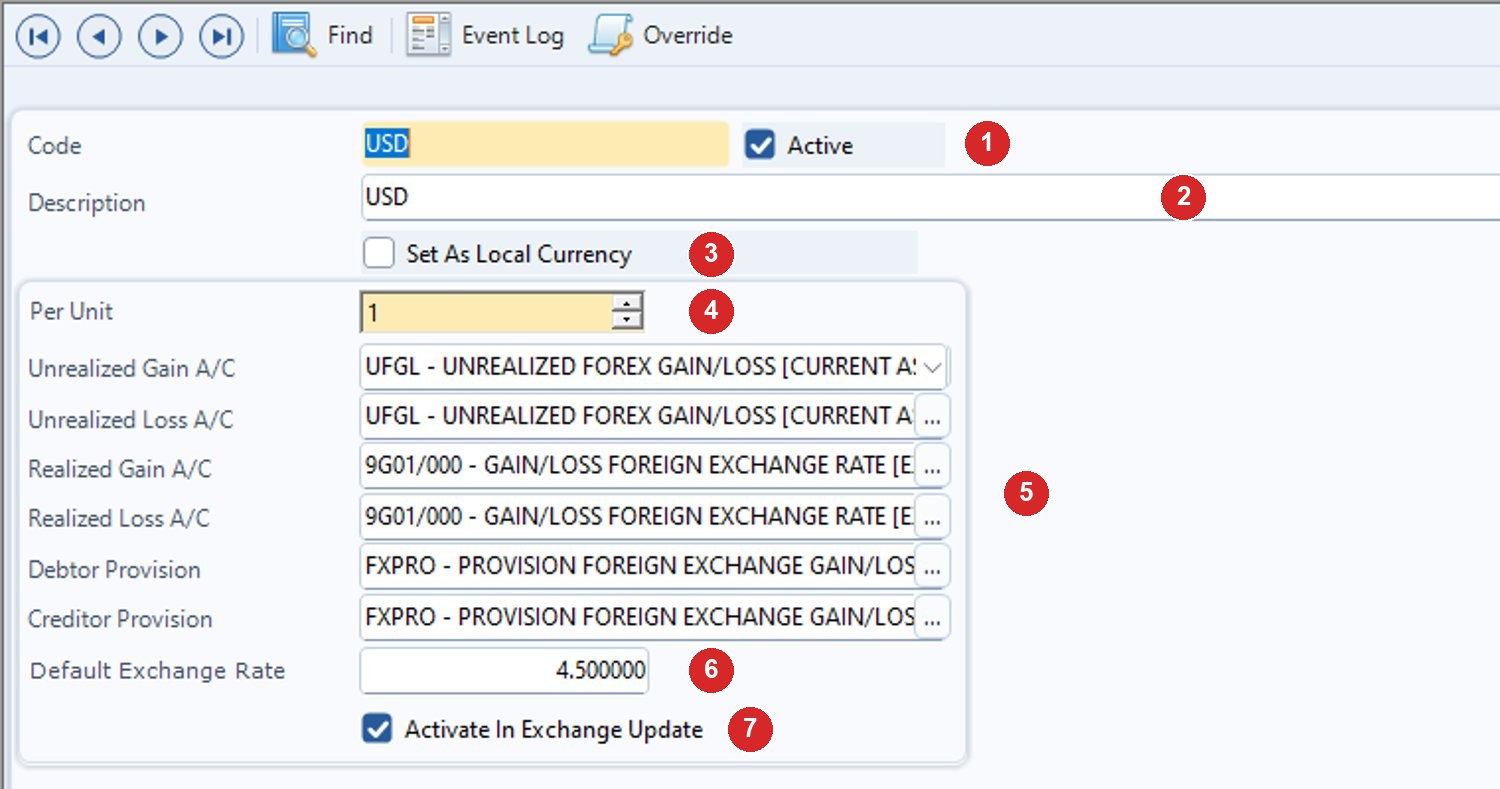
| Step | What to do |
|---|---|
| 1 | Code (here USD); untick Active to stop using it without deleting it. |
| 2 | Description. |
| 3 | Set As Local Currency only for the company’s own currency (the box below is then switched off). |
| 4 | Per Unit: how many units the rate is quoted for (for example 100 for JPY). |
| 5 | Unrealized and realized gain/loss accounts and debtor/creditor provision accounts (click a label to add an account). |
| 6 | Default Exchange Rate (here 4.500000). |
| 7 | Activate In Exchange Update: list it in Exchange Update. |
3. Open Exchange Update
Go to Main > Shared Masterfile > Exchange Update. Pick the effective date on the calendar or in the date box. Dates that already have rates are shown in bold.
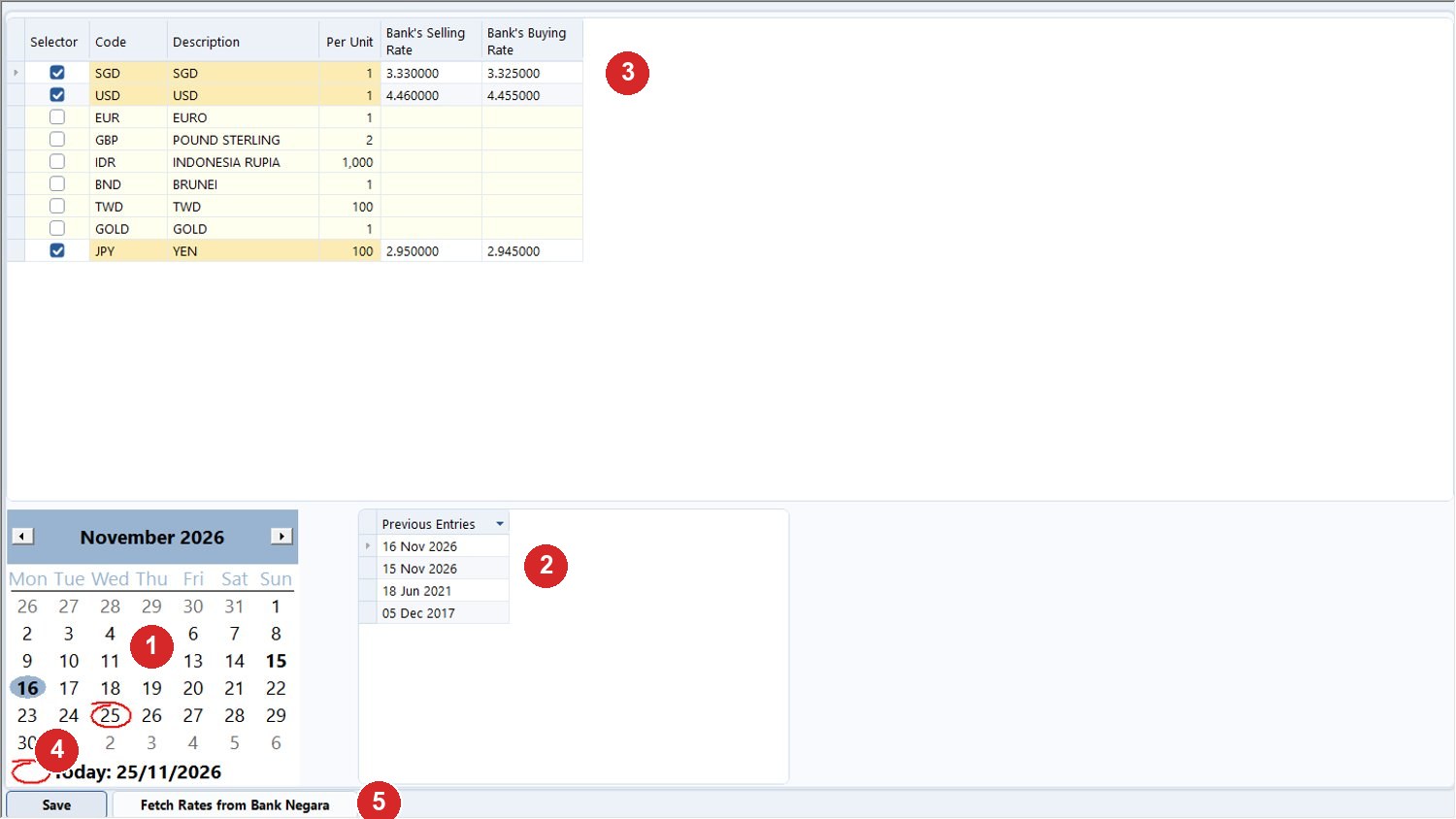
| Step | What to do |
|---|---|
| 1 | Pick the effective date on the calendar (today is circled). |
| 2 | Previous Entries: dates that already have rates (here 16 Nov 2026). |
| 3 | The grid: Per Unit, Bank’s Selling Rate and Bank’s Buying Rate for each currency ticked in Selector (here USD 4.460000 / 4.455000). |
| 4 | Click Save. Exchange Rate update saved. appears. |
| 5 | Fetch Rates from Bank Negara fills the rates in automatically. |
4. Check the figures
Check the rates, and the Unit of each currency.
Tips
- Per Unit can be set when adding a currency but is locked once the currency has been used.
- Rates from the bank are adjusted if the currency unit in the company differs from the bank’s unit, for example per 1,000 versus per 100.
- The history list shows the dates that have rates saved, newest first. Click one to jump to that date.
- Only currencies set up in the currency master appear in Exchange Update.
Common problems
Currency Code [ ] is not a valid code recognized by LHDN.
The code is not in the list of currencies accepted for e-invoicing. You can continue, but e-invoices using it may be rejected. Use the standard international currency code.
Per Unit cannot be changed.
The currency is already used in transactions, so the unit is locked.
Unable to download data.
The rates could not be fetched. Check the internet connection and try again, or type the rates manually.
A currency did not get a rate from the bank.
The bank may not list that currency. Type the rate manually.
Rates look 10 times different.
Check the unit set for the currency.