
Data Patching lists data fixes (patches) that the program can apply to existing records, and lets you run them. It is normally used after an update, or when Synergy support advises it.
Before you start
- Make a backup first (see the guide Back Up the Database), because patching changes stored data.
- Run patches only when Synergy support advised it.
Steps
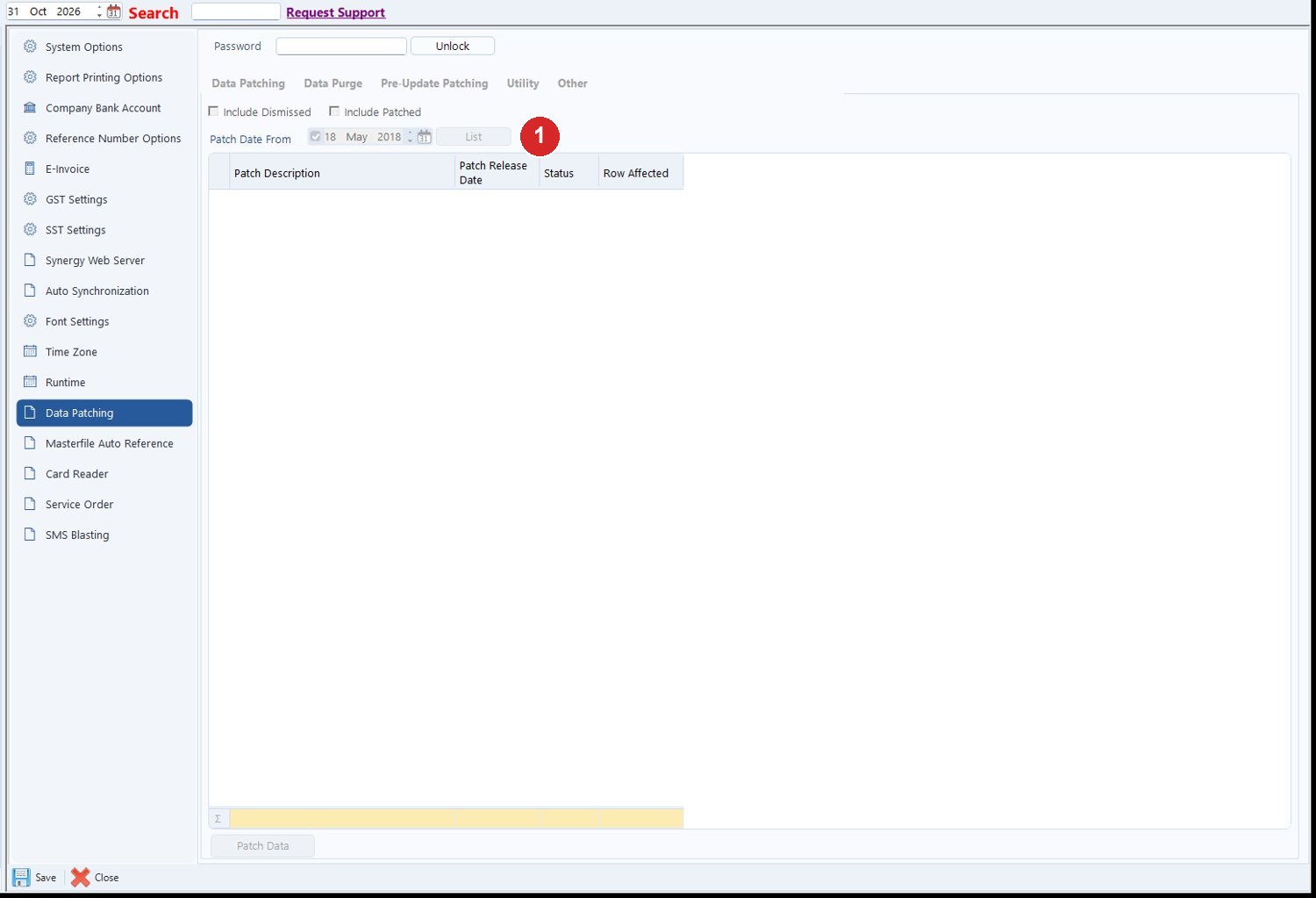
1. Open Data Patching
From the menu, go to Main > System > System Settings (Main) and select the Data Patching tab.
2. Set the start date
Set Patch Date From to the earliest date you want patches listed from.
3. Choose what to show
Tick Include Patched to also show patches that were already run. Tick Include Dismissed to also show patches that were set aside.
4. List the patches
Load the list of patches.
| Step | What to do |
|---|---|
| 1 | Click List. |
5. Run the patches
Click Patch Data and confirm Do you want to run the Patch?. If the window shows a script and asks Do you want to execute the script above?, confirm only if you were told to.
6. Read the result
Patch done : means it finished. Patch Failed : means it did not complete.
Tips
- The window may ask for a password before sensitive actions. A wrong one gives Invalid password entered.
Common problems
Patch Failed : appears.
Note the text after it and send it to Synergy support. Do not retry again and again.
The list is empty.
Move Patch Date From earlier, or tick Include Patched.