
Data Purge removes old or unwanted data in bulk. Deleted data cannot be recovered without a backup, so use it with great care.
Before you start
- Make a full backup of the data first (see the guide Back Up the Database).
- Posted transactions must be reversed before purging transactions.
- Have the password ready if the program asks for it.
Steps
1. Open Data Purge
From the menu, go to Main > System > System Settings (Main) and select the Data Purge tab.
2. Choose the group
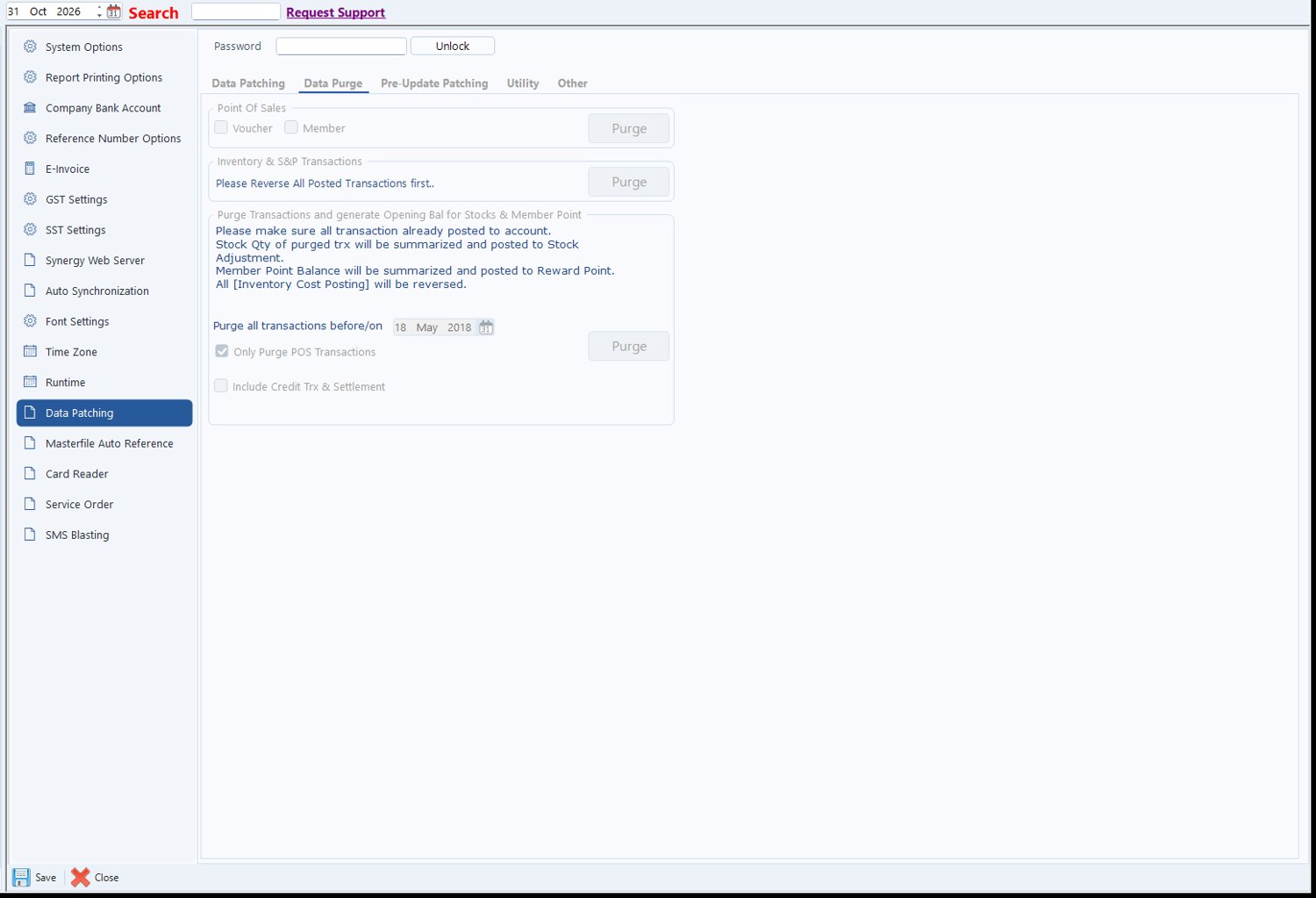
The tab has groups for Inventory Masterfile, Inventory & S&P Transactions and Point Of Sales, and a group to purge transactions and generate opening balances for stocks and member points.
3. Tick what to purge
In the group you want, tick the items to purge. Inventory Masterfile has Sub-Masterfiles and Item Masterfile. Point Of Sales has Transactions, Member and Voucher.
4. For old transactions with opening balances
In the last group, set Purge all transactions before/on to a date. You can tick Only Purge POS Transactions or Include Credit Trx & Settlement. Opening balances are created so that stock and points carry forward.
5. Click Purge
Click Purge in the group you chose.
6. Confirm
Answer Do you want to purge data? and, if asked, enter the password.
Tips
- Inventory & S&P Transactions shows the reminder Please Reverse All Posted Transactions first..
- If you are not sure what will be removed, do not go ahead. Contact Synergy support first.
Common problems
Invalid password entered.
The password for this action was wrong. Check it and try again.
The purge refuses to run.
Reverse the posted transactions first and check the password.